PathMaster-REV-L-4.5-1.pdf - 第136页
Machine Operati on Manual Revision L / February 2020 Page 136 of 20 0 The snap to tol erance is the ma ximum dis tance b etween poi nts whe re the poi nts are conside red connec ted. If the distance betwee n the po ints …
Machine Operation Manual
Revision L /
February 2020
Page 135 of 200
The final step is to export the file to a *.dxf.
5. In AutoCAD select the
File->Export
menu.
6. When the Export Data window comes up, select “Save As” Type AutoCAD
R12/LT2DXF.
7. Under the Options button make sure that the Export Format is ASCII.
8. Give the file a name and save it.
How to Import a DXF file into PathMaster
The path will be imported to a new program.
1. Select
File ->Import ->Program ->DXF File
from the main menu.
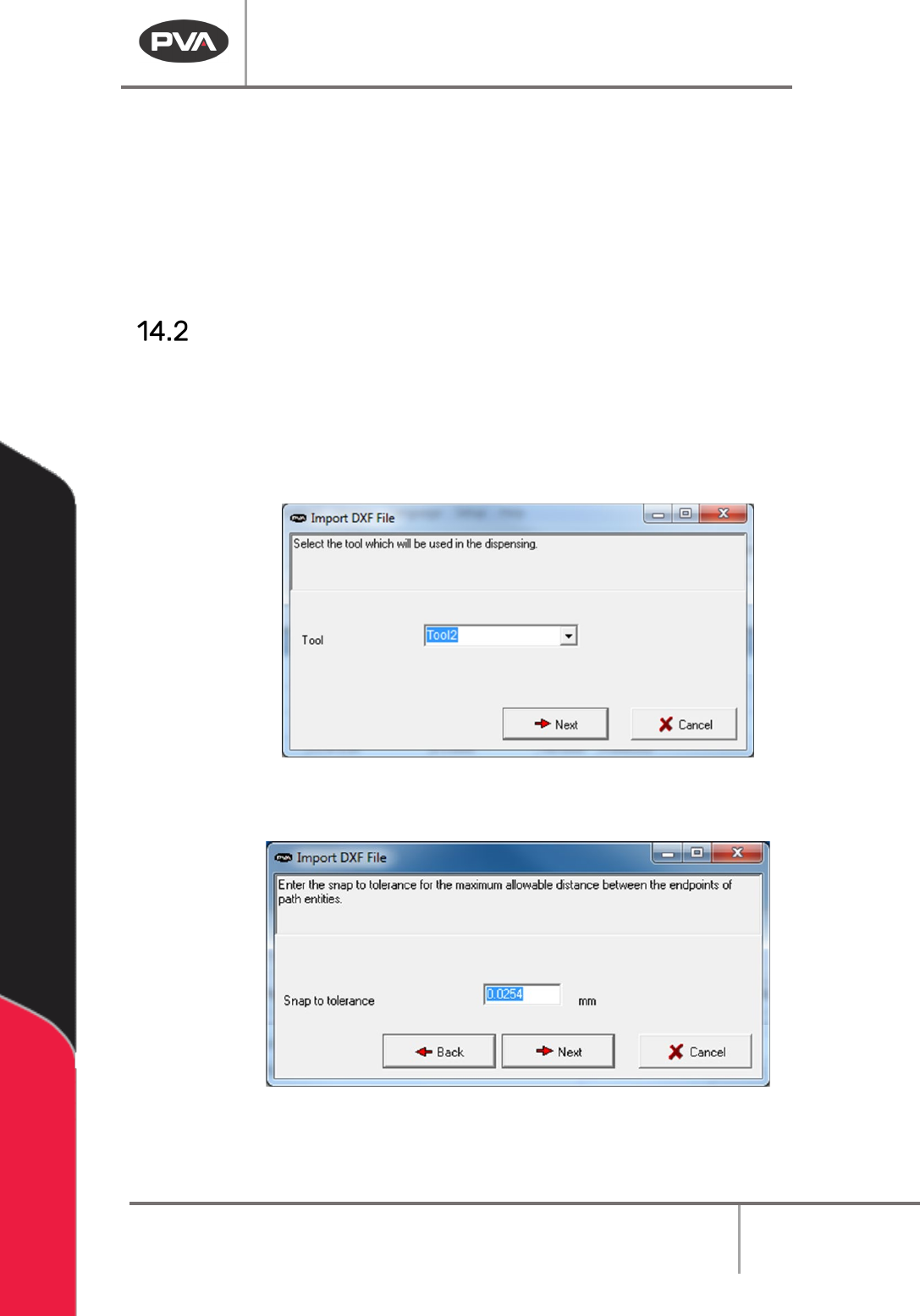
2. Select the Tool that will be used with the imported CAD file.
3. Select the “Next” button.
Figure 168: Select the Tool
4. Set the Snap to tolerance.
Figure 169: Set the Tolerance
Machine Operation Manual
Revision L /
February 2020
Page 136 of 200
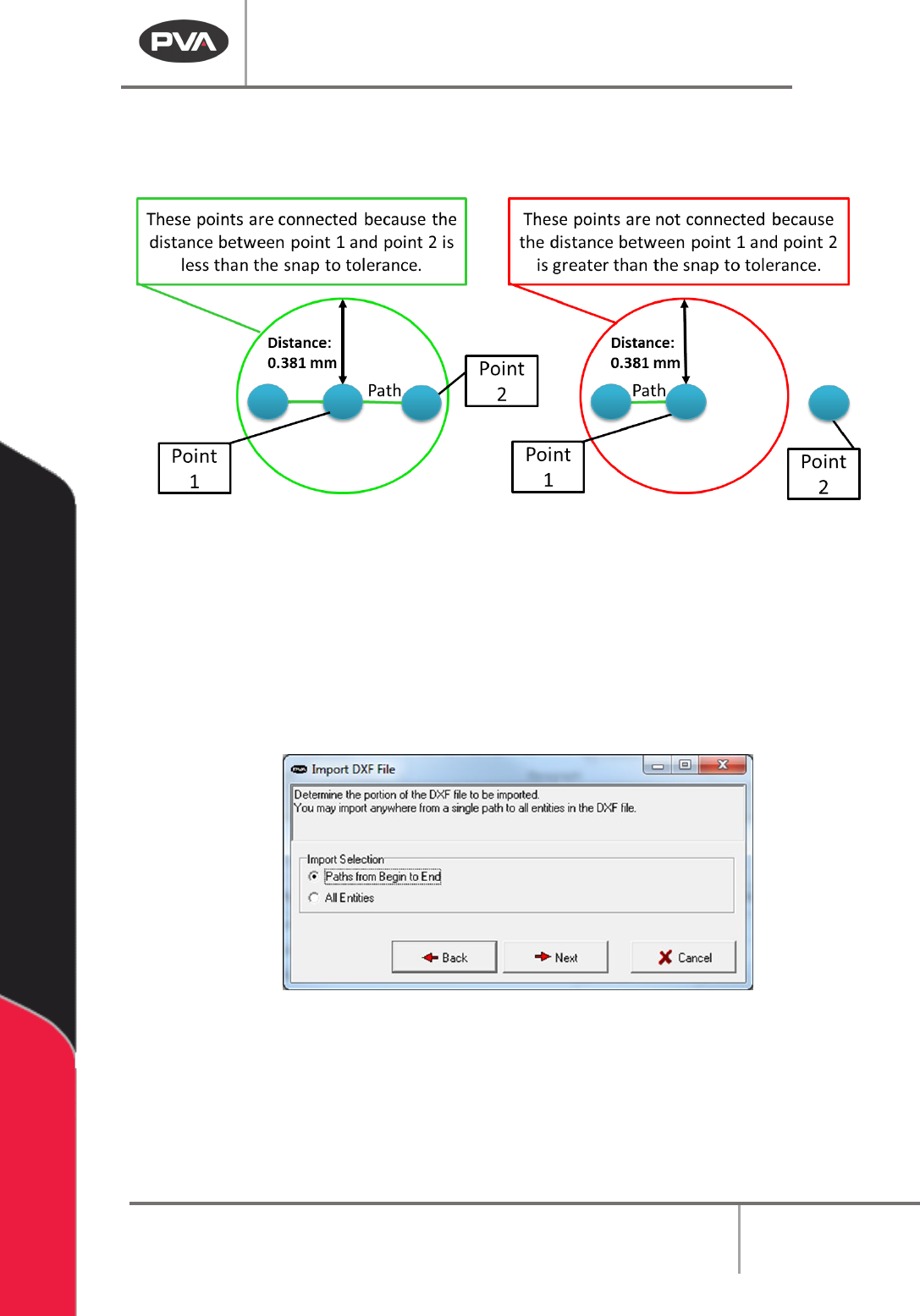
The snap to tolerance is the maximum distance between points where the points are
considered connected. If the distance between the points is more than this value the
points will not be connected.
Figure 170: Snap to Tolerance
NOTE: The snap to tolerance makes sure the translation of the drawing entities is correct.
5. Select the “Next” button.
6. Select the method of importation as either Paths from Begin to End or All Entities.
“Paths from Begin to End” will import the file as drawn, with the segment order
(BEGIN1,END1, etc.) kept as shown. “
All Entities” ignores commands for order but is useful
for large files with many paths, where each segment is not numbered.
Figure 171: Import Method
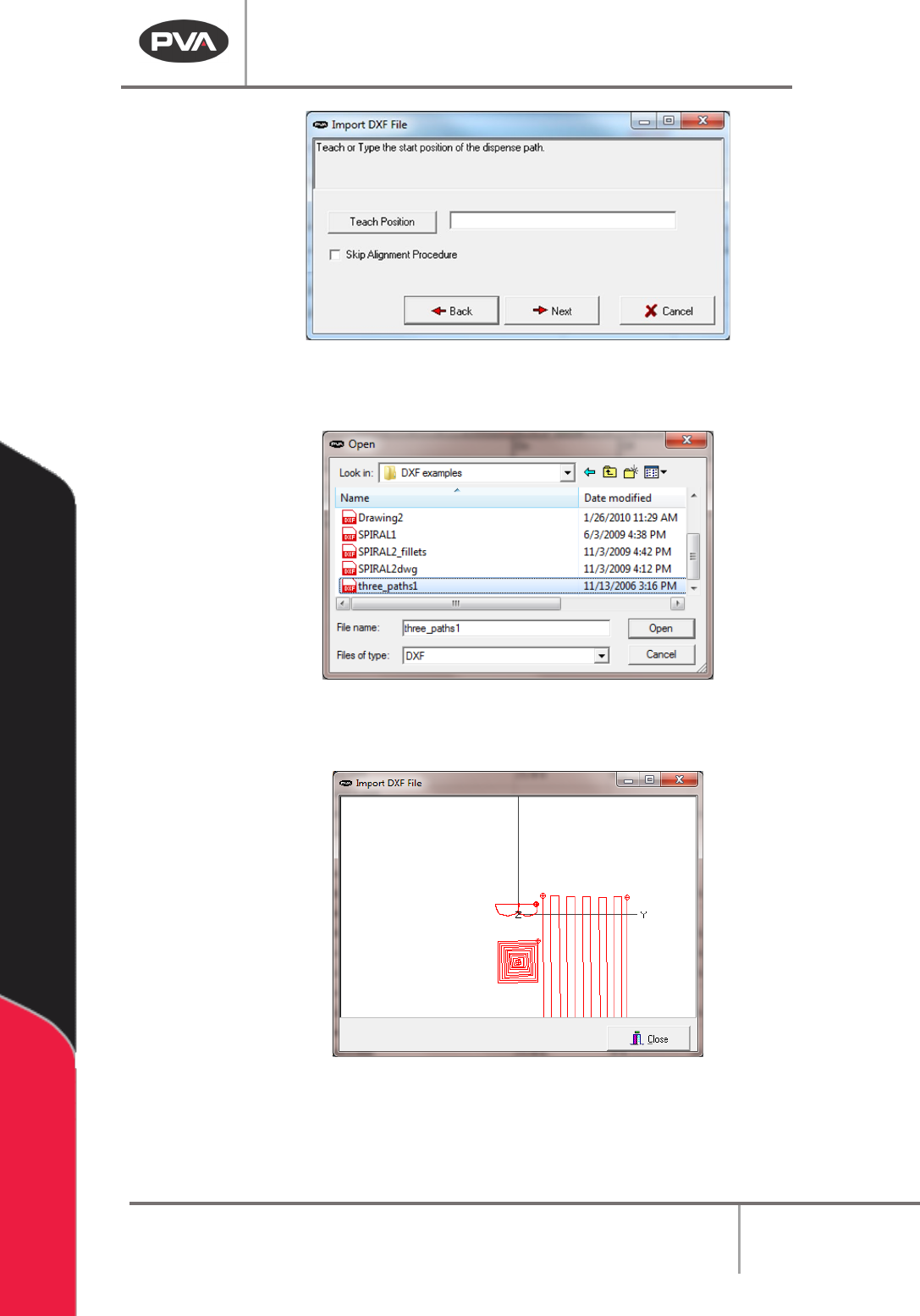
7. Teach the start point of the path. You can use the teach pendant or type the
position.
8. Select “Next”.
Machine Operation Manual
Revision L /
February 2020
Page 137 of 200
Figure 172: Teach the Start Point
9. Select the file to import.
Figure 173: Import Flies
After a successful import the path will be displayed in a path preview window.
Figure 174: Path Preview
The file will be imported as individual paths (Line, Arc, etc.). The paths are ready for
playback or may be made into a Polyline.