PathMaster-REV-L-4.5-1.pdf - 第108页
Machine Operati on Manual Revision L / February 2020 Page 108 of 200 Surf ace Heig ht ( DMC 4 000) The Surface Height co mmand is u sed to teac h surface s used in Poly Lines. T he surface s should be ru n in order, t o …
Machine Operation Manual
Revision L /
February 2020
Page 107 of 200
9. Set the Tool On to “Wait” or “Distance” and set the time or distance in the box.
10. Set the Tool Off to “Wait” or “Distance” and set the time or distance in the box.
11. Set the Line Spacing.
12. Set the Direction to “In” or “Out”.
13. Select “Done” to save the changes or “Cancel” to exit and not save changes.
14. To edit a rectangular spiral, double click on the path and change the command in
the edit window. Refer to Section 7.5.
Machine Operation Manual
Revision L /
February 2020
Page 108 of 200
Surface Height (DMC 4000)
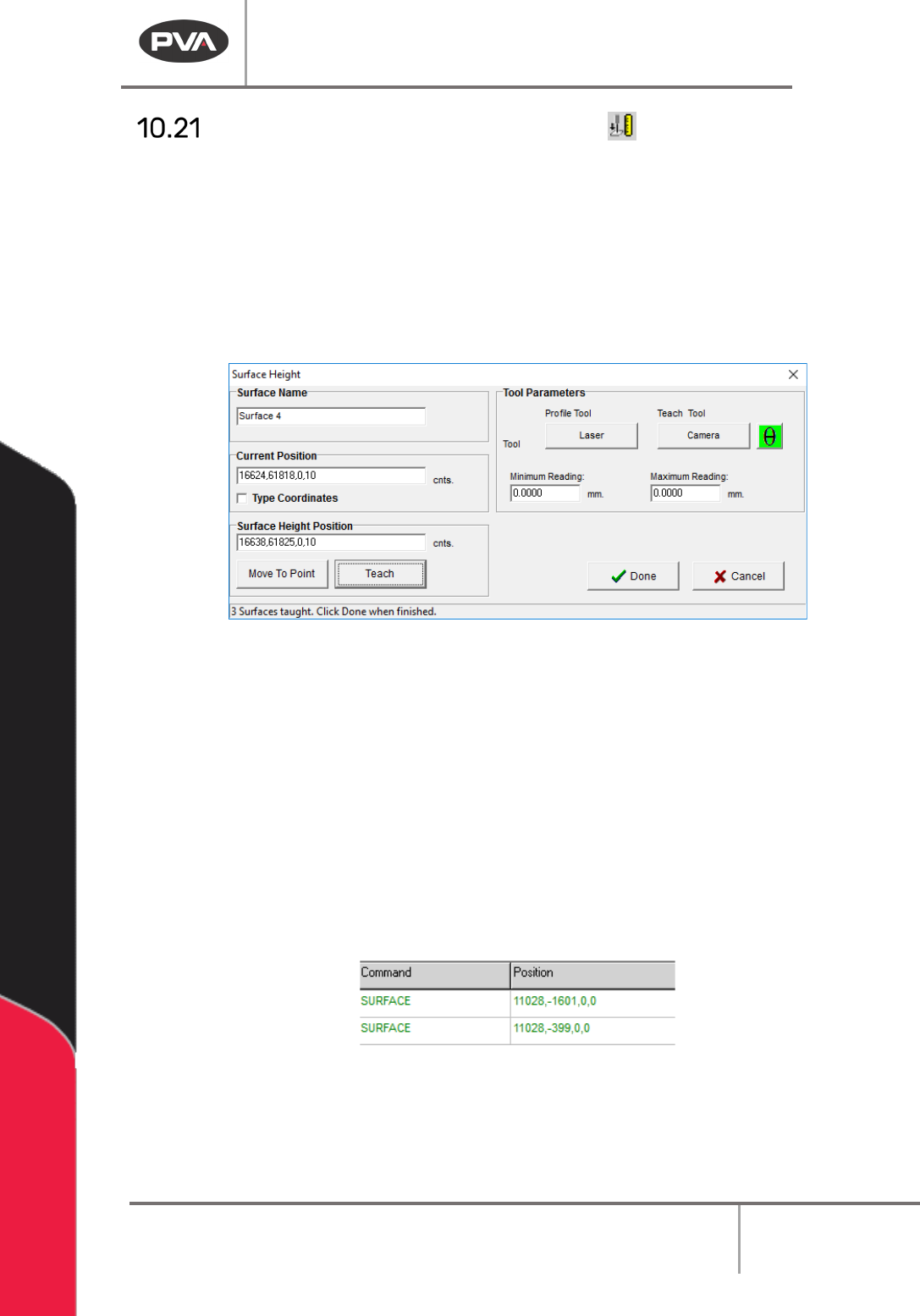
The Surface Height command is used to teach surfaces used in PolyLines. The surfaces
should be run in order, to count the different surfaces before the related paths are run. The
process is similar to fiducials.
1. Click on the surface height icon in the Programming Toolbar to open the surface
height interface.
2. Use the tool parameters subsection to find the necessary profile tool and teach tool
to teach surfaces for the current product.
Figure 130: Surface Height Teach Interface
3. If necessary, set a min/max for each surface height in the surface height teach
interface (in the tool parameters window). With these values, the machine can make
sure a part is within a set tolerance for a surface height reading. This reading can be
seen in the Portal front panel.
NOTE: After a Surface Height call, if the Profile Tool selected is on the head on a Z-Slide,
the user must program the necessary Tool Command to retract the Z-Slide.
NOTE: In Autocycle, if a part fails a surface height you can try again.
4. The Surface Name can be changed to any unique name on a per-program basis.
5. If necessary, use the Theta button to rotate the W-axis to the correct position.
Figure 131: Surface Command in Path Program
6. Click “Teach” to set the Surface Height Position for the height check.
7. Click “Done” to save the point and return to the main PathMaster® screen.
8. Repeat the Procedure to teach as many Surface Height Checks as necessary.
Machine Operation Manual
Revision L /
February 2020
Page 109 of 200
Run Selection / Sequence
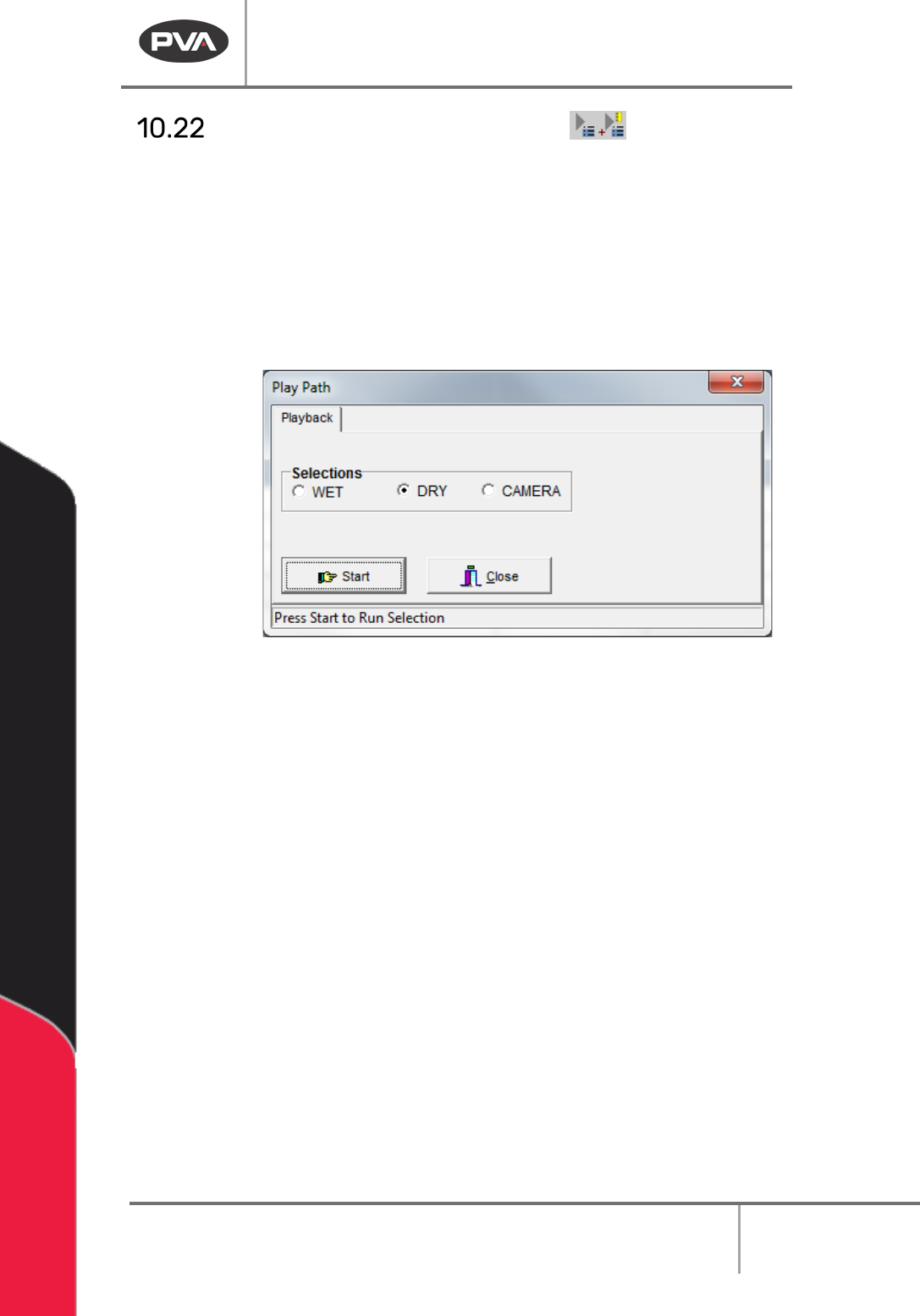
The Run Selection function will play back the selected path segments in Wet, Dry or
Camera mode. Run Sequence always plays the entirety of the Path Program.
1. Select one or more commands.
2. Select the Run Selection function to play the highlighted commands or Run
Sequence to play all of the current Path Program.
6. Select “Wet”, “Dry”, or “Virtual Tool 0”. The name for the third option will be the
name of Virtual Tool 0.
Figure 132: Playback
3. Select “Start” to play the highlighted commands.
4. Select “Close” to exit and not play the path.