PathMaster-REV-L-4.5-1.pdf - 第195页
Machine Operati on Manual Revision L / February 2020 Page 195 of 20 0 Bond Manager After all of the Bond Se tup plugin s have been r un, the path te mplate v alues have b een set for your part s and the p art inspec tion…
Machine Operation Manual
Revision L /
February 2020
Page 194 of 200
Path Template
After the Setup plugins for bonding are done, the next step to make a new bonding routine
is to go through the Path template and set the values for your specific parts. Refer to the
Bonding Path Template for more information.
NOTE: When possible, please use part and material values from the manufacturer.
1. Make sure the Path Template values are in the correct order with the correct values
set.
• Set part dimensions.
• Teach the part pick offset.
• Set the part thickness.
2. Highlight the section of the path that includes all of the above commands.
3. Run the highlighted section of the path.
After the you have successfully run this section of the path, continue to program the
following sections.
• Program the part inspection (Substrate). Double click on this in the Path
Template and the plugin will open.
• Program the part inspection (Component). Double click on this in the Path
Template and the plugin will open.
• Measure the Component height. Double click on this in the Path Template and
the plugin will open.
• Program the part pick. Double click on this in the Path Template and the plugin
will open.
• Program the underside dispense. This must be taught to the bare pick tool.
• Program the dog bone dispense. This must be taught to the bare datum.
• Teach the prebonding move. Double click on this in the Path Template and the
plugin will open.
When you have completed these steps continue to the Bond Manager section (24.4).
Machine Operation Manual
Revision L /
February 2020
Page 195 of 200
Bond Manager
After all of the Bond Setup plugins have been run, the path template values have been set
for your parts and the part inspection has passed, you can use the bond manager to create
the Bond Manger recipe.
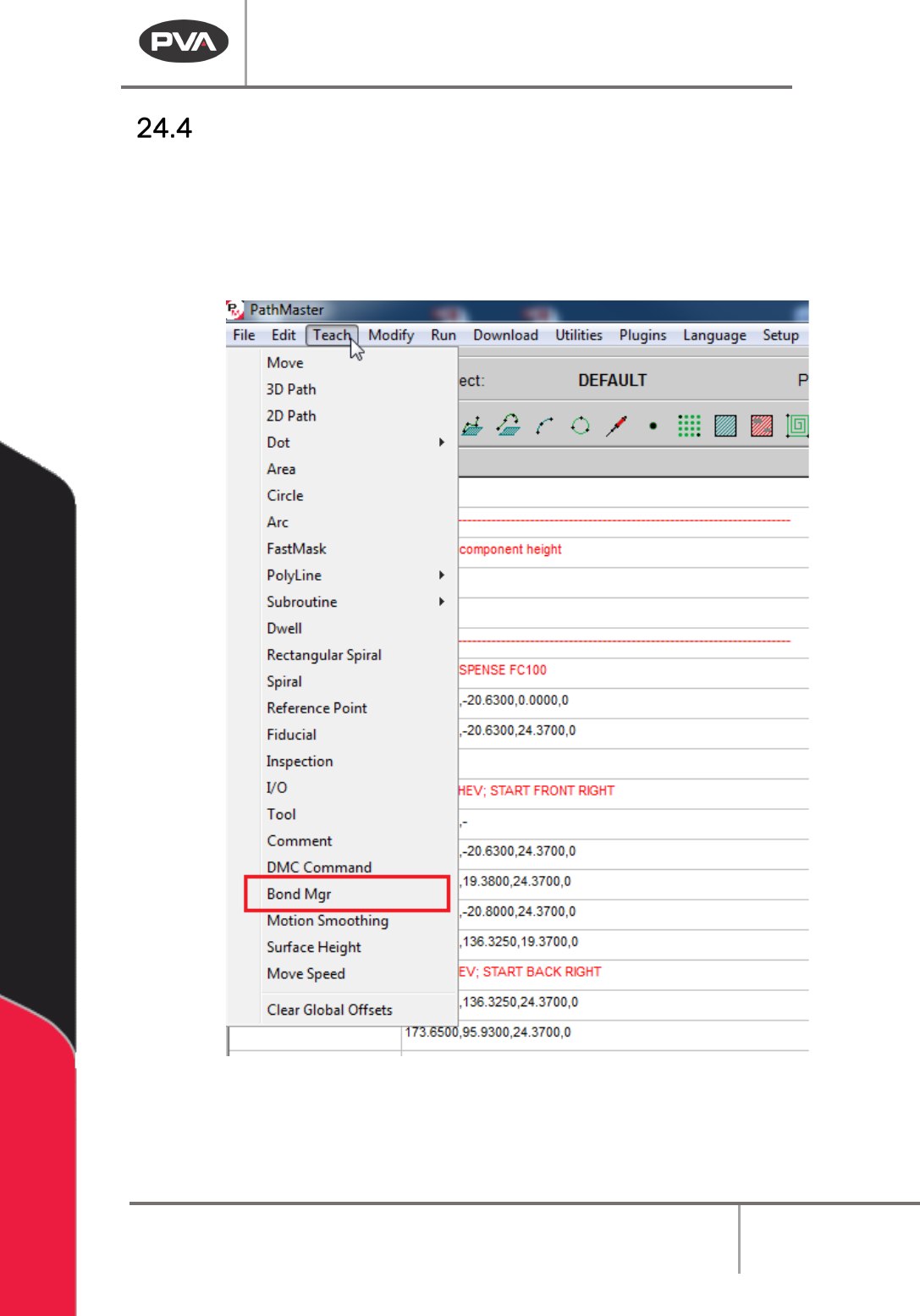
1. Select
Teach->Bond Mgr
from the main menu.
Figure 219: Teach Menu, Bond Manager
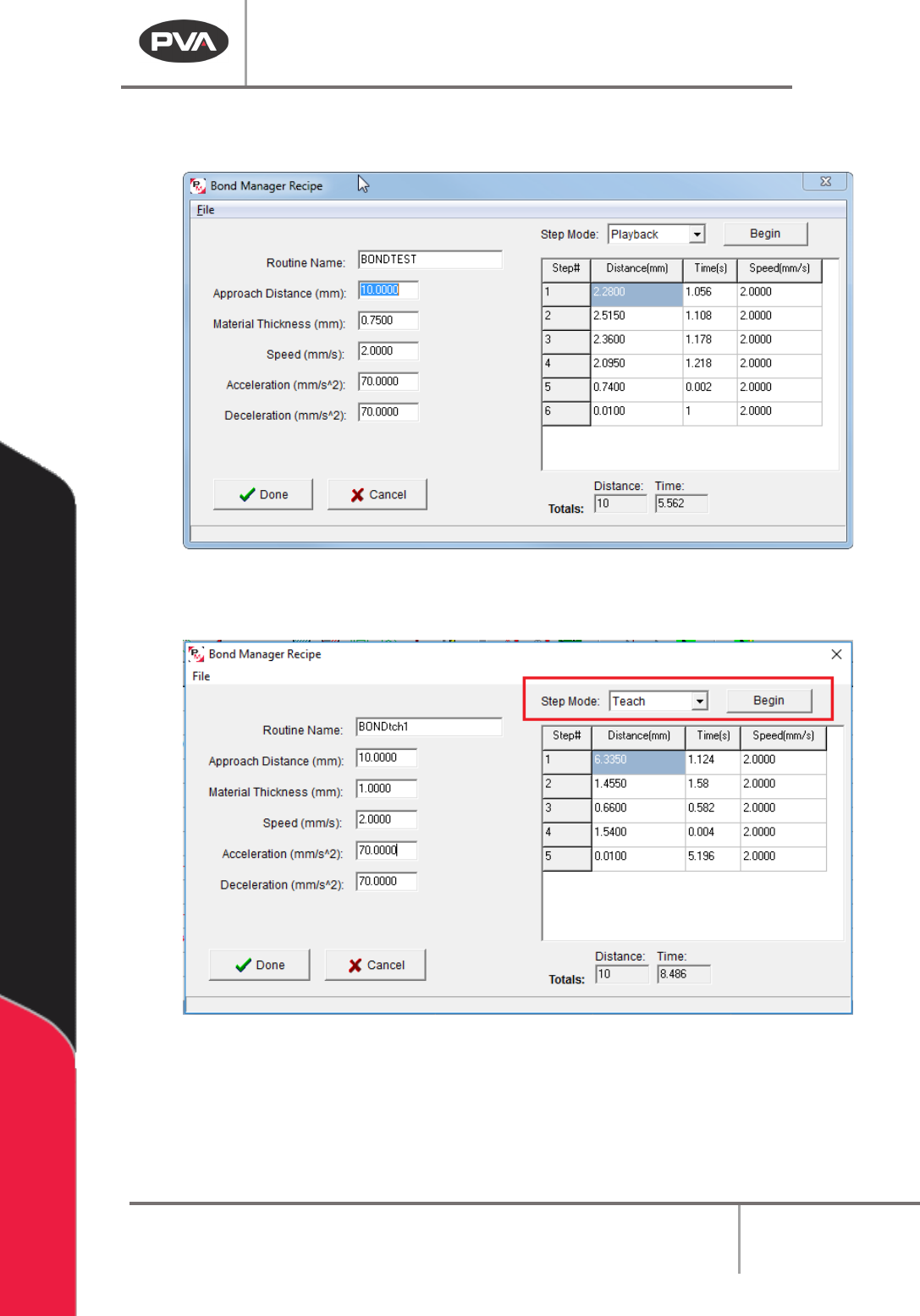
2. The bond manager window will open. Set the Routine Name.
Machine Operation Manual
Revision L /
February 2020
Page 196 of 200
3. Set the values for Approach distance, Material Thickness, Speed, Acceleration, and
Deceleration.
Figure 220: Bond Manager Recipe
4. Make sure Setup Mode is set to “Teach” and Select the “Begin” button.
Figure 221: Bond Manager "Begin"
The Initializing screen will be shown.