PathMaster-REV-L-4.5-1.pdf - 第45页
Machine Operati on Manual Revision L / February 2020 Page 45 of 200 NOTE: For a tool to show up in the tool selec tion list, the “Needle Calibra tion” checkbox needs to be checke d in the Tool Co nfiguration wind ow, whi…
Machine Operation Manual
Revision L /
February 2020
Page 44 of 200
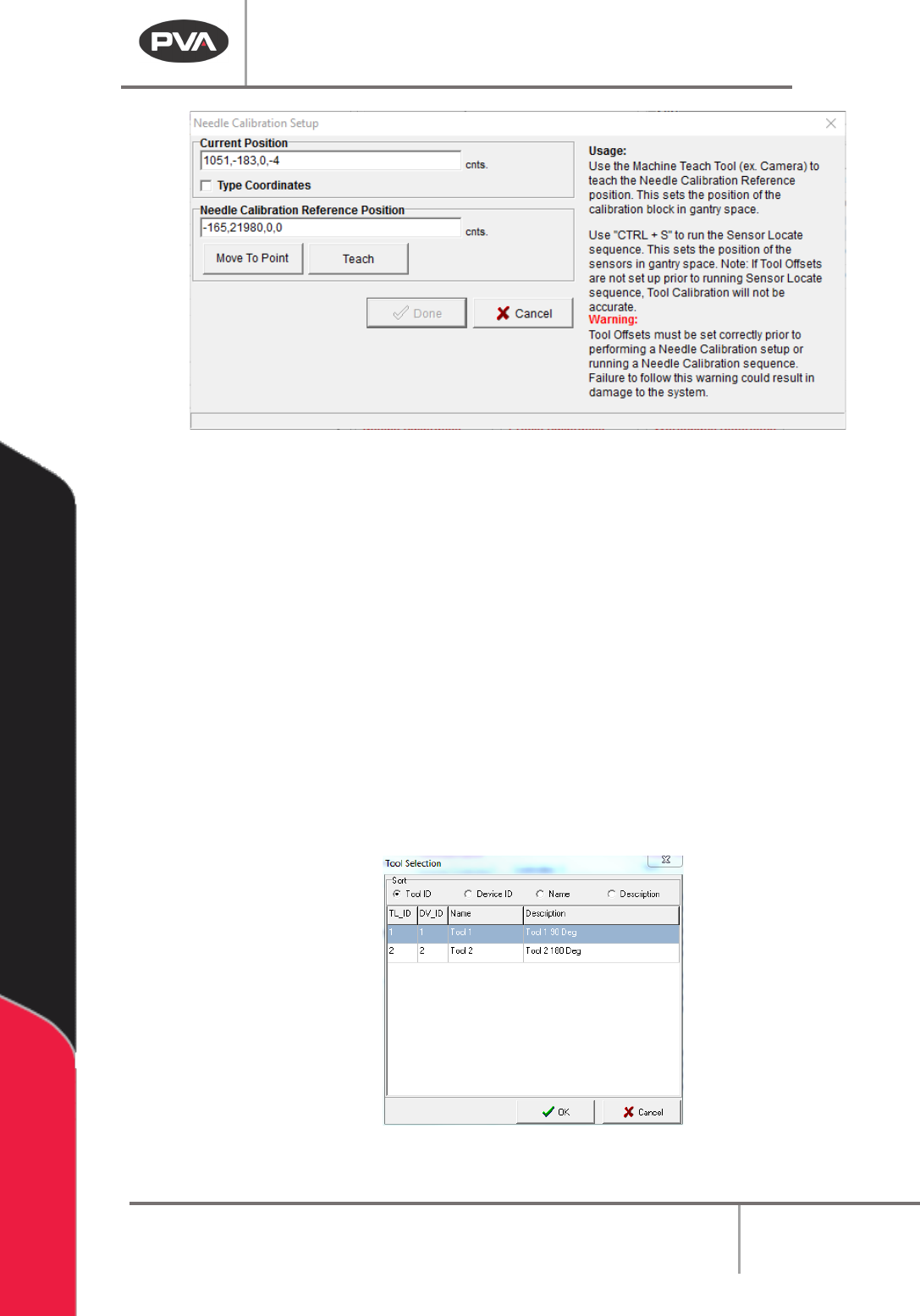
Figure 35: Needle Calibration Setup Window
3. Click the “Move To Point” button to move to the last programmed needle calibration
reference position.
4. Next, push “CTRL + S” on the keyboard to run the needle calibration Sensor Locate
sequence. It is not necessary to run this every time a needle calibration reference is
set, but it must be done initially and if the sensor is damaged or replaced. This
sequence establishes the X, Y, Z relationship of each sensor as it relates to the
crosshair on the needle calibration unit. The tool offsets and needle calibration
reference position are combined with relative sensor locations to find each tool in
the needle calibration unit.
5. Push “Ctrl + S” on the keyboard to run needle calibration Sensor Locate sequence.
6. The first time the sensor locate sequence runs, the user will be shown a list of tools.
Select the tool that will be used for the sensor locate sequence. The selection is
saved and the prompt will not be shown again.
Figure 36: Tool Selection
Machine Operation Manual
Revision L /
February 2020
Page 45 of 200
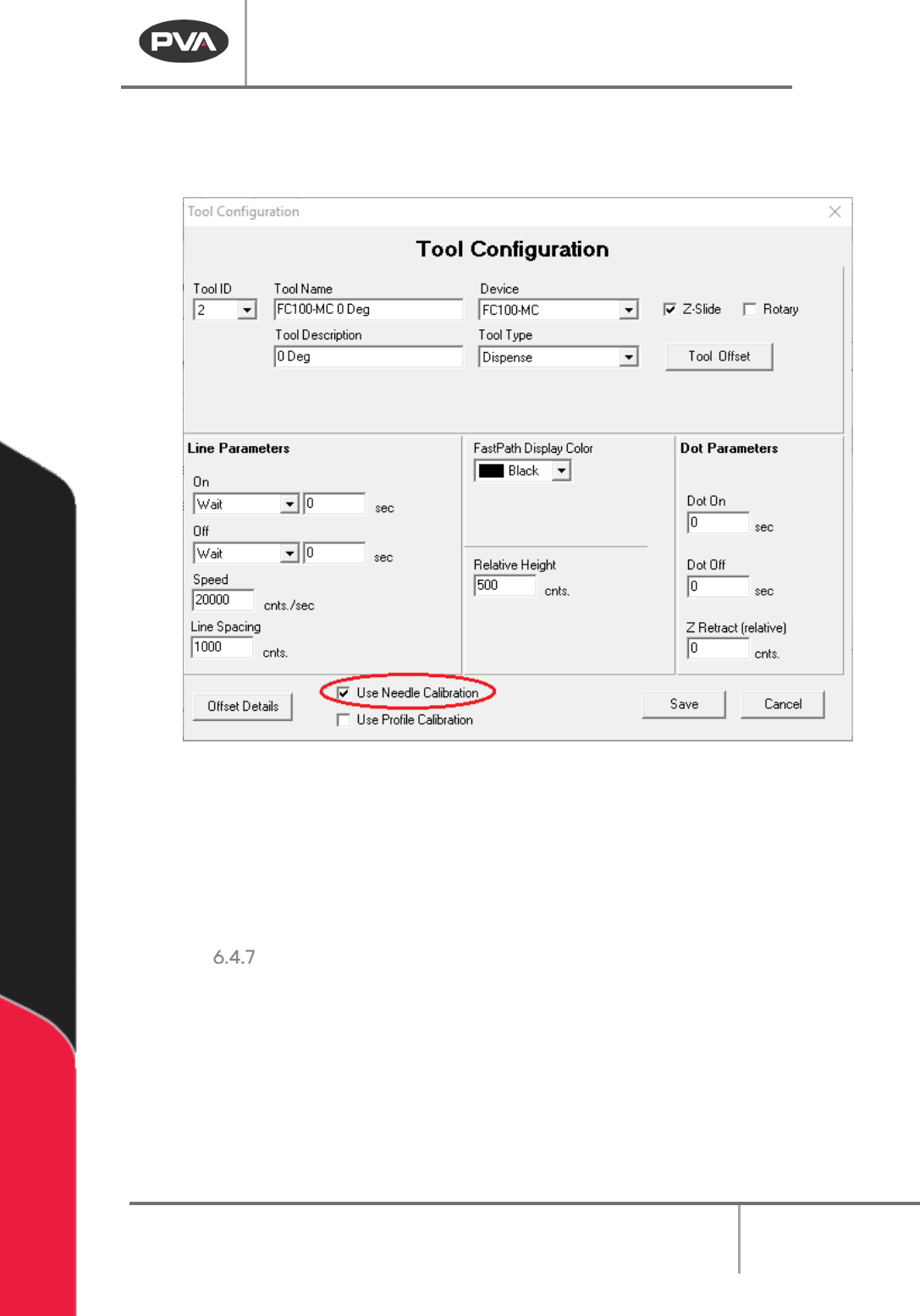
NOTE: For a tool to show up in the tool selection list, the “Needle Calibration” checkbox
needs to be checked in the Tool Configuration window, which is hidden if the tool type is
either Teach Tool or Profile Tool.
Figure 37: Use Needle Calibration Checkbox
NOTE: It is not necessary to run the Sensor Locate Sequence again unless the position of a
sensor relative to the needle calibration cross hair changes, such as if the needle
calibration circuit board is replaced or is damaged.
7. When the needle calibration reference position has been taught, select the “Done”
button, or select
“Cancel” to exit and not save changes.
Profile Calibration
Height profiling (new in PathMaster 4.3) uses two height-reading devices, with the polyline
programming tool, to adjust the Z-height of dispenses on parts based on surface readings
done at the start of the path program. One height reading device is mounted inside the
machine at a fixed location, facing up, called the Profile Base, the second is mounted on
the gantry and is either at a fixed Z-height or moves along the Z-axis, and is called the
Profile Tool.
Machine Operation Manual
Revision L /
February 2020
Page 46 of 200
WARNING: The tool offsets must be configured before Profile Calibration is set up. If Tool
Offsets are not configured correctly, the system could be damaged when the Profile
Plunger Locate Sequence is run.
• To setup height profiling, it is necessary that all tool offsets are correctly set up,
that Needle Calibration Setup is complete (if applicable), and that a tool is set up
with the tool type of “Profile Tool” in Machine Parameters.
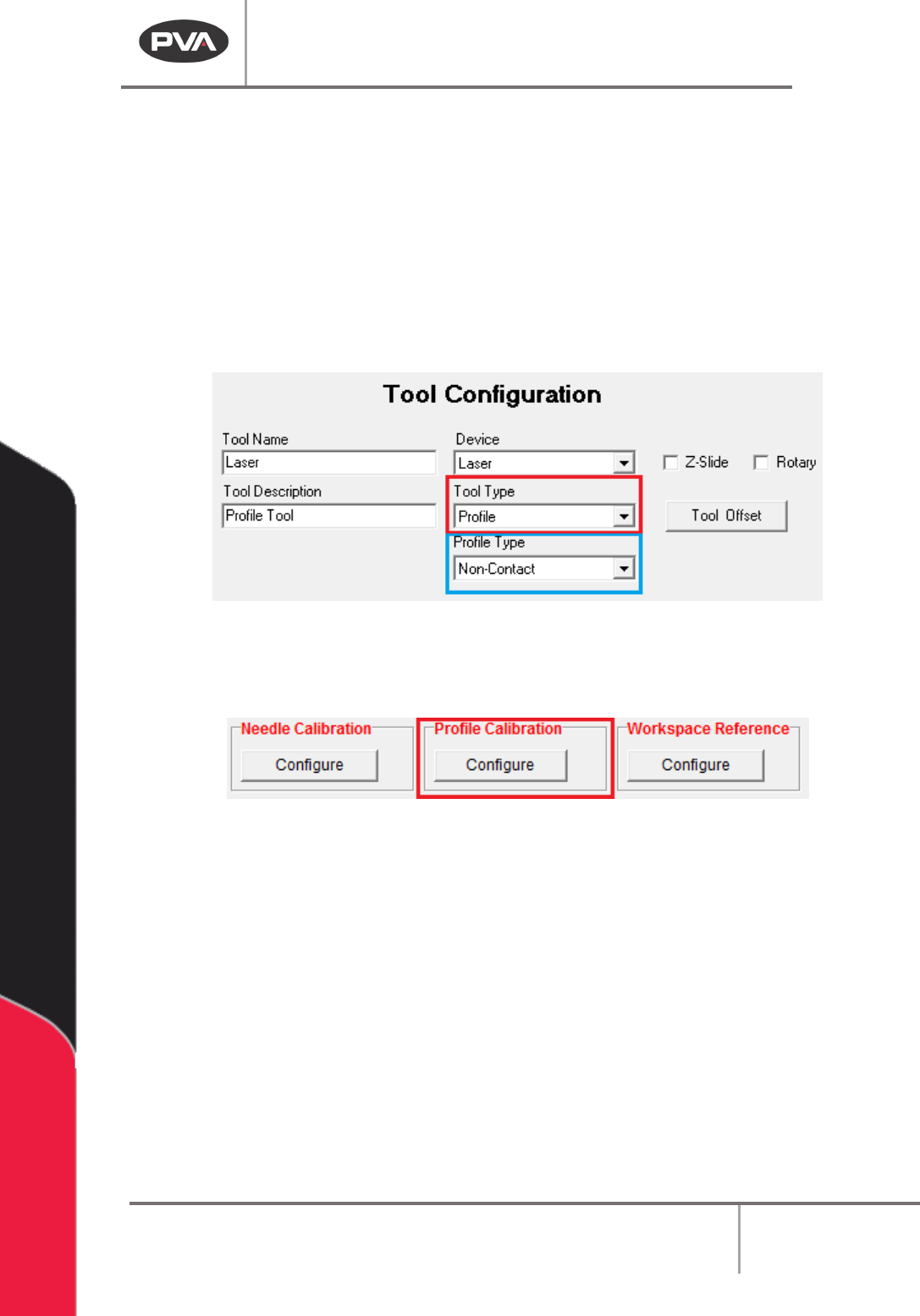
• When Setting up a Profile Tool Type, a second selection box is shown for the Profile
Type: Non-Contact or Contact. A selection must be made for correct operation of
the Profile Tool.
Figure 38: Profile Tool Type and Profile Type Selection
1. After the setup is complete, click “Configure” underneath Height Profiling in the
Machine Parameters window to open Profile Calibration Setup.
Figure 39: Height Profiling
2. To set the Profile XY Reference Position, line the teach tool up with a point on the
Profile Base and select the “Teach” button. Click the “Move To Point” button to
move to the last programmed Profile XY Reference position.