PathMaster-REV-L-4.5-1.pdf - 第96页
Machine Operati on Manual Revision L / February 2020 Page 96 of 200 D ot This functi on teache s a timed di spense o ver a coordi nate poin t. Figure 1 11 : Progr ammed Dot Com mand 1. Select the D ot functio n. 2. Teach…
Machine Operation Manual
Revision L /
February 2020
Page 95 of 200
Tool
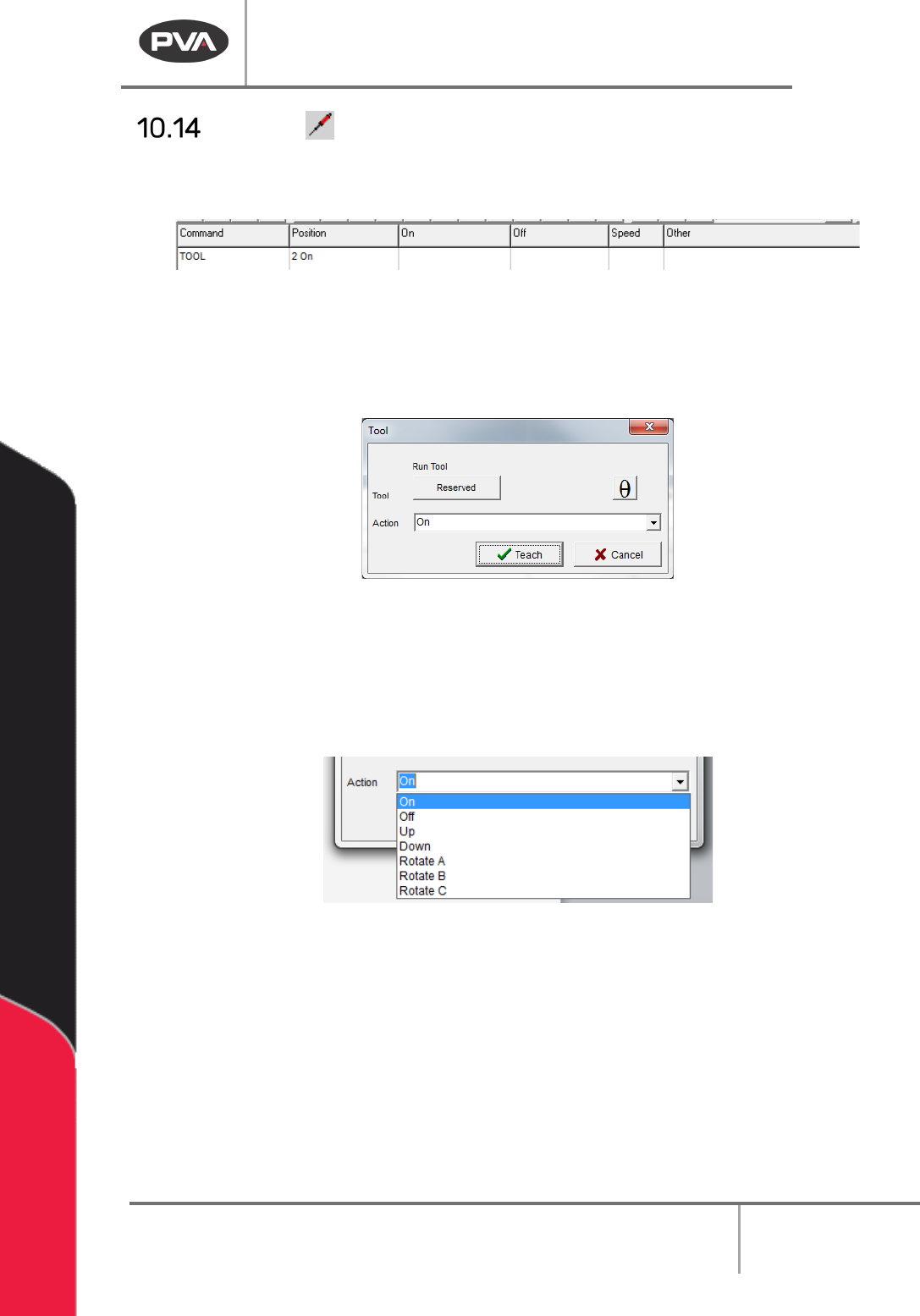
With this tool the user can enter a tool (tool) command into the edit window. Only tools that
are configured in machine parameters are shown in this window.
Figure 108: Programmed Tool Command
1. Select the Tool function.
2. Select the Run Tool.
3. Select (double click) the necessary tool from the window. Refer to Figure 68.
Figure 109: Tool Window
4. Select “θ” to move the selected tool to the calibrated W-axis position (theta).
NOTE: The “θ” button will only be available on 4-axis machines. When you use the “Teach
Tool” (virtual tool 0) it is not necessary to select this button.
5. Select the Action from the dropdown menu.
Figure 110: Tool Dropdown Menu
6. Select “Teach” to save the command, or “Cancel” to exit and not save the
command.
7. To edit a tool command, double click on the tool command in the program table to
open the Tool Command window.
Pneumatic positions (tool up/down, rotary selection) are not automatically programmed by
PathMaster®. The operator must select the correct tool in PathMaster® and put the
necessary pneumatic commands in the program after a path has been completed. Refer to
Section 10.14 for more information.
Machine Operation Manual
Revision L /
February 2020
Page 96 of 200
Dot
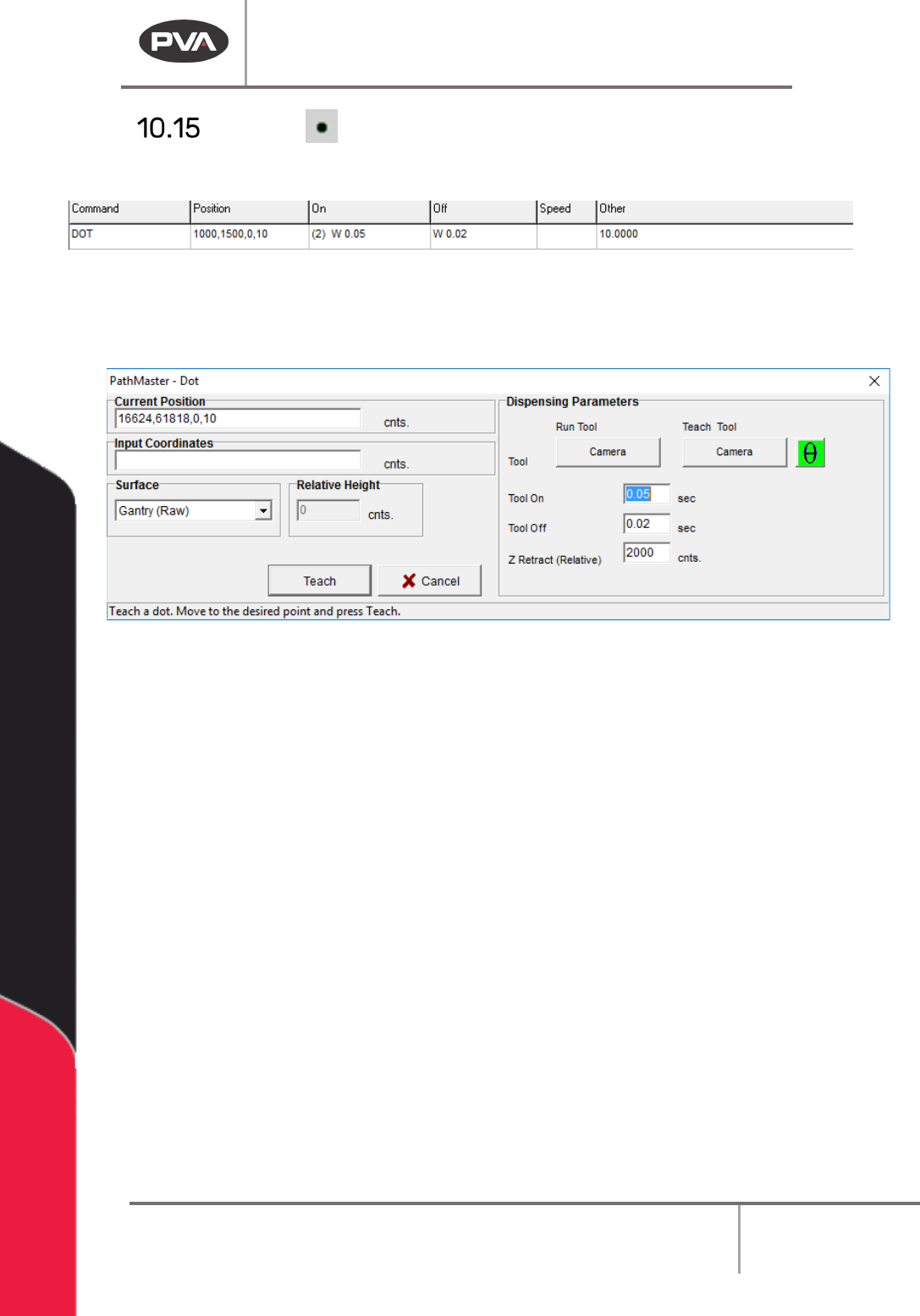
This function teaches a timed dispense over a coordinate point.
Figure 111: Programmed Dot Command
1. Select the Dot function.
2. Teach the point with the teach pendent or input the coordinates.
Figure 112: Teach Dot
3. Select the Run Tool. Select (double click) on the necessary tool from the window.
Refer to
Figure 68.
4. Select the Teach Tool if necessary. Select (double click) the necessary tool from the
Tool Selection window. Refer to
Figure 68.
5. Select “θ” to move the selected tool to the calibrated W-axis position (theta).
NOTE: The “θ” button will only be available on 4-axis machines. When you use the “Teach
Tool” (virtual tool 0) it is not necessary to select this button.
6. Select the Surface from the drop-down menu. In some units, you can set the
Relative Height.
7. Make sure the Z Retract value is correct.
8. To edit the dot, double click on the path and change the command in the edit
window. Refer to Section 7.5.
Machine Operation Manual
Revision L /
February 2020
Page 97 of 200
Dot Array
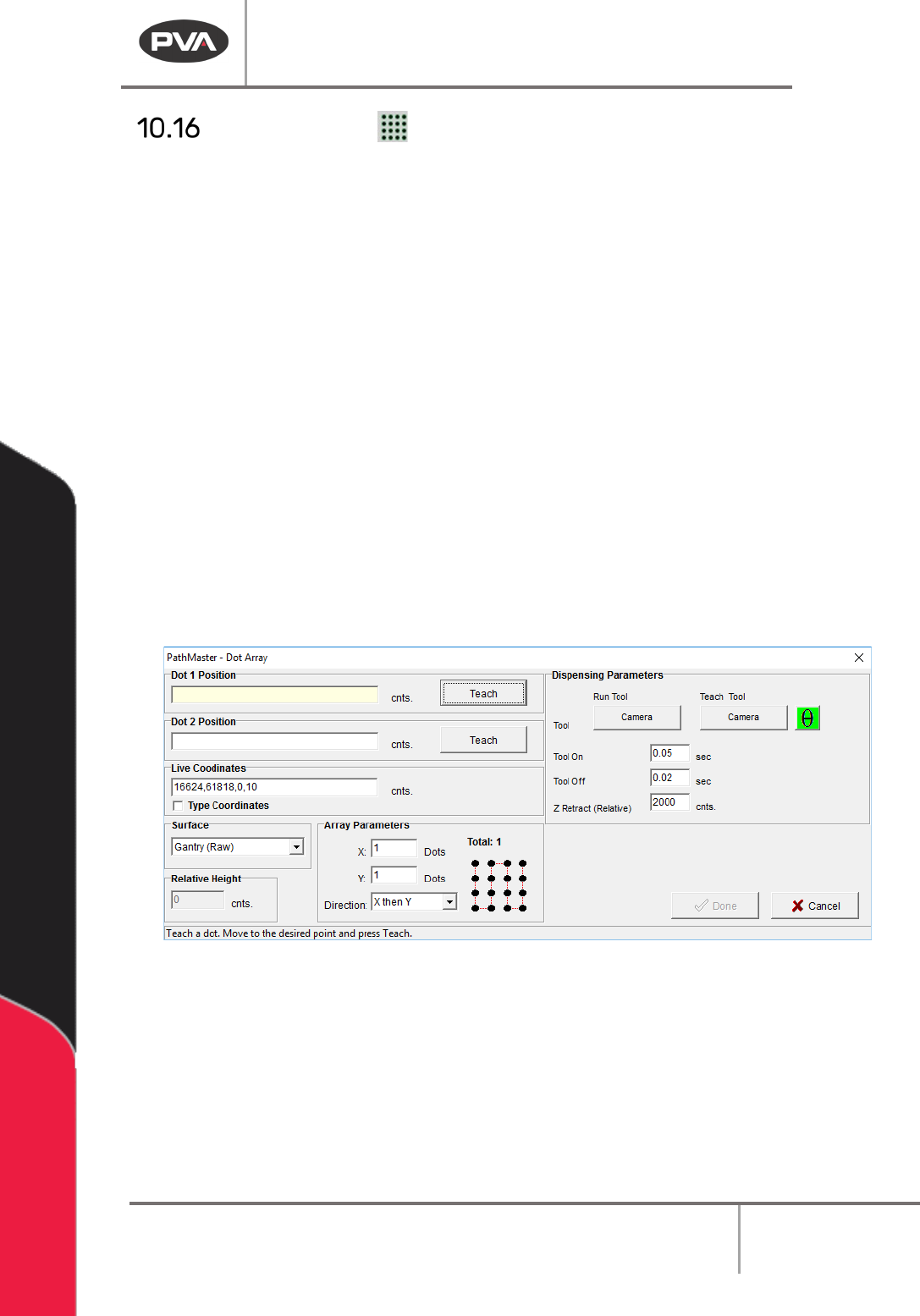
Select any two corners of the array to create the array. The order the dots are taught
determines the direction of the array. The program will automatically calculate the number
of dots and the row spacing based on the set values.
1. Select the Dot Array function.
2. Select the Run Tool. Select (double click) on the necessary tool from the window.
Refer to
Figure 68.
3. Select the Teach Tool if necessary. Select (double click) the necessary tool from the
Tool Selection window. Refer to
Figure 68.
4. Select “θ” to move the selected tool to the calibrated W-axis position (theta).
NOTE: The “θ” button will only be available on 4-axis machines. When you use the “Teach
Tool” (virtual tool 0) it is not necessary to select this button.
5. Select the Surface from the drop-down menu. In some units, you can set the
Relative Height.
6. Set the Tool On and Tool Off settings in seconds. Use the keyboard to type the
values.
7. Set the Z Retract (Relative) setting in counts. Use the keyboard to type the value.
Figure 113: Create Dot Array
8. Set the number of dots for the X-axis.
9. Set the number of dots for the Y-axis.
10. Set the Direction for the dot array from the drop-down menu, either “X then Y” or “Y
then X”.
11. Teach the Dot 1 position. Move to the necessary position and select “Teach”. In the
example, this is the top left-hand corner of the array.