PathMaster-REV-L-4.5-1.pdf - 第50页
Machine Operati on Manual Revision L / February 2020 Page 50 of 200 D evic es PathMaster® can have up t o 15 devices configured if th e teach tool is enabled. A ll Devices are physical tools in t he system. Devices are u…
Machine Operation Manual
Revision L /
February 2020
Page 49 of 200
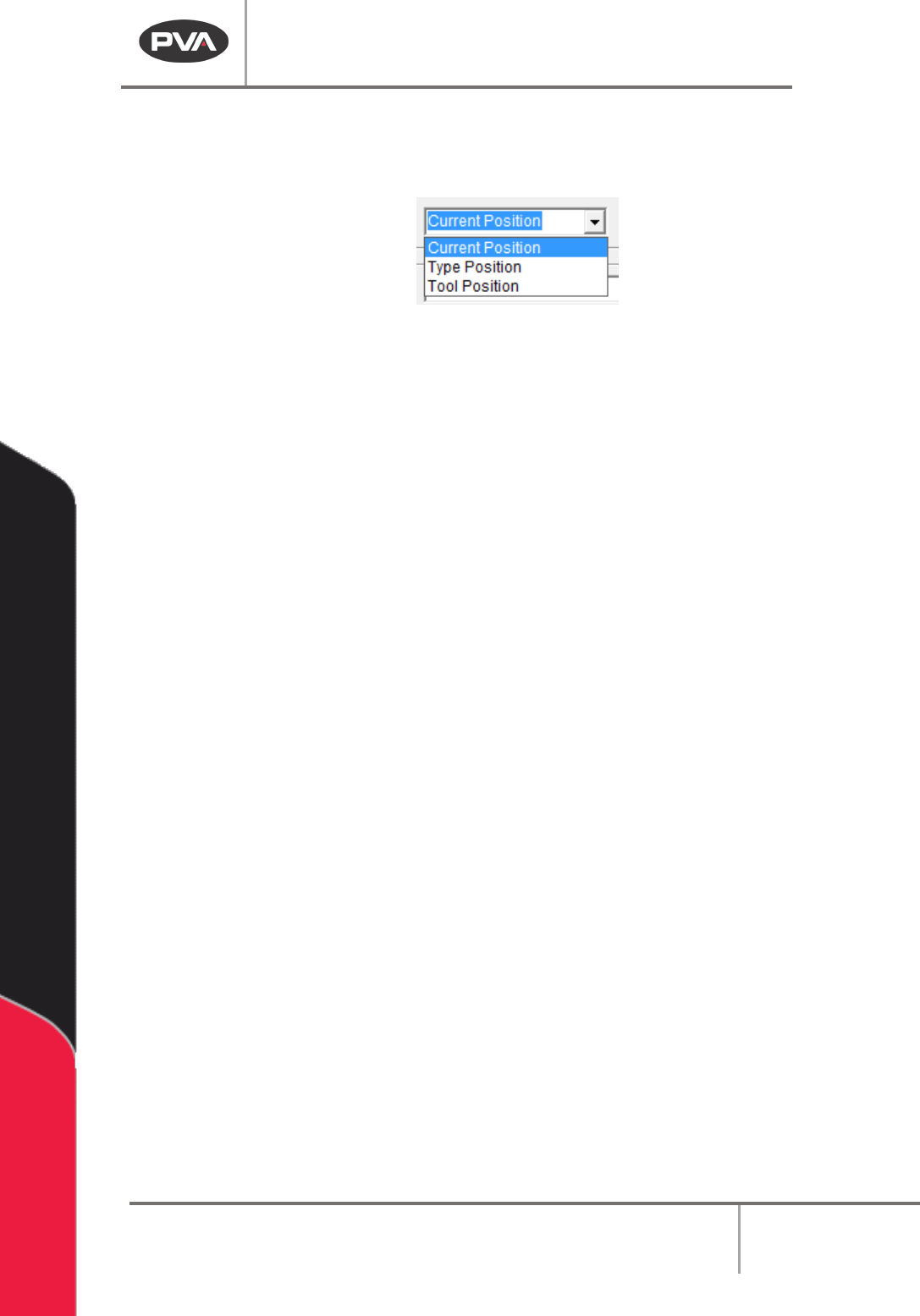
5. Select the Z Position from the drop-down menu. The Z component of the
workspace reference can be chosen from the current position, a position that is
typed in, or from the tool position of the tool Z offset.
Figure 43: Select the Z Position
6. Select the Do not apply offset to Z axis checkbox, if the Z offset should not be
included.
7. When the settings have been set, select the “Done” button, or select “Cancel” to
exit and not save changes.
NOTE: The Teach Tool option must be enabled and the machine must be in Manual mode to
teach the workspace reference position.
Machine Operation Manual
Revision L /
February 2020
Page 50 of 200
Devices
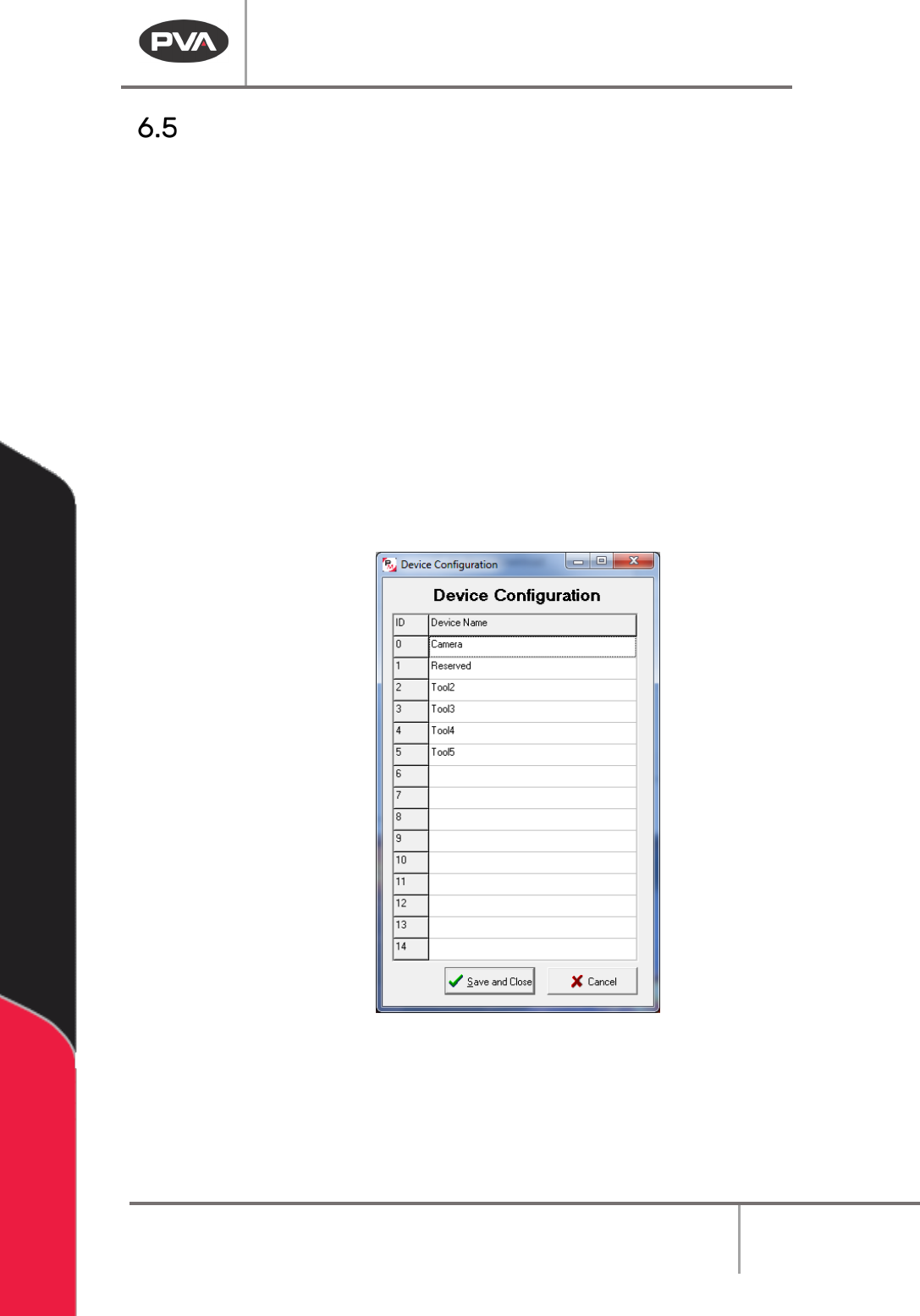
PathMaster® can have up to 15 devices configured if the teach tool is enabled. All Devices
are physical tools in the system. Devices are used to relate a Virtual Tool to a physical tool.
These settings are found in the Machine Parameters window.
1. Select
Setup->Machine Parameters
from the Main menu to open the Machine
Parameters window.
2. To configure the devices in the system, click ‘Devices’ in the Virtual Tools section of
Machine Parameters.
3. From here you can name all the Devices in the system. Any name that is left blank
will be unavailable to use to teach paths and during playback.
With the Teach Tool function in PathMaster, the first device will be the teach tool (device 0)
by default. If a workcell does not have a teach tool, the first tool spot will be reserved. If a
teach tool is added on the workcell later, the reserved first tool will become the teach tool
and prevent many programming changes.
Figure 44: Tool Name and Configuration
NOTE: Devices must be listed in sequential order. For example, if Device 5 is left blank, all
following Devices will be unavailable for playback and teaching. If a tool is deleted it will not
be available.
Machine Operation Manual
Revision L /
February 2020
Page 51 of 200
Virtual Tools
PathMaster® can have an unlimited number of virtual tools configured. All virtual tools are
related to a physical device in the system. A device can be saved with specific settings as
several different virtual tools.
For example, in a 4-axis system, Tool 1 can be device A with a theta rotation of 0°. Tool 2
can be device A with a theta rotation of 90°. The same device is used for Tool 1 and 2 but
the valve settings are different.
The different theta positions of the virtual tools changes how the physical device relates to
the teach tool. The difference in position relationship is called the tool offset. Refer to
Section 6.6.5 for more information.
If the teach tool is enabled, you must create Virtual Tool 0 first for Device 0 before you can
create additional virtual tools.
Sort
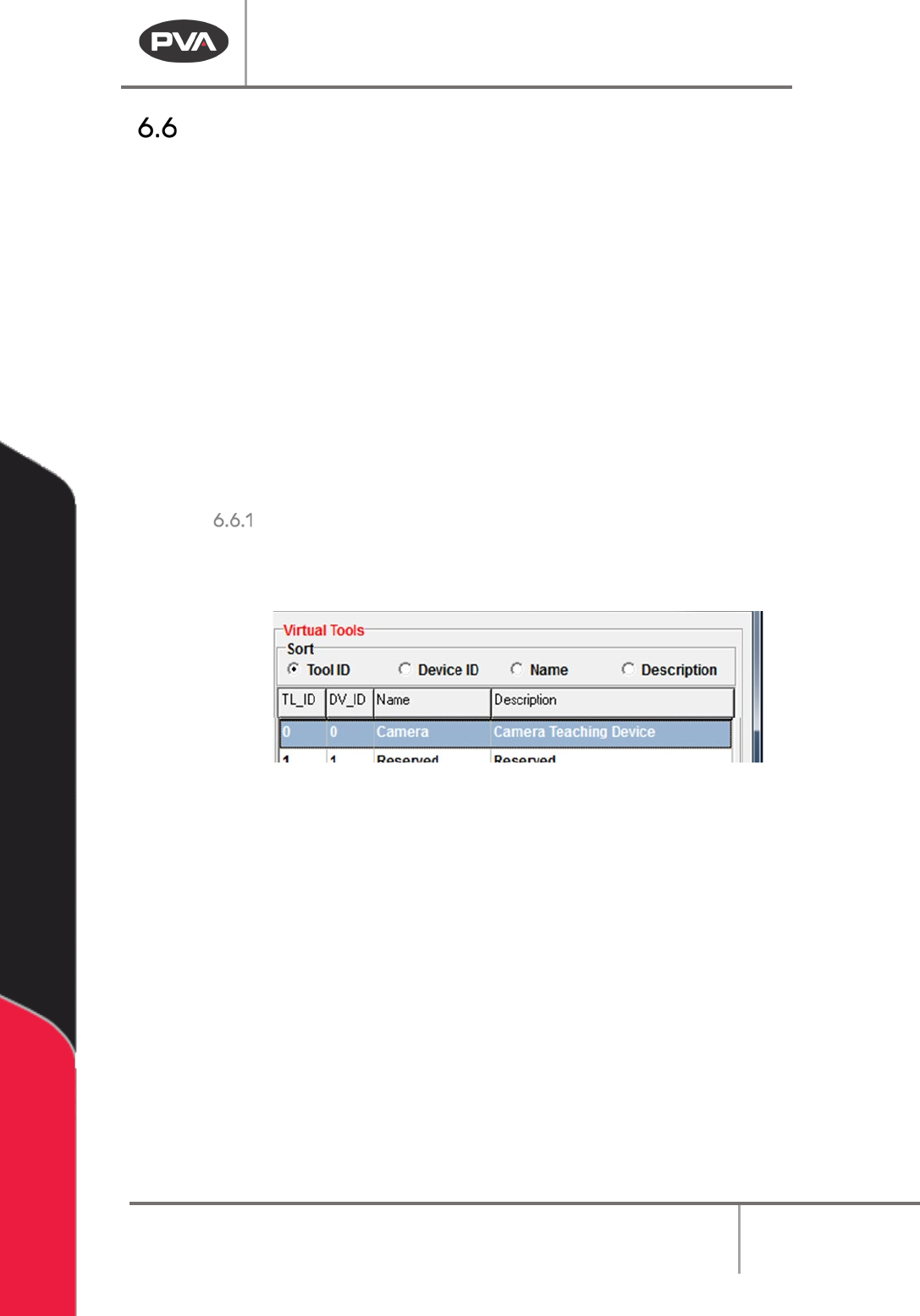
With the Sort radio buttons, you can arrange how you view the Virtual Tools in the system.
You can sort the virtual tools by
Tool ID, Device ID, Name, or Description.
Figure 45: Sort Options
• Select the necessary label to sort the virtual tools.