PathMaster-REV-L-4.5-1.pdf - 第24页
Machine Operati on Manual Revision L / February 2020 Page 24 of 200 Circle – Teach a ci rcular path segme nt and pro gram tool operatio n. Tool – Add a tool func tio n (up/dow n, rotary, et c.). Dot – Dispense at a defi …
Machine Operation Manual
Revision L /
February 2020
Page 23 of 200
Programming Functions
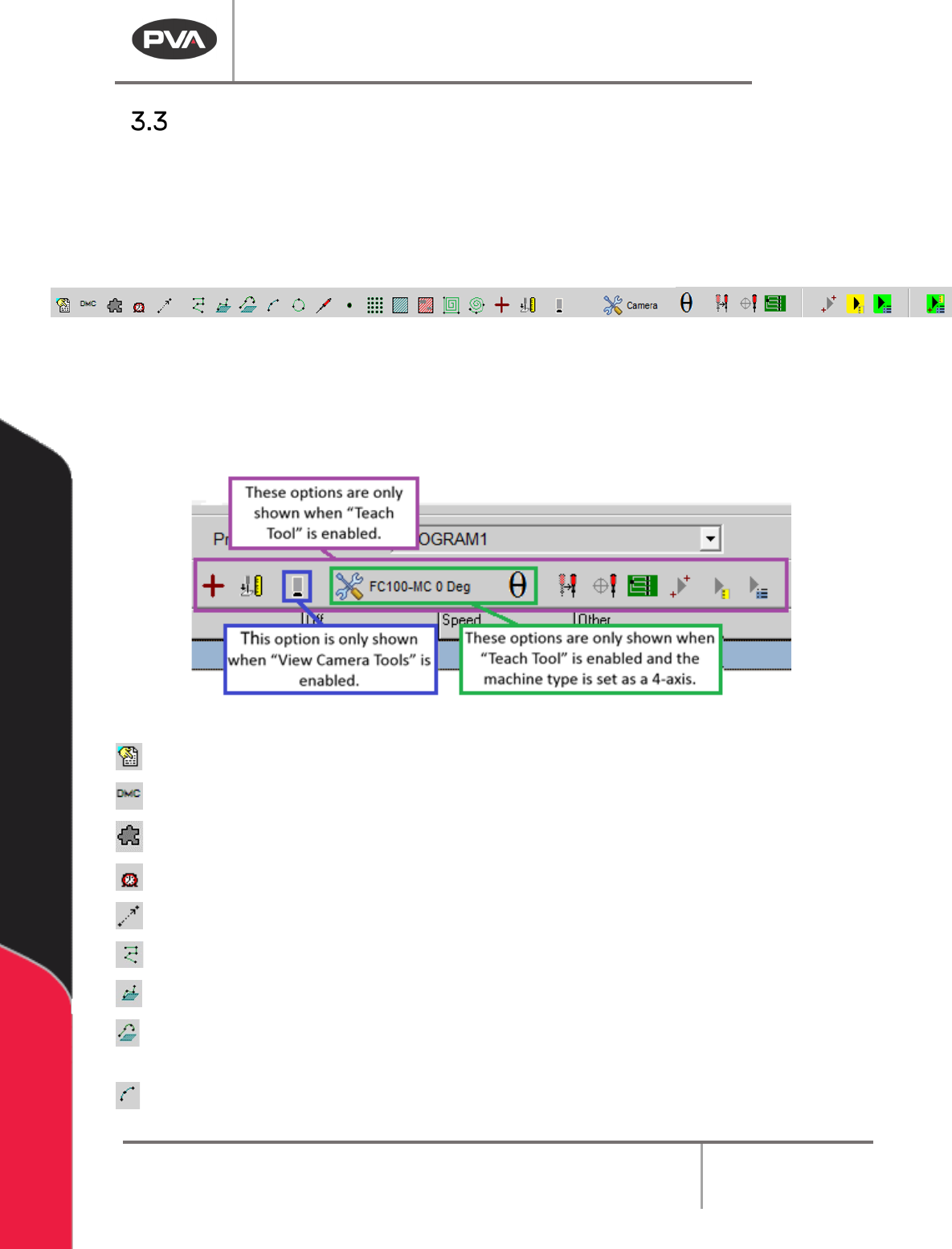
The programming toolbar shows the most frequently used programming functions.
Functions that are green or outlined in green have the ability to reference surfaces.
Functions that are red do not. With the exception of Polyline, Functions can only reference
one surface. The toolbar you see depends on the workcell controller. The toolbar shown is
for a DMC4000 or newer controller.
Figure 8: Programming Toolbar
Programming functions are used to create path segments, which make up a path program.
PathMaster® contains a variety of useful programming functions which can be used to
create 2 dimensional and 3 dimensional paths. The most common functions are on the
toolbar, other functions can be accessed from the Teach menu.
Figure 9: Explanation of Functions
Comment – Add comments into the program.
DMC – Teach a DMC command line in the program.
Plugin Select – Select a plugin from a preset list of options.
Dwell – Teach a delay in the program for a set period of time.
Move – Teach a move to a specific location.
2D Path – Teach a 2D path segment and program tool operation.
3D Path – Teach a 3D path segment and program tool operation.
Polyline – Teach 2D or 3D path segments and program tool operations that can make
use of Height Profiling, if applicable.
Arc – Teach an arc path segment and program tool operation.
Machine Operation Manual
Revision L /
February 2020
Page 24 of 200
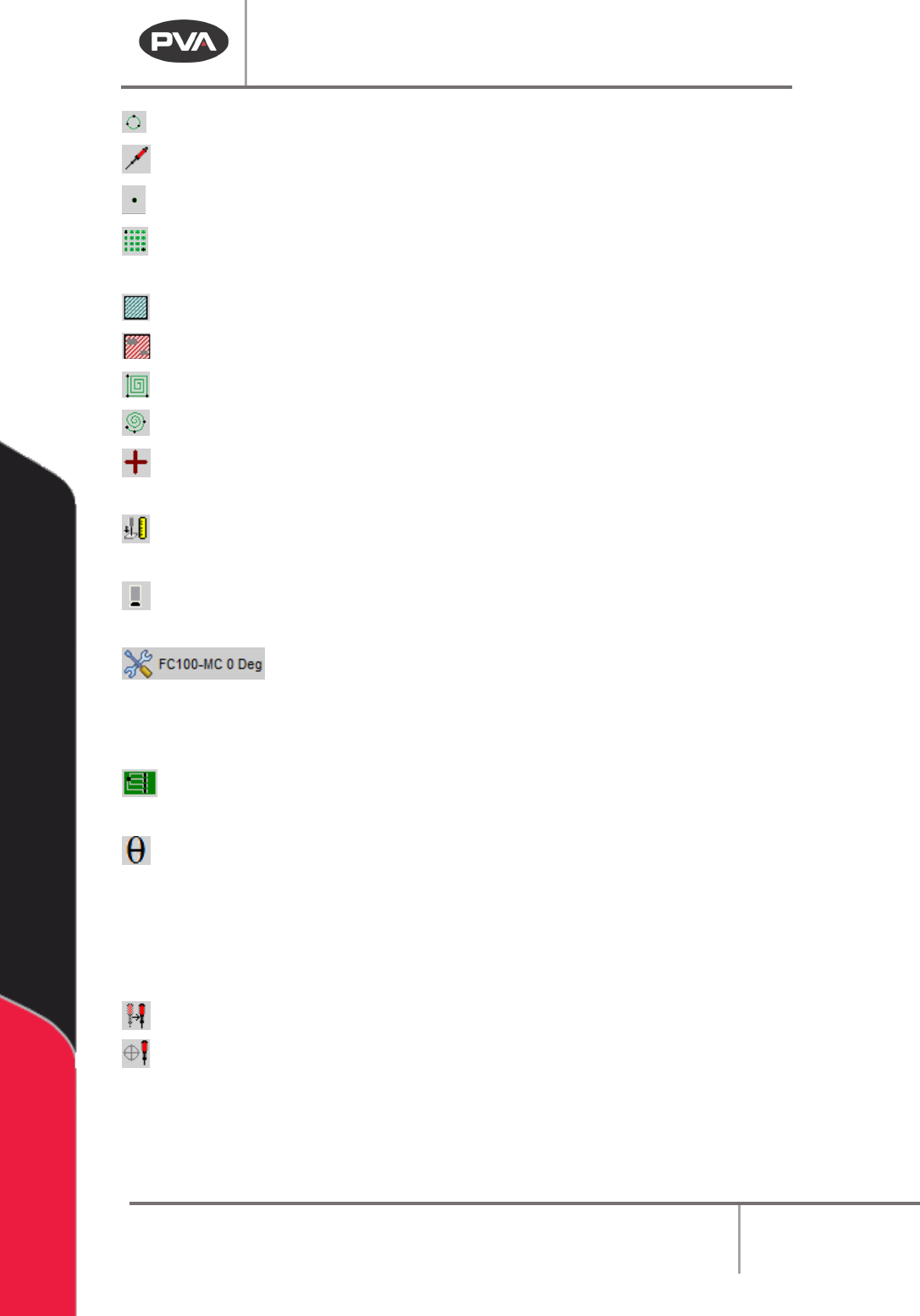
Circle – Teach a circular path segment and program tool operation.
Tool – Add a tool function (up/down, rotary, etc.).
Dot – Dispense at a defined point for a length of time and program tool operation.
Dot Array – Define a series of dots based on two adjacent points along with X and Y
pitch.
Area – Teach a path segment that covers a rectangular area.
FastMask – Teach a FastMask™ path segment (specify keep out areas).
Rectangular Spiral – Teach a rectangular spiral segment to cover an area.
Circular Spiral – Teach a circular spiral segment to cover an area.
Fiducial – Teach a fiducial A or B command in the path program. The Teach Tool
(Camera) box must be selected in
Setup->Machine Parameters
to see this function.
Surface Height – Teach a surface height command in the path program. The surface
height reading is used to calculate the Profile Z Height for Run tools used during Polylines.
Camera Height – Moves the Z axis to the set camera height from the Machine
Parameters. In the Utilities menu, select “View Camera Tools” to see this function.
Tool State Selector –Open the Tool State Selector menu to select an
option. This will move the selected tool to the correct programmed position. This is only
shown if the Teach Tool box is selected under the Tools section in the Machine Parameters
Window and PathMaster® is setup for a 4-axis machine.
FastPath – Open the FastPath™ window for offline programming. The Teach Tool
(Camera) box must be selected in
Setup->Machine Parameters
to see this function.
Theta- Move the selected tool to the calibrated W-axis position (theta). The Theta
button in all command forms and in the Main Grid now shows an indicator color
• Yellow means the Theta axis is not at the proper coordinate for the selected Teach
Tool
• Green means the Theta axis is at the proper coordinate +- the value in the
ThetaDeadband string of Pathmaster.ini
Tool Change- Correct the position of a tool and apply offsets.
Tool Calibration –Used to change tool offsets and set the profile calibration.
Machine Operation Manual
Revision L /
February 2020
Page 25 of 200
Legacy / DMC2000 Tool Operations
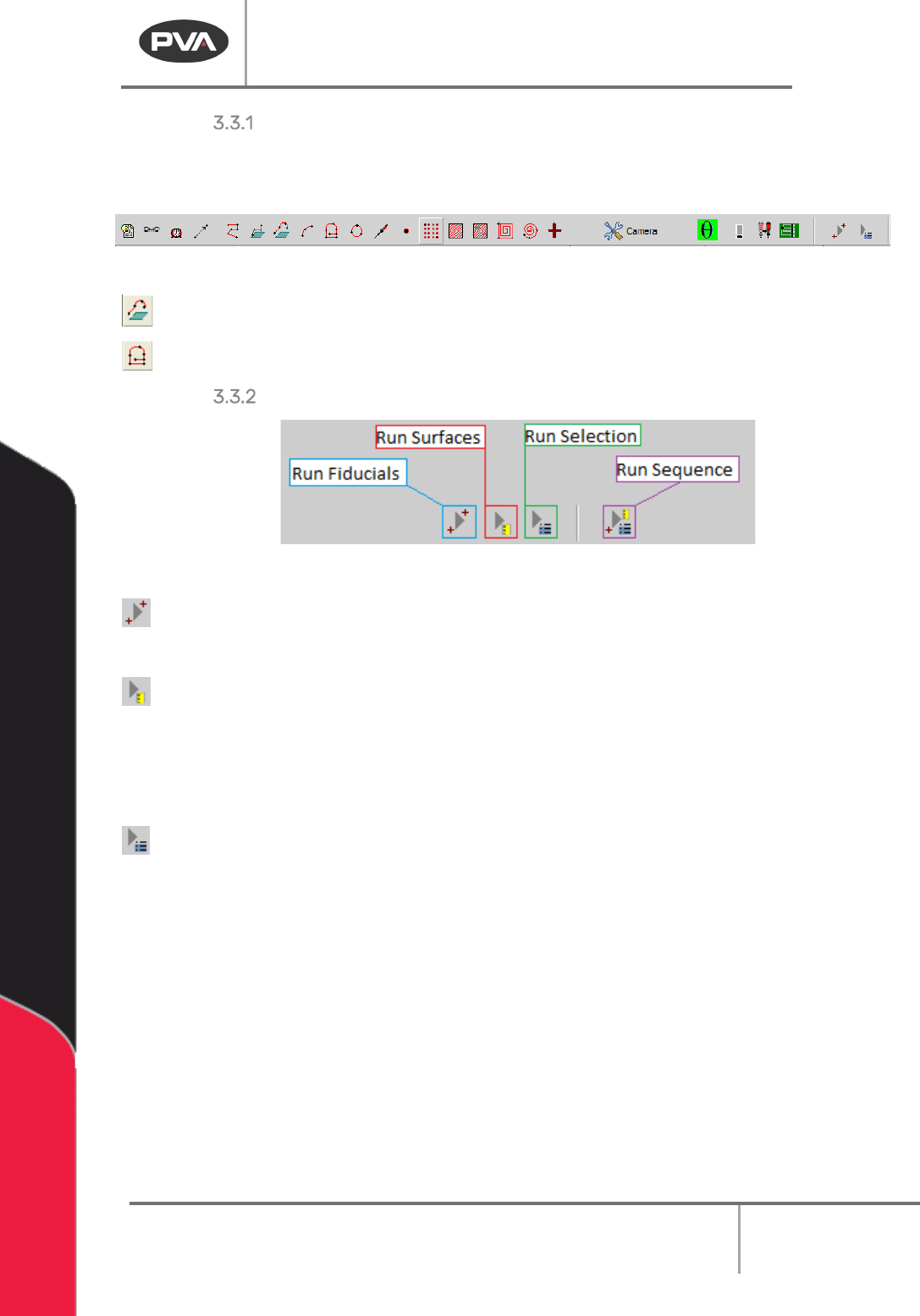
The controller can be selected in setup mode. When the controller is set as Legacy or a
2000 series controller, polyline and surface height commands are not available.
Figure 10: Legacy Mode, DMC2000 Toolbar
Polyline3D – Teach a path segment with 3D lines and arc commands.
PolyLine – Teach a path segment with of 2D, circle, and arc path segments.
Run Fiducials / Surfaces / Selection / Sequence
Figure 11: Run Commands
Run Fiducials – Plays back any fiducials at the top of the path program and enters
“corrected” teaching space. See Section 9.4 for more details.
Run Surfaces – Plays back any taught surface height commands and enumerates the
surfaces to be used in and polylines taught after these surfaces.
NOTE: Subroutines cannot access Surfaces outside of the subroutine, and any Surfaces in a
subroutine are localized to that subroutine and are inaccessible outside of it.
Run Selection – Plays back the selected line(s) of path program.