PathMaster-REV-L-4.5-1.pdf - 第36页
Machine Operati on Manual Revision L / February 2020 Page 36 of 200 Figure 23 : Select Pro ject Win dow 4. Select “ OK ”. Pro ject Sel ection You must select the correct p roject bef ore you star t to progra m . You can …
Machine Operation Manual
Revision L /
February 2020
Page 35 of 200
Operation
Start PathMaster
It is necessary to configure PathMaster® to run correctly with the workcell when it is
initially setup.
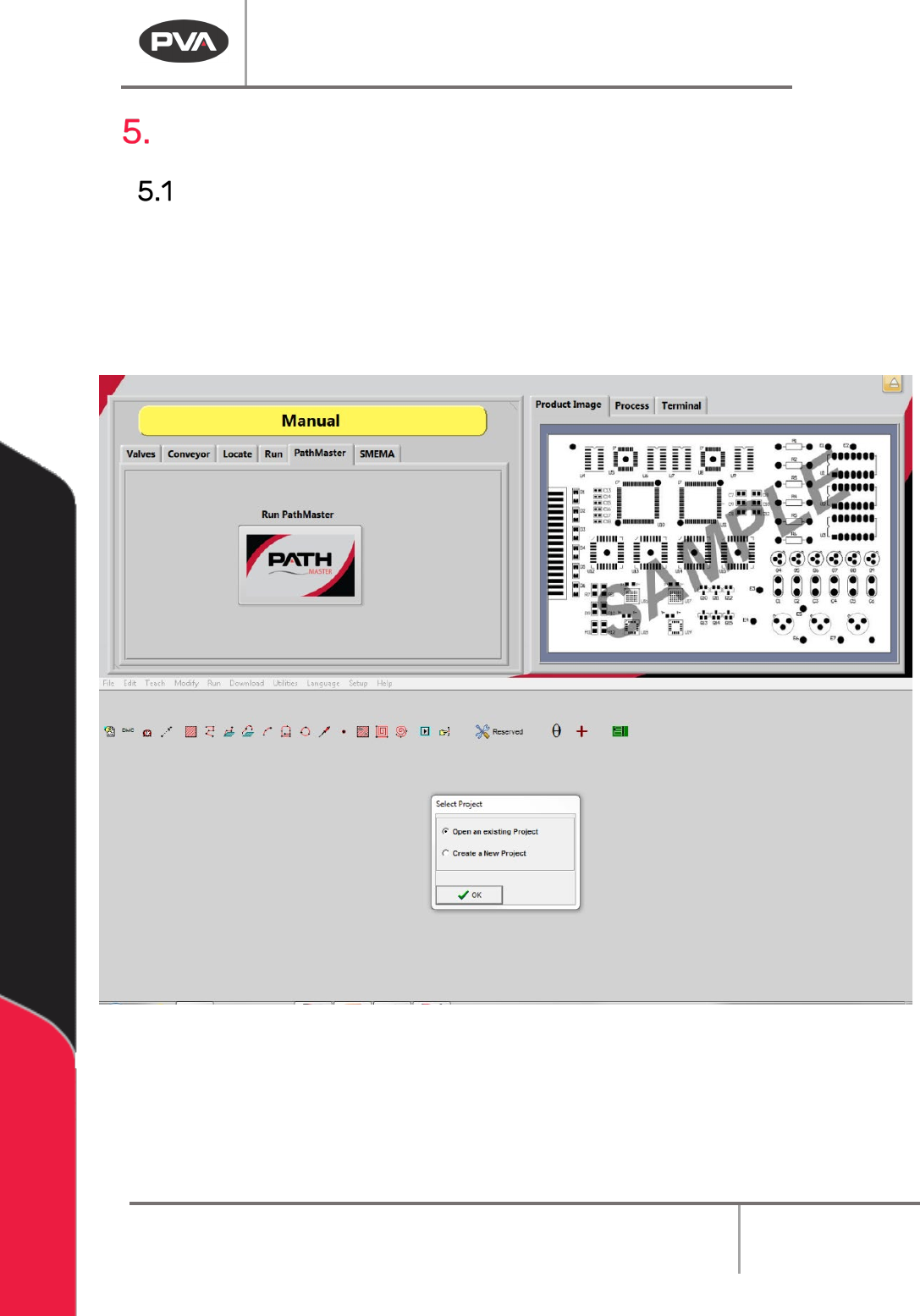
1. Double-click on the PathMaster® icon to start PathMaster®, or to start
PathMaster® from Portal, select Manual mode. Select the PathMaster® tab and
then select the PathMaster® button.
Figure 22: PathMaster® Opened through Portal
2. The Select Project dialog box will be shown.
3. Select Create a New Project.
Machine Operation Manual
Revision L /
February 2020
Page 36 of 200
Figure 23: Select Project Window
4. Select “OK”.
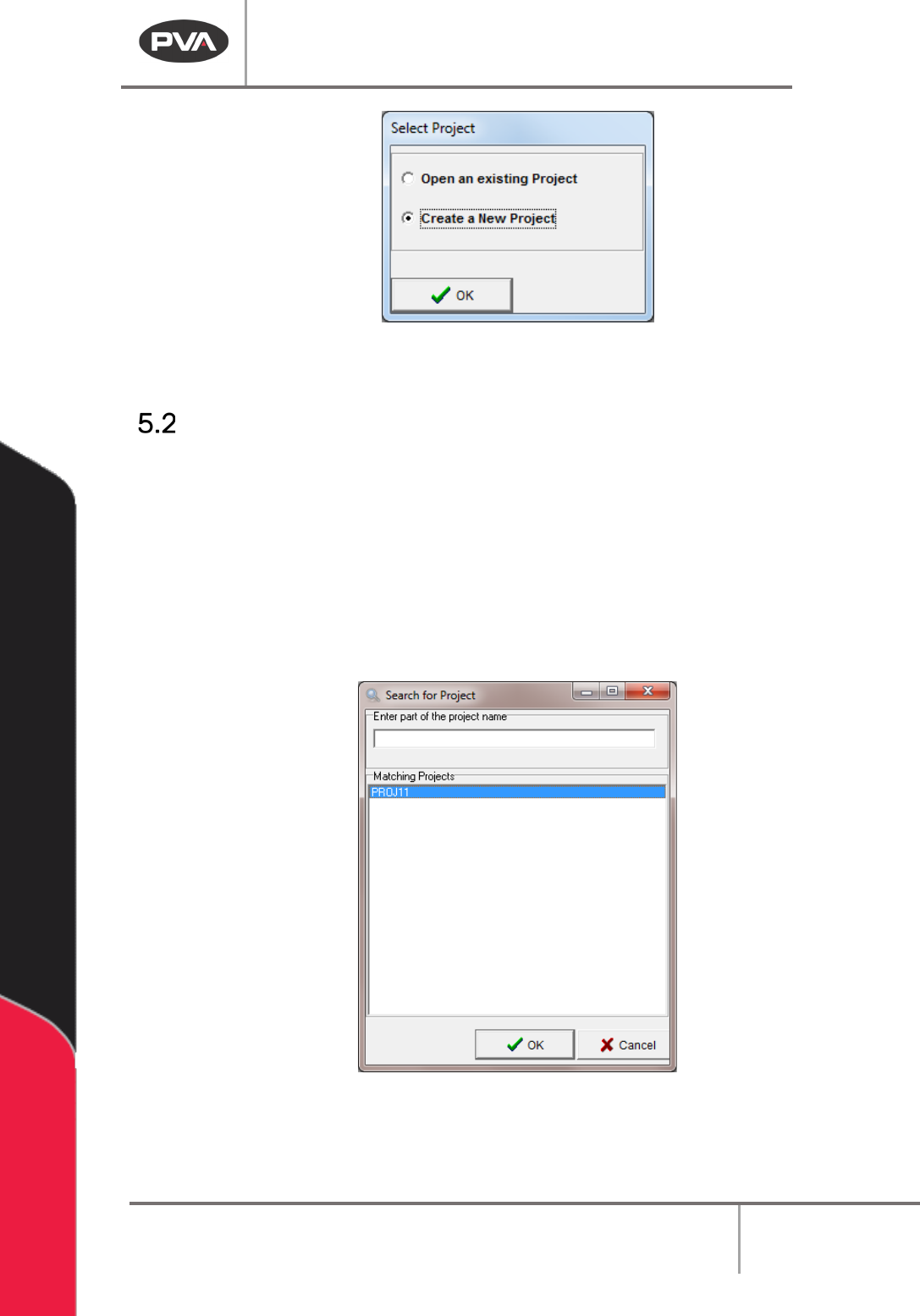
Project Selection
You must select the correct project before you start to program. You can open an existing
project or create a new project. The Select Project window is shown at startup, when
PathMaster® changes the current machine setting, or if you open a different project.
1. Select the correct choice from the Select Project window.
2. Select the “OK” button.
3. Highlight the correct project.
4. Select the “OK” button to open the project.
Figure 24: Select a Project
5. Select the “Cancel” button to exit and make no changes.
Machine Operation Manual
Revision L /
February 2020
Page 37 of 200
Machine Parameters
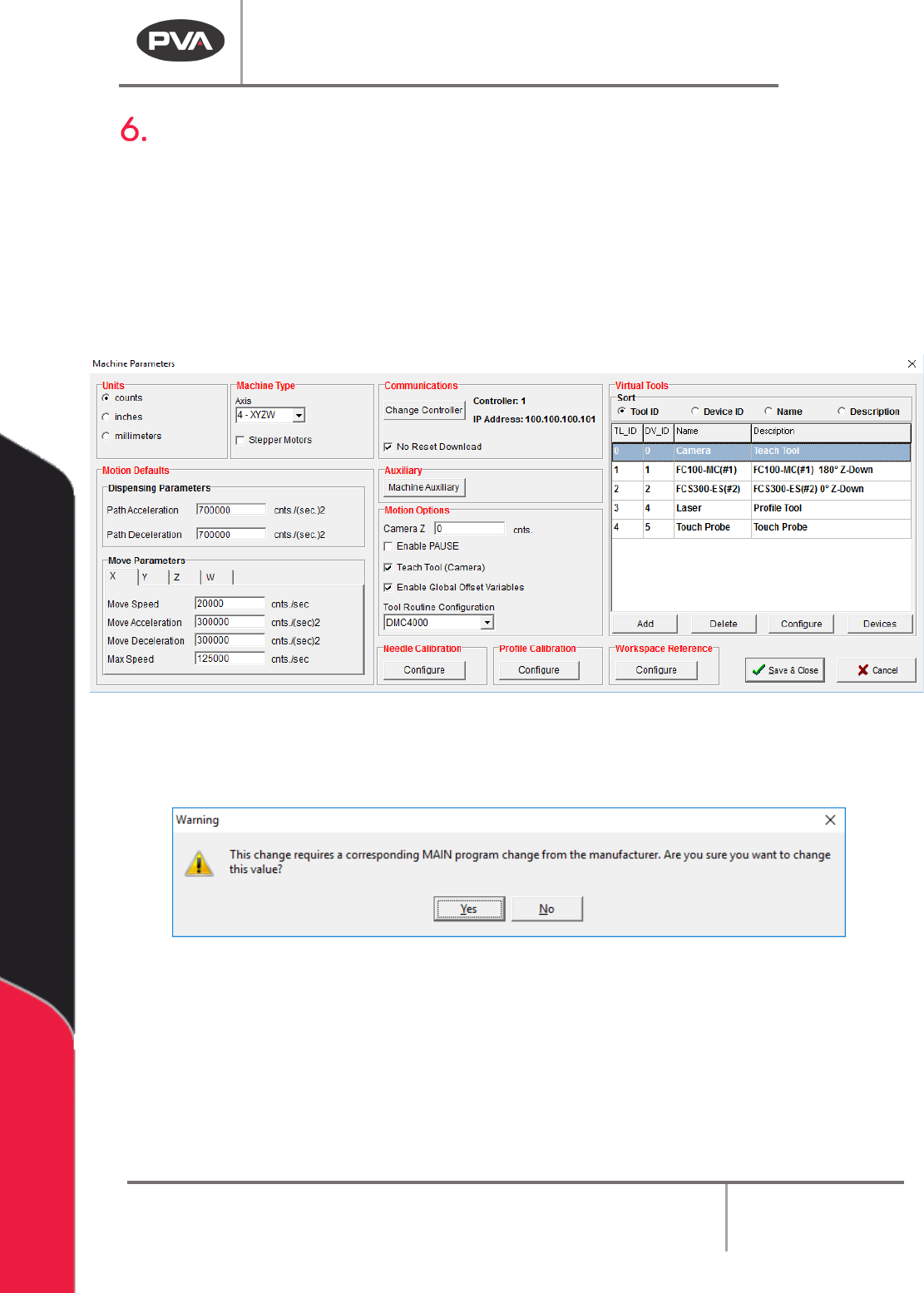
You must setup the Machine Parameters the first time you use PathMaster®. The Machine
Parameter window is used to set software and hardware properties. The settings in the
Machine Parameter window apply only to the current machine profile. The current machine
profile is shown in the Upper Status Bar of the main PathMaster® window.
1. Select
Setup->Machine Parameters
from the Main menu to open the Machine
Parameters window.
Figure 25: Setup Machine Parameters
NOTE: If you attempt to make changes that require a MAIN program change, a window will
be shown to confirm the changes.
Figure 26: MAIN Program Change Conformation
2. To exit the Machine Parameters window, select “Save & Close” to save changes and
exit or “
Cancel” to exit and not save changes. The changes are not applied until you
select “
Save & Close”.