PathMaster-REV-L-4.5-1.pdf - 第146页
Machine Operati on Manual Revision L / February 2020 Page 146 of 2 00 Tool Parameters Modify Tool P arameters 1. Select Modify - > Tool Parameters. 2. Select ei ther Program or Selection . 3. For “Tool On” select eith…
Machine Operation Manual
Revision L /
February 2020
Page 145 of 200
Speed
Modify Speed
1. Select
Modify -> Speed.
2. Select either
Program
or
Selection.
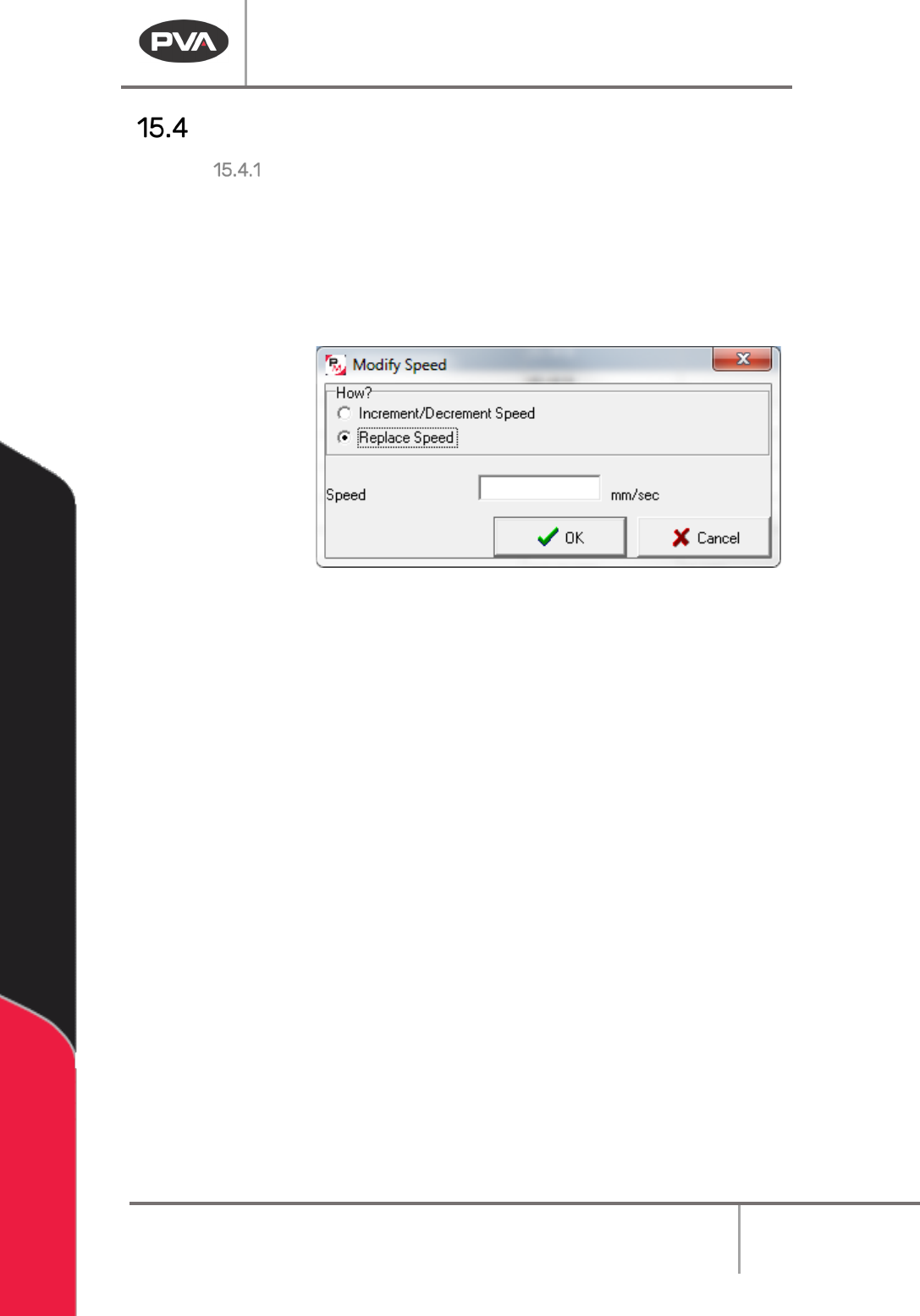
3. Select either “Increment/Decrement Speed” or “Replace Speed”.
Increment/Decrement Speed will offset all speeds in in each command by the value
given. Replace Speed sets each command at the value given.
Figure 178: Modify Speed Window
4. Click “OK”.
Your program/selection speed has now been changed.
NOTE: If you change the speed you override existing speeds that are pre-programmed in
the tool configurations. New commands use the default tool configuration values. Move
Speed command values are not affected by this modification.
Machine Operation Manual
Revision L /
February 2020
Page 146 of 200
Tool Parameters
Modify Tool Parameters
1. Select
Modify -> Tool Parameters.
2. Select either
Program
or
Selection.
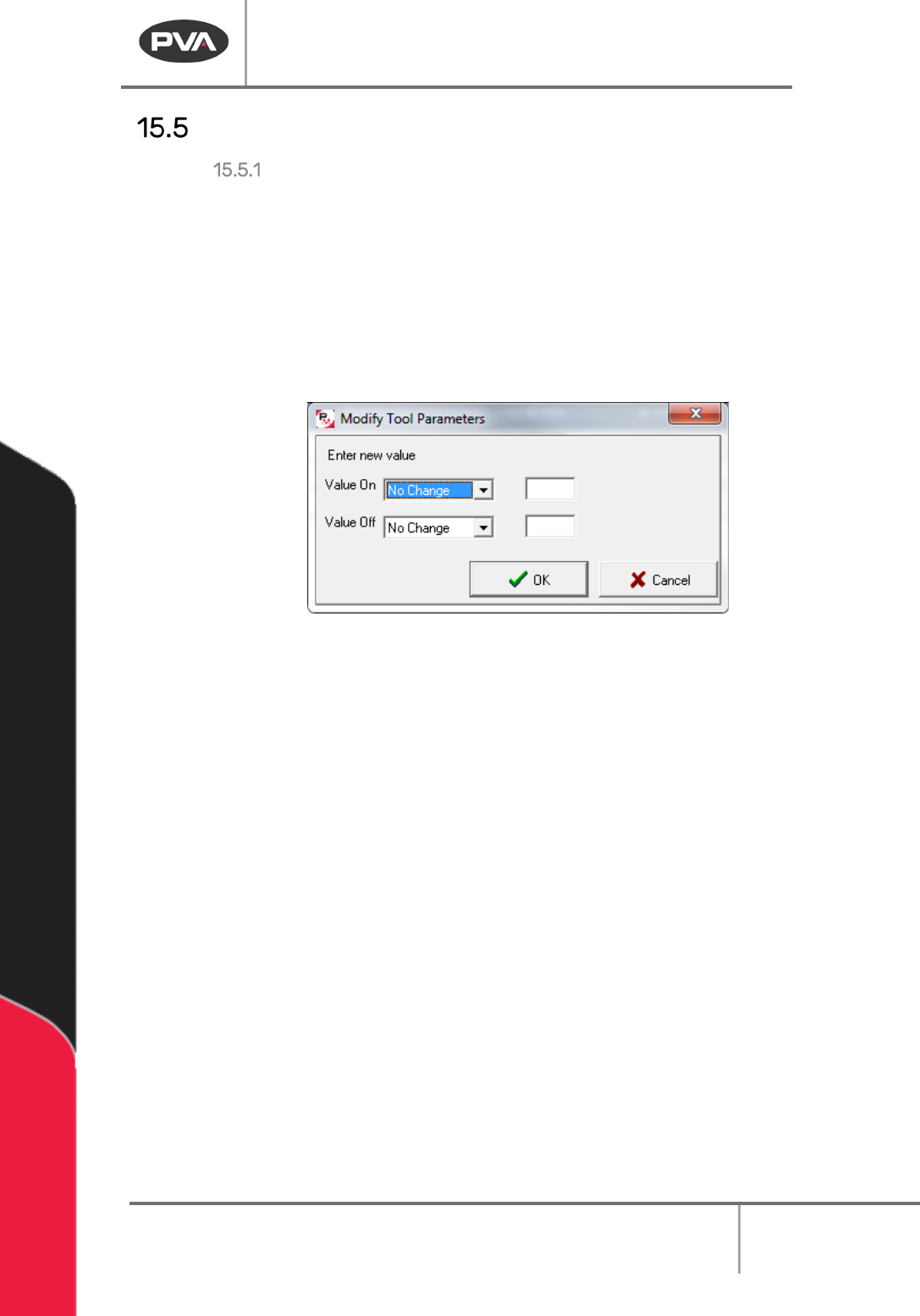
3. For “Tool On” select either “No Change”, “Wait”, or “Distance”.
4. Enter the new value in the box to the right.
5. For “Tool Off” select either “No Change”, “Wait”, or “Distance”.
6. Enter the new value in the box to the right.
Figure 179: Modify Tool Parameters Window
7. Click “OK”.
The tool parameters have now been updated.
NOTE: If you change the tool parameters you override existing speeds pre-programmed in
the tool configurations. New commands will use the default tool configuration values.
NOTE: Only commands with the same tool may be selected at the same time. You may not
change multiple commands that have different tools at the same time.
Machine Operation Manual
Revision L /
February 2020
Page 147 of 200
Subroutine Call
Selection
This option changes which subroutine will be called at runtime. You must highlight the
subroutine to be changed or this modification will not work.
Modifying a Subroutine Call
1. Select
Modify -> Subroutine Call.
2. Select
Selection.
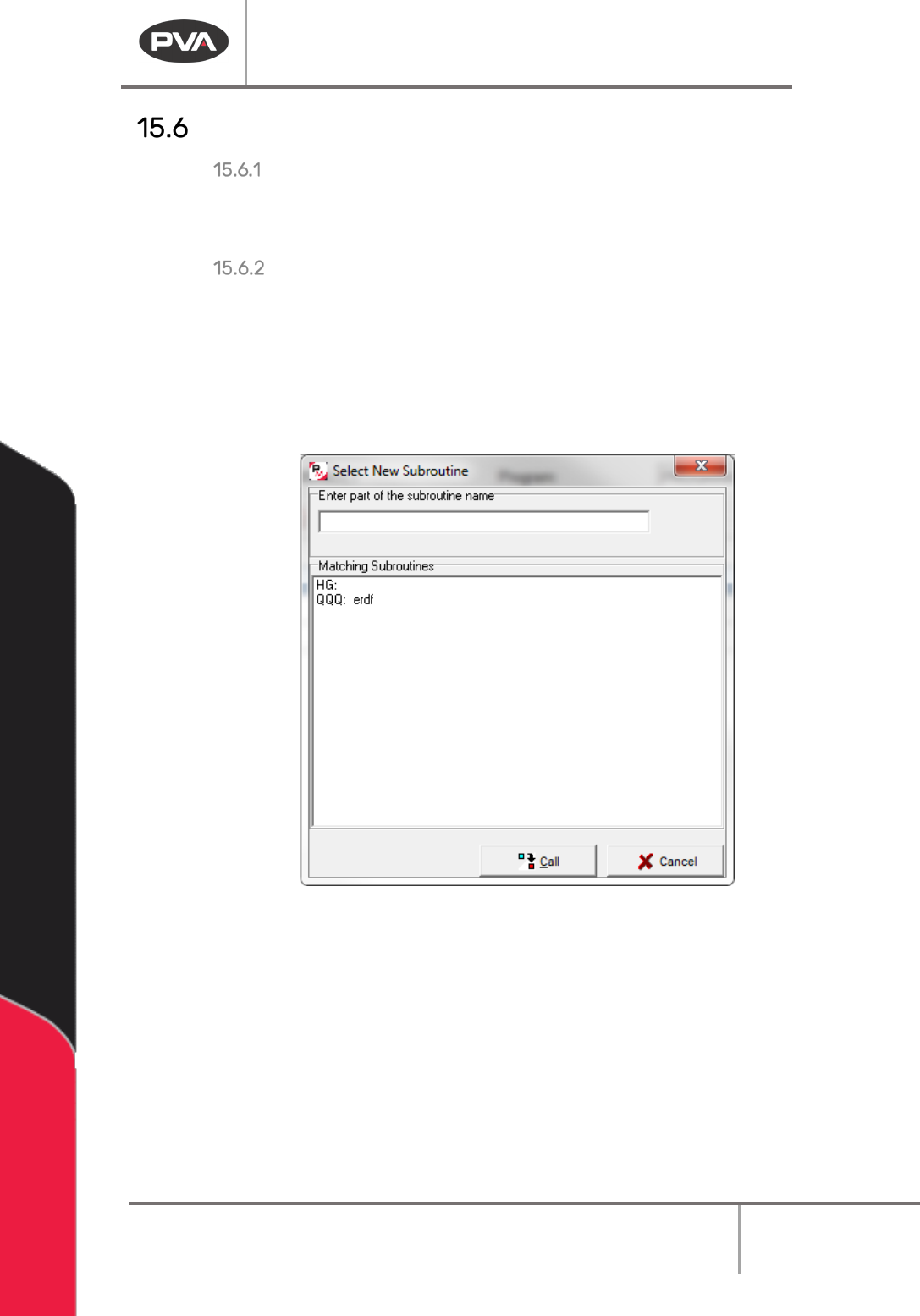
3. Select the necessary subroutine to replace the existing subroutine. Use the search
bar to help you find the new subroutine if necessary.
4. Click “Call”.
Figure 180: Select New Subroutine
The subroutine has been updated to the selected subroutine.