PathMaster-REV-L-4.5-1.pdf - 第107页
Machine Operati on Manual Revision L / February 2020 Page 107 of 200 9. Set the Tool On to “ Wait ” or “ D is tance ” and se t the ti me or dista nce in the box . 10. Set the Tool Off to “ Wait ” or “ Distanc e ” and se …
Machine Operation Manual
Revision L /
February 2020
Page 106 of 200
Circular Spiral
This creates a spiral pattern with an area defined by the user. The command is taught like
an arc command. It uses 3 points where the 1st point is the start, the 2nd point is direction,
and the 3rd point forms a diagonal with the 1st point to determine size. In this tool, line
spacing is the pitch or distance between arcs and direction refers to in or out direction of
the path. The Z-axis does not alter its position during the path.
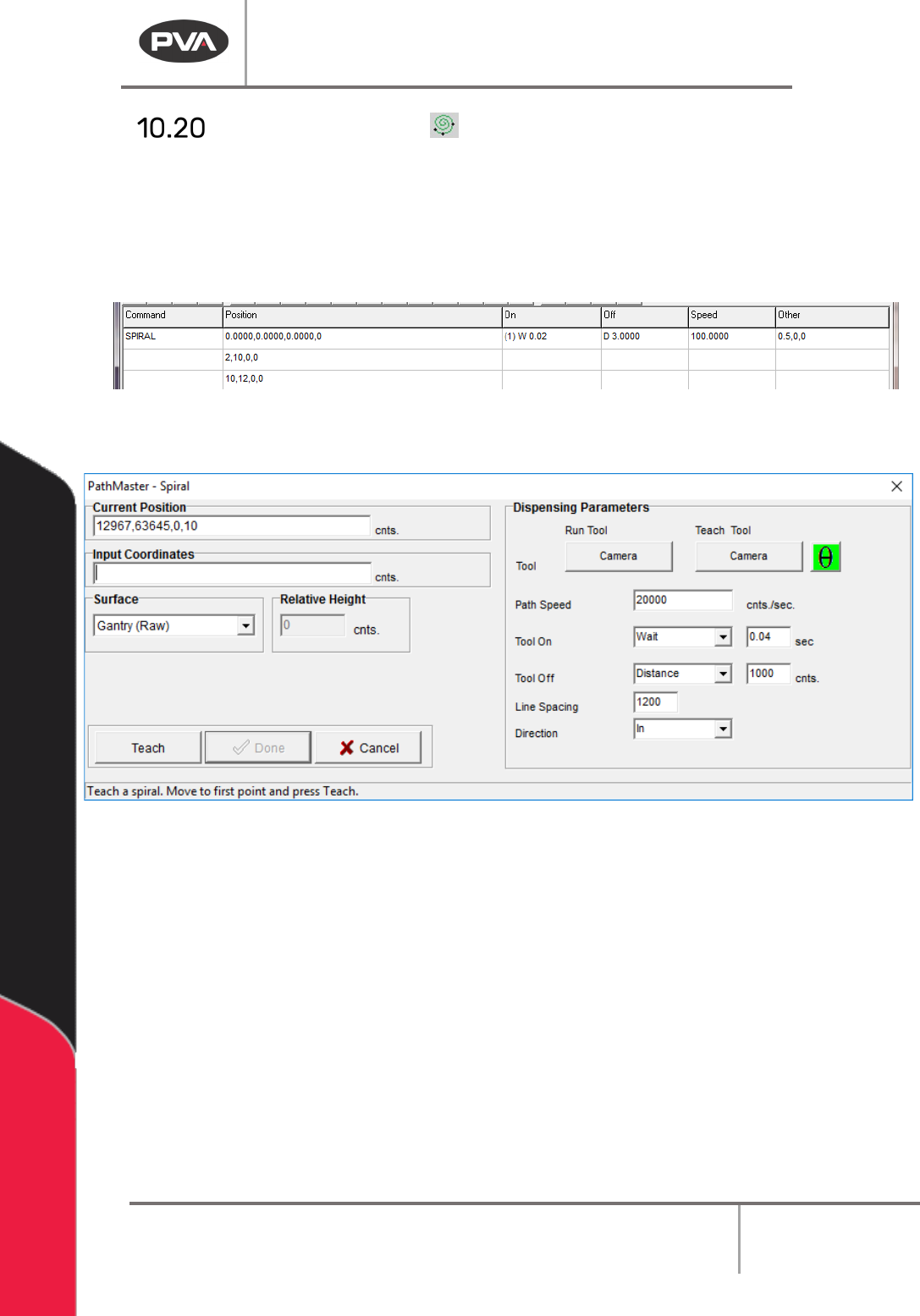
Figure 128: Spiral Programmed
1. Open the Spiral function.
Figure 129: Teach Spiral
2. Select the Run Tool. Select (double click) the necessary tool from the Tool Selection
window. Refer to
Figure 68.
3. Select the Teach Tool. Select (double click) the necessary tool from the Tool
Selection window. Refer to
Figure 68.
4. Select “θ” to move the selected tool to the calibrated W-axis position (theta).
5. Select the Surface from the drop-down menu. In some units, you can set the
Relative Height.
6. Put the necessary value in the Path Speed box.
7. Set the Path Speed.
8. Teach the points required for the tool selected. Point 1 is where the path will start.
Point 2 is the direction of the path. A diagonal line between point 1 and point 3 gives
the size of the rectangle.
Machine Operation Manual
Revision L /
February 2020
Page 107 of 200
9. Set the Tool On to “Wait” or “Distance” and set the time or distance in the box.
10. Set the Tool Off to “Wait” or “Distance” and set the time or distance in the box.
11. Set the Line Spacing.
12. Set the Direction to “In” or “Out”.
13. Select “Done” to save the changes or “Cancel” to exit and not save changes.
14. To edit a rectangular spiral, double click on the path and change the command in
the edit window. Refer to Section 7.5.
Machine Operation Manual
Revision L /
February 2020
Page 108 of 200
Surface Height (DMC 4000)
The Surface Height command is used to teach surfaces used in PolyLines. The surfaces
should be run in order, to count the different surfaces before the related paths are run. The
process is similar to fiducials.
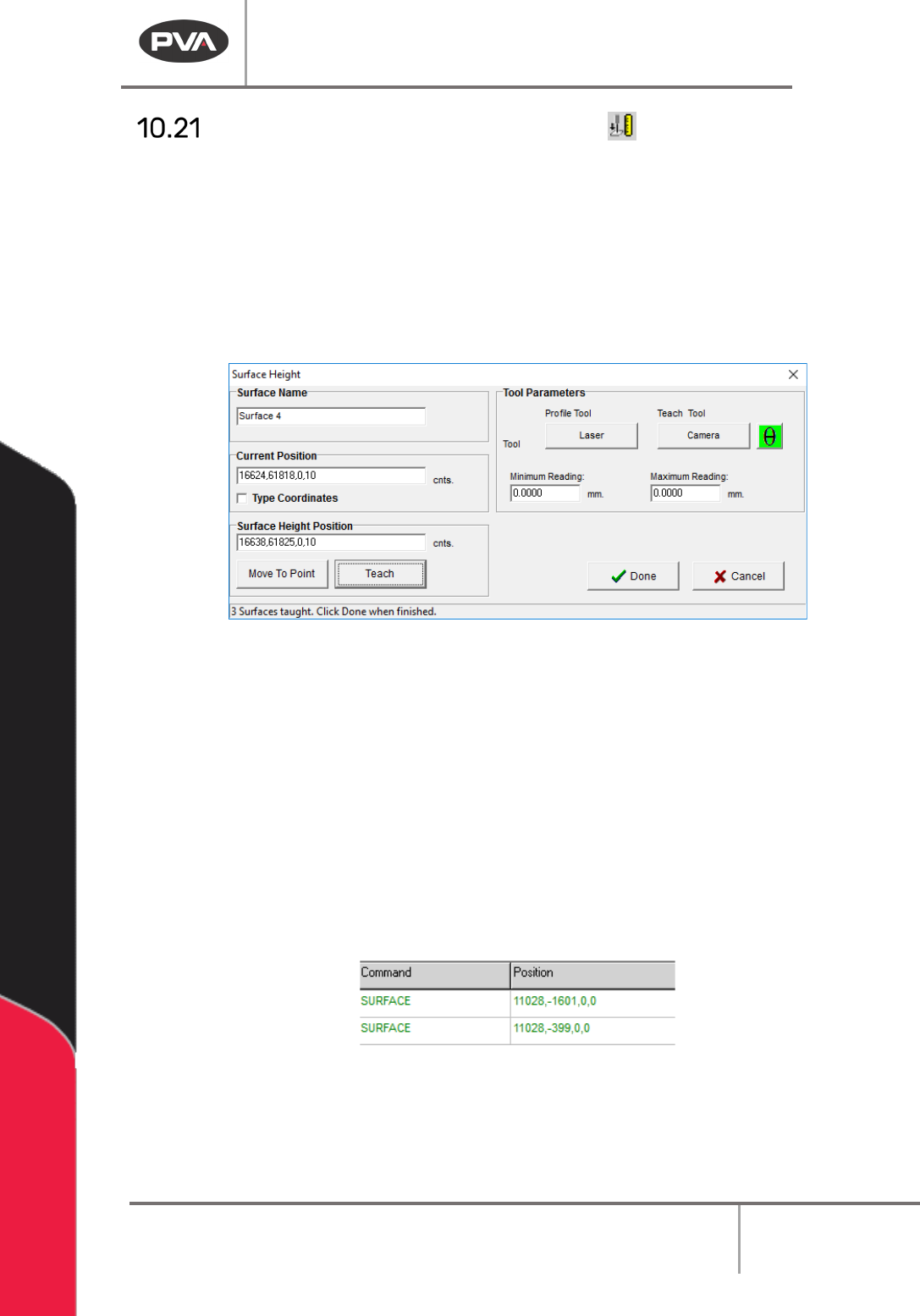
1. Click on the surface height icon in the Programming Toolbar to open the surface
height interface.
2. Use the tool parameters subsection to find the necessary profile tool and teach tool
to teach surfaces for the current product.
Figure 130: Surface Height Teach Interface
3. If necessary, set a min/max for each surface height in the surface height teach
interface (in the tool parameters window). With these values, the machine can make
sure a part is within a set tolerance for a surface height reading. This reading can be
seen in the Portal front panel.
NOTE: After a Surface Height call, if the Profile Tool selected is on the head on a Z-Slide,
the user must program the necessary Tool Command to retract the Z-Slide.
NOTE: In Autocycle, if a part fails a surface height you can try again.
4. The Surface Name can be changed to any unique name on a per-program basis.
5. If necessary, use the Theta button to rotate the W-axis to the correct position.
Figure 131: Surface Command in Path Program
6. Click “Teach” to set the Surface Height Position for the height check.
7. Click “Done” to save the point and return to the main PathMaster® screen.
8. Repeat the Procedure to teach as many Surface Height Checks as necessary.