PathMaster-REV-L-4.5-1.pdf - 第99页
Machine Operati on Manual Revision L / February 2020 Page 99 of 2 00 Area This functi on teache s recta ngular pat hs. The Z - axis does no t alter its positio n during the path. Refe r to Section 10.1 for definitio ns o…
Machine Operation Manual
Revision L /
February 2020
Page 98 of 200
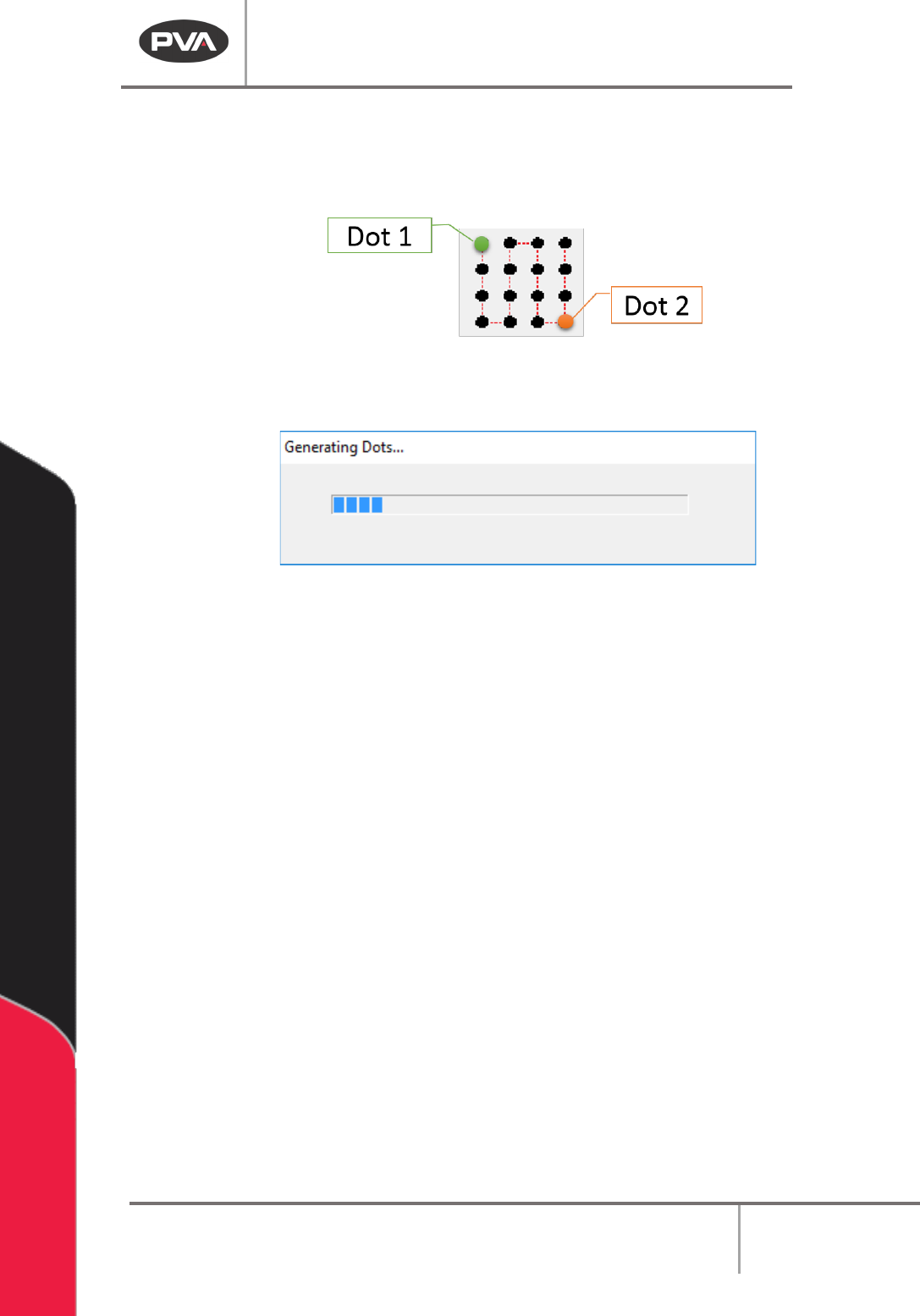
12. Teach the Dot 2 position. Move to the necessary position and select “Teach”. In the
example, this is the bottom right-hand corner of the array.
NOTE: The order you teach the dots in determines the direction of the array.
Figure 114: Dot 1 and 2
A window will show that the dots are generating.
Figure 115: Generating Dots
13. Select “Done” when you are finished.
Machine Operation Manual
Revision L /
February 2020
Page 99 of 200
Area
This function teaches rectangular paths. The Z-axis does not alter its position during the
path. Refer to Section 10.1 for definitions of the tool functions.
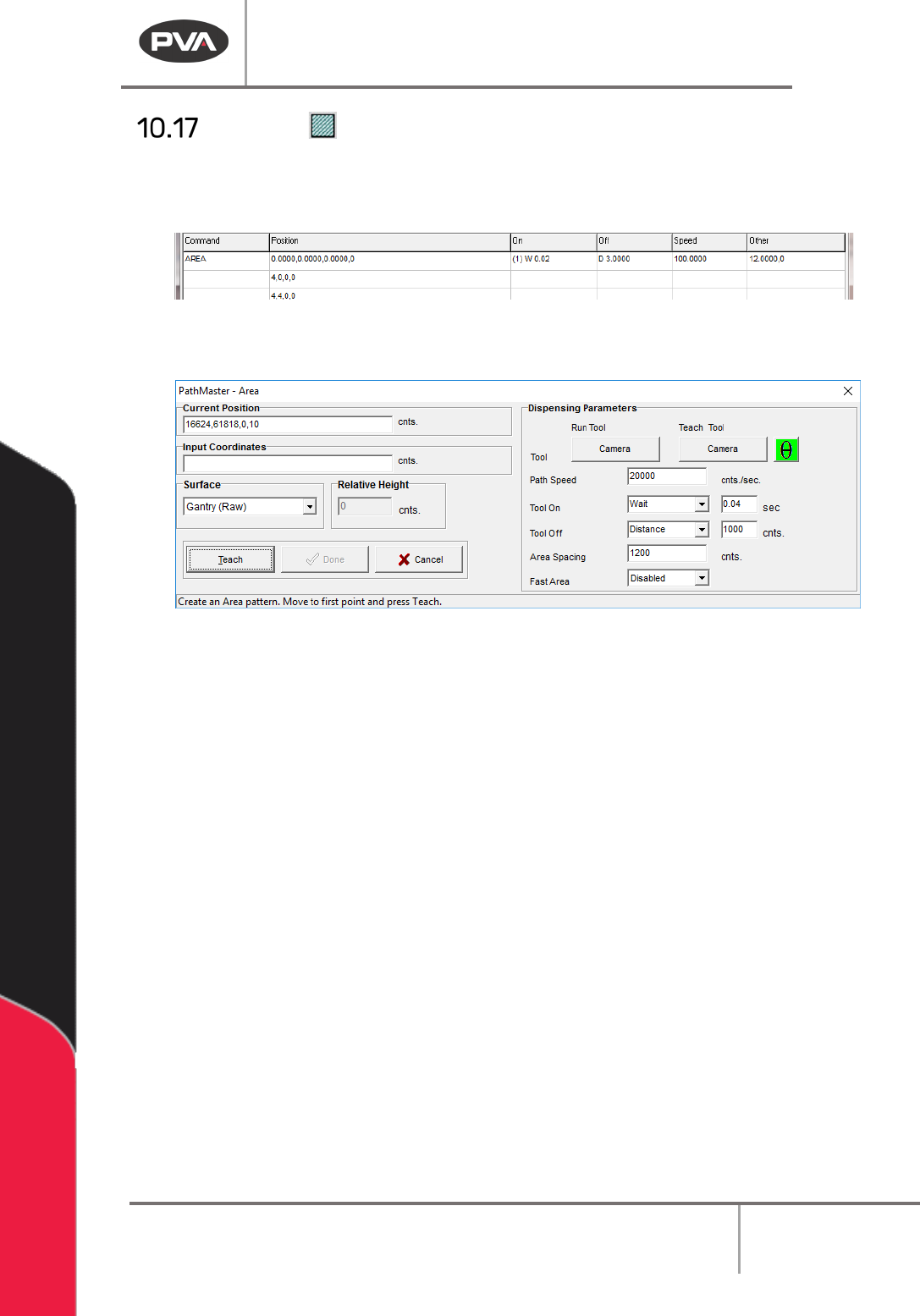
Figure 116: Programmed Area Command
1. Select the Area function.
Figure 117: Teach Area
2. Select the Run Tool. Select (double click) the necessary tool from the Tool Selection
window. Refer to
Figure 68.
3. Select the Teach Tool if necessary. Select (double click) the necessary tool from the
Tool Selection window. Refer to
Figure 68.
4. Select “θ” to move the selected tool to the calibrated W-axis position (theta).
NOTE: The “θ” button will only be available on 4-axis machines. When you use the “Teach
Tool” (virtual tool 0) it is not necessary to select this button.
5. Select the Surface from the drop-down menu. In some units, you can set the
Relative Height.
6. Set the Path Speed.
7. Set the Tool On to “Wait” or “Distance” and set the time or distance in the box.
8. Set the Tool Off to “Wait” or “Distance” and set the time or distance in the box.
9. Select the three points. Include the start point and move (clockwise or counter-
clockwise) in the direction the axes must move.
10. Select “Done” to save the changes, or “Cancel” to exit and not save changes.
11. To edit an Area, double click on the path and change the command in the edit
window. Refer to Section 7.5.
Machine Operation Manual
Revision L /
February 2020
Page 100 of 200
NOTE: Playback can only be operated if the workcell is currently in Manual mode. Only three
points are required for the Area tool.
How the Area Function Works
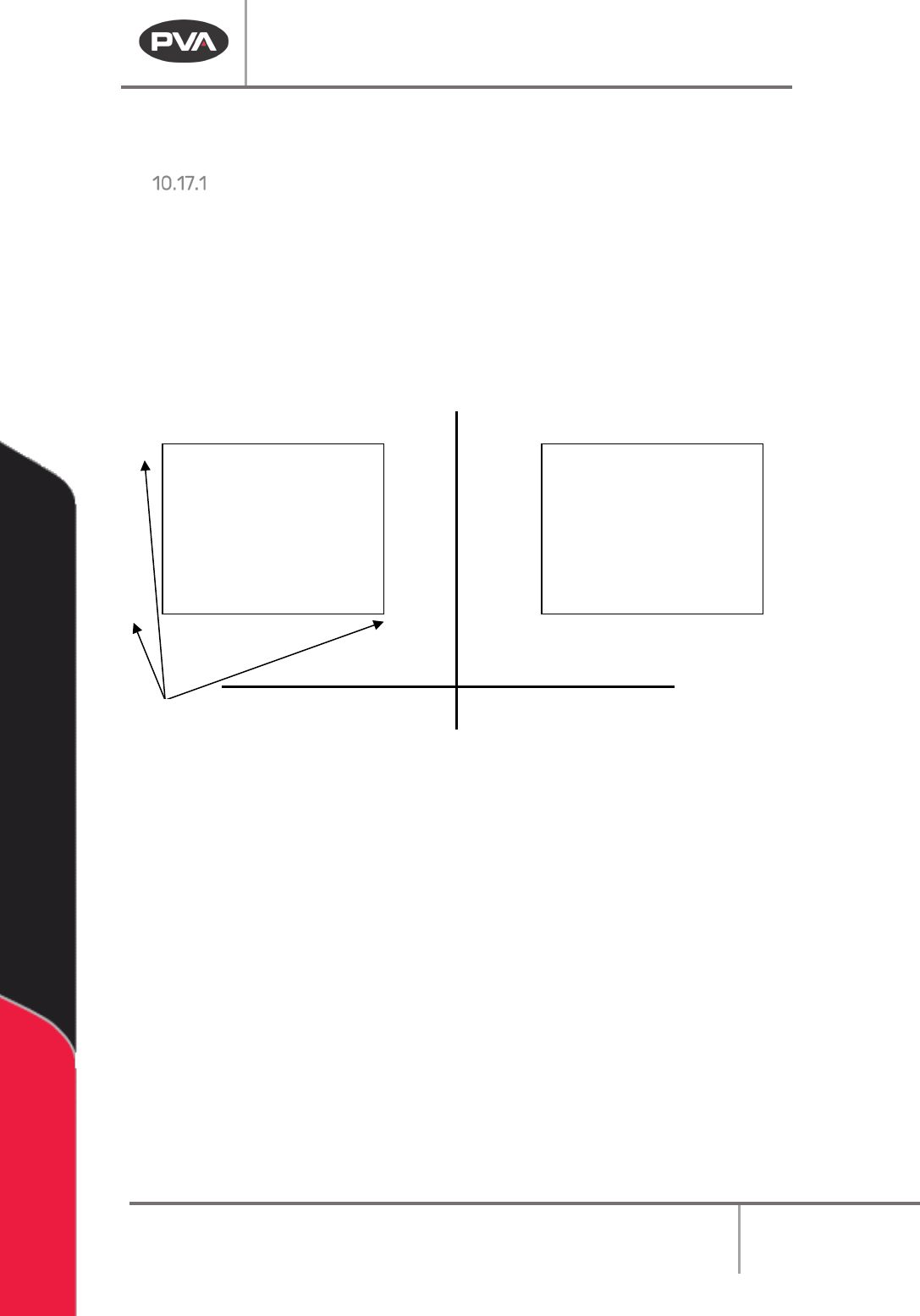
Area path segments are calculated with three points as shown below:
Point 1 defines the start of the pattern. Point 2 defines the direction and length of the
pattern. After the direction of the pattern is determined, the distance from point 1 to point
3 determines the width of the pattern.
The width is divided by the ‘Area Spacing’ (or ‘Path Spacing’) parameter on the Area
function screen. The value given is the number of passes needed to fill the given area.
Area #1 Area #2
Area #1
• Point 1 defines the start.
• Point 2 is along the X-axis, so that is the direction of the path. The length of the
path is the distance over the X-axis. Therefore, the width is along the Y-axis.
• Point 3 defines the width. The width is the difference in Y between points 1 and 3.
This is divided by the ‘Area Spacing’ (or ‘Path Spacing’) parameter resulting in the
number of paths the machine needs to run to fill the given area.
Area #2
• Point 1 defines the start.
• Point 2 is along the Y-axis, so that is the direction of the path. The length of the
path is the distance over the Y-axis. Therefore, the width is along the Y-axis.
• Point 3 defines the width. The width is the difference in X between points 1 and 3.
This is divided by the ‘Area Spacing’ (or ‘Path Spacing’) parameter resulting in the
number of paths the machine needs to run to fill the given area.
Point
1
1
2
2
3
3
X
Y