PathMaster-REV-L-4.5-1.pdf - 第82页
Machine Operati on Manual Revision L / February 2020 Page 82 of 20 0 2D Path This tool tea ches 2D pa th segme nts. The Z - axis do es not change its positi on in the pa th. Refer to Secti on 10.1 for definitions of t he…
Machine Operation Manual
Revision L /
February 2020
Page 81 of 200
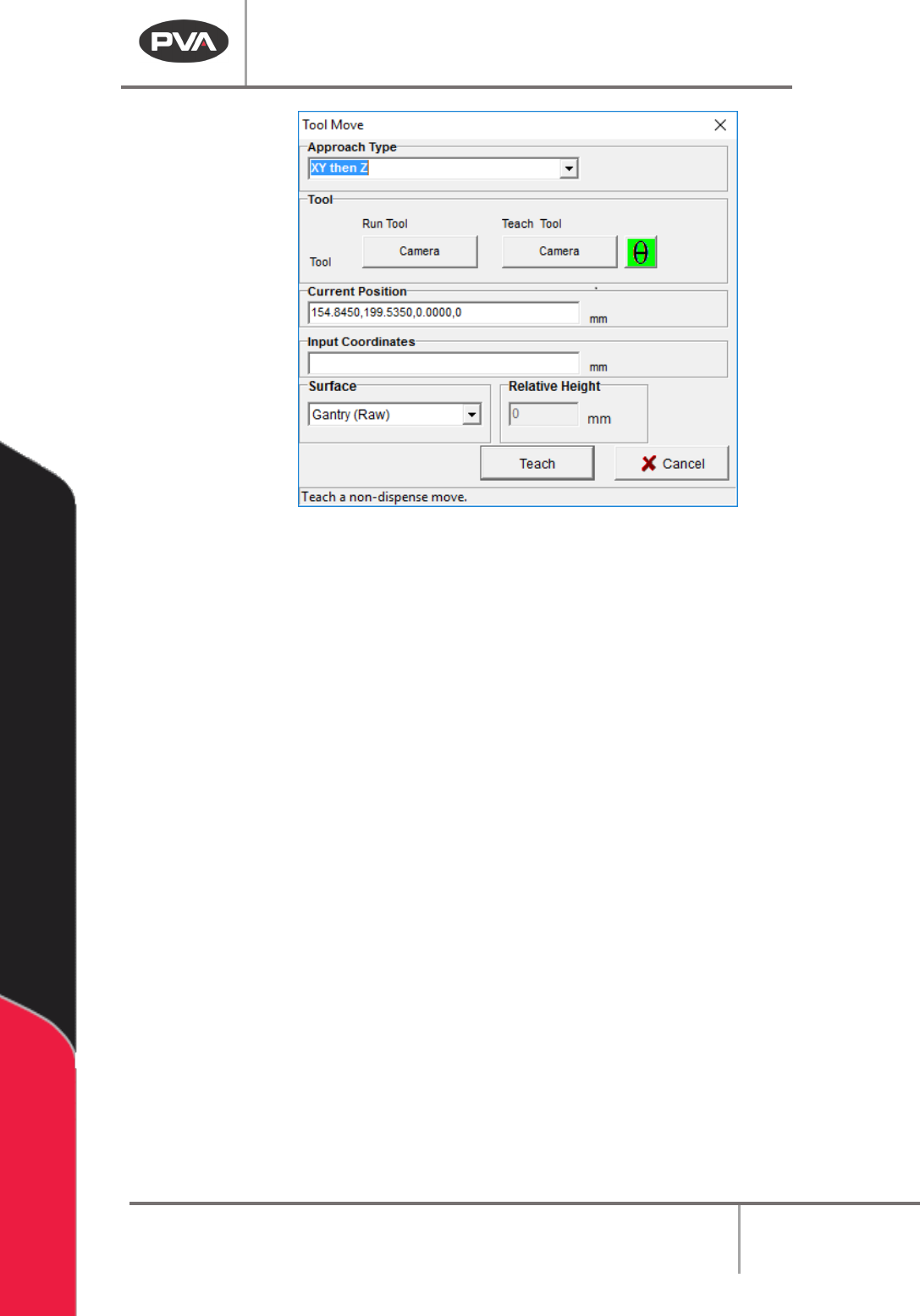
Figure 87: Tool Move
2. Select the Approach Type.
3. Select the Run Tool. Select (double click) the necessary tool from the Tool Selection
window.
4. Select the Teach Tool if necessary. Select (double click) the necessary tool from the
Tool Selection window.
5. Select “θ” to move the selected tool to the calibrated W-axis position (theta).
NOTE: The “θ” button will only be available on 4-axis machines. When you use the “Teach
Tool” (virtual tool 0) it is not necessary to select this button.
6. Select the Surface from the drop-down menu. Gantry (Raw) uses the current Z
height, Calibrated Z uses the calibrated Z height, Gantry (Relative) the user to sets a
move in Z axis relative to the taught position (mostly used for knit-line finishing).
7. Use the teach pendant or input the commands in the Input Coordinates box and
select “
Teach”.
8. Click “Teach” at the next move point as necessary.
9. Select “Done” to close the window.
10. To edit a Move command, double click on the path and change the command in the
edit window. Refer to Section 7.5.
Machine Operation Manual
Revision L /
February 2020
Page 82 of 200
2D Path
This tool teaches 2D path segments. The Z-axis does not change its position in the path.
Refer to Section 10.1 for definitions of the tool functions.
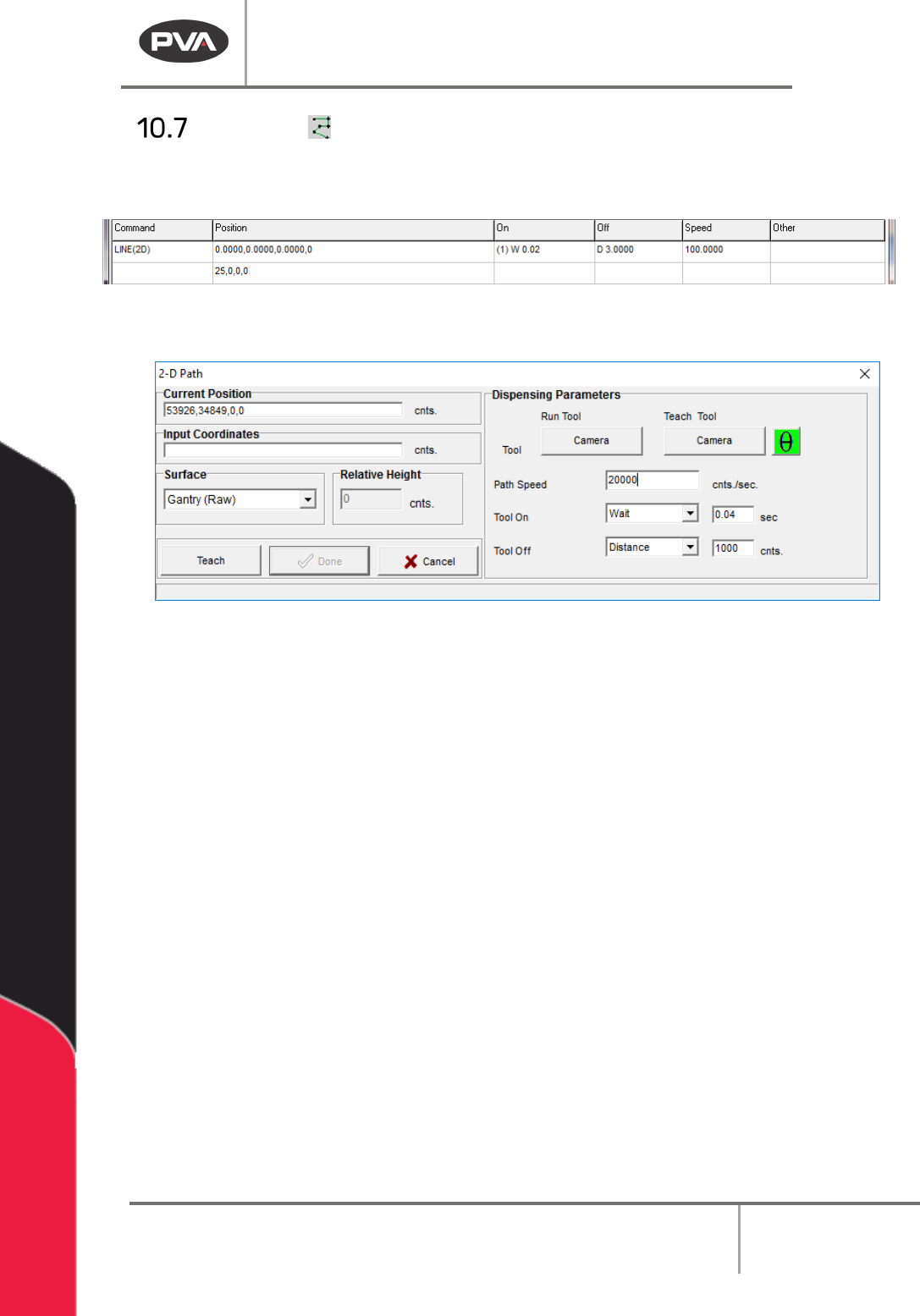
Figure 88: Programmed 2D Line Command
13. Select the 2D Path function.
Figure 89: Teach 2D Line
14. Select the Run Tool. Select (double click) the necessary tool from the Tool Selection
window. Refer to
Figure 68.
15. Select the Teach Tool if necessary. Select (double click) the necessary tool from the
Tool Selection window. Refer to
Figure 68.
16. Select “θ” to move the selected tool to the calibrated W-axis position (theta).
NOTE: The “θ” button will only be available on 4-axis machines. When you use the “Teach
Tool” (virtual tool 0) it is not necessary to select this button.
17. Select the Surface from the drop-down menu. In some units, you can set the
Relative Height.
18. Set the Path Speed.
19. Set the Tool On to “Wait” or “Distance” and set the time or distance in the box.
20. Set the Tool Off to “Wait” or “Distance” and set the time or distance in the box.
21. Select the “Teach” button or use the teach pendant to input the commands in the
Input Coordinates box.
22. Select “Done” to save the changes, or “Cancel” to exit and not save changes.
23. To edit a 2-D path, double click on the path and edit in the window shown. Refer to
Section 7.5.
Machine Operation Manual
Revision L /
February 2020
Page 83 of 200
3D Path
This function teaches 3D path segments. Refer to Section 10.1 for definitions of the tool
functions.
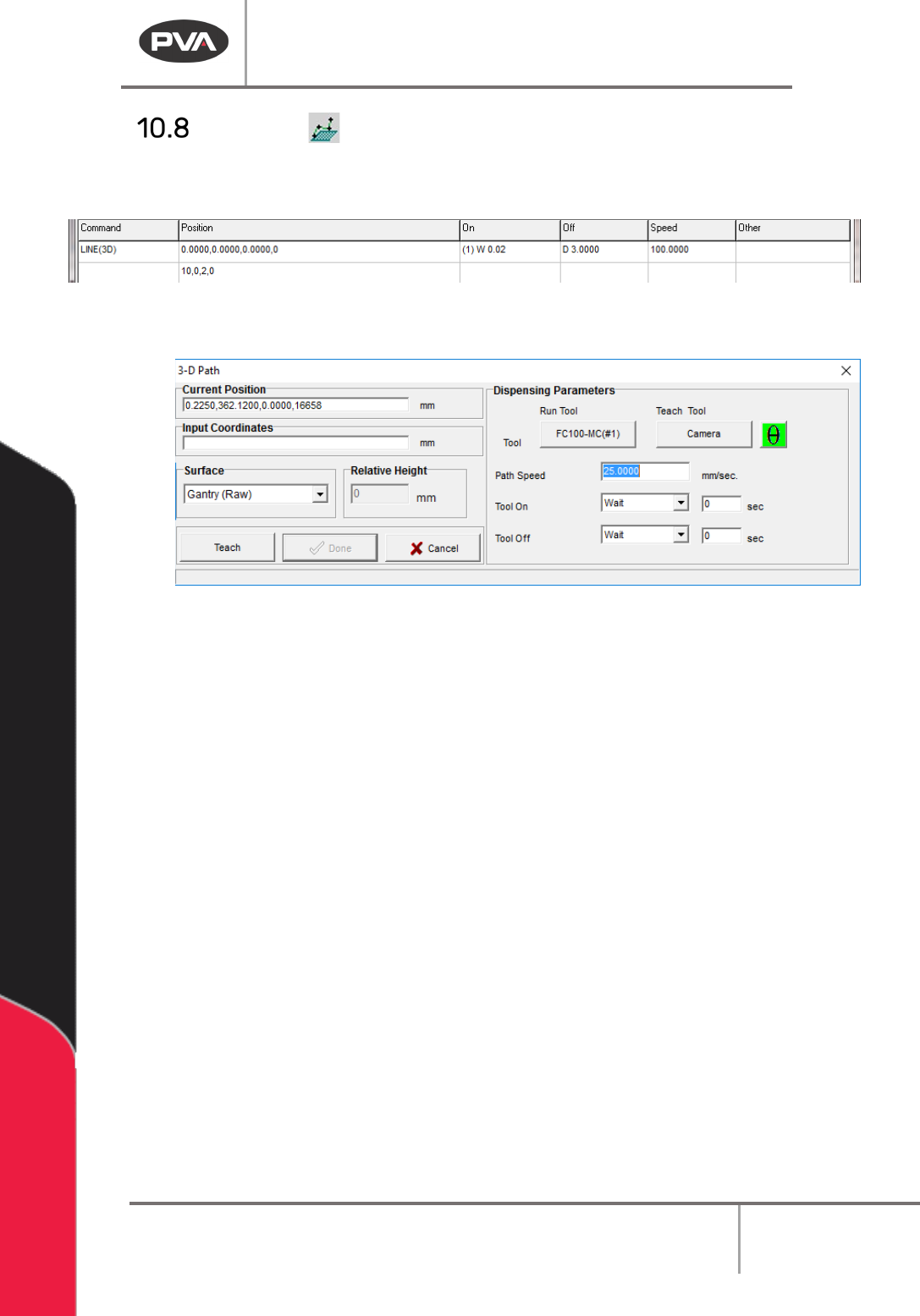
Figure 90: Programmed 3D Line Command
1. Select the 3D Path function.
Figure 91: Teach 3D Line
2. Select the Run Tool. Select (double click) the necessary tool from the Tool Selection
window. Refer to
Figure 68.
3. Select the Teach Tool if necessary. Select (double click) the necessary tool from the
Tool Selection window. Refer to
Figure 68.
4. Select “θ” to move the selected tool to the calibrated W-axis position (theta).
NOTE: The “θ” button will only be available on 4-axis machines. When you use the “Teach
Tool” (virtual tool 0) it is not necessary to select this button.
5. Select the Surface from the drop-down menu. In some units, you can set the
Relative Height.
6. Set the Path Speed.
7. Set the Tool On to “Wait” or Distance” and set the time or distance in the box.
8. Set the Tool Off to “Wait” or “Distance” and set the time or distance in the box.
9. Select the “Teach” button or use the Teach pendant to input the commands in the
Input Coordinates box.
10. Select “Done” to save the changes, or “Cancel” to exit and not save changes.
11. To edit a 3-D Path, double click on the path and change the command in the edit
window. Refer to Section 7.5.