PathMaster-REV-L-4.5-1.pdf - 第131页
Machine Operati on Manual Revision L / February 2020 Page 131 of 200 A rc The Arc fun ction ha s two endpoi nts and a mi d - point. 1. Select the Ar c functi on. 2. Teach the thre e poin ts. Figure 163 : FastPath Arc Dou…
Machine Operation Manual
Revision L /
February 2020
Page 130 of 200
The following functions are used in offline programming the same way they are used in
online programming:
NOTE: Each path segment taught corresponds to the tool selected in the FastPath™
toolbar.
• Move
• Tool
• Area
• Spiral
• Rectangular Spiral
• FastMask™
NOTE: The FastMask™ will be shown on the board image as a blue coating area with red
keep outs.
• Dot
The following functions are different in FastPath offline programming, their uses are
described below.
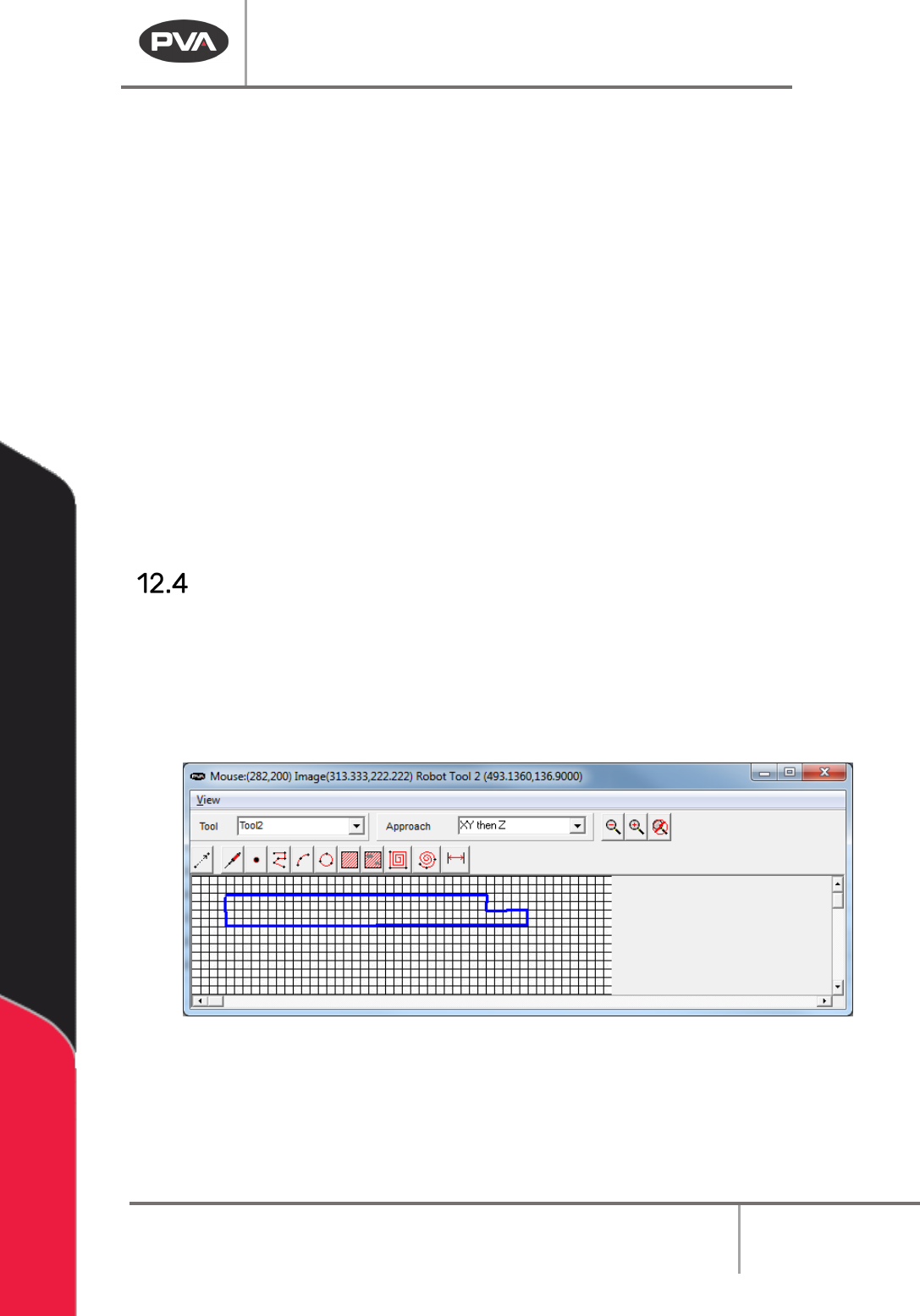
2D Line
The 2D Line function makes a line up to 2047 points.
1. Select the 2D Line button.
2. Select all the points of the line on the image.
3. When you have taught all points, right click the mouse to complete the 2D Line.
Figure 162: FastPath 2D Line
The line on the board image will have a dispense width equal to the area spacing parameter
of the selected tool (Setup-> Machine Parameters->”
Tool Parameters” -> Line Spacing).
The 2D line can be edited graphically.
Machine Operation Manual
Revision L /
February 2020
Page 131 of 200
Arc
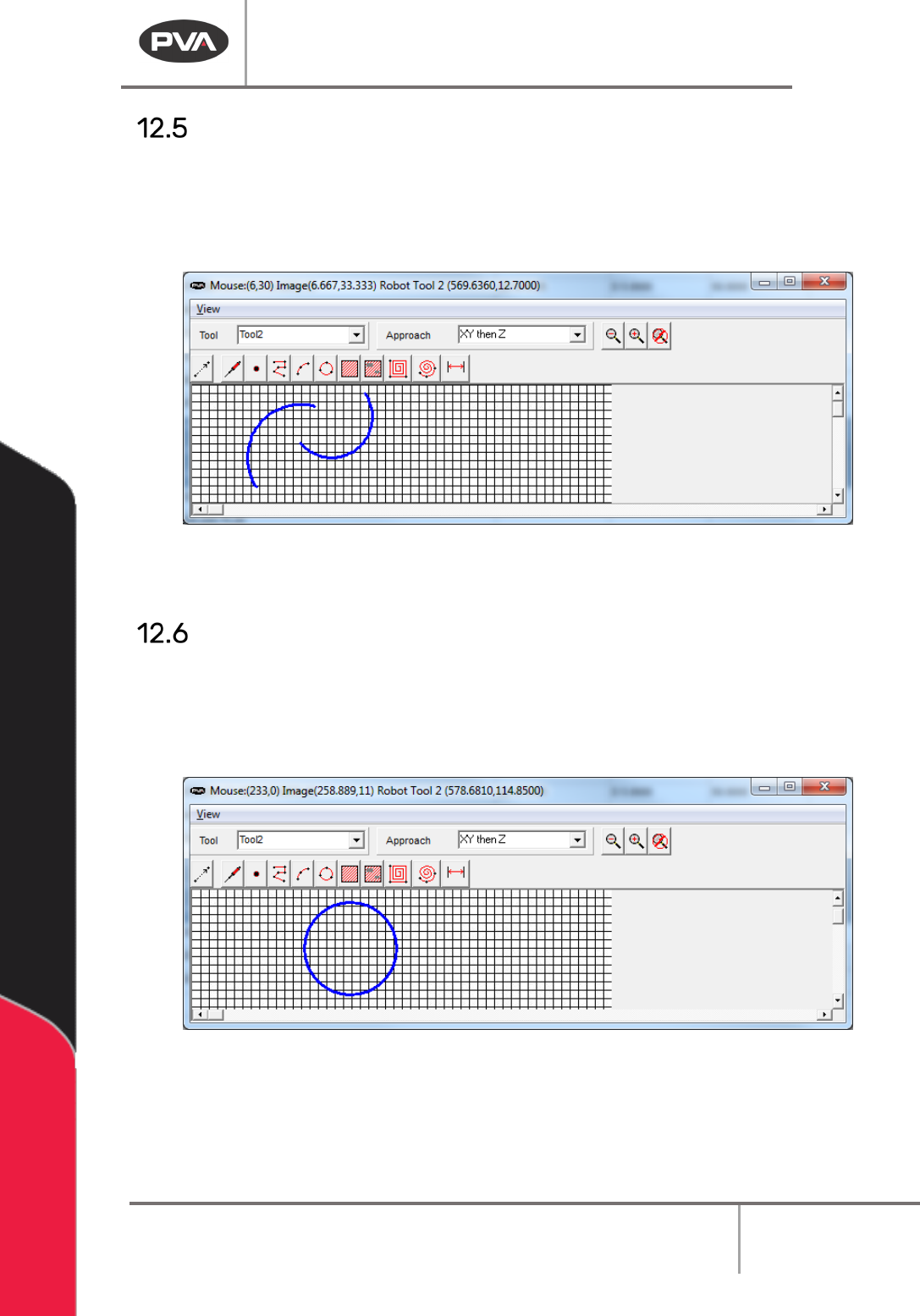
The Arc function has two endpoints and a mid-point.
1. Select the Arc function.
2. Teach the three points.
Figure 163: FastPath Arc
Double click on the arc to open the edit screen.
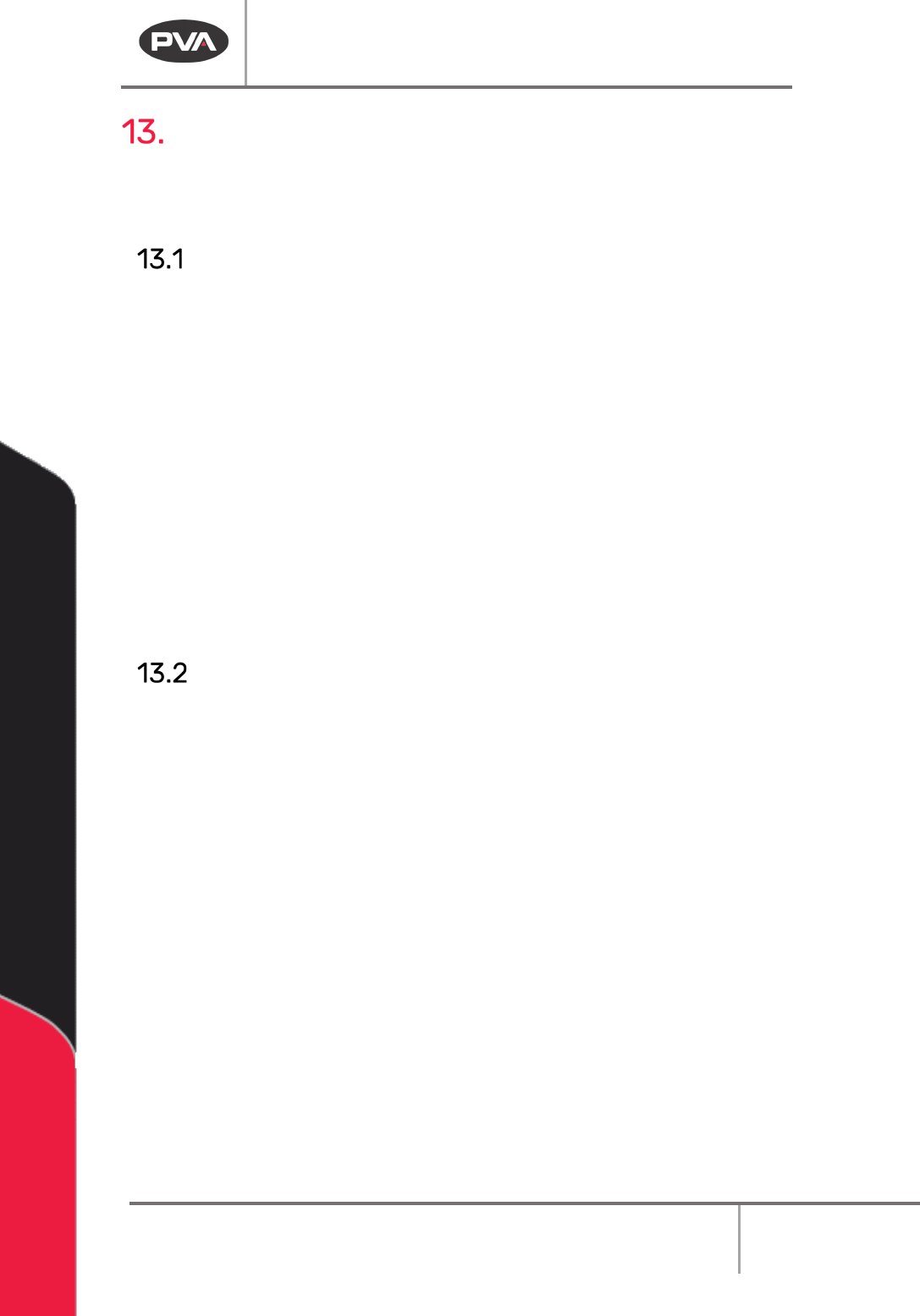
Circle
The center point is displayed for reference and cannot be moved.
1. Select the Circle function.
2. Teach the three points.
Figure 164: FastPath Circle
Drag any point of the circle to a new location to edit it. This will change the radius and
location of the entire circle.
Machine Operation Manual
Revision L /
February 2020
Page 132 of 200
Password Protection
Password protection can be added to the download and save functions in PathMaster® to
prevent unauthorized or accidental changes to project files.
Download Password
Password protection can be added to the download function in PathMaster®.
1. Select
Setup -> Password -> Set Download Password
from the main menu.
If no password exists, you will be asked if you would like to create one. If a previous
password exists, you must enter it correctly to continue.
2. Enter the new password.
3. Select “OK”.
4. Enter the password again.
5. Select “OK”.
The PathMaster® Download Project and Download Main functions are now password
protected. A password will be necessary to download with these functions. If the password
is entered incorrectly, the download is canceled.
Resetting Password
1. To reset the save or download password, do the procedure to set the download or
save password.
2. Enter a new password in the new and confirm password fields.