PathMaster-REV-L-4.5-1.pdf - 第148页
Machine Operati on Manual Revision L / February 2020 Page 148 of 200 Ar ea Spacin g Modify Area Spac ing 1. Select Modify - > Area Spacing. 2. Select ei ther Program or Selection . 3. Enter the new de sired spac ing i…
Machine Operation Manual
Revision L /
February 2020
Page 147 of 200
Subroutine Call
Selection
This option changes which subroutine will be called at runtime. You must highlight the
subroutine to be changed or this modification will not work.
Modifying a Subroutine Call
1. Select
Modify -> Subroutine Call.
2. Select
Selection.
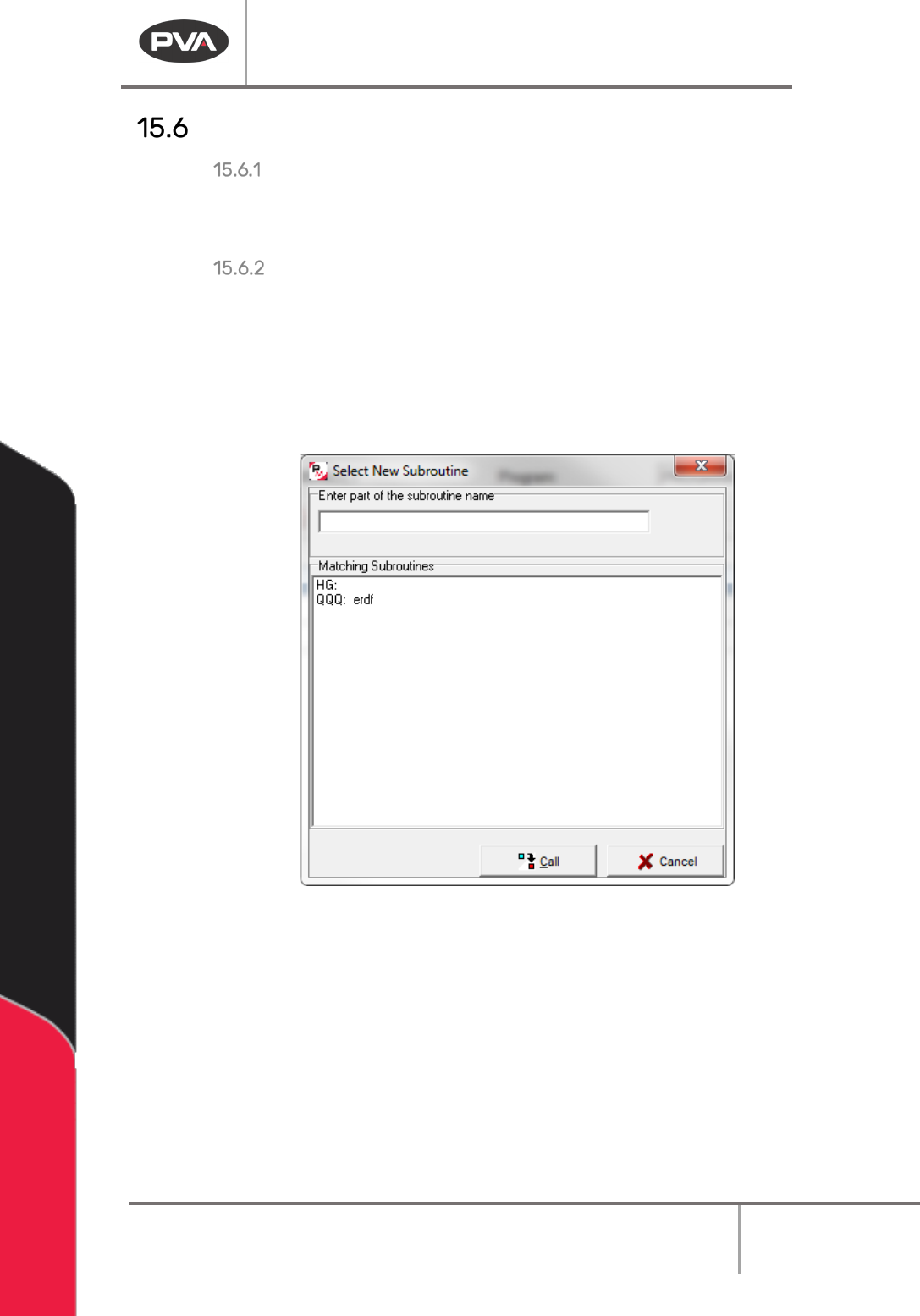
3. Select the necessary subroutine to replace the existing subroutine. Use the search
bar to help you find the new subroutine if necessary.
4. Click “Call”.
Figure 180: Select New Subroutine
The subroutine has been updated to the selected subroutine.
Machine Operation Manual
Revision L /
February 2020
Page 148 of 200
Area Spacing
Modify Area Spacing
1. Select
Modify -> Area Spacing.
2. Select either
Program
or
Selection.
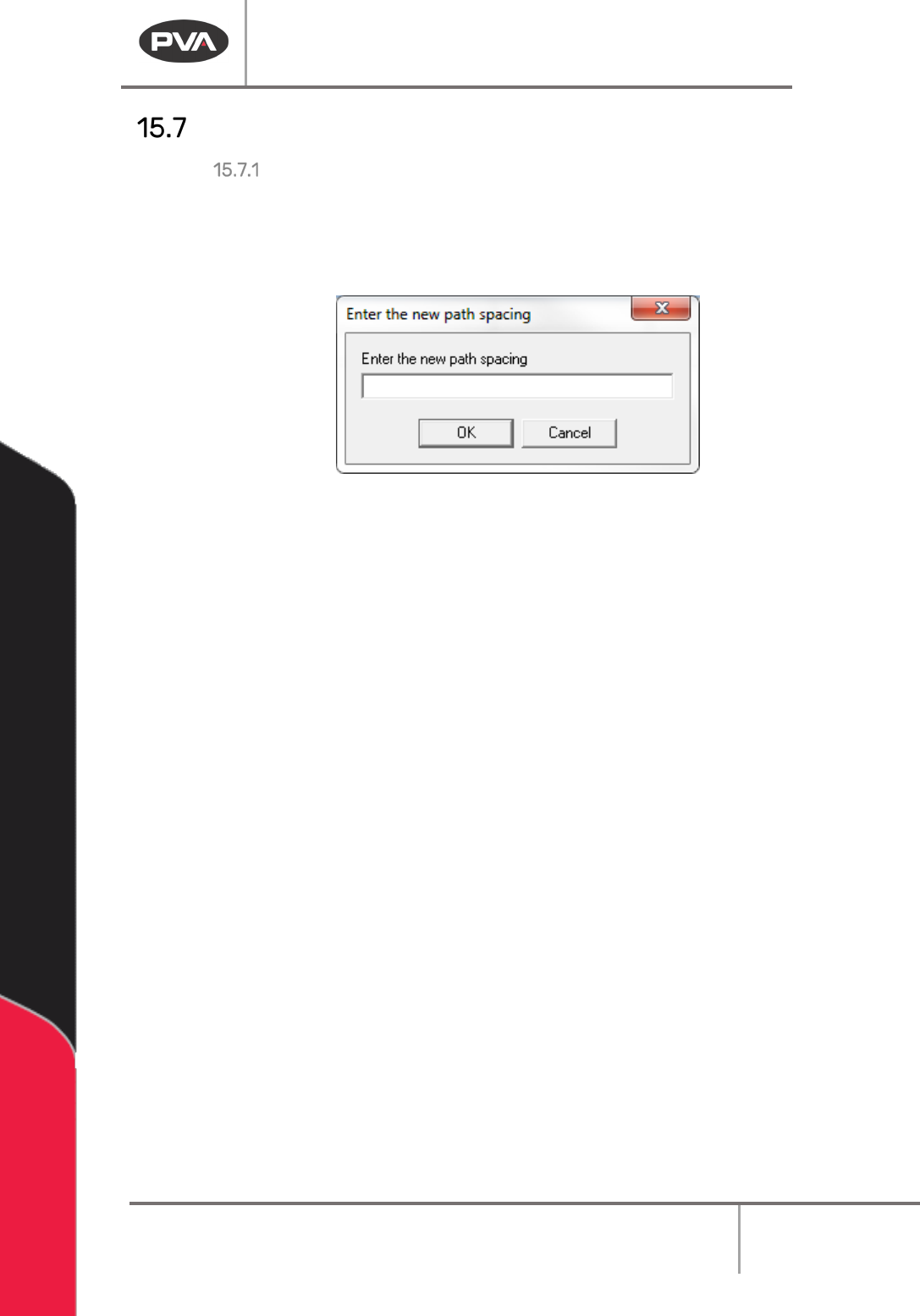
3. Enter the new desired spacing in the text box.
Figure 181: Area Spacing
4. Click “OK.”
All selected areas now have an updated spacing.
Machine Operation Manual
Revision L /
February 2020
Page 149 of 200
Utilities
PathMaster® has functions to help with debugging the workcell and path programs. These
functions can be found under the Utilities menu.
View FastPath
Open the FastPath™ window for offline programming.
• Select
Utilities -> View FastPath
option from the main menu.
NOTE: The FastPath™ window can also be accessed using the FastPath™ button on the
programming toolbar.
Measure Distance
The measure distance tool is used to find the distance between two points in current
measurement units.
• Select
Utilities -> Measure Distance
option from the main menu.
To Measure Distance
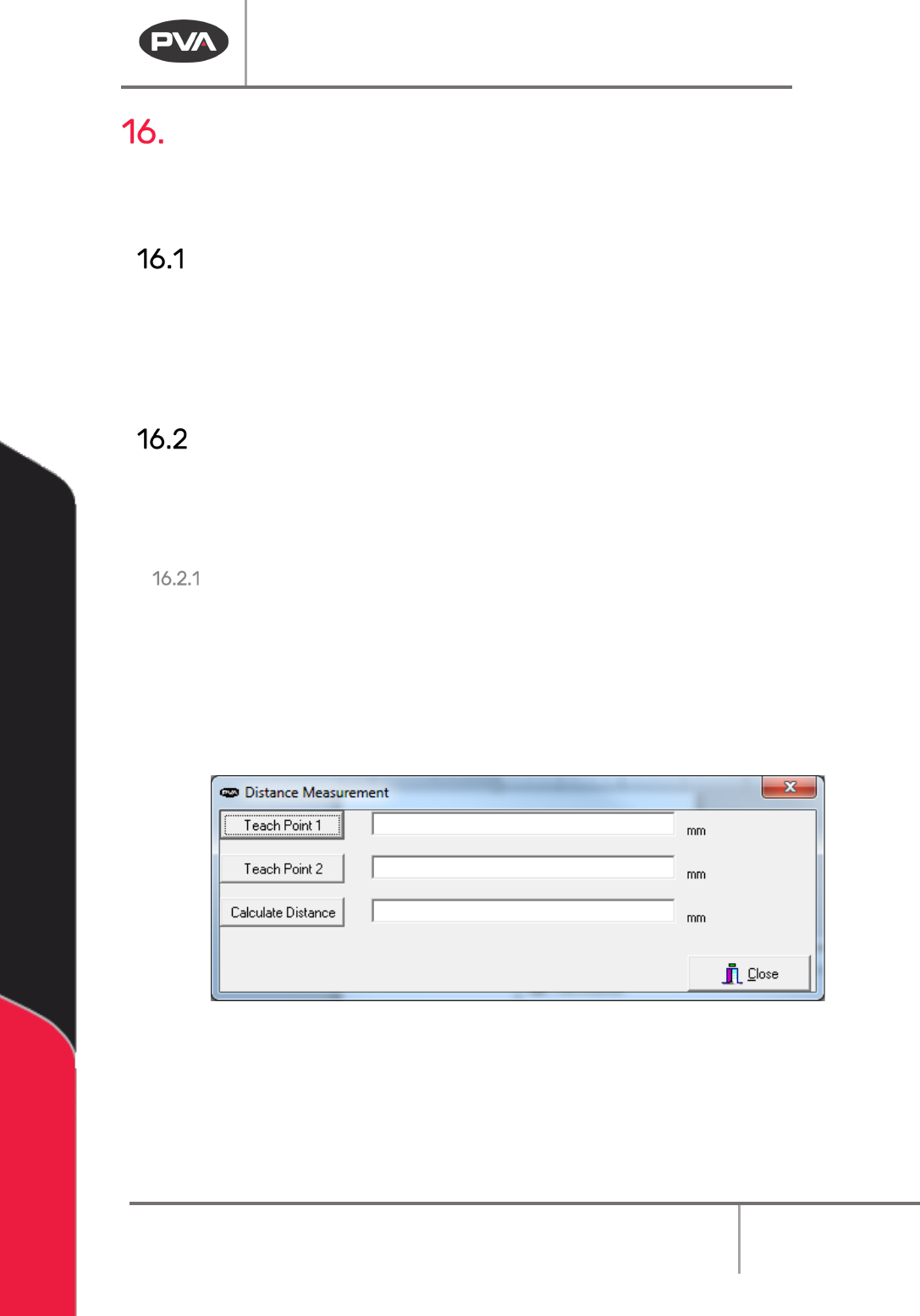
1. Move the tool to the first point with the teach pendant.
2. Select “Teach Point 1”.
3. Move the tool to the second point with the teach pendant.
4. Select “Teach Point 2”.
5. Select “Calculate Distance”. The distance will be calculated and shown.
Figure 182: Distance Measurement
6. Select “Close” when you are finished.