PathMaster-REV-L-4.5-1.pdf - 第16页
Machine Operati on Manual Revision L / February 2020 Page 16 of 2 00 Setup and Communication Before y ou operate a tool, workce ll, or progra m a pa th, it is neces sary to unde rstand t he workcell a nd the softwa re. O…
PathMaster
PVA
Revision K (2019)
15 of 200
Hardware and Software Requirements
PathMaster® requires an Intel® Core i5 processor or equivalent processor
with 4 Gigabytes of RAM, 2 Gigabytes free hard drive space and Windows® 10
Operating System or newer. Your computer must also have:
• (2) Ethernet ports
• (1) RS232 serial communications
port
• 17” monitor with 1280 x 1024
resolution
• Mouse (USB) and 6’ extension cable
• Keyboard (USB) with a touch pad if
used with a PVA monitor mount
• Keyboard extension cable, 6’
• Monitor cable, 15’ (Display port or
DVI)
• Display port or DVI video support
(VGA cannot be used)
• CDROM drive
• PMInterface Version 1.05, if Portal is
used
• Support for Windows 10 LTSB or
Enterprise (Windows 10 Pro is not
supported)
NOTE: Portal may not work correctly with systems that do not meet these minimum
requirements.
Galil Controller Requirements
• Galil controller, DMC 4000/4200 with firmware revision
D400s08n/DMC4200s05h or newer. Controllers must be purchased from
PVA.
o A DMC2000 controller may be used, but the software may only be
configured for DMC2000 or Legacy modes.
Security Software
Some security software packages and firewalls can interfere with PVA system
software. PVA software uses Ethernet ports 23, 60007, and 502 by default. Security
software and firewalls must be configured to allow traffic on these ports.
Machine Operation Manual
Revision L /
February 2020
Page 16 of 200
Setup and Communication
Before you operate a tool, workcell, or program a path, it is necessary to understand the
workcell and the software.
Operator Skills
The operator must have basic computer skills and be familiar with the Windows® 7 (or
Windows® 10) operating system.
Install PathMaster®
NOTE: Make sure that the Windows® User Account Control (UAC) is disabled and the user
account has Administrator rights before you install PathMaster®.
1. Insert the CD into the CD drive.
2. Run ‘PathMaster_Install.exe’ on the CD drive and follow the instructions shown.
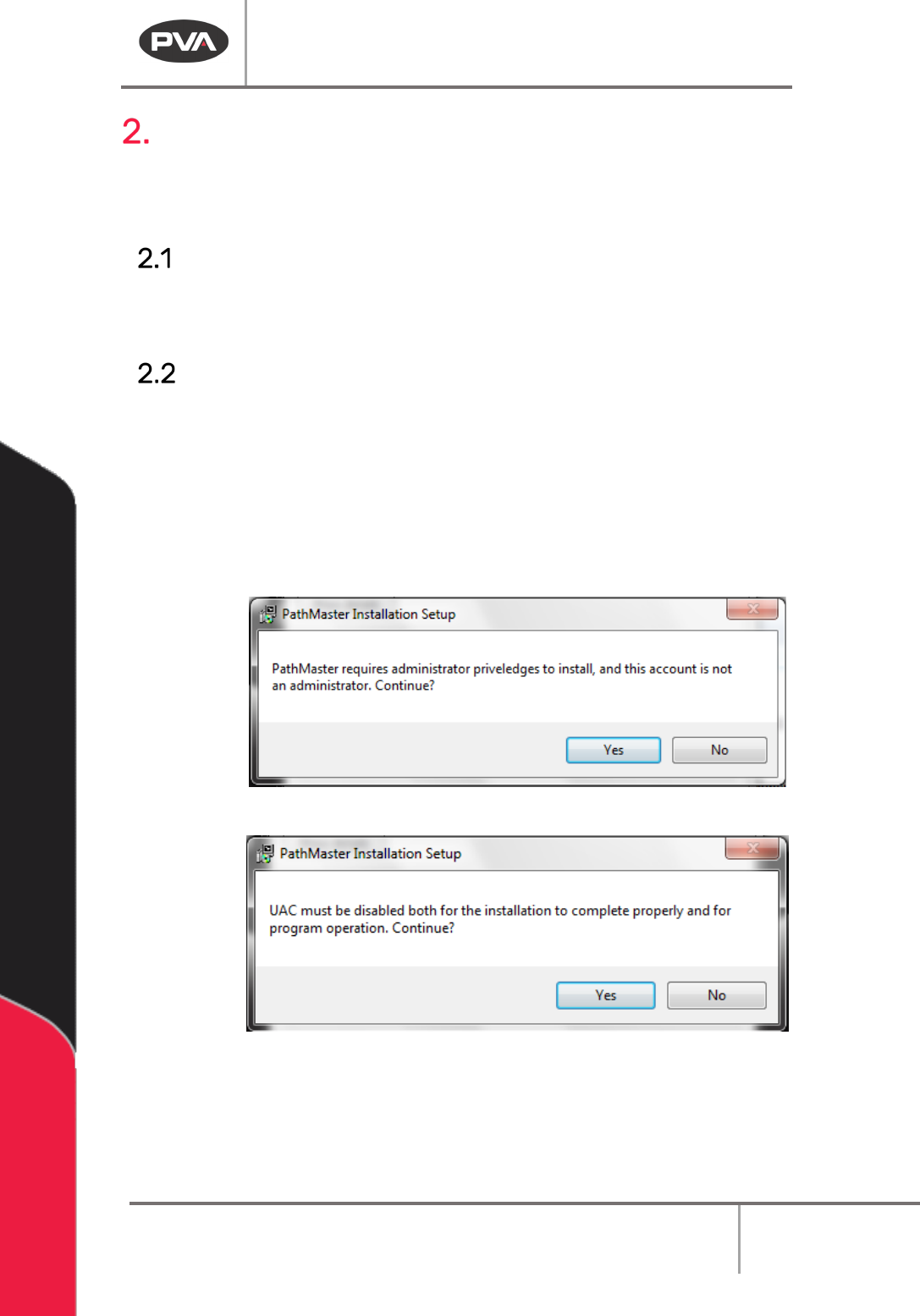
NOTE: If the user does not have administrator rights or if UAC is not disabled, the following
prompts will be shown.
Figure 1: PathMaster® Installation Administrator Privileges Window
Figure 2: PathMaster® Installation UAC Window
NOTE: Install the software in its default directory (c:\Program Files\PVA for 32 bit systems,
c:\Program Files (x86)\PVA for 64 bit systems).
Machine Operation Manual
Revision L /
February 2020
Page 17 of 200
Software Startup
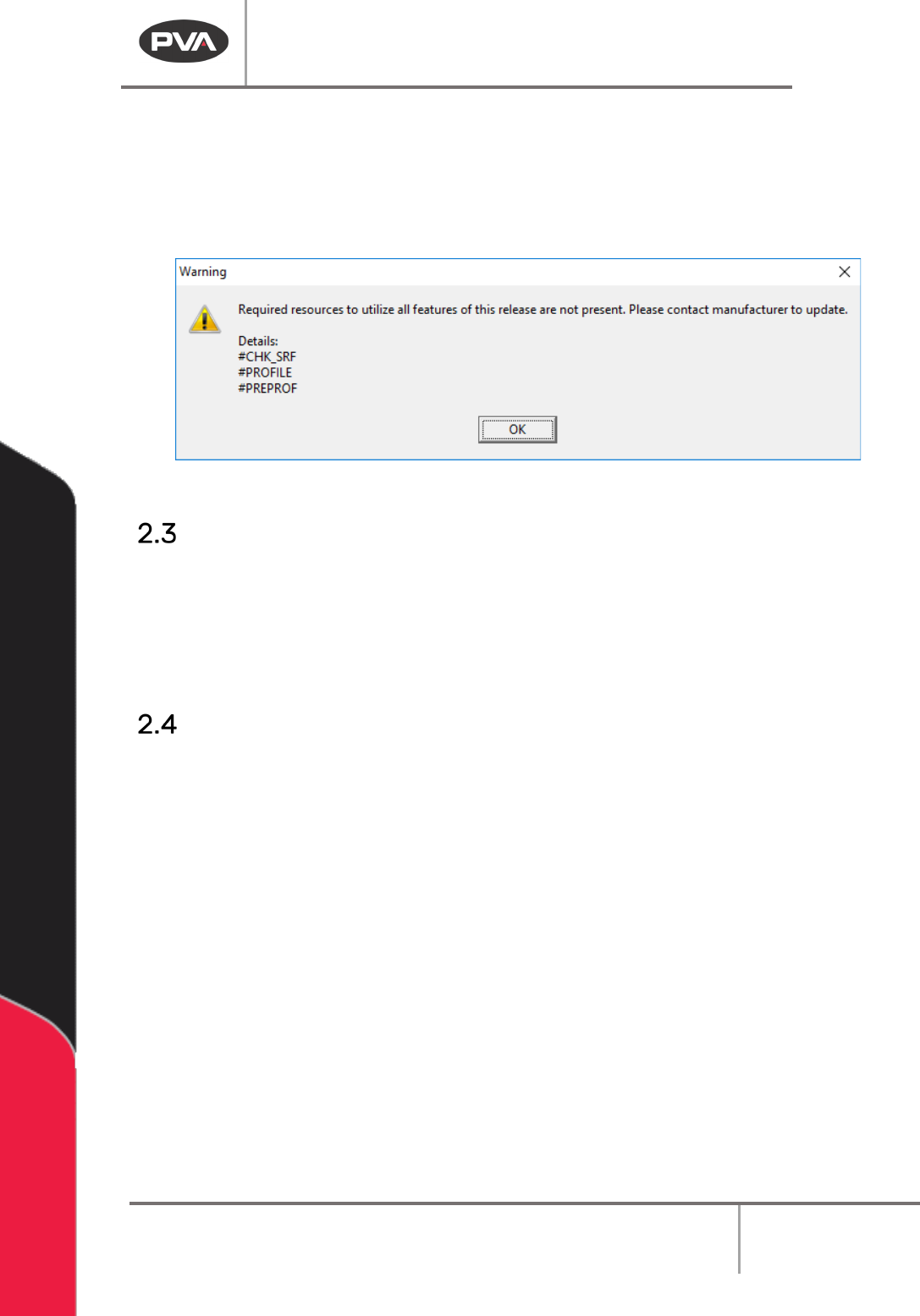
If you receive a warning at startup, please contact PVA. It is possible that the main program
needs to be updated. If you select “OK” and continue to use the software, some of the
features may not work.
Figure 3: Example Startup Validation Warning
Upgrade Procedure
PathMaster upgrades are available free of charge, however, to upgrade the software,
hardware upgrades may be necessary. For a successful upgrade, you must have the
requirements shown in Section 1.5. Also, it may be necessary for workcells with some
custom options to have additional edits to work correctly. Please contact PVA’s Customer
Service Department for information on upgrading your PathMaster software.
Multi-Machine Support
In PathMaster® version 4.3, multi machine support has been deprecated, but backward
compatibility is maintained.
When a database is imported in PathMaster® 4.3, the database is checked to see if it is pre-4.2.
If the database is pre-4.2, PathMaster® checks to see if the database has multiple machines in
it. If there are multiple machines in the database, the database will be split into multiple
databases (.bck files) with the data for a single machine in a single database. The new database
filenames will be the machine name (<MachineName>.bck) and are stored in the
\PathMaster\DB\Machines folder. When the database split is complete, PathMaster® will load
the database with the same machine name as the last loaded database. If that machine name
was not present in the multi-machine database, PathMaster® will load the default machine
(Default.bck). Every database has a default machine. Any of the new database files (single
machine databases) can be loaded at any time. Use the machine name to access data from
each machine in the old database.