PathMaster-REV-L-4.5-1.pdf - 第30页
Machine Operati on Manual Revision L / February 2020 Page 30 of 200 Database Restora tio n To restore t he PathMa ster® da taba se: 1. Select the File - > Database - > Restore option fr om the main men u. 2. You ca…
Machine Operation Manual
Revision L /
February 2020
Page 29 of 200
Modify Database Location, Save the Database on a Network
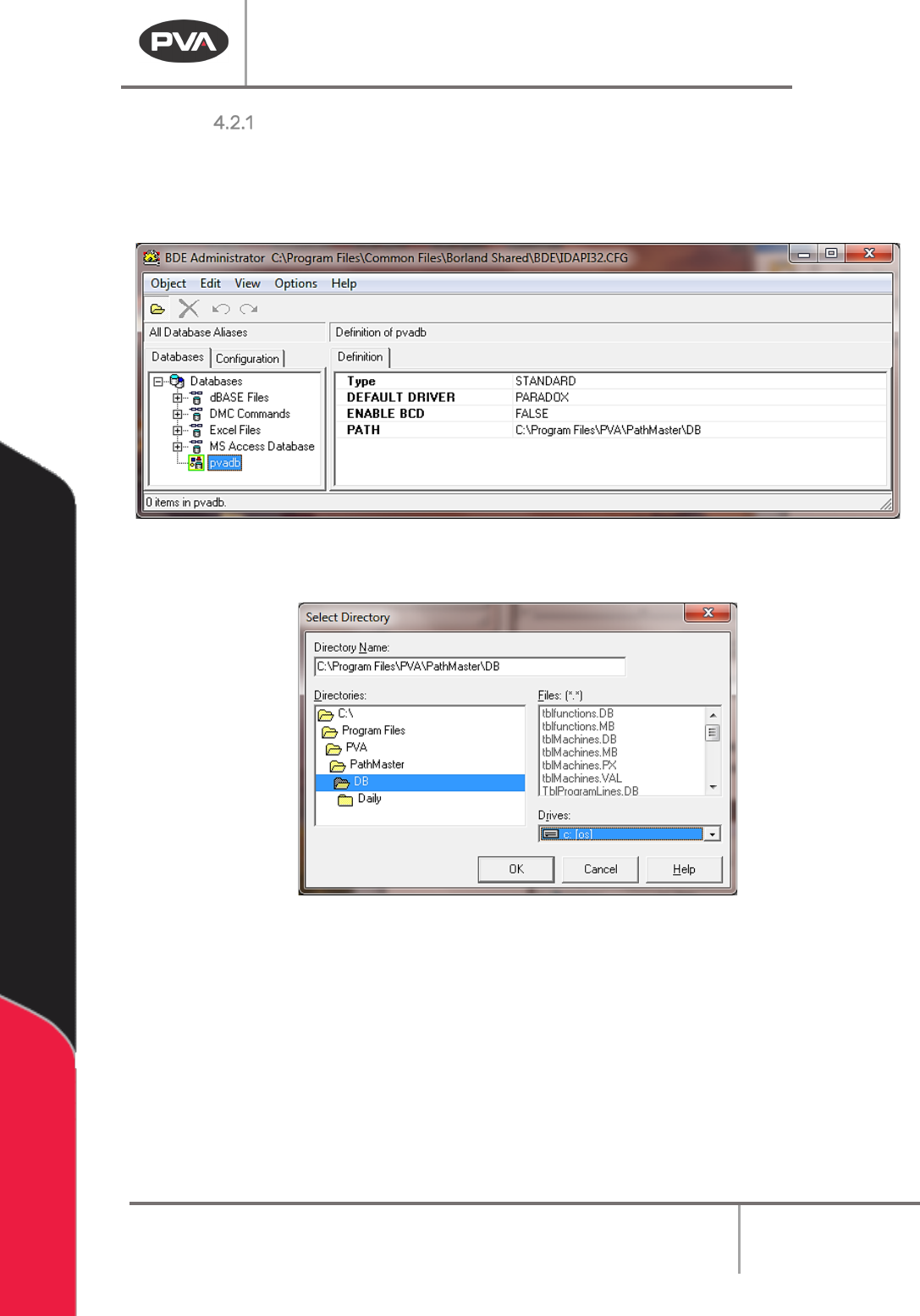
1. Open the BDE Administrator, usually in C:\Program Files(X86)\Common
Files\Borland Shared\BDE\bdeAdmin.exe.
2. Select pvadb from Databases.
Figure 15: BDE Administrator
3. Change the Path so that the Database is saved as necessary.
Figure 16: BDE Administrator Select Directory
4. Select “OK” when finished or select “Cancel” to exit and not save changes or “Help”
for additional information.
Machine Operation Manual
Revision L /
February 2020
Page 30 of 200
Database Restoration
To restore the PathMaster® database:
1. Select the
File -> Database -> Restore
option from the main menu.
2. You can restore a *.bck (standard backup) or *.abck (automatic backup) file with this
option.
WARNING! A restore PathMaster® database will completely overwrite all data prior to the
restore. Do not restore partial data with a database restore procedure.
3. When the file dialog box opens, select the location and file you wish to restore.
4. Select the “Open” button.
5. When the “Restore Successful” message displays, select the “OK” button.
6. Restart PathMaster®.
Restoring a database from a PathMaster® 2.3, 3.0 and 4.0
1. Follow the steps outlined above. Upon restart, you will be prompted indicating that
the database has been upgraded.
2. Use the above instructions to restore the database.
Restoring a database from prior to PathMaster® 2.3
It is not possible to restore a database to PathMaster
®
4.1 from versions prior to
PathMaster
®
2.3. Any database from a version of PathMaster
®
before 2.3 does not meet the
minimum requirements for the restore. Contact PVA if a restore is necessary.
Path Programs
A path program is a collection of individual path segments that make up a dispense
program. Path programs are made up of any combination of programming functions. Each
path program can have a unique name of 12 characters or less. The path program name is
shown on the operator interface while the path runs.
Project Files
PathMaster® project files can contain up to 30 individual path programs. A downloaded
project file has all 30 storage areas, even if some are empty. Empty areas will do nothing if
selected to run.
Machine Operation Manual
Revision L /
February 2020
Page 31 of 200
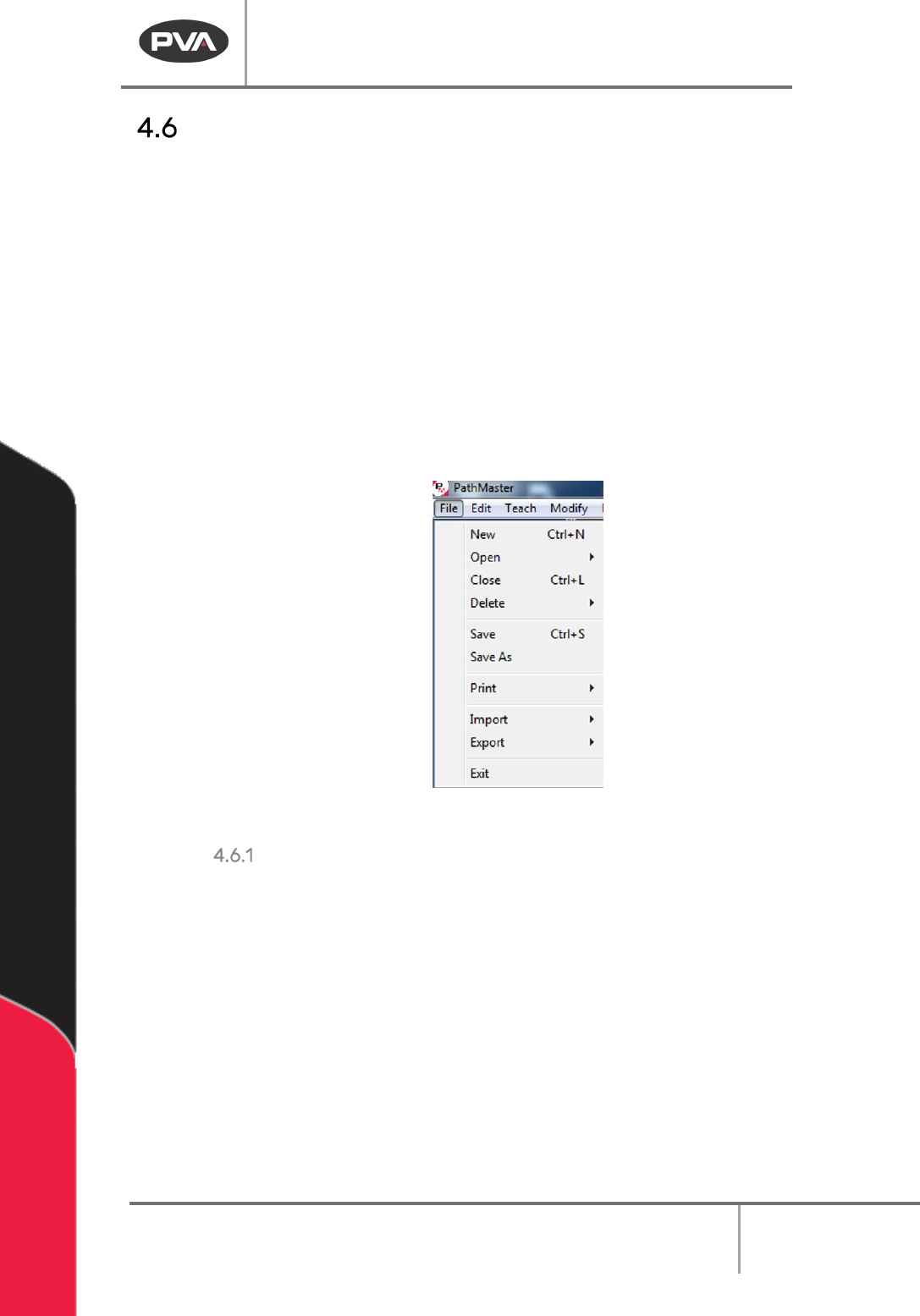
Save for Part Manager
When you select Save or Save As, the current project is saved and exported to a folder
hierarchy on the hard drive. The default location for the folder is in the ‘PathMaster.ini’ file.
PathMaster® can be configured to prompt the user for the folder location.
Example Save (for part manager) folder hierarchy: Project name: MyProject
• Select File -> Save or File-> Save As
A folder called MyProject (Project name) is created in the default project file output
location (C:\Program Files\PVA\PathMaster\Projects). In the MyProjects Folder, 30
individual files are created, one for each program in the project. The files names of the 30
program match the program name. If the program name contains characters that are not
allowed in file names, the character is replaced with the character ‘@’.
Figure 17: Save for Part Manager
INI Settings for ‘Save For Part Manager’
• Default folder location for Save For Part Manager: ProjectFileOutput=C:\Program
Files\PVA\PathMaster\Projects
• Set if the default location is used or if the user is prompted to select a location:
UseDefaultProjectFileOutput=1
CAUTION: The Path specified in the ‘[General]’ section of the ‘PathMaster.ini’ file with the
‘ProjectFileOutput’ key is for PathMaster® use only. This folder is an extension of the
PathMaster® database, for use with PVAPortal’s dependency, PartManager. Any external
data written to this folder or its children will be overwritten by PathMaster®!