PathMaster-REV-L-4.5-1.pdf - 第87页
Machine Operati on Manual Revision L / February 2020 Page 87 of 200 Create from Selecte d 1. To create a Polyli ne from individua l path se gments, select the pa th se gments to include in the P olyline. 2. Select the Te…
Machine Operation Manual
Revision L /
February 2020
Page 86 of 200
• Use Last uses the Z height of the previous Surface used in the Polyline. The first
point of a new Polyline cannot use this selection.
• Custom Surface uses the XY coordinates of the Surface command that shares the
same name and uses the Z height and the current run tool’s “
Calibrated Z” to set the
dispense Z height.
NOTE: Surfaces are named in the Path Segment before the Polyline being taught.
7. Click the green highlighted button above the Polyline Segment table to end the line.
8. Select the “Speed” column for an individual segment and type the value to change
it. Highlight multiple segments to change multiple values.
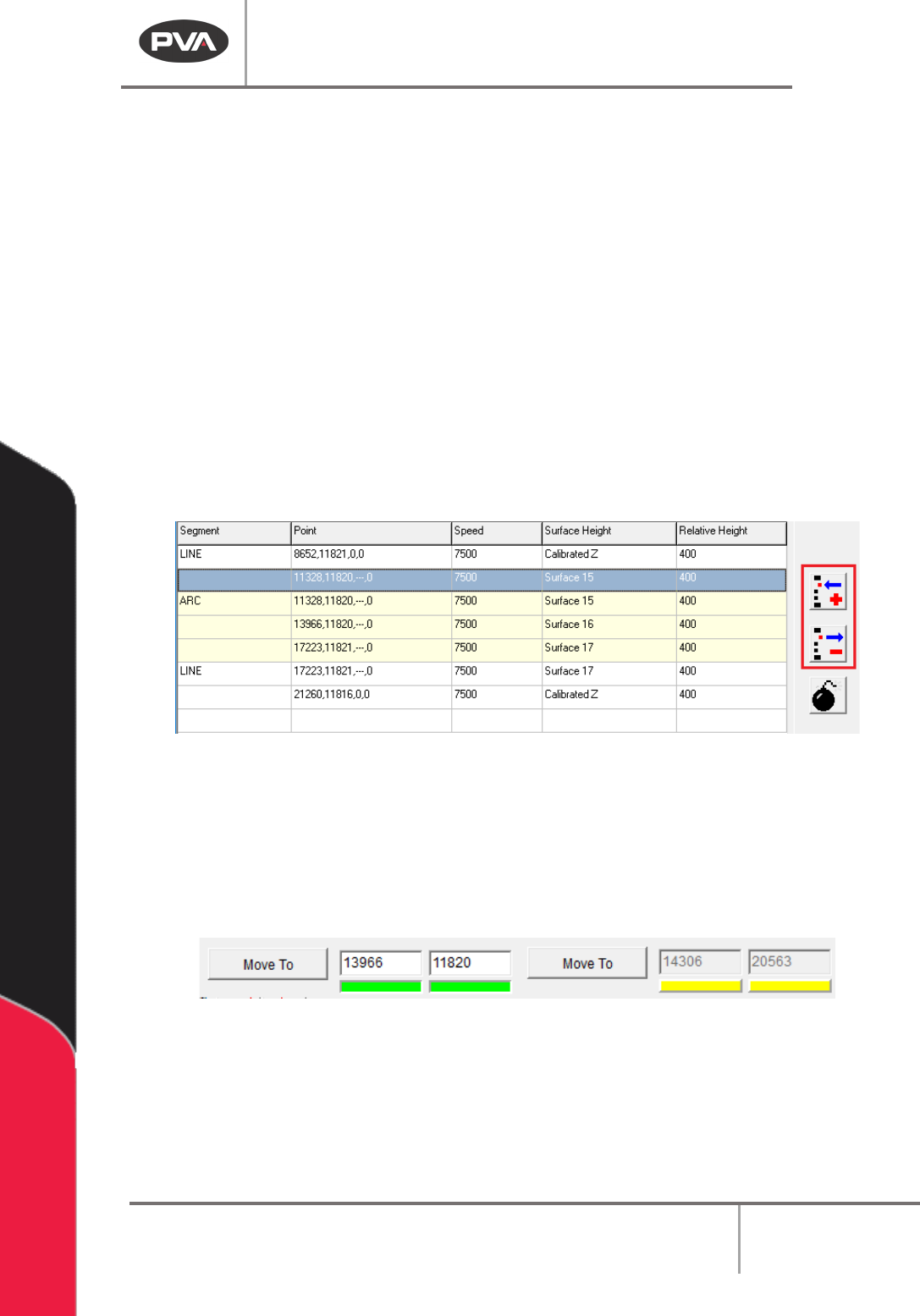
9. To edited line segments, use the buttons to the right of the Polyline Segment table.
The top button is used to add a new point into a line, and the bottom button to
remove a single point from a line, or remove an entire arc.
NOTE: After a new point is taught to a line, the segment is de-latched automatically.
Figure 96: Polyline Segment Table Edit Buttons
NOTE: If a line segment only has two points, the entire line will be removed if “Remove” is
selected. If a segment does not have the necessary number of points, it is removed from
the polyline list. Line segments must have at least two points, but can have more. Arcs
must have exactly three points.
10. Highlight a point and click “Move To” to move to the selected point.
Figure 97: Move to Coordinate Enable/Disable
11. Click the bar under any active axis to disable movement and editing of that axis by
turning the indicator yellow.
12. When all desired segments are taught, click “Done” to save the Polyline and add it to
the Path Program, or “Cancel” to return to the main PathMaster® window without
saving.

Machine Operation Manual
Revision L /
February 2020
Page 87 of 200
Create from Selected
1. To create a Polyline from individual path segments, select the path segments to
include in the Polyline.
2. Select the Teach menu.
3. Select
Polyline -> From Selected Lines
.
If the endpoints of the path segments do not match up, PathMaster® will ask to match up
the endpoints. If you do not to match up the endpoints the Polyline will not be made. If you
select match up the endpoints, the polyline will use the best fit.
The newly created Polyline will default to using the Raw Gantry height of the integrated
path segments. Entering the Polyline edit window allows the user to make use of Surface
Height readings and Relative Heights. Circles are re-generated into two arcs.
WARNING! PathMaster® will use the tool used in the first segment for all the segments.
Make sure all individual paths segments in a polyline use the same tool.
Machine Operation Manual
Revision L /
February 2020
Page 88 of 200
PolyLine (Legacy and DMC2000)
A PolyLine is a path made of 2 dimensional lines, arcs, and circles. PolyLines are used when
it is necessary to change direction quickly at high speeds during a dispense. Paths with
lines, arcs, and circles will have smoother movement and more uniform corners and circles
if created as a polyline.
There are two ways to make a polyline. Individual path segments can be made and then
changed to a polyline, or via the Polyline tool.
New PolyLine
When teaching a segment in a polyline, the last point of the previous segment will be used
as the first point of the new segment. For example, only two points of a polyline arc need to
be taught (if it is not the first segment of the polyline) because the first point will be the
last point of the previous segment.
4. Open the Polyline function from the top menu
Teach > PolyLine.
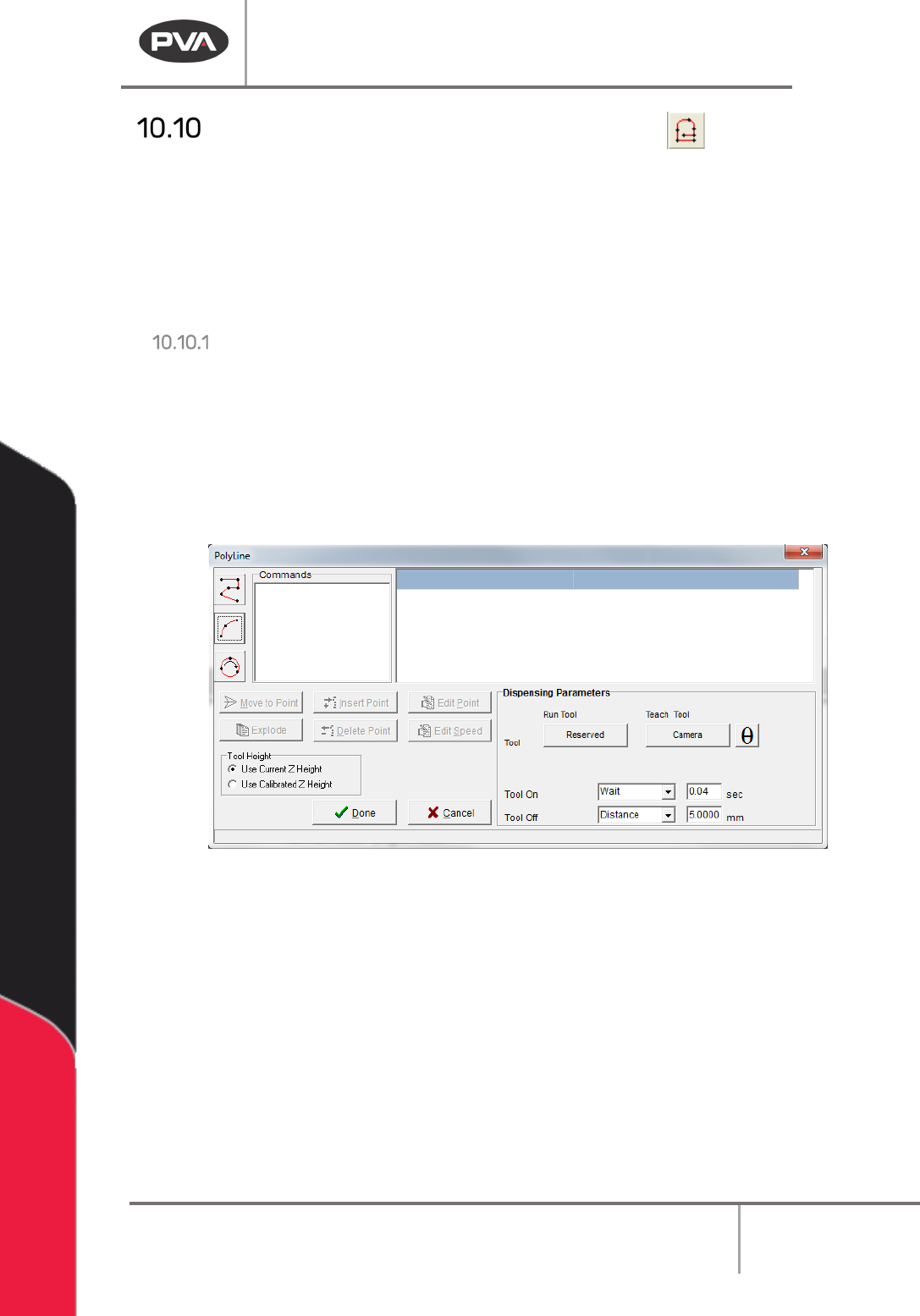
5. Select a programming tool from the toolbar on the left.
Figure 98: PolyLine Window
6. Teach the points required for the tool selected.
7. Set the Path Speed.