PathMaster-REV-L-4.5-1.pdf - 第34页
Machine Operati on Manual Revision L / February 2020 Page 34 of 200 Ma chine Transpo rt Errors When a machine tran sfer fil e is exporte d, PathM aster® make s sure th at all tools that are referenced have an a ssoci ate…
Machine Operation Manual
Revision L /
February 2020
Page 33 of 200
Exporting a Transfer File
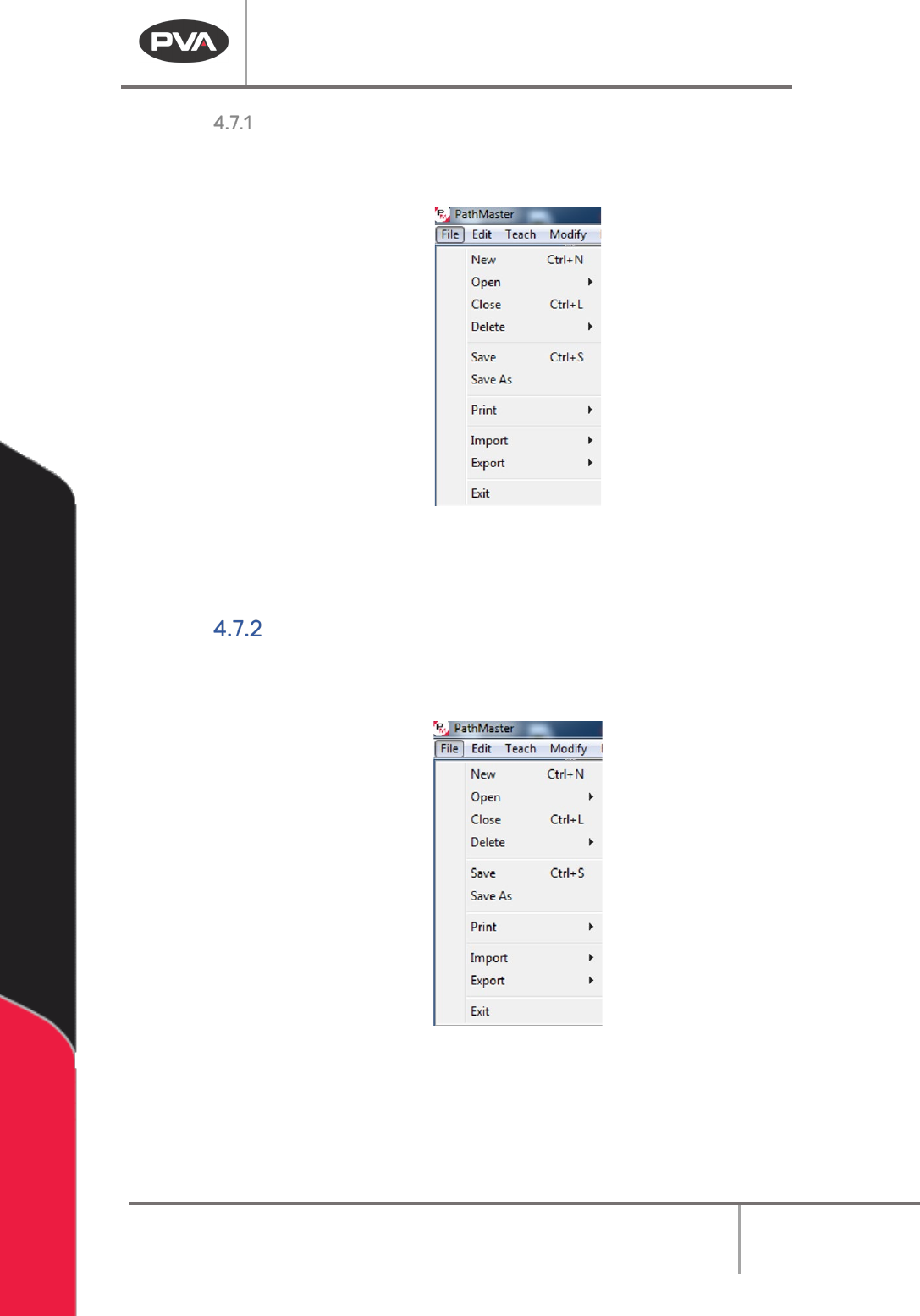
1. To export a Transfer File, select File -> Export -> Machine -> Transfer from the main
menu.
Figure 18: Export Machine Transfer
2. A prompt will ask for a file name and destination. Name the file. The Transfer File will
have a ‘.tfr’ extension. The transfer file can be imported onto a destination machine.
Importing a Transfer File
1. To import a Transfer File, select File -> Import -> Machine -> Transfer from the main
menu.
Figure 19: Import Machine Transfer
2. A prompt will ask for a transfer file name. Select the necessary file. The transfer file
will have a ‘.tfr’ extension.
Machine Operation Manual
Revision L /
February 2020
Page 34 of 200
Machine Transport Errors
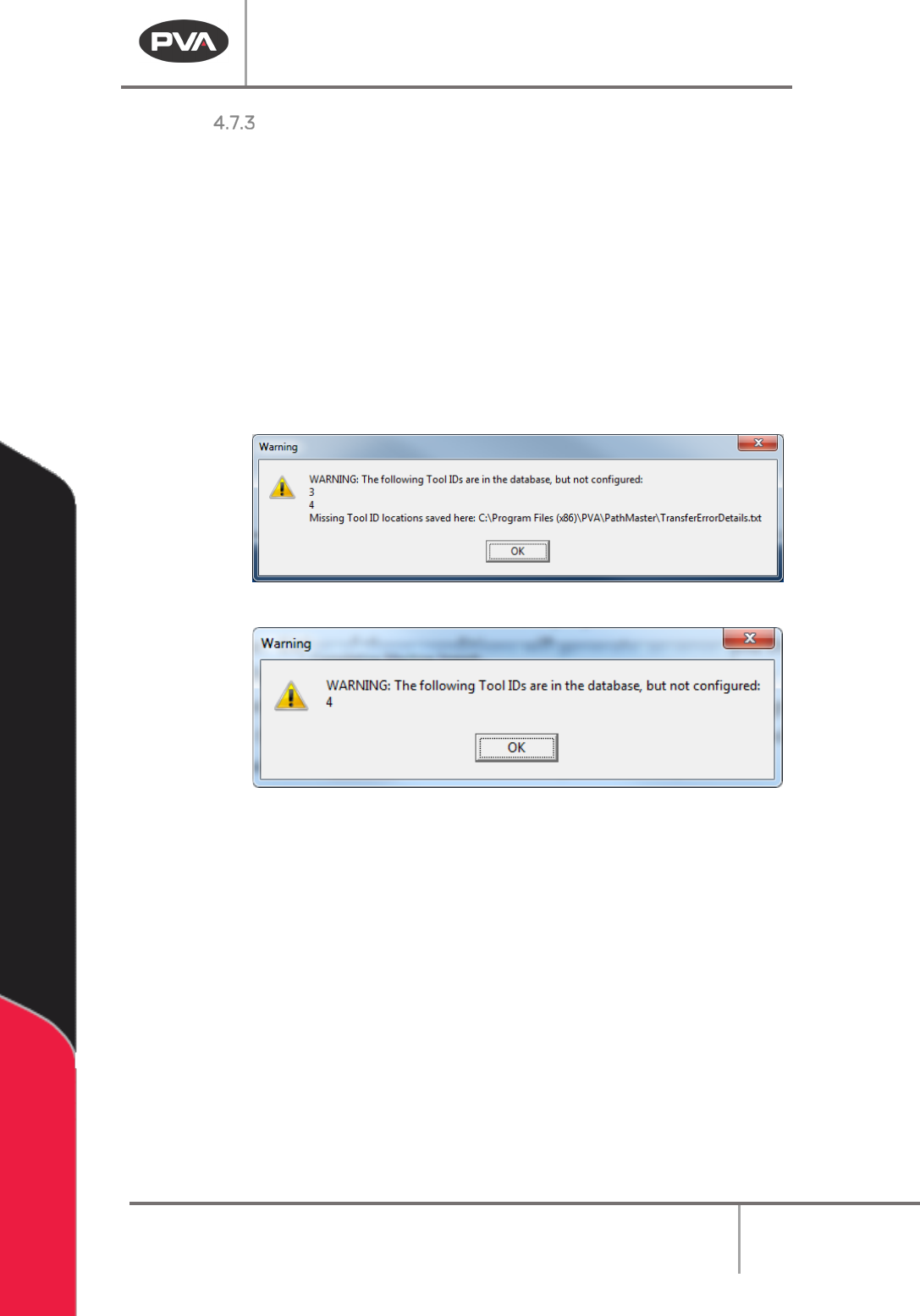
When a machine transfer file is exported, PathMaster® makes sure that all tools that are
referenced have an associated virtual tool configured. When a machine transfer file is
imported, PathMaster® makes sure that all tools referenced by a path in the transfer file
are configured on the destination machine, and that the destination machine has the same
name as the source machine. If there is a machine name or tool configuration mismatch,
PathMaster® will show an error and the import or export will be canceled, and a transfer
error detail file (‘TransferErrorDetails.txt’) will be written to the \PathMaster\Logs folder.
The transfer error detail file will outline the machine, project, program #, line # and tool that
had the issue. Having more tools configured than are used is allowed, but if a tool is
referenced in the source machine, it must exist on the destination machine.
Figure 20: Example Export Error
Figure 21: Example Import Error
Example TransferErrorDetail.txt
Project,Program,Line#,ToolID
DEFAULT,PROGRAM1,7,3
FASTPATH_SAMPLE,PROGRAM1,25,3
FASTPATH_SAMPLE,PROGRAM1,28,3
FASTPATH_SAMPLE,PROGRAM1,31,3
FASTPATH_SAMPLE,PROGRAM1,34,3
FASTPATH_SAMPLE,PROGRAM1,37,3
FASTPATH_SAMPLE,PROGRAM1,40,3
Machine Operation Manual
Revision L /
February 2020
Page 35 of 200
Operation
Start PathMaster
It is necessary to configure PathMaster® to run correctly with the workcell when it is
initially setup.
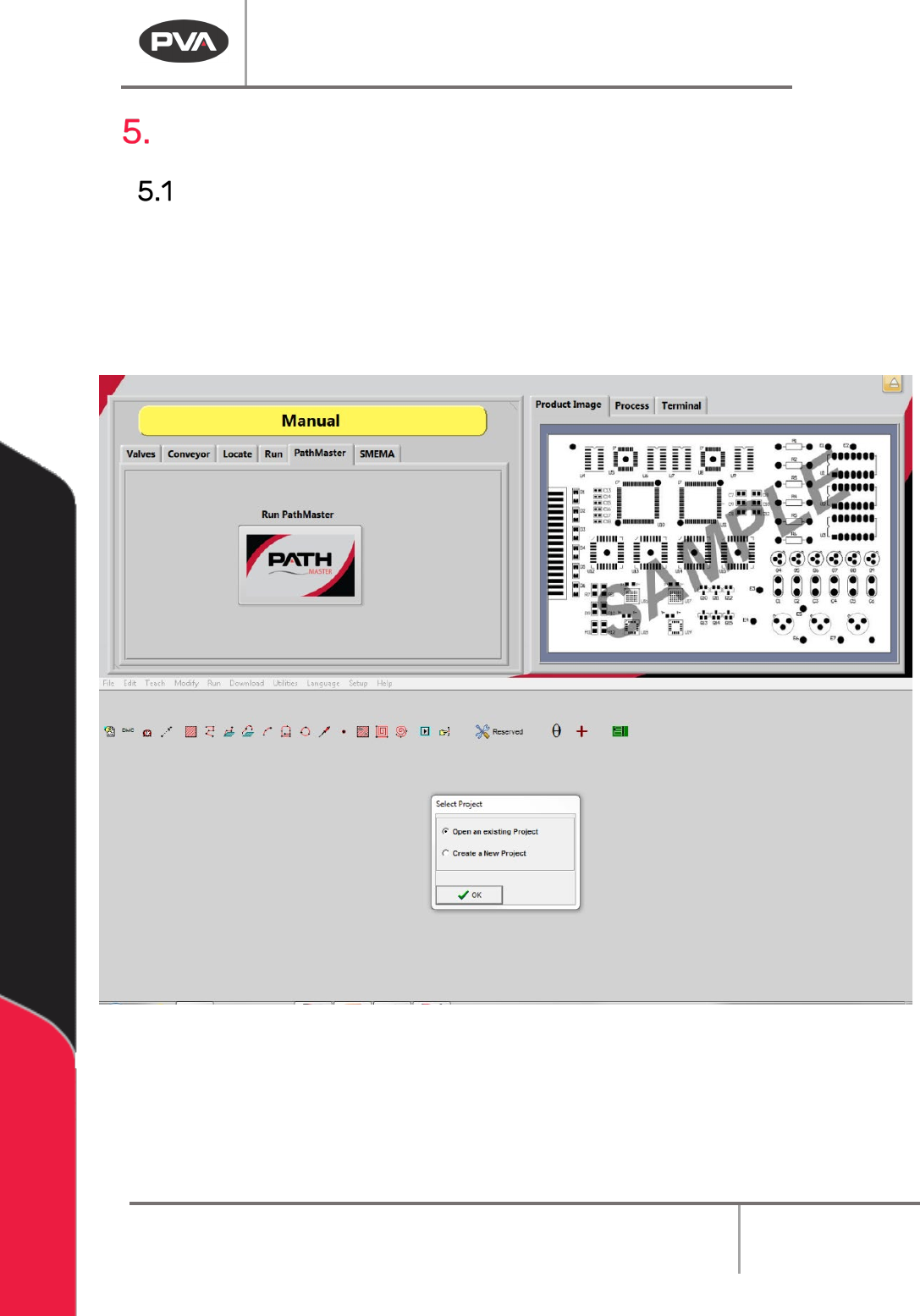
1. Double-click on the PathMaster® icon to start PathMaster®, or to start
PathMaster® from Portal, select Manual mode. Select the PathMaster® tab and
then select the PathMaster® button.
Figure 22: PathMaster® Opened through Portal
2. The Select Project dialog box will be shown.
3. Select Create a New Project.