PathMaster-REV-L-4.5-1.pdf - 第27页
Machine Operati on Manual Revision L / February 2020 Page 27 of 2 00 Figure 13 : Ru n Selectio n / Sequ ence Stat us Colo rs Once any mu ltiple - line selec tion is m ade by the user, th e Run Selection / S equence butto…
Machine Operation Manual
Revision L /
February 2020
Page 26 of 200
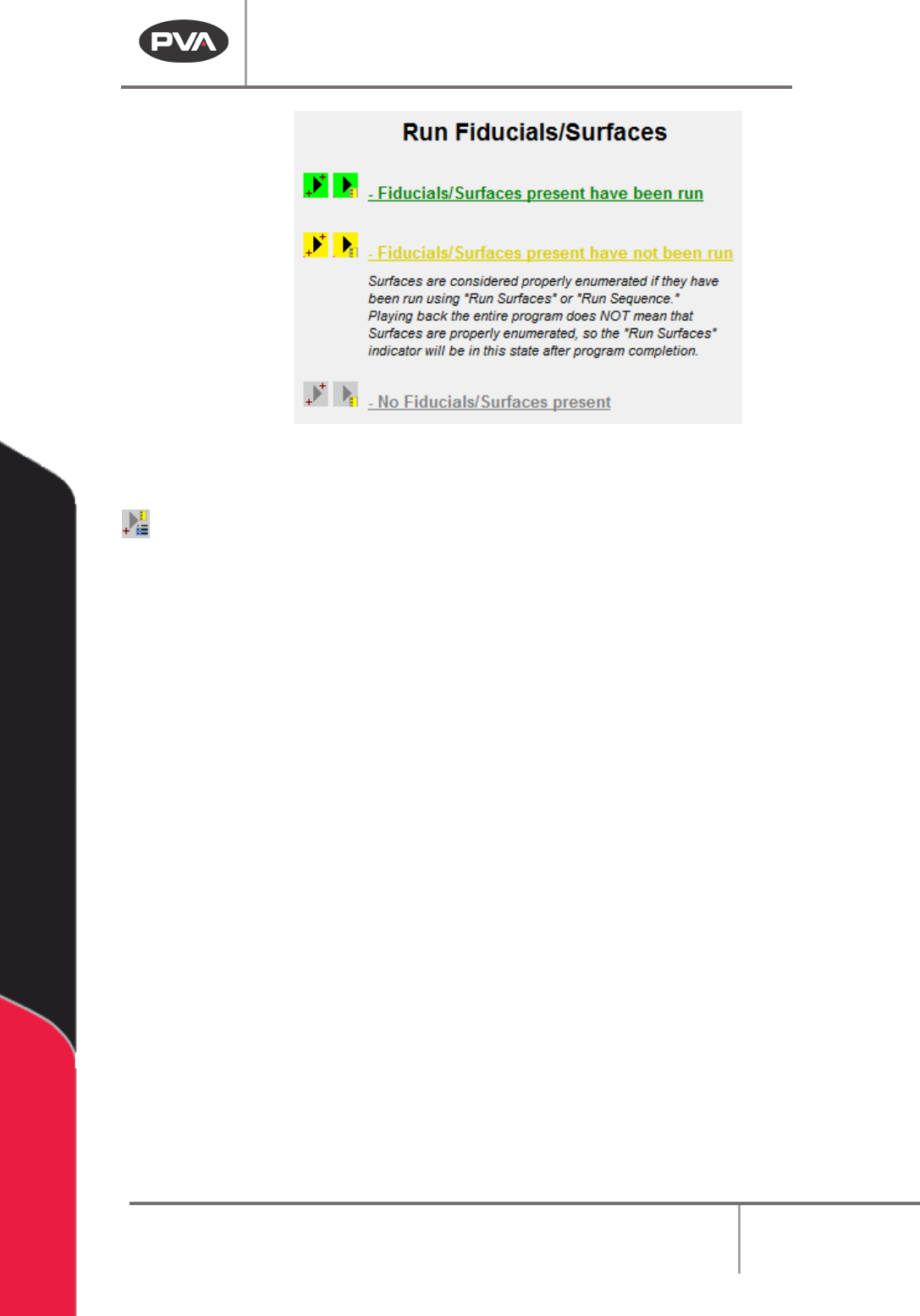
Figure 12: Run Fiducials / Surfaces Status Colors
Run Sequence – Plays the entire path program.
The highlighted color for Run Fiducials and Run Surfaces will change based on certain
conditions. The buttons for Fiducials and Surfaces will be yellow if the related command is
in the current path program but the command has not been run. This refers to teaching in
“Corrected Space” for Fiducials, and Surface Order Enumeration for Surfaces. The playback
button for Fiducials will be green when Fiducials have been run for the selected Path
Program. The playback button for Surfaces will be green when Surfaces have been run and
correctly enumerated.
NOTE: If a Fiducial is present in the path program and has not been run, the user cannot
run, teach, or edit surface commands.
Machine Operation Manual
Revision L /
February 2020
Page 27 of 200
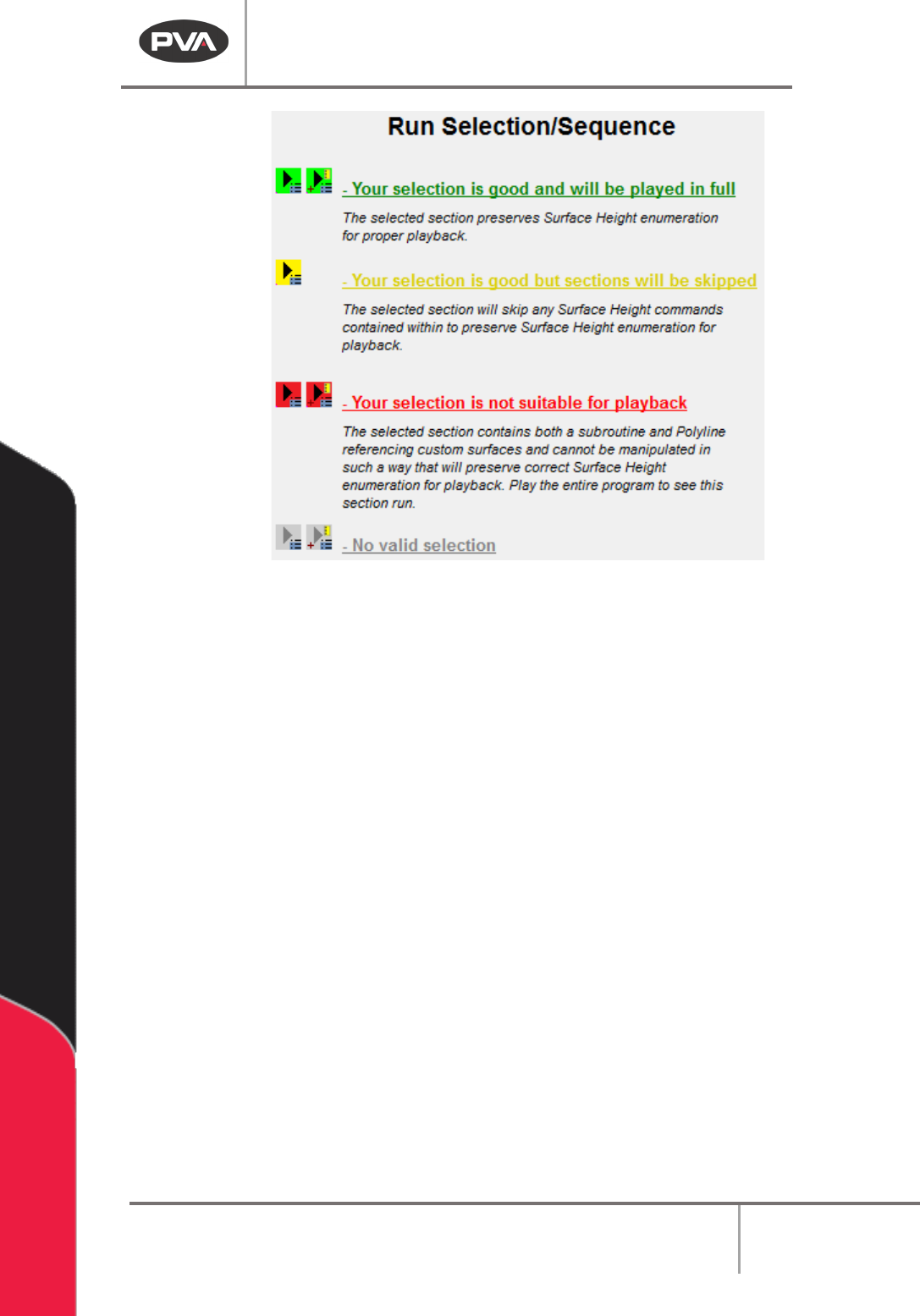
Figure 13:Run Selection / Sequence Status Colors
Once any multiple-line selection is made by the user, the Run Selection / Sequence
buttons will change color based on several factors. If the selection is cannot be played, the
button will be red. This shows that the enumeration for surface heights will not be correct
at the time of playback. If the selection can be played but will skip some surface height
commands in order to preserve the Surface Height enumeration, the selection will be
highlighted yellow. If a valid selection is made that can be played in full, the play button will
be highlighted green.
Machine Operation Manual
Revision L /
February 2020
Page 28 of 200
PathMaster
®
Database
PathMaster® uses a flexible database structure to store all parameter and program
information and must be backed up correctly. The database can be backed up and
restored. The full database must be manually backed up before and after any changes are
made to projects or programs. PVA is not responsible for any lost data or production time
because of incorrect database backup procedures.
Automatic Backup
PathMaster® will do an automatic backup of the full database the first time it is opened
each day. PathMaster® uses a rolling ten-day automatic backup scheme. A backup file will
be stored for the last ten days that PathMaster® was used.
All automatic backups are stored in the Db\Daily sub folder of the PathMaster® application
folder. The default location of these files is “C:\Program Files\PVA\Pathmaster\DB\Daily”.
Manual Backup
A manual database backup should be part of the programming procedure.
1. To do a manual database backup, select the
File
->
Database
->
Backup Option
from
the main menu.
2. Save the project if prompted to do so.
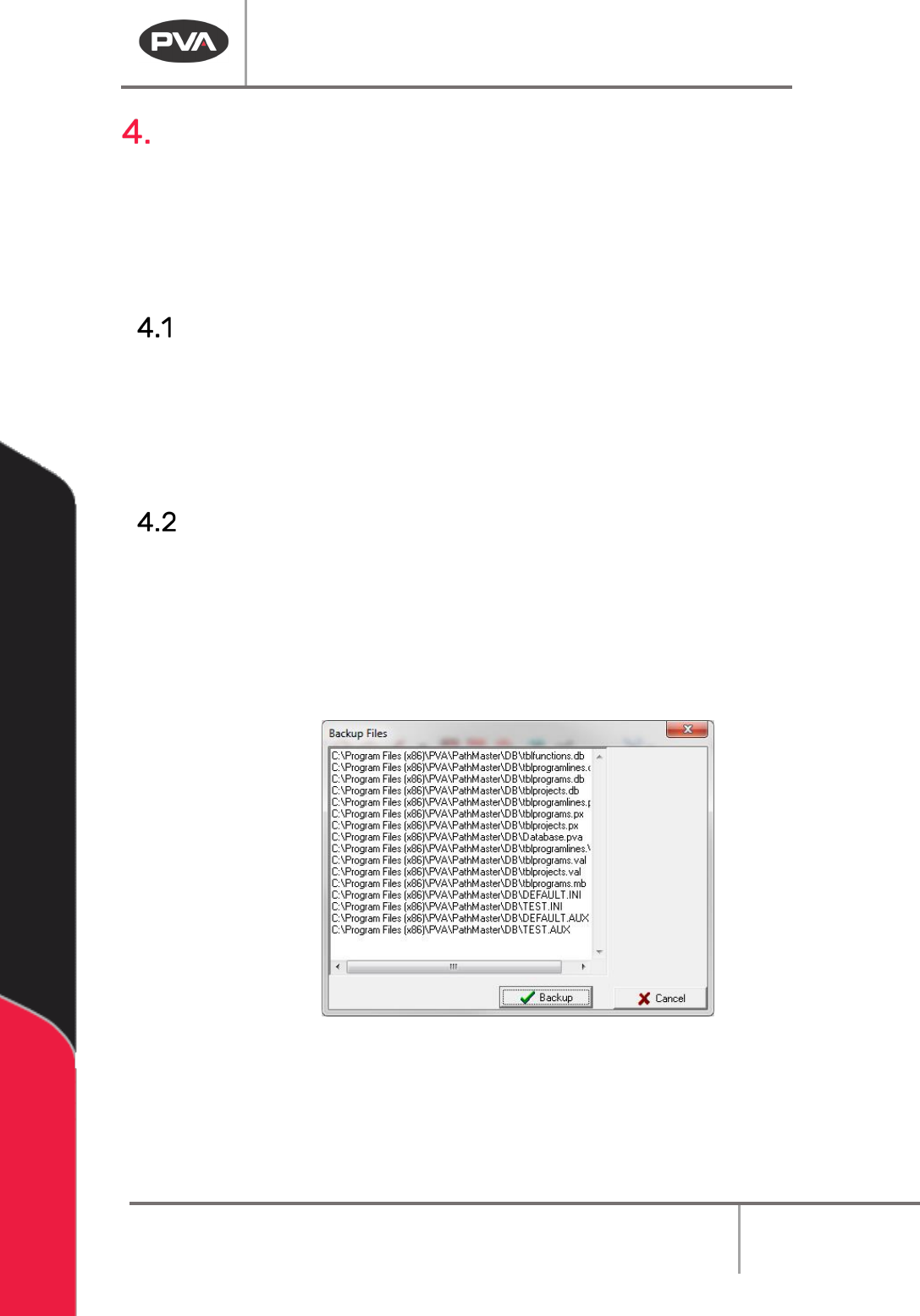
3. Select the “Backup”
button when the Backup Files window opens.
Figure 14: Backup Files
4. The Save As dialog box opens. Select a location and a filename for the backup file
(the backup will only be 1 file). The backup file extension will be ‘.bck’.
5. Select the “Save” button. The PathMaster® database backup is complete.