PathMaster-REV-L-4.5-1.pdf - 第143页
Machine Operati on Manual Revision L / February 2020 Page 143 of 2 00 Mi rroring a Path NOTE: It is not possible to mirror and offse t a program simulta neously . 1. Select Modify - > Offse t. 2. Select ei ther Progra…
Machine Operation Manual
Revision L /
February 2020
Page 142 of 200
Offset
Select
Modify -> Offset
to see the options
Program
and
Selection
.
Offsetting a Path
1. Select
Modify -> Offset.
2. Select either
Program
or
Selection.
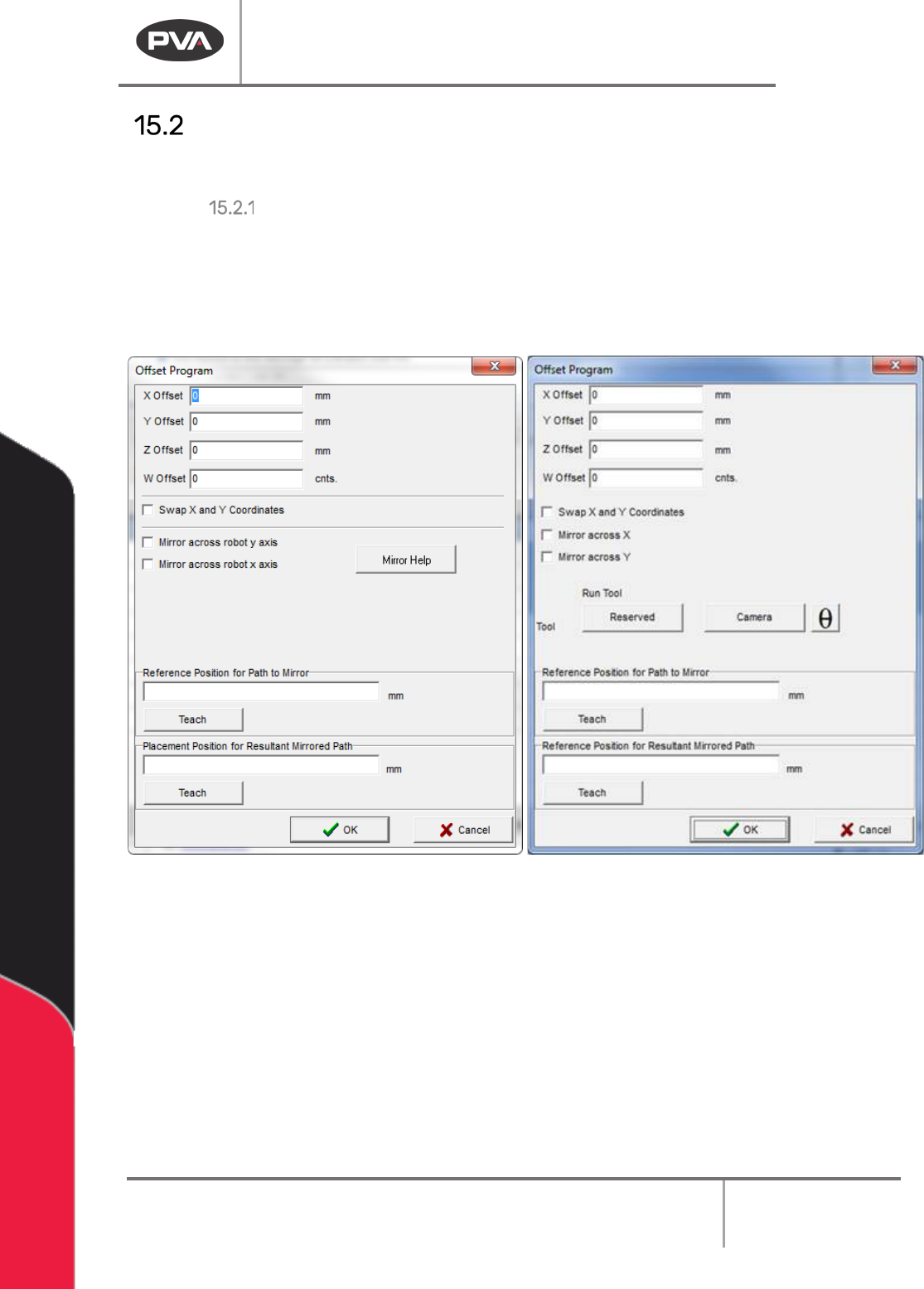
3. In the boxes for ‘X Offset’, ‘Y Offset’, ‘Z Offset’, and ‘W Offset’, enter the desired
offset in the units shown.
Figure 175: Offset Program Window Without and With Teach Tool Enabled
4. Click ‘OK’.
Your program/selection has been correctly offset.
NOTE: If you Offset W you could cause unintended consequences, and will override existing
offsets when the teach tool is enabled. Re-teaching a selected command will reset the W
to the pre-taught offsets.
Machine Operation Manual
Revision L /
February 2020
Page 143 of 200
Mirroring a Path
NOTE: It is not possible to mirror and offset a program simultaneously.
1. Select
Modify -> Offset.
2. Select either
Program
or
Selection.
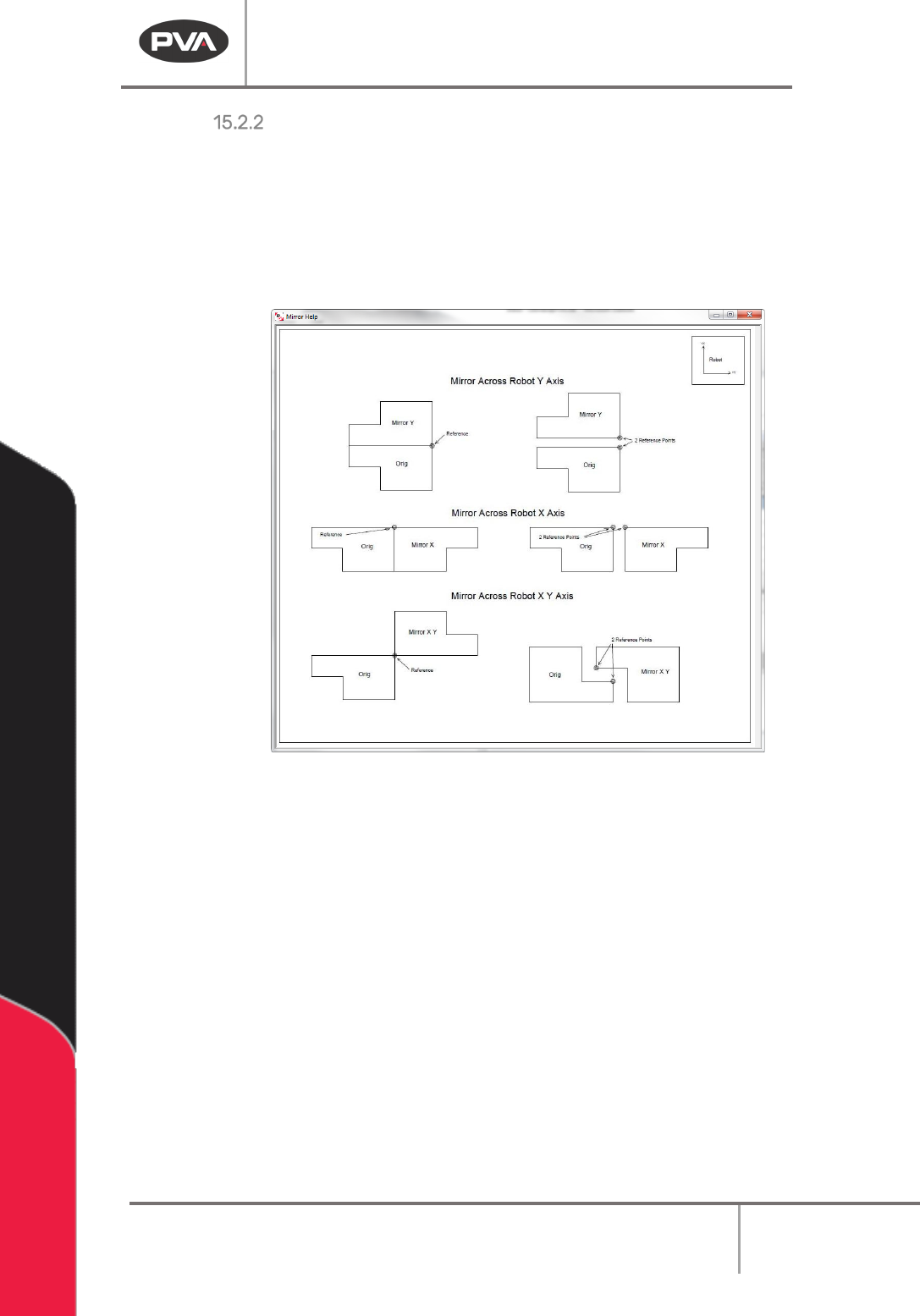
3. Select ‘Mirror across robot y axis’ and/or ‘Mirror across robot y axis’. See ‘Mirror
Help’ for an image and description of each action.
Figure 176: Mirror Help Window
4. Move the robot to the necessary reference point for the path. This point is used to
group the selected path components and will also act as the reflection point.
5. Click the first “Teach” button.
6. Move the robot to the new location. This location will be used as the origin of the
location, based on the first reference point select.
7. Click the second “Teach” button.
8. Click “OK”.
Your program/selection is now mirrored.
NOTE: This will only mirror the X and Y axes and will not affect the Z or W axes.
Machine Operation Manual
Revision L /
February 2020
Page 144 of 200
Rotate
Rotating a Path
1. Select
Modify -> Rotate.
2. Select either
Program
or
Selection.
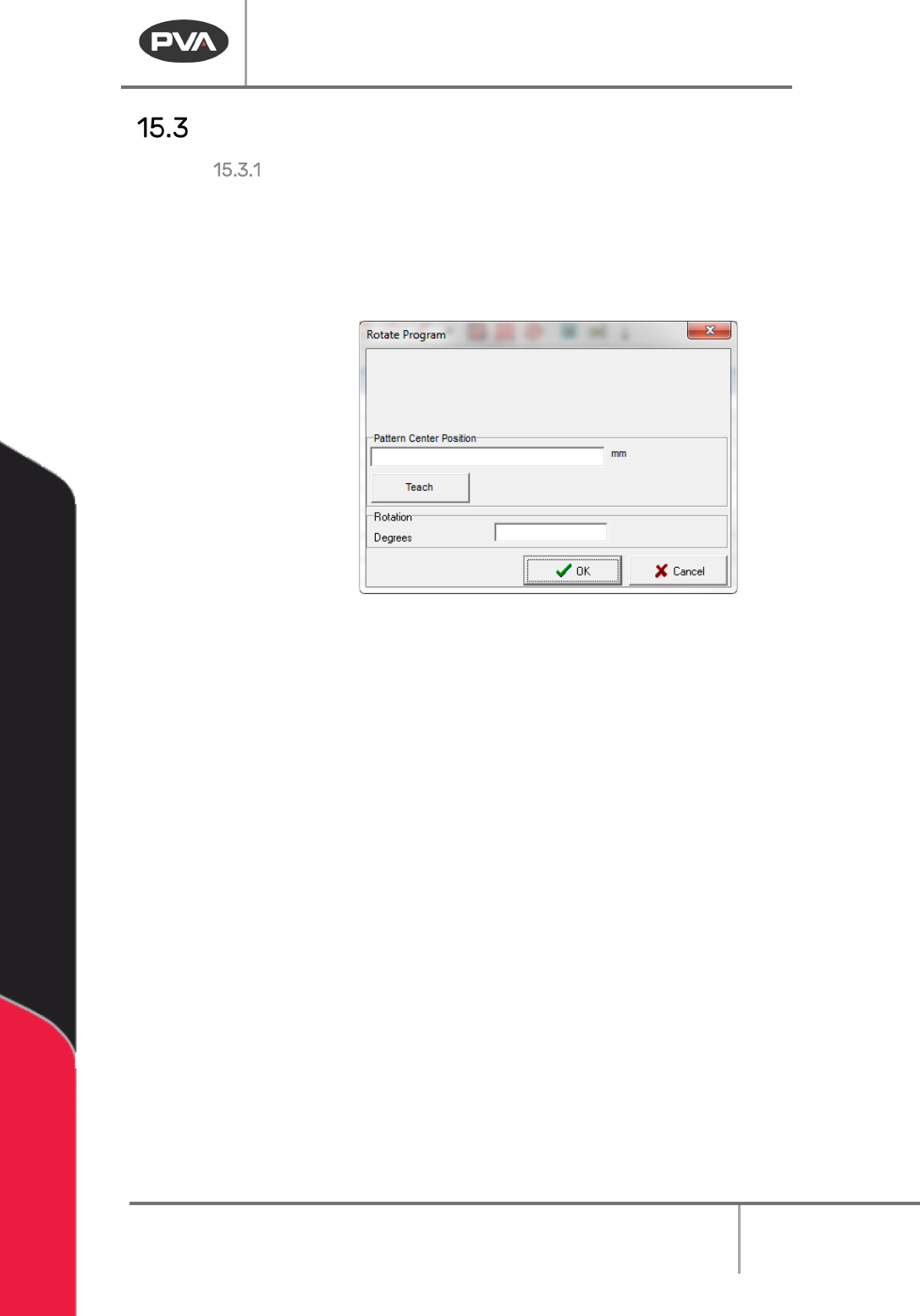
3. Move the robot to the necessary center point for the path. This point is used as the
point to rotate the path around.
Figure 177: Rotate Path Window
4. Enter the degrees you would like to rotate the program. This will rotate the program
counter-clockwise.
5. Click ‘OK’.
Your program/selection has now been successfully rotated.
NOTE: This will only mirror the X and Y axes, and will not affect the Z or W axes.