2OM-1075-002.pdf - 第116页
AHB01ESPP 1.2.6 Menus for Recognized Image By using the menus for recognized image, a display pattern of the rec- ognized image can be specified to determine how the image should be imposed on the operation window on the…
AHB01ESPP
(From the previous page)
NOZZLE DT
"Nozzle Data" Edit Window
Tabs Tabs Reference Item Nos.
Placement Head/Nozzle Data Stocker B1 "Section 5" in "Vol. 3"
Stocker B2
Nozzle Data
MACH. SETUP
"MACH SETUP" Window
Tabs Tabs Reference Item Nos.
Display Set "Section 6" in "Vol. 3"
Password Password Set
Available Area Set (1/2)
Available Area Set (2/2)
Date & Time Dt
Others
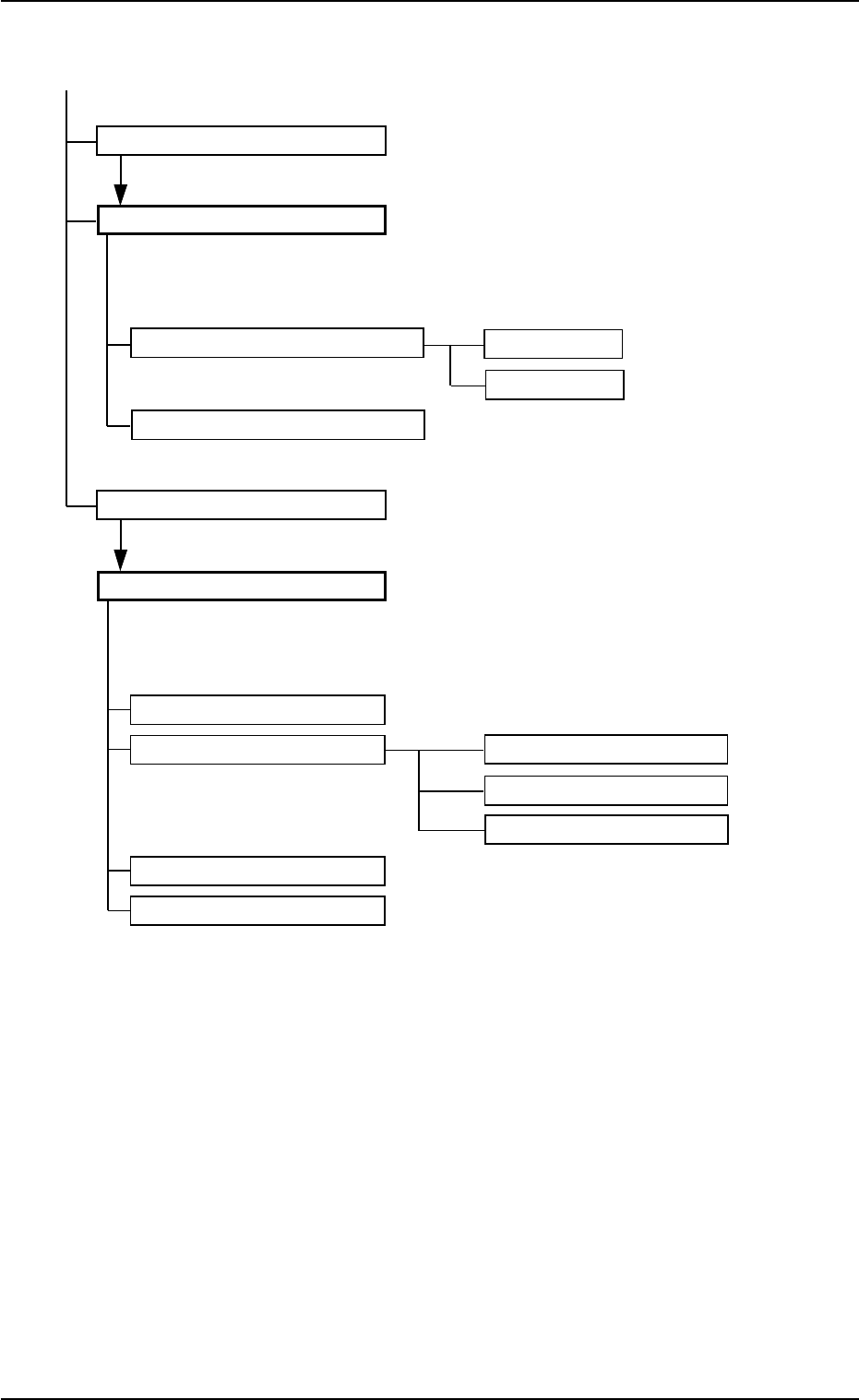
Fig. 2D13-1 Composition of Menus for System Setting (2)
1.2 Using the Menus
01 12-002 4-15
AHB01ESPP
1.2.6 Menus for Recognized Image
By using the menus for recognized image, a display pattern of the rec-
ognized image can be specified to determine how the image should be
imposed on the operation window on the touch screen.
••
••
• Menu Selection
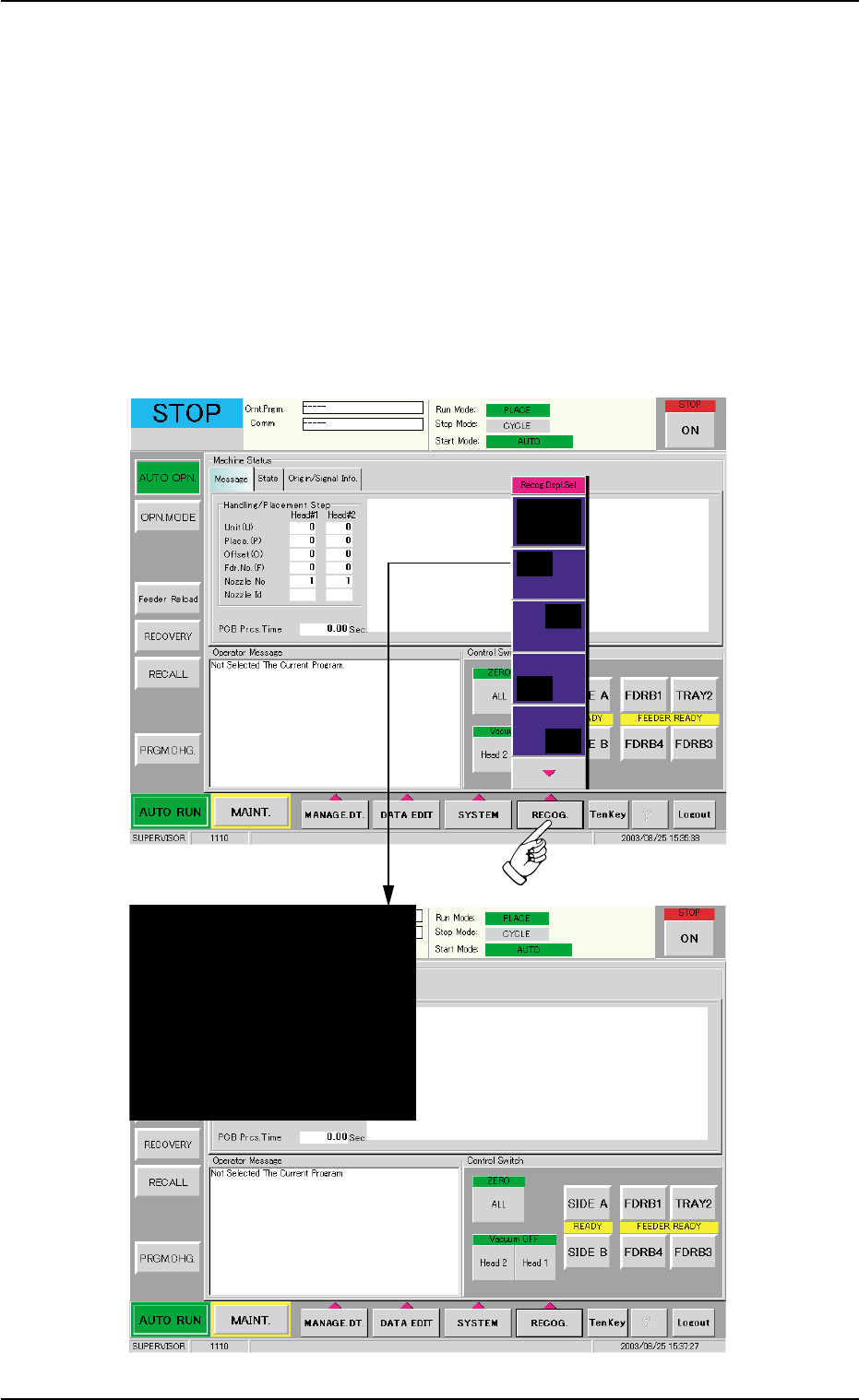
1. When the [RECOG.] button on the main menu bar is pressed, the
"Recog. Dspl. Sel" menu opens.
2. Select the desired option (display pattern) from the "Recog. Dspl.
Sel" menu. The imposed area of a recognized image is specified on
the operation window.
Fig. 2D14
1.2 Using the Menus
0308-003 4-16
AHB01ESPP
2. Basic Operations
2.1 Selection of Tab Sheet
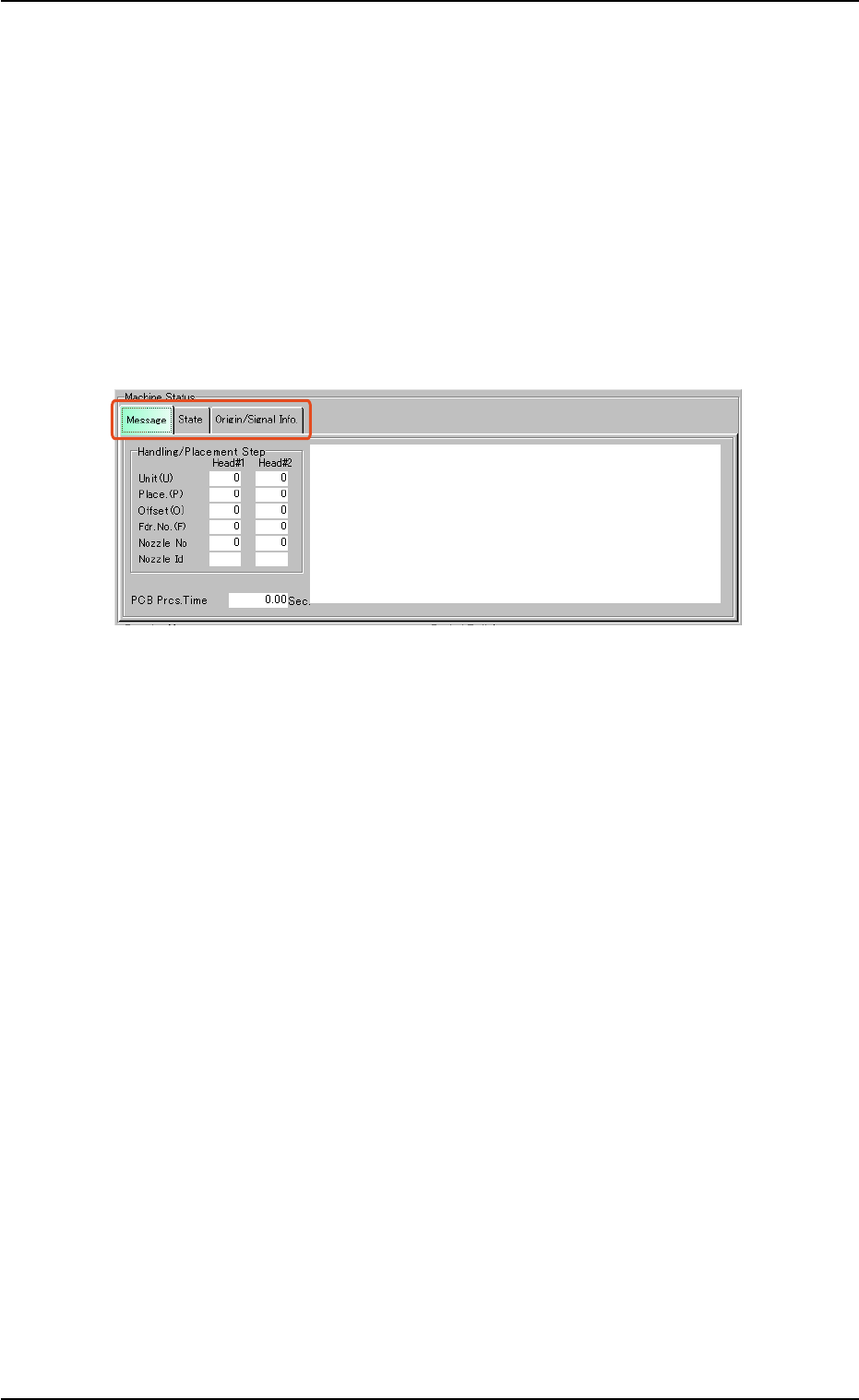
When a window is composed of several sheets, all the sheets are pro-
vided with extensions called "Tabs" and laid on top of each other so that
the tab of each is visible.
In this manual, a sheet provided with a tab is called "Tab Sheet".
Each extension (tab) names the corresponding sheet. When a tab is
pressed, the corresponding sheet is brought to the front.
Fig. 2D15
When a tab sheet contains several subtab sheets and a subtab is se-
lected, the corresponding subtab sheet appears inside the main tab
sheet.
0107-001 4-17
2.1 Selection of Tab Sheet