2OM-1075-002.pdf - 第158页
AHB01ESPP 4.1 "Feeder Reload" T a b The corresponding tab sheet enables the operator to cancel the com- ponent shortage mode for the production model. • Sheet Layout When the "Feeder Reload" tab is pr…
AHB01ESPP
4. "Feeder Reload" Window (Submenu)
0308-001 5-24-3
4. "Feeder Reload" Window (Submenu)
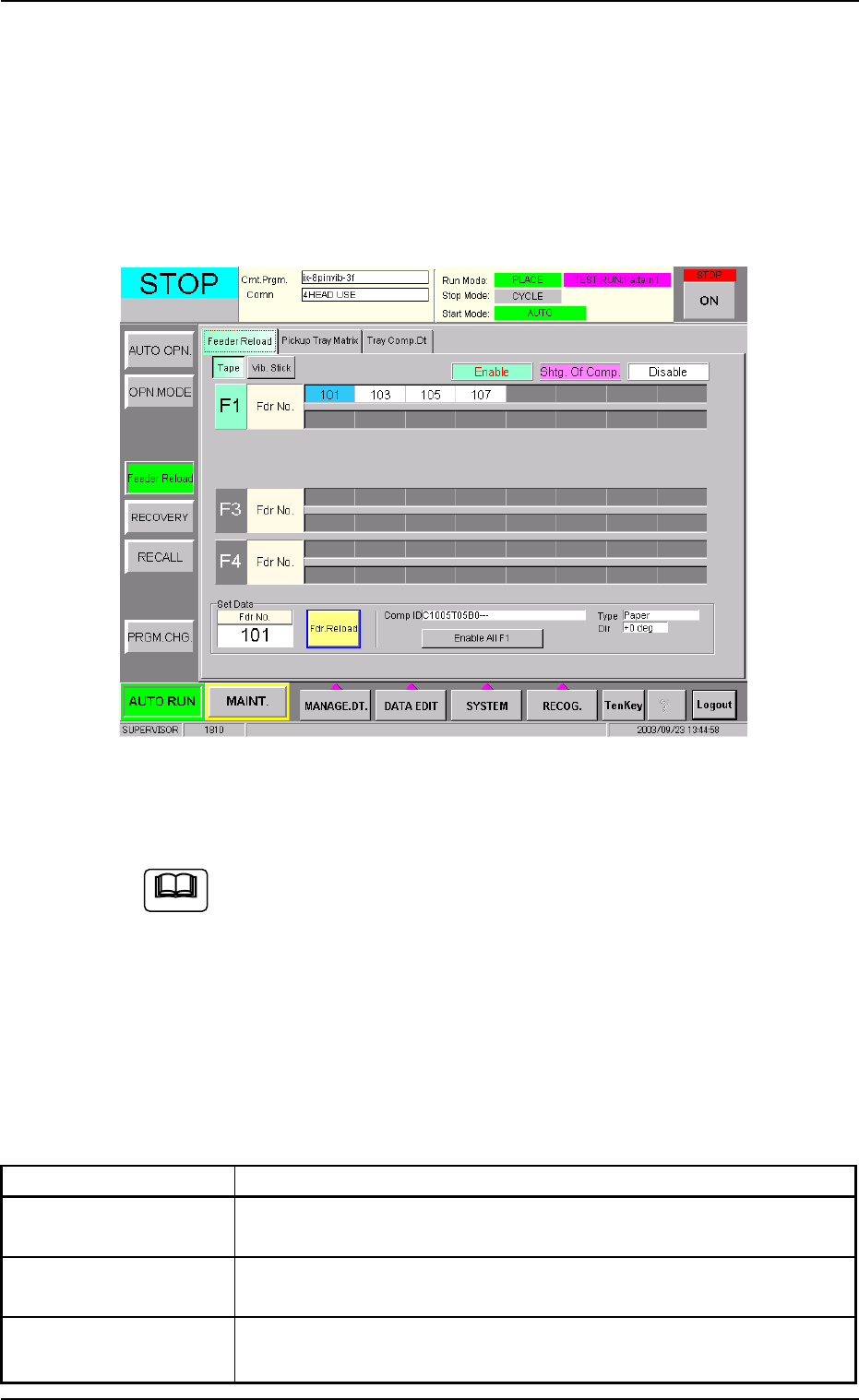
This window can be used to cancel the component shortage mode.
• Window Layout
When the [Feeder Reload] button on the submenu bar of the "AUTO
RUN" window is pressed, the following window (submenu) appears.
Fig. 2E15-2 "Feeder Reload" Window (Submenu)
(Provided with Multi-Layer Tray Feeder 2)
The window may look different, depending on which options are
selected.
• Window Composition
*1 Tabs and Tab Sheets
The "Feeder Reload" window (submenu) is provided with the fol-
lowing tab sheets.
Table 2E2-2
Tabs Description
Feeder Reload The corresponding tab sheet enables the operator to cancel the
component shortage mode for the production model.
Pickup Tray Matrix This is an optional function. Refer to the instruction manual of the
multi-layer tray feeders for details.
Tray Comp. Dt This is an optional function. Refer to the instruction manual of the
multi-layer tray feeders for details.
Note
AHB01ESPP
4.1 "Feeder Reload" Tab
The corresponding tab sheet enables the operator to cancel the com-
ponent shortage mode for the production model.
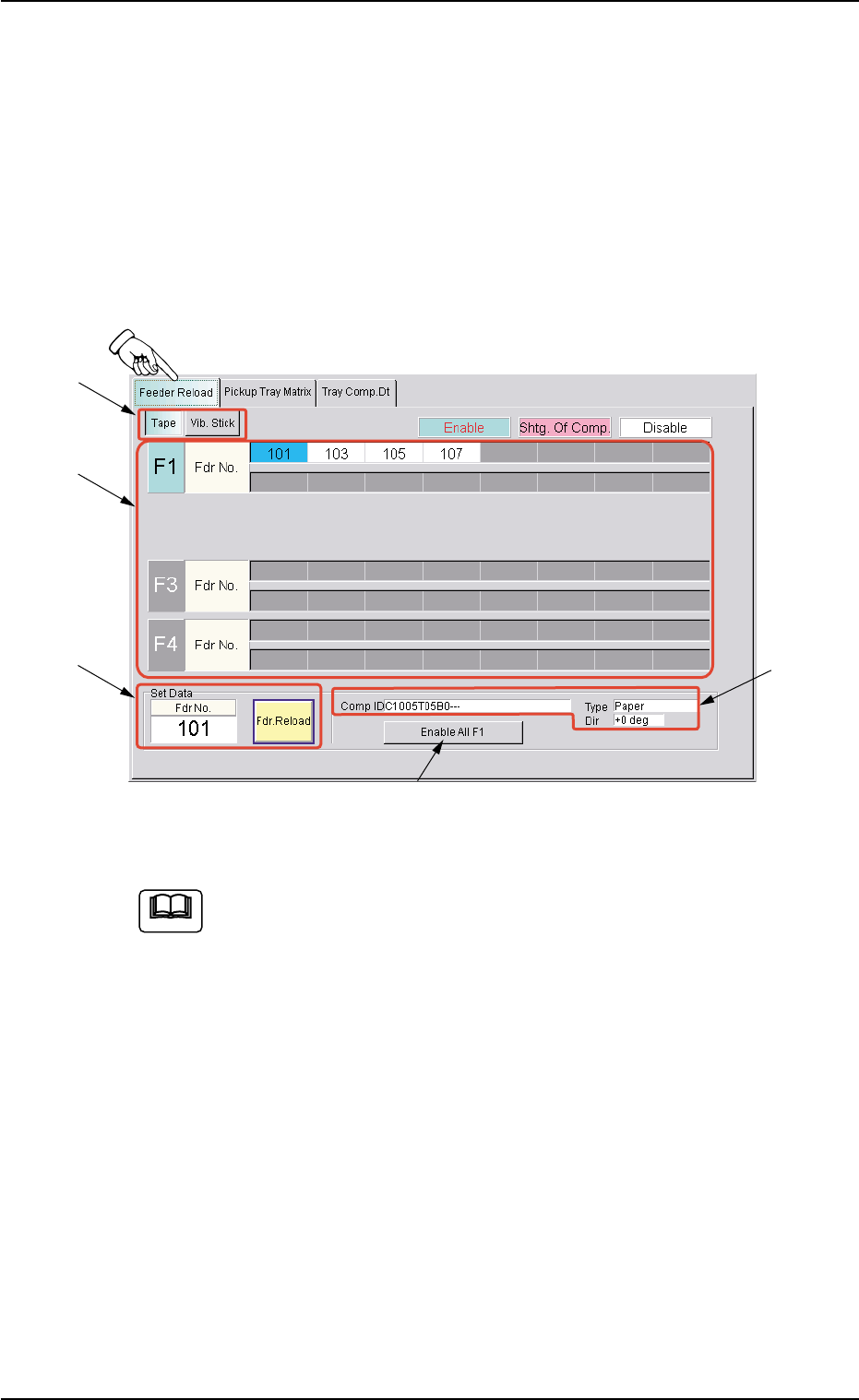
• Sheet Layout
When the "Feeder Reload" tab is pressed in the "Feeder Reload" win-
dow (submenu), the following tab sheet appears.
Fig. 2E15-3 "Feeder Reload" Tab Sheet (Tape Feeder)
The contents of the tab sheet differs, depending on which model
(current pattern program) is used.
• Sheet Composition
*1 [Tape] and [Vib. Stick] Buttons
Select one of these buttons to specify the feeder for data settings.
4.1 "Feeder Reload" Tab
0308-001 5-24-4
Note
*1
*3
*2
*4
*5

AHB01ESPP
*2 F1, F3, and F4
The color codes are used to indicate the condition (Enable, Short-
age of Component, or Disable) of the feeder Nos.
As for the component-shortage detected feeder No., "Shtg Of Comp."
is set automatically.
"Enable" is automatically set when the feeder is installed after com-
ponent replenishment.
To manually change the "Enable" and "Shtg Of Comp." modes
for the feeders, press the objective "Fdr No." and press the [Fdr.
Reload] button in the "Set Data" group box (*3).
*3 "Set Data" Group Box
The feeder No. selected in "*2" appears in the "Fdr No." text box.
When the [Fdr. Reload] button is pressed, the component shortage
mode of the selected feeder is cancelled.
*4 Comp ID, Type, Dir
Displayed are the component ID, the type, and the direction of the
feeder No. selected in "*2".
*5 [Enable All F1] Button
"Enable" is set for all feeders on the feeder base selected in "*2"
(Feeder Base #1 in this case).
• Operation Procedure
When the component shortage mode is manually cancelled,
be sure to reload the feeder with components.
(1) Select the feeder to be set in "*1".
(2) Select the feeder No. in "Shtg Of Comp." mode in "*2".
(3) Press the [Fdr. Reload] button in "*3".
The color of the feeder No. changes, indicating that the mode is
changed to "Enable".
In the case of tape feeders, the status indicator turns ON (changed
from "ON and OFF" (flickering)).
(4) Press the [START] button. The automatic operation restarts.
4.1 "Feeder Reload" Tab
0308-001 5-24-5
Note
Note