2OM-1075-002.pdf - 第271页
AHB01ESPP (5) Setting of Carrier Movement Operation (5-1) When the [Carrier Move] button (*9) is pressed in the "Com- ponent Recog. T est" sheet (Fig. 2F22), the following "Carrier Move" sheet appears…
AHB01ESPP
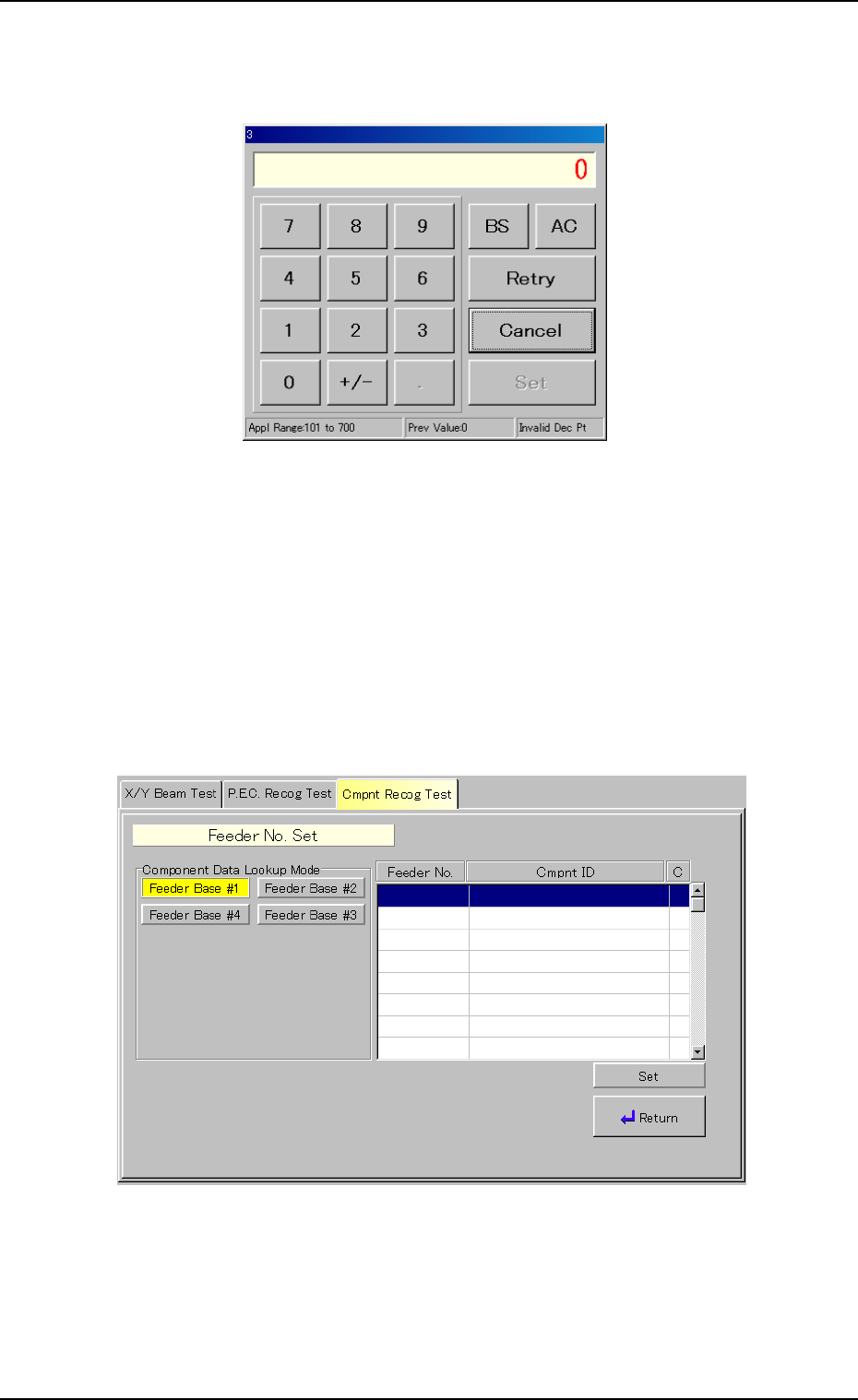
(4-4) When the [Manual] button is pressed in the "Feeder No. Set"
sheet, the following edit window appears.
Fig. 2F32 "Manual" Edit Window
(4-5) Enter a feeder No., using the number keys (ten-key pad) and
press the [Set] button.
(4-6) When the [Cmpnt Data Lookup] button is pressed in the
"Feeder No. Set" sheet, the following "Component Data
Lookup Mode" sheet appears, making it possible to select a
feeder No. while checking the component allocation.
Fig. 2F33 "Component Data Lookup Mode" Sheet
(4-7) After specifying the desired feeder base, select the feeder
No. and press the [Set] button.
0206-003 6-38
3.3 "Cmpnt Recog Test" Tab
AHB01ESPP
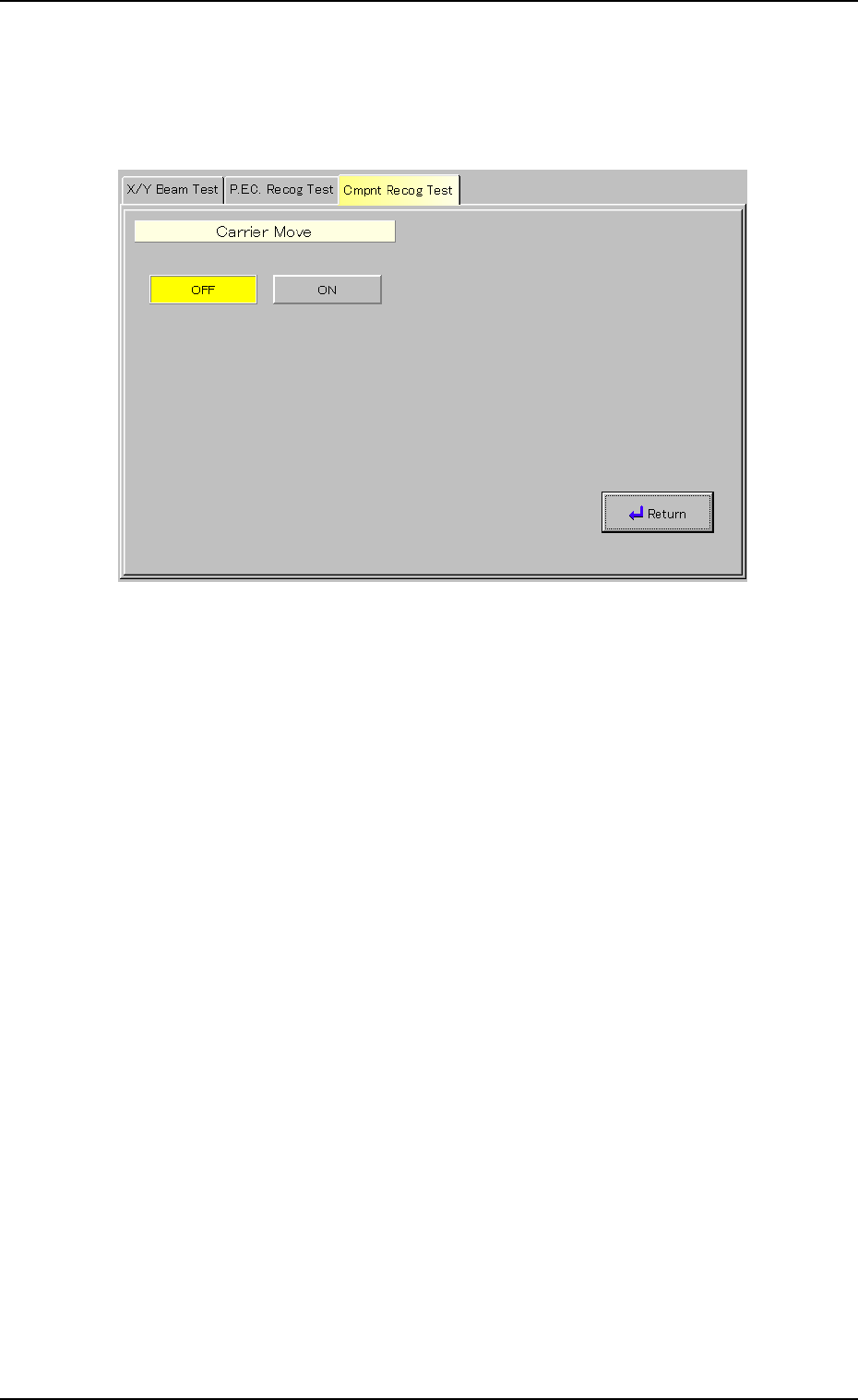
(5) Setting of Carrier Movement Operation
(5-1) When the [Carrier Move] button (*9) is pressed in the "Com-
ponent Recog. Test" sheet (Fig. 2F22), the following "Carrier
Move" sheet appears.
Fig. 2F34 "Carrier Move" Sheet
(5-2) Press the [OFF] or the [ON] button.
3.3 "Cmpnt Recog Test" Tab
0206-003 6-39
AHB01ESPP
• Operation for Implementation of Component Recognition
A component recognition can be performed.
Component Recognition
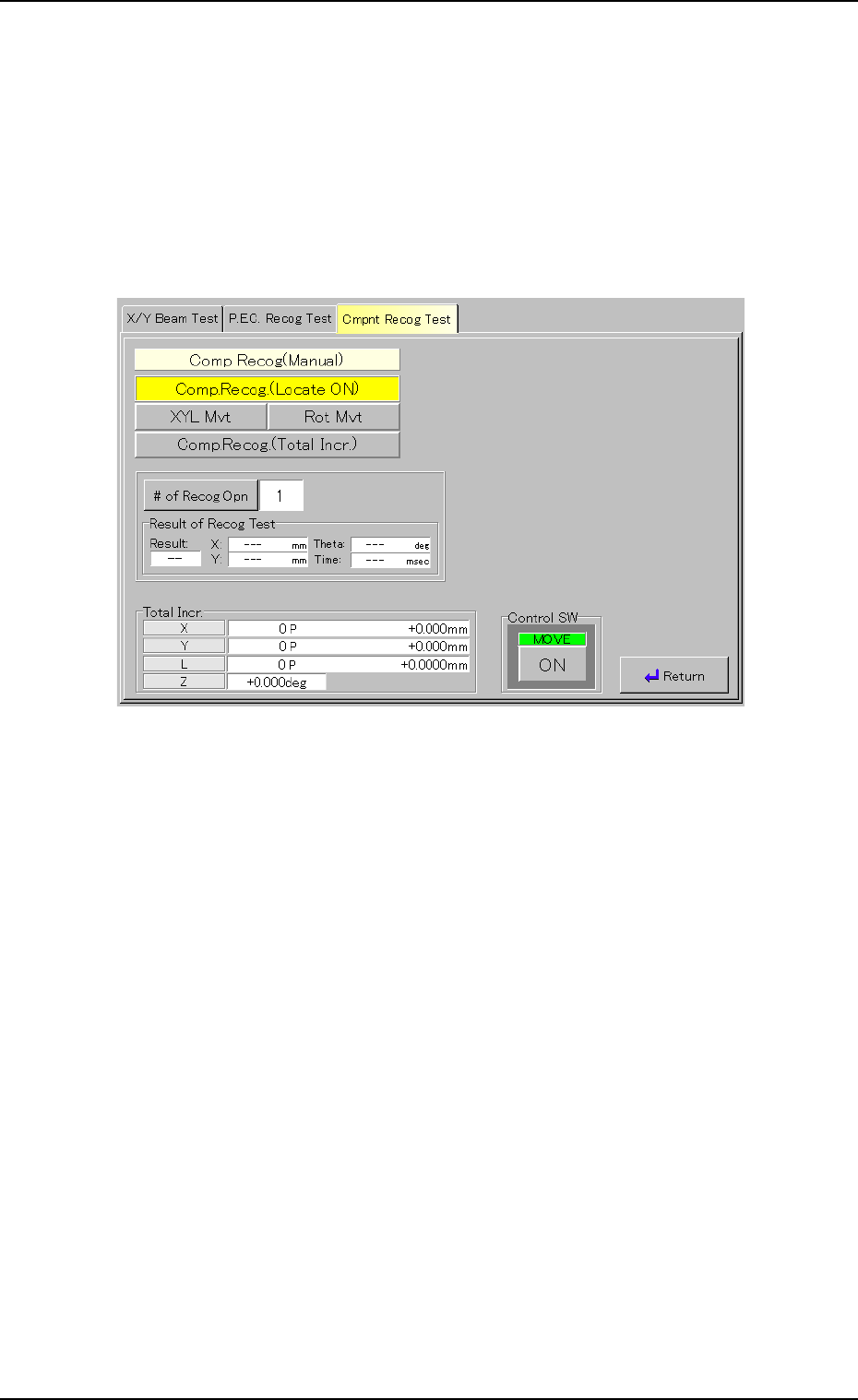
(1) When the [Comp Recog (Manual)] button is pressed in the "Com-
ponent Recog. Test" sheet, the "Comp Recog (Manual)" sheet ap-
pears.
Fig. 2F35 "Comp Recog (Manual)" Sheet (Component Recognition)
(2) Set the number of recognition times.
Press the [# of Recog Opn] button. The "# of Recog Opn" window
opens. Enter the number of recognition times and press the [Set]
button.
(3) When the [ENABLE] button on the operation panel is pressed in 2
seconds after the [ON] button (entitled "MOVE"), a component rec-
ognition is implemented.
(4) When the [Return] button is pressed, the "Component Recog. Test"
sheet appears.
0308-004 6-40
3.3 "Cmpnt Recog Test" Tab