2OM-1075-002.pdf - 第140页
AHB01ESPP 3 . 2 "Altn Fdr Mode" T ab The corresponding tab sheet enables the operator to set the feeder al- ternate mode. When "Enable" is specified for the alternate feeder mode, it becomes possible …
AHB01ESPP
Starting the Automatic Operation
After specifying the start mode and the start step, press the [START]
button on the front operation panel. The machine starts the auto-
matic operation.
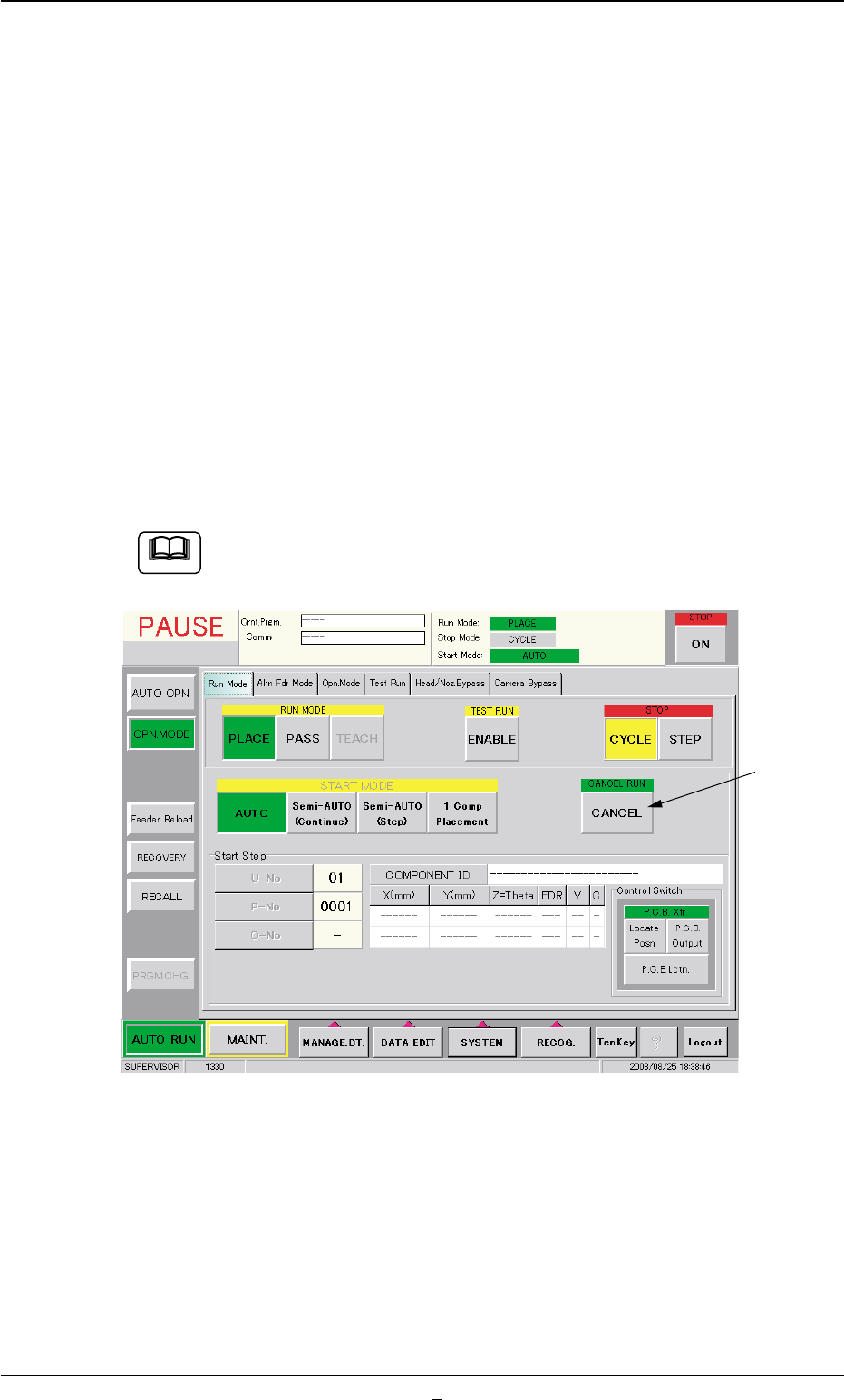
*6 "Control Switch" Group Box
The following operation buttons are provided.
"P.C.B. Xfr." Buttons
When the [ENABLE] button on the operation panel is pressed in 2
seconds after the [Locate Posn] button, the P.C.B. is transferred to
the locate position.
When the [ENABLE] button on the operation panel is pressed in 2
seconds after the [P.C.B. Output] button, the P.C.B. is transferred to
the output conveyor buffering position.
When the [ENABLE] button on the operation panel is pressed in 2
seconds after the [P.C.B. Lctn.] button, the backup base moves up
to the point where the P.C.B. is positioned.
When the machine is in the "PAUSE" mode, a [CANCEL] but-
ton appears in the "Run Mode" tab sheet.
Fig. 2E9 "Run Mode" Tab Sheet ("PAUSE" Mode)
*7 [CANCEL] Button
When this button is pressed, "PAUSE" mode is canceled and the
machine is set in the "STOP" mode.
0308-004 5-14
3.1 "Run Mode" Tab
*7
Note
AHB01ESPP
3.2 "Altn Fdr Mode" Tab
The corresponding tab sheet enables the operator to set the feeder al-
ternate mode.
When "Enable" is specified for the alternate feeder mode, it becomes
possible to check how the alternate feeder function is working (feeder
status) and issue a command that indicates the completion of compo-
nent replenishment for the related feeder.
••
••
• Sheet Layout
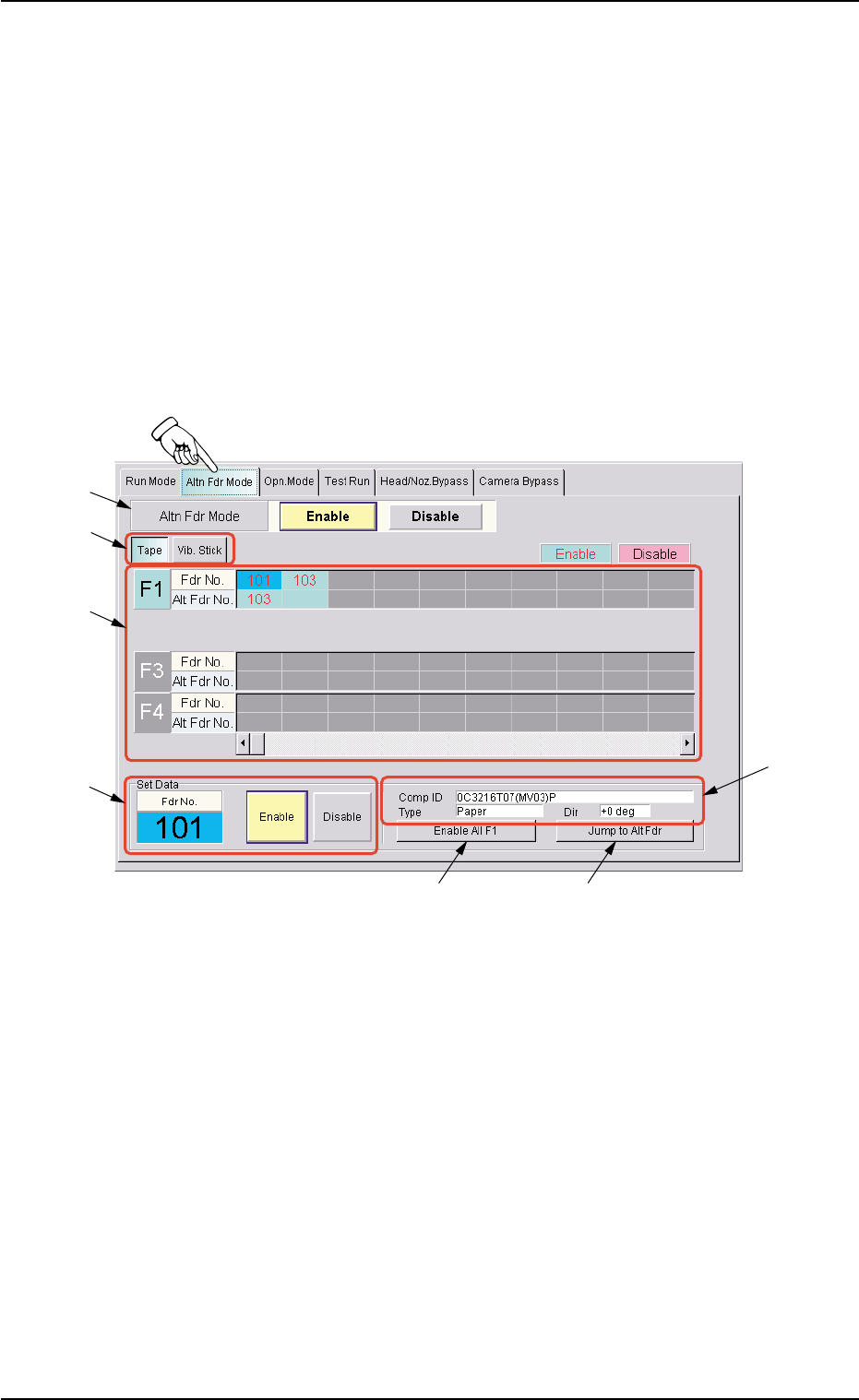
When the "Altn Fdr Mode" tab is pressed in the "OPN. MODE" win-
dow (submenu), the following tab sheet appears inside the window.
Fig. 2E10 "Altn Fdr Mode" Tab Sheet (Alternate Feeder Mode: Enable)
••
••
• Sheet Composition
*1 Altn Fdr Mode
Enable : The alternate feeder mode is enabled.
Disable : The alternate feeder mode is disabled.
In this case, different contents appear in the tab sheet.
*2 [Tape] and [Vib. Stick] Buttons
Select one of these buttons to specify the feeder for data settings.
3.2 "Altn Fdr Mode" Tab
*2
*3
*4
*1
*6
*7
*5
0308-002 5-14-1

AHB01ESPP
*3 "F1", "F3", and "F4"
The feeder Nos. and the destination feeder Nos. are colored, indi-
cating whether the alternate feeder mode is enabled or disabled.
"Disable" is automatically set for the feeder No. where a component
shortage error is detected.
"Enable" is automatically set when the feeder is installed after com-
ponent replenishment.
When the alternate feeder mode must be manually changed
from "Enable" to "Disable" or vice versa, select the objective
feeder No. and press the [Enable] or the [Disable] button in "*4".
*4 Specified Contents
The feeder No. selected in "*3" appears in the "Fdr No." text box.
When the [Enable] or [Disable] button is pressed, "Enable" or "Dis-
able" is changed or vice versa for the selected feeder, indicating
that the status of the alternate feeder mode is changed.
*5 Comp ID, Type, Dir
Displayed are the component ID, the type, and the direction of the
feeder No. selected in "*3".
*6 [Enable All F1] Button
The alternate feeder mode is enabled for all feeders on the feeder
base selected in "*3" (Feeder Base #1 in this case).
*7 [Jump to Alt Fdr] Button
The feeder Nos. selected in "*3" are specified as the destination
ones for the alternate feeder mode.
3.2 "Altn Fdr Mode" Tab
0206-001 5-14-2
Note