2OM-1075-002.pdf - 第377页
AHB01ESPP • Change of Selected Parameter Fig. 2F104-19 T o change the selected parameter , select one of the check boxes. A yellow check box indicates that it is selected. Click the check box (item) to be selected and pr…
AHB01ESPP
(2) Editing of Parameters
• Editing of Numerical Values
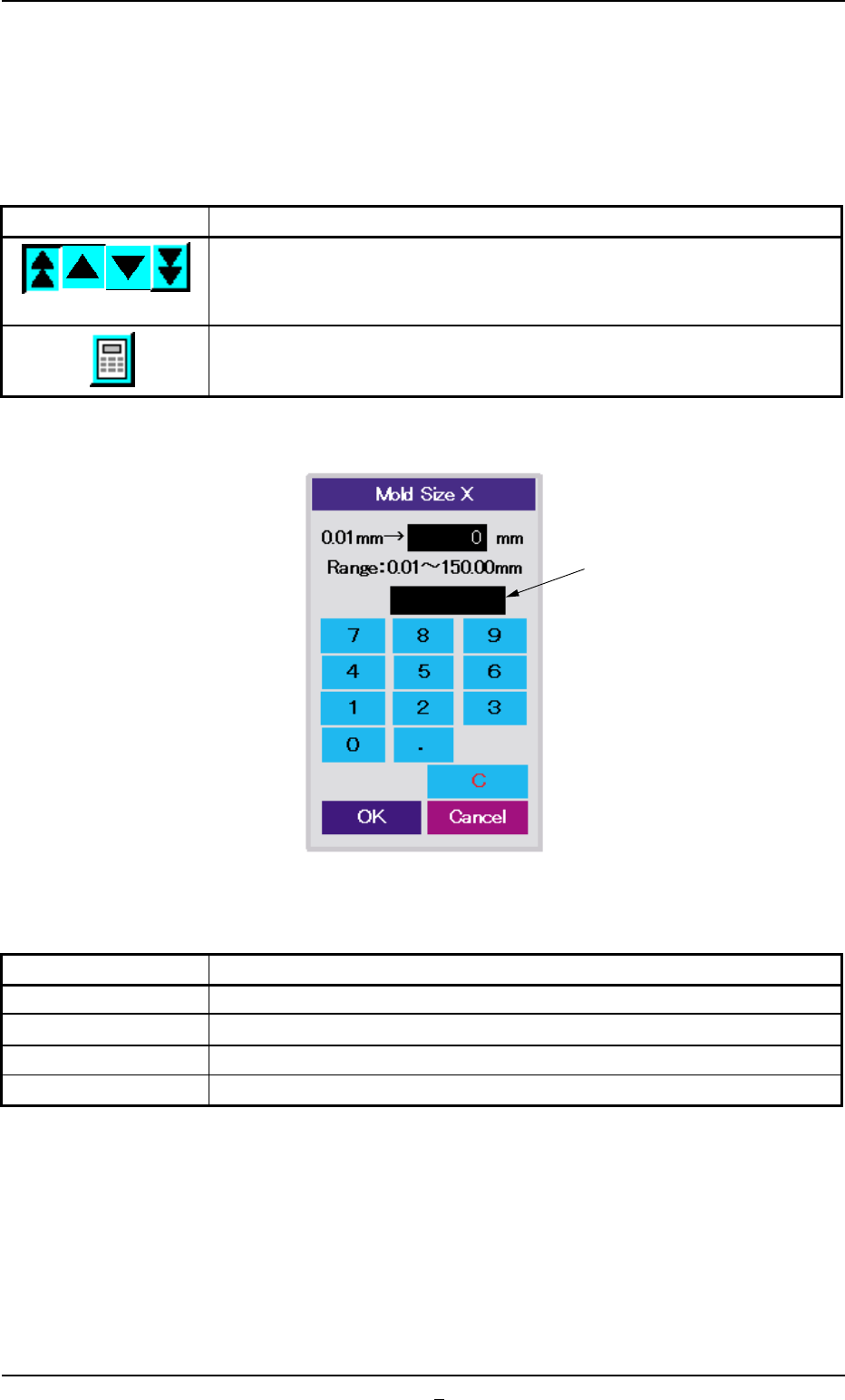
Numerical values can be changed with the increment/decrement keys
or the ten-key pad.
Table 2F18
Keys Functions
Use these keys to increment or decrement a numerical value.
The graphical representation changed according to the increment or
the decrement of the numerical value.
When pressed, this button opens the ten-key pad window.
• Parameter Entry with Ten-Key Pad
Fig. 2F104-18
Table 2F19
Keys Functions
0 to 9, ., - These keys can be used to enter numerical values.
C This key can be used to clear the current numerical value to "0"
OK This key defines the numerical value and closes the window.
Cancel This key interrupts the setting and closes the window.
When an improper parameter is specified, an error message is issued
in the message box, indicating that the entered parameter is not ac-
cepted.
In this case, press the [C] key to clear the parameter and re-enter a
correct value (a value that meets the specified range).
Message:
• Out of Range: The specified value is out of the range.
0308-004 6-144
Message Box
5.2 Library Teaching
AHB01ESPP
• Change of Selected Parameter
Fig. 2F104-19
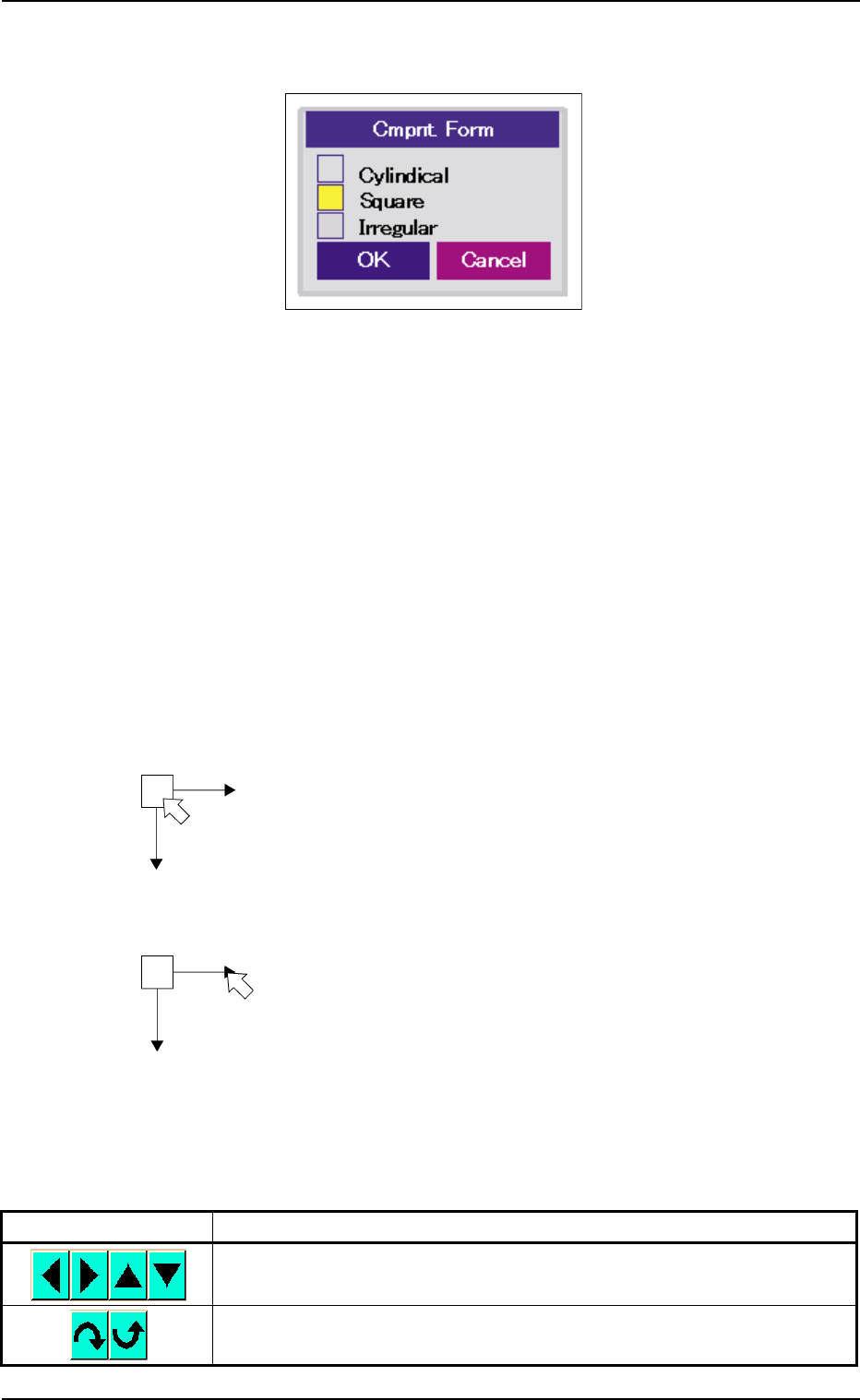
To change the selected parameter, select one of the check boxes.
A yellow check box indicates that it is selected.
Click the check box (item) to be selected and press the [OK] button.
The selected check box turns yellow, indicating that the item is selected
(specified).
(3) Other Functions
The following shows the functions that can be used for editing, etc.,
of parameters.
• Graphic Relocation Function
1) To relocate the graphic roughly, using the adjuster
Change of Position X/Y:
Move the cursor to the center of the adjuster as shown
in the left figure and click the center. The graphic can be
moved in the X and Y directions.
When you click the center again after the relocation, the
position is defined.
Change of Angle θ :
Move the cursor close to the arrow tip of the adjuster as
shown in the left figure and click the tip. The angle (theta)
of the graphic can be changed.
When you click the tip again after the angle is changed,
the angle is defined.
2) To relocate the graphic finely with the keys
The graphic can be relocated more finely than the adjuster.
Table 2F20
Keys Functions
The graphic can be moved in the selected direction.
The graphic can be rotated in the selected direction.
5.2 Library Teaching
0308-001 6-144-1
AHB01ESPP
• Image Scroll/Zoom Function
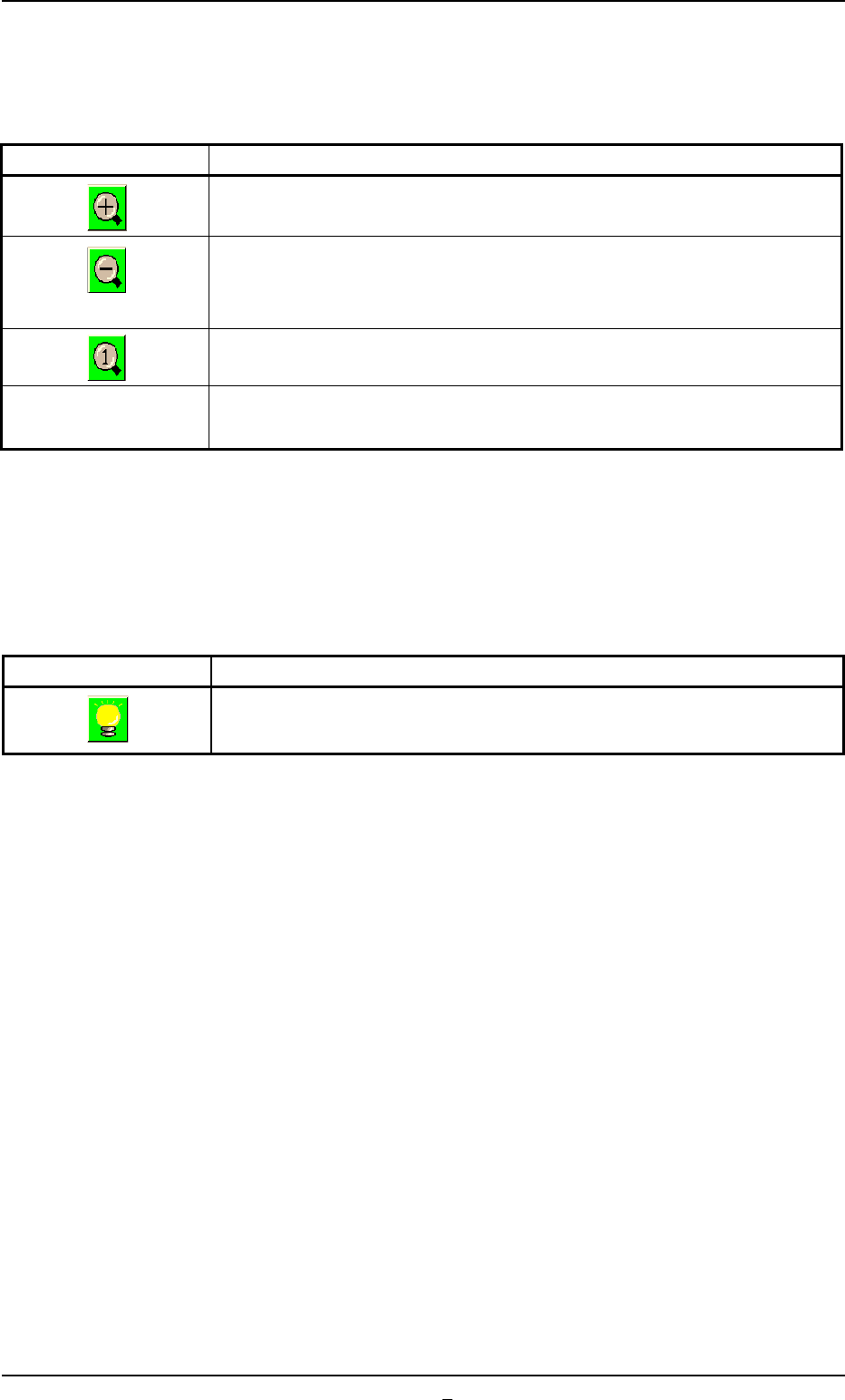
The object image can be zoomed in or out or scrolled up or down.
Table 2F21
Keys Functions
The displayed image and graphic can be zoomed in (enlarged).
The enlarged image and graphic can be zoomed out (reduced).
The image and graphic cannot be reduced to be smaller than the origi-
nal size. (zoomed out to the original size)
The scrolled or zoomed image and graphic return to the original location
and size.
Scroll It can be determined whether or not the displayed image and graphic
ON/OFF can be scrolled.
This scroll function makes it possible to shift the image such that the
hidden part of the image (part of the image hidden behind a subwindow)
becomes visible.
••
••
• Image Capture Function
Table 2F22
Keys Functions
An image can be captured in the selected lighting system.
Front Lighting System < - > Back Lighting System
5.2 Library Teaching
0308-001 6-144-2