2OM-1075-002.pdf - 第308页
AHB01ESPP 0308-004 6-76 4.4 "Others" T ab 4. 4 "Others" T ab The corresponding tab sheet enables the operator to adjust the other devices. The tab sheet makes it possible to adjust the touch screen an…
AHB01ESPP
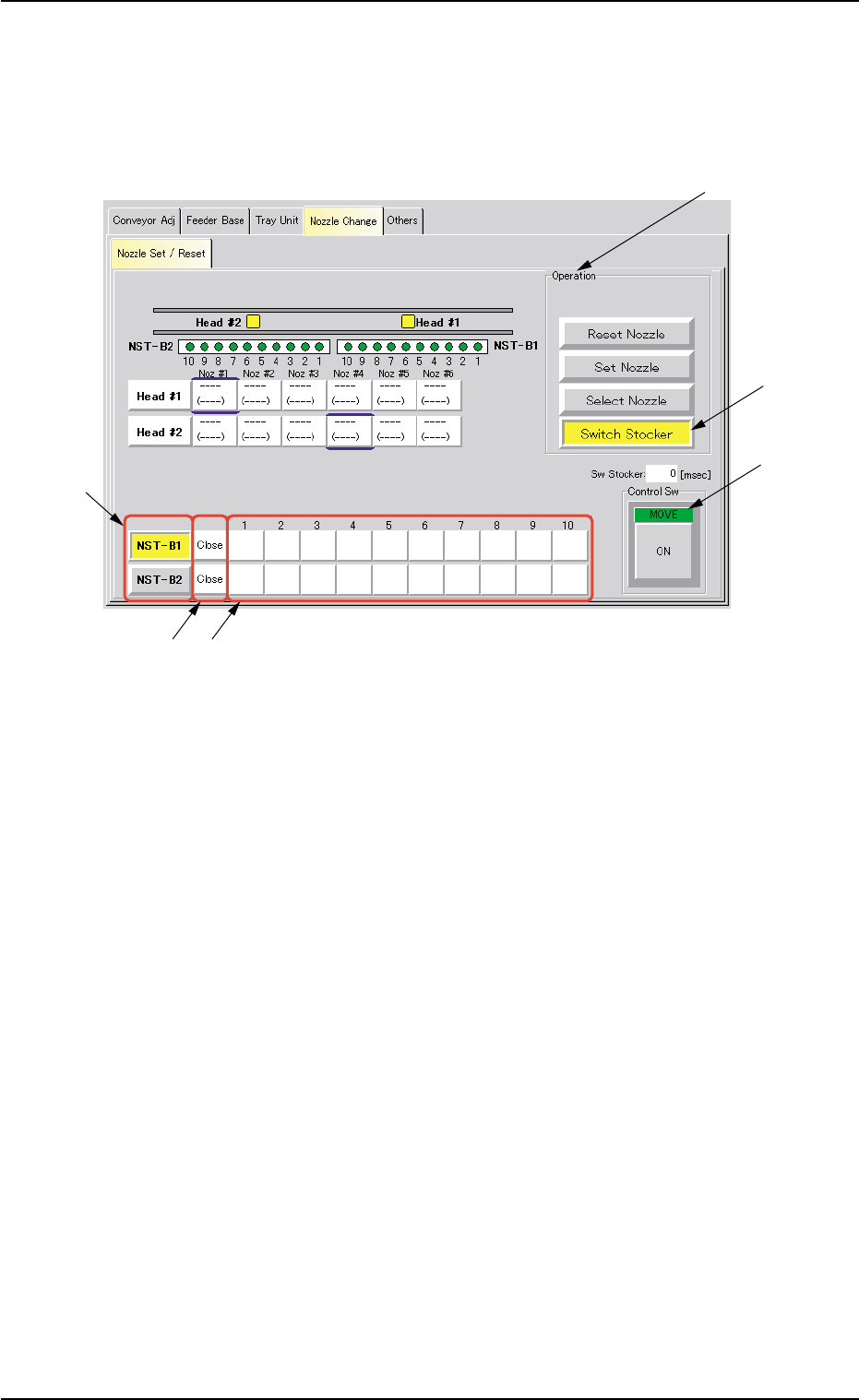
• Procedure for Nozzle Stocker Opening/Closing Operation
(1) Press the [Switch Stocker] button (*4).
When pressed, the background color of this button turns yellow,
indicating that the nozzle stocker selection button (*7) is set active.
Fig. 2F55 "Nozzle Change" Tab Sheet ([Switch Stocker] Button Selected)
(2) Press one of the nozzle stocker selection buttons (*7) ([NST-B1] or
[NST-B2] button) to select the nozzle stocker to be opened or closed.
The background color of the selected button turns yellow.
(3) When the [ENABLE] button on the operation panel is pressed in 2
seconds after the [ON] button (entitled "MOVE") (*10), the opening
or closing action of the specified nozzle stocker takes place.
(4) It is indicated if the nozzle stocker is opened or closed in the nozzle
stocker open/closed status field (*8).
"Open" or "Close" appears.
0308-004 6-75
4.3 "Nozzle Change" Tab
*1
*10
*7
*9*8
*4
AHB01ESPP
0308-004 6-76
4.4 "Others" Tab
4.4 "Others" Tab
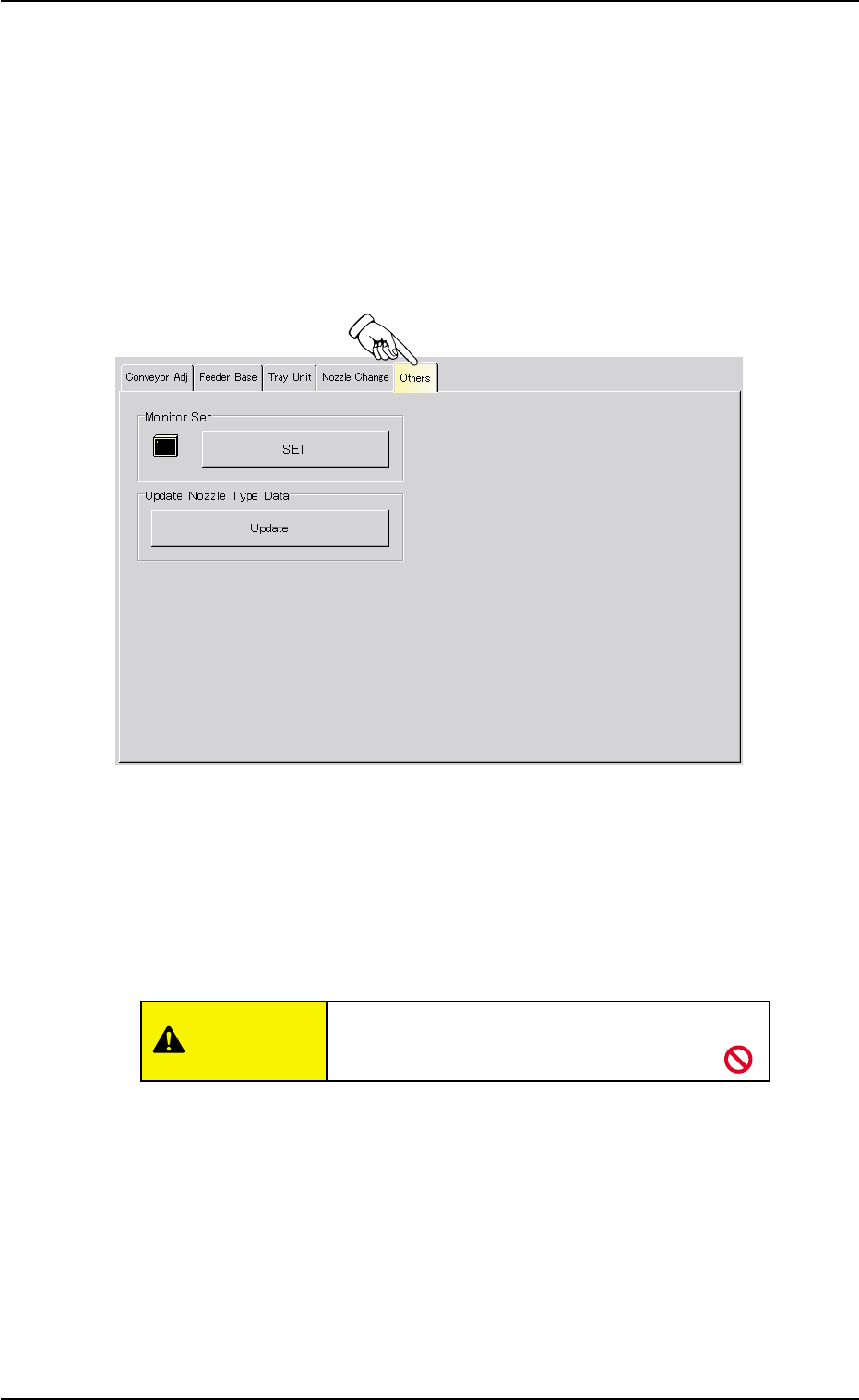
The corresponding tab sheet enables the operator to adjust the other
devices. The tab sheet makes it possible to adjust the touch screen and
update the nozzle type data.
• Sheet Layout
When the "Conveyor Adj" tab is pressed in the "UNIT ADJ." window
(submenu), the following tab sheet appears.
Fig. 2F55-1 "Others" Tab Sheet
• Sheet Composition
*1 "Monitor Set" Group Box
The touch screen can be adjusted.
When the [SET] button is pressed, the window for adjustment opens.
Do not press any buttons other than [Calibra-
tion] and [Exit] buttons.
• Adjustment Procedure
(1) Press the [Calibration] button.
(2) Press the marked area on the screen.
(3) After the adjustment, press the [Exit] button. The window for
adjustment closes.
*2 "Update Nozzle Type Data" Group Box
The nozzle type data registered as standard one is loaded onto the
machine.
CAUTION
AHB01ESPP
5. "TEACHING" Window (Submenu)
• Window Layout
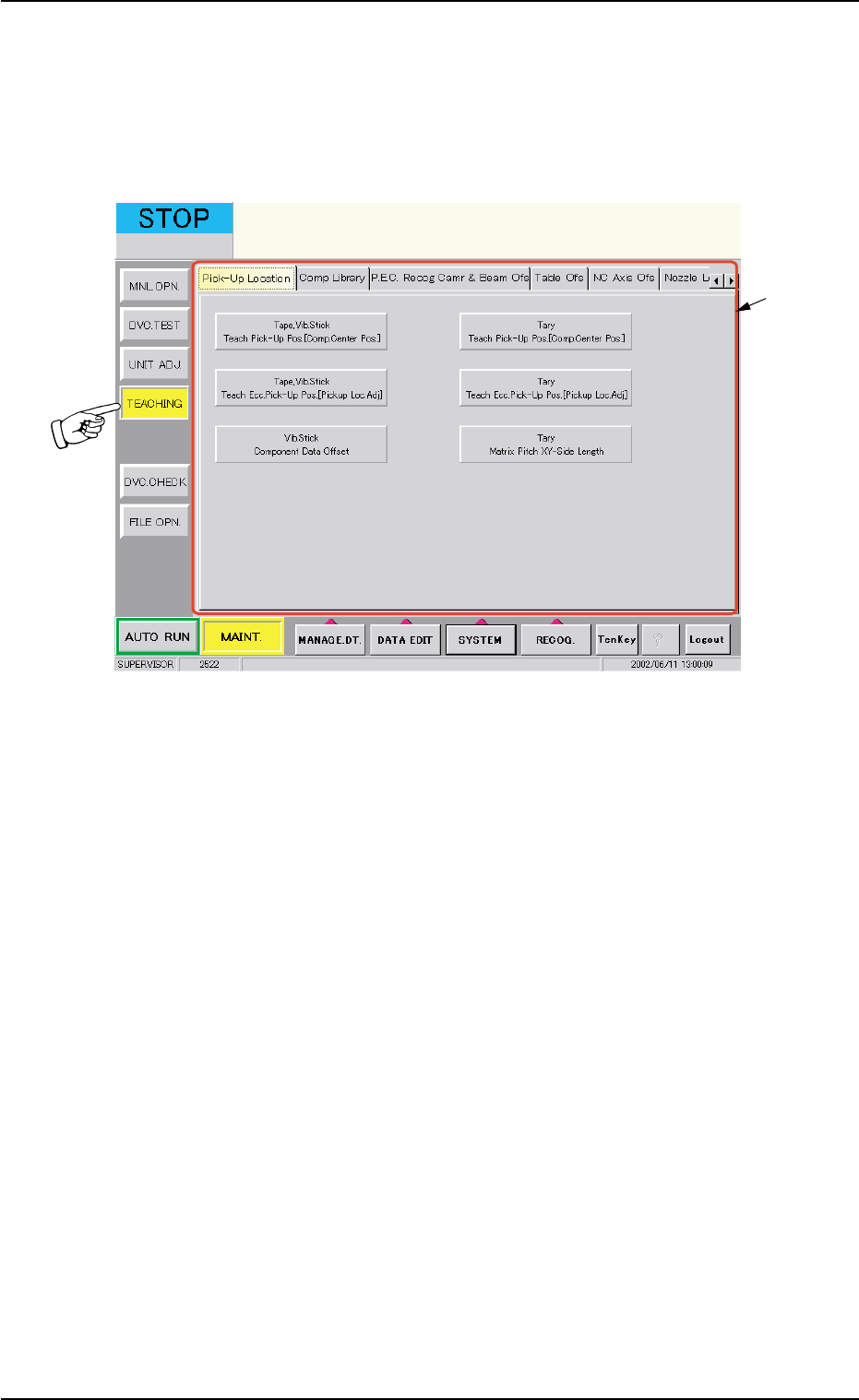
When the [TEACHING] button on the submenu bar of the "MAINT." win-
dow is pressed, the following window (submenu) opens.
Fig. 2F56 "TEACHING" Window (Submenu)
• Window Composition
*1 Tabs
The "TEACHING" window is provided with the following 23 tabs.
When a tab is pressed, the corresponding tab sheet appears inside
the window.
5. "TEACHING" Window (Submenu)
0308-004 6-77
*1