2OM-1075-002.pdf - 第445页
AHB01ESPP 7. "DVC. CHECK" Window (Submenu) • Window Layout When the [DVC. CHECK] button on the submenu bar is pressed in the "MAINT ." window , the following window (submenu) opens. Fig. 2F133 "D…

AHB01ESPP
*10 [Clear Adj.] Button
When pressed, this button clears the results of the teaching opera-
tion.
*11 [Cancel] Button
When pressed, this button cancels the results of the teaching op-
eration without reflecting them on the offset data.
*12 [End] Button
When this button is pressed, a "Confirmation" dialog box opens.
When the [YES] button is pressed, the results of the teaching op-
eration are reflected on the offset data and the dialog box closes.
*13 "Control Switch" Group Box
Select one of the buttons in the "Selection of Teaching Operation"
group box (*4) and press the [ON] button entitled "MOVE". After that,
press the [ENABLE] button on the operation panel in two seconds.
A teaching operation is performed on the selected item.
5.22 "Lighting Teach" Tab
0308-001 6-206-4
AHB01ESPP
7. "DVC. CHECK" Window (Submenu)
• Window Layout
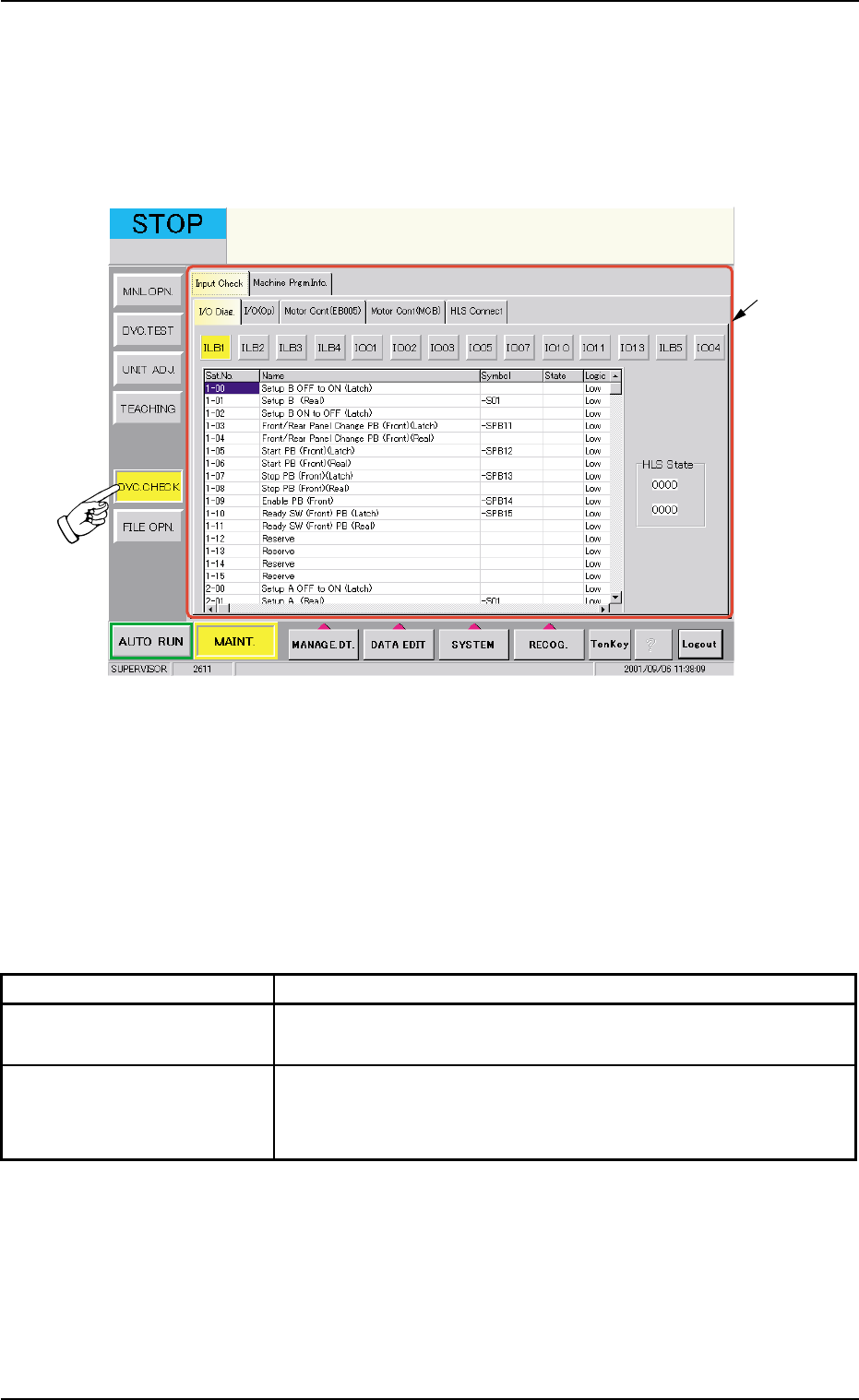
When the [DVC. CHECK] button on the submenu bar is pressed in the
"MAINT." window, the following window (submenu) opens.
Fig. 2F133 "DVC. CHECK" Window (Submenu)
• Window Composition
*1 Tabs
The "DVC. CHECK" window (submenu) is provided with the follow-
ing 2 tabs. When each tab is pressed, the corresponding tab sheet
appears.
Table 2F23
Tabs Description
Input Check The corresponding tab sheet enables the operator to check the
input status of each section.
Machine Prgm. Info. The corresponding tab sheet enables the operator to view the
software versions of the machine control system and the ver-
sions of placement heads.
7. "DVC. CHECK" Window (Submenu)
0206-003 6-207
*1
AHB01ESPP
7.1 "Input Check" Tab
When the "Input Check" tab is pressed in the "DVC. CHECK" window
(submenu), the "Input Check" tab sheet appears.
The "Input Check" tab sheet is composed of the following five tab sheets.
• "I/O Diag." Tab Sheet
• "I/O (Op)" Tab Sheet
• "Motor Cont (EB005)" Tab Sheet
• "Motor Cont (MCB)" Tab Sheet
• "HLS Connect" Tab Sheet
7.1.1 "I/O Diag." Tab
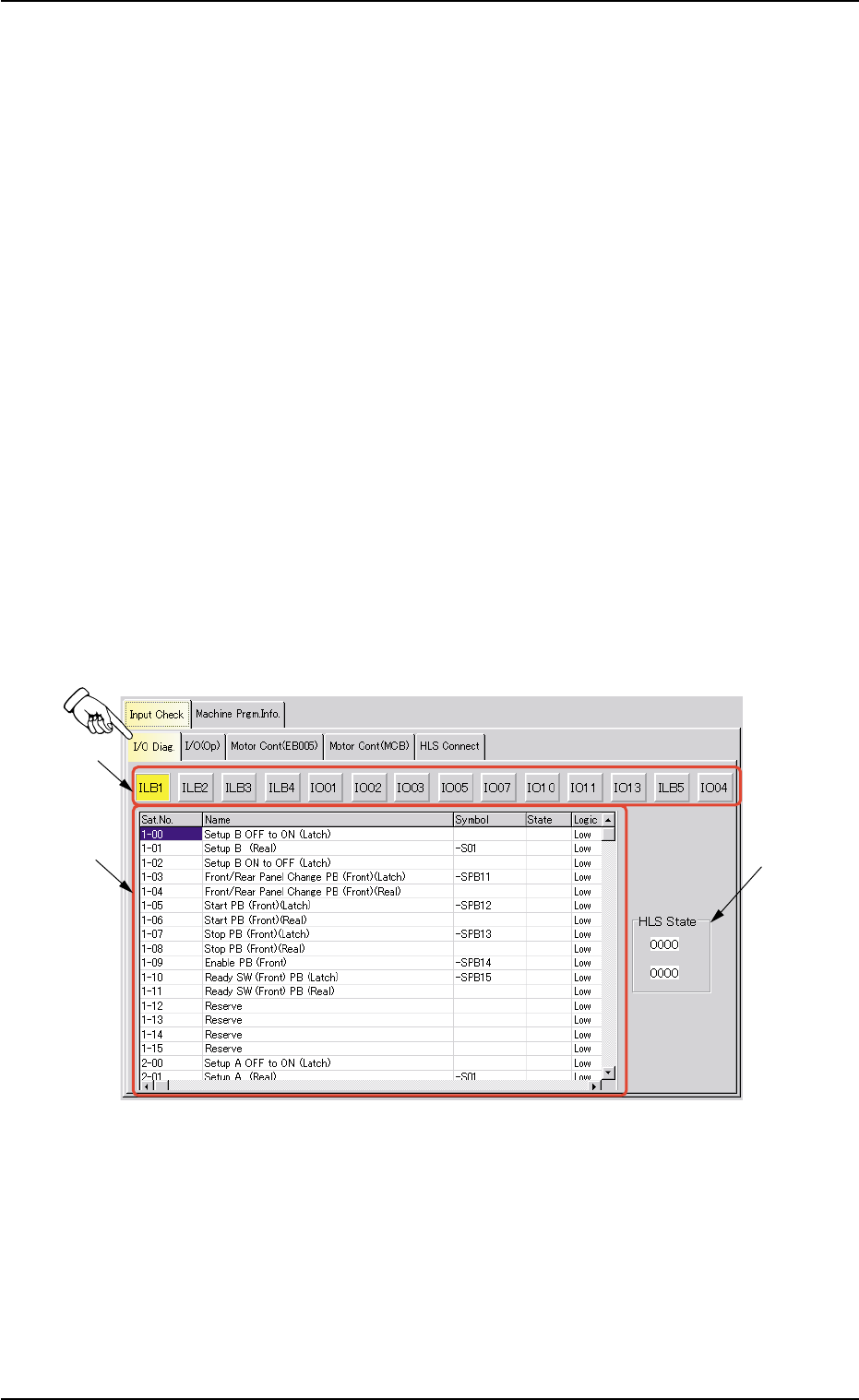
The corresponding tab sheet enables the operator to check the input/
output status of each sensor.
• Sheet Layout
When the "I/O Diag." tab is pressed in the "Input Check" tab sheet, the
following tab sheet appears.
Fig. 2F134 "I/O Diag." Tab Sheet
0206-003 6-208
7.1 "Input Check" Tab
*1
*3
*2