2OM-1075-002.pdf - 第184页
AHB01ESPP (4) Check how the component outline and the land pattern or the com- ponent is captured in the recognition window and select the [1-Pt] or the [2-Pt] button in the "T each Point" group box (*2). Compo…

AHB01ESPP
••
••
• Operation Procedure
(1) To find the overall shifting tendency of the P.C.B. patterns at first,
press the [ENABLE] button on the operation panel in 2 seconds
after the [Auto Move (High, Mid, or Low)] button (*7) and the [ON]
button (*12 entitled "MOVE") or after the [Step Move] button (*7) and
the [ON] button (*12 entitled "MOVE"). The X/Y beam starts moving.
(2) While the X/Y beam is moving, check the condition of the compo-
nent outline and the pattern in the recognition window.
When the patterns of a certain step are specifically shifted to one
side, it is required to teach the P-data. When the overall patterns of
a unit P.C.B. are uniformly shifted to one side, the O-data must be
taught.
(3) Move to the objective step for teaching.
The following two methods are provided for movement to the objec-
tive step for teaching.
• Move to the objective step for teaching through a continuous op-
eration and stop the movement with the [STOP] button on the
operation panel.
The speed of the automatic (continuous) operation can be
specified by selecting the [Auto Move (High)], the [Auto Move
(Mid)], or the [Auto Move (Low)] button in the "Operation
Mode" group box (*7).
• Make the objective step for teaching appear with the vertical scroll
bar in the step data area and select the step. Then, press the
[ENABLE] button on the operation panel in 2 seconds after the
[Step Move] button (*7) and the [ON] button (*12 entitled "MOVE").
(a) When the [Desig Step] button (*6) is pressed, the
desired step can be keyed in directly.
(b) The steps in the step data area are not displayed in
the order of component placement. They are dis-
played in the order of "U1, P1, O1 Æ U1, P2, O1 Æ
… Æ U1, P1, O2 Æ … Æ U2, P1, O1 Æ … Æ Un,
Pn, On".
5.4 "Place Pos Teach" Tab
0308-002 5-25-23
Note
Note
AHB01ESPP
(4) Check how the component outline and the land pattern or the com-
ponent is captured in the recognition window and select the [1-Pt] or
the [2-Pt] button in the "Teach Point" group box (*2).
Component Outline Staying inside Recognition Window
Select the [1-Pt] button (Center of Component) in the "Teach Point"
group box.
Part of Component Outline Staying outside Recognition Win-
dow
Select the [2-Pt] button (Diagonal Corners of Component) in the
"Teach Point" group box.
In the case of "2-Point Teaching", the second point is automatically
selected after the first point is taught completely.
(5) Confirm that the cursor is located at the objective step for teaching.
(6) Confirm that the proper button is selected in the "Teach Point" group
box and press the [ENABLE] button on the operation panel in two
seconds after the [TEACH] button (*8).
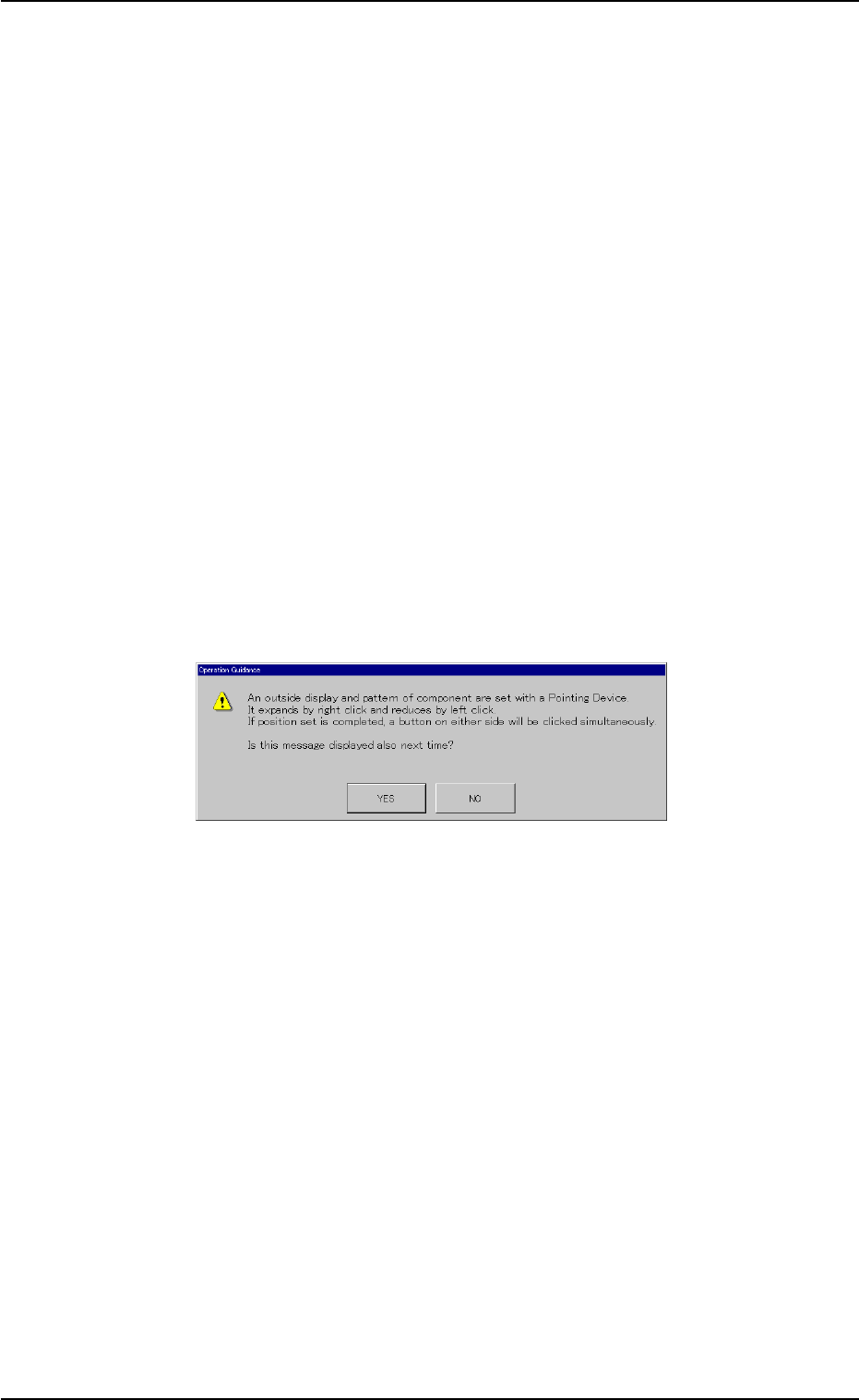
The "Operation Guidance" dialog box opens.
Fig. 2E23-8 "Operation Guidance" Dialog Box
(7) Press the [YES] button in the "Operation Guidance" dialog box.
0308-002 5-25-24
5.4 "Place Pos Teach" Tab
AHB01ESPP
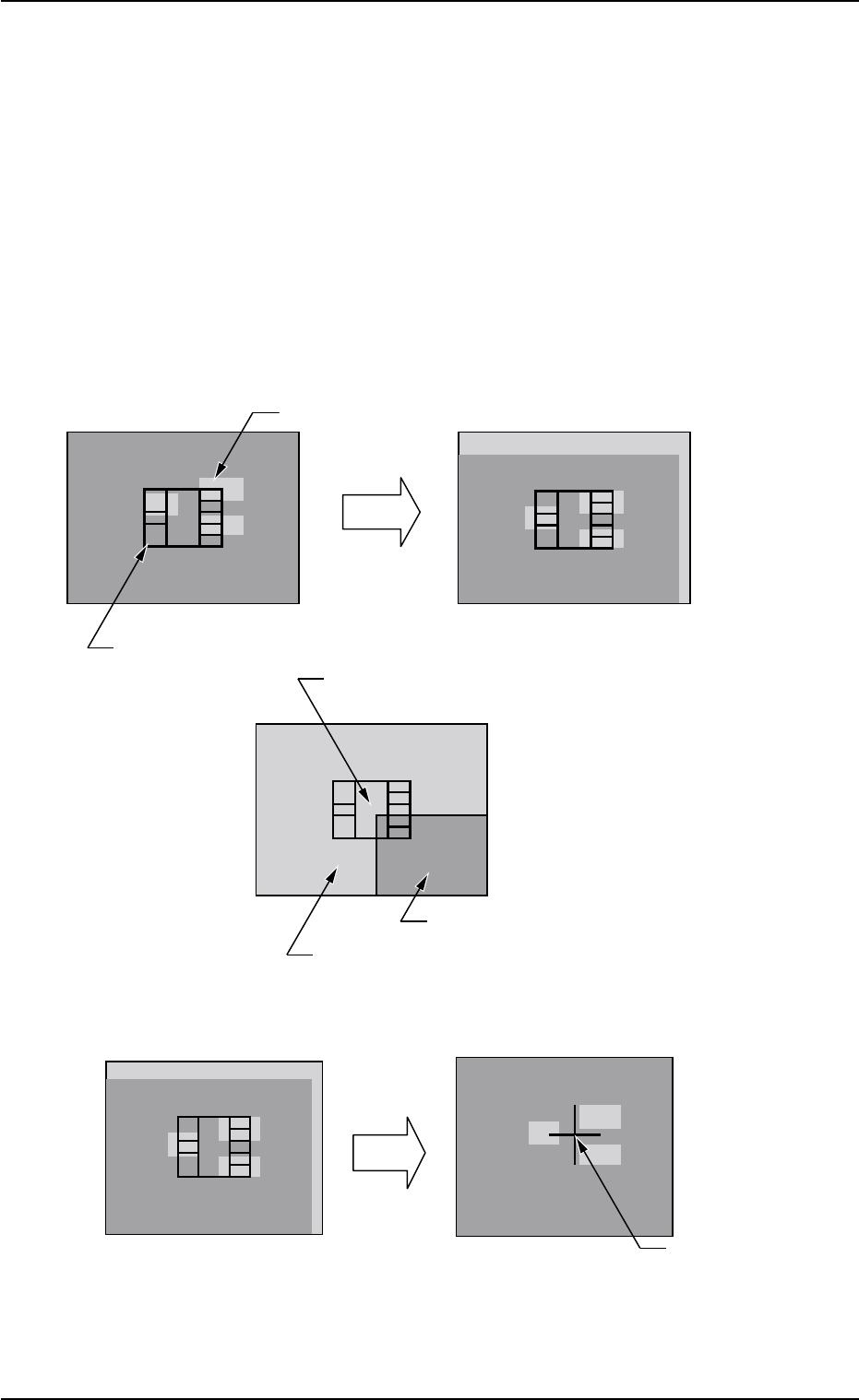
(8) Manipulate the pointing device such that the component outline in
the recognition window is aligned with the P.C.B. pattern that was
captured in the recognition memory.
Pointing Device Operation
Joystick : Movement of P.C.B. Pattern
Right-Clicking : Image Expansion
Left-Clicking : Image Reduction
Simultaneous Clicking
(Right- and Left-Clicking at Same Time)
: Alignment Completed
Case: 1-Point Teaching
Fig. 2E23-9 Teaching Operation for "1-Point Teaching"
0308-002 5-25-25
C=P1
X=OOO Y=OOO
P.C.B. Pattern
Movement
Manipulate the pointing device to move the P.C.B. pattern.
Component Outline
The P.C.B. pattern can be moved up to the point
where the four corners of the window are aligned
with the center of the monitor.
Image inside View
Image outside View
After the alignment is completed, press the right and left buttons of the pointing device to
determine the position.
Determination
of Position
Press the right and left buttons of the pointing device at the same time.
The determined
position is indicated
by a blue cross.
5.4 "Place Pos Teach" Tab