2OM-1075-002.pdf - 第206页
AHB01ESPP 7. 2 "Product Change" T ab The corresponding tab sheet enables the operator to perform overall setup operations or manual setup operations on each device. • • • • • Sheet Layout When the "Product…

AHB01ESPP
*4 [All] and [Search] Buttons
When pressed, this button makes it possible to search a program
name.
When some characters are entered in the text box under the [Search]
button and the [Search] button is pressed, only the program names
which start with the entered characters are displayed in the "List of
Model Names".
When the [All] button is pressed, all program names appear.
"*" (asterisk) and "?" (question mark) can be used as wild
cards.
abc* : The search function retrieves the program names
which start with "abc"
a?c : The search function retrieves the program names
which start with "a" and contain "c" as the third char-
acter.
••
••
• Procedure for Program Change Operation
(1) Select the program name desired to be the current one in the list
(*1). The background color turns blue.
(2) When the [Prgm Chng] button (*3) is pressed, "OK" appears in the
"Status" text box (*2) and the selected program is set as a current
one.
When the selected pattern program has an error, "NG" appears in
the "Status" text box (*2) and the program change operation is not
implemented. In such a case, correct the pattern program and re-
implement the program change operation.
7.1 "Program Change" Tab
0308-002 5-43
Note
AHB01ESPP
7.2 "Product Change" Tab
The corresponding tab sheet enables the operator to perform overall
setup operations or manual setup operations on each device.
••
••
• Sheet Layout
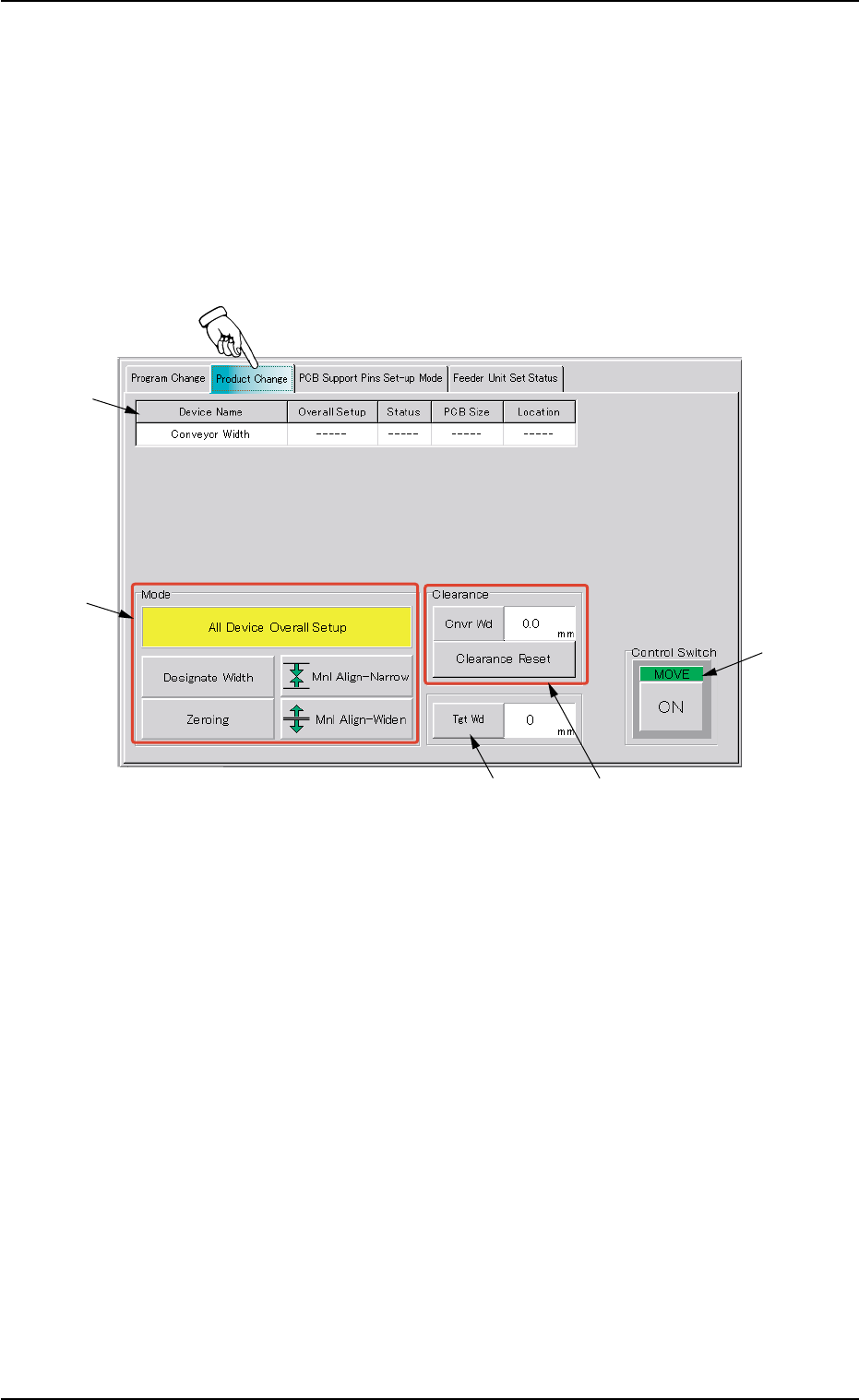
When the "Product Change" tab is pressed in the "PRGM. CHG." win-
dow (submenu), the following tab sheet appears inside the window.
Fig. 2E37 "Product Change" Tab Sheet
••
••
• Sheet Composition
*1 Device Information
Device Name : The following name represents the item that can
be set up.
Conveyor Width
Overall Setup : "On" or "Off" appears in the text box.
7.2 "Product Change" Tab
*1
*2
*4
*3
*5
0206-003 5-44

AHB01ESPP
Status : When the [ON] button (*5) is pressed, the setup
operation starts and the status of the device is
indicated.
"Compl" : The setup operation is completed and the de-
vice is located at the position "P.C.B. Size
(Width) + Clearance".
"NOT" : The device is located at the position "P.C.B. Size
(Width) + Clearance" but the current position is
not managed.
"-----" : The current position or program is indefinite.
"-----" (red) : "NOT SET" is set for the setup data.
PCB Size : Displayed is the P.C.B. dimension (width) in the
current pattern program data.
When the current pattern program is indefinite, "-
----" appears.
Location : The currently managed width appears in the text
box.
"-----" appears when the current location is indefi-
nite or is not managed.
*2 "Mode" Group Box
A setup mode can be selected.
The background color of the selected button turns yellow.
*3 "Clearance" Group Box
This data is used to give some leeway to the conveyor width, com-
pared with the P.C.B. size in the pattern program.
The actual conveyor width becomes "P.C.B. Size (width) + Clear-
ance".
[Cnvr Wd] Button : When this button is pressed, the
"Cnvr Wd" edit window opens.
[Clearance Reset] Button : When this button is pressed after the
clearance value is changed, the
changed value is specified.
7.2 "Product Change" Tab
0107-001 5-45