2OM-1075-002.pdf - 第166页
AHB01ESPP T able 2E4 T ab s Description Feeder #1 The corresponding tab sheet enables the operator to change the component carriage data for the components allocated on Feeder Base #1. Feeder #3 The corresponding tab she…
AHB01ESPP
5.2 "Comp Carriage Dt Edit" Tab
The corresponding tab sheet enables the operator to easily change the
component carriage data in the current pattern program.
• Sheet Layout
When the "Comp Carriage Dt Edit" tab is pressed in the "RECOVERY"
window, the following tab sheet appears.
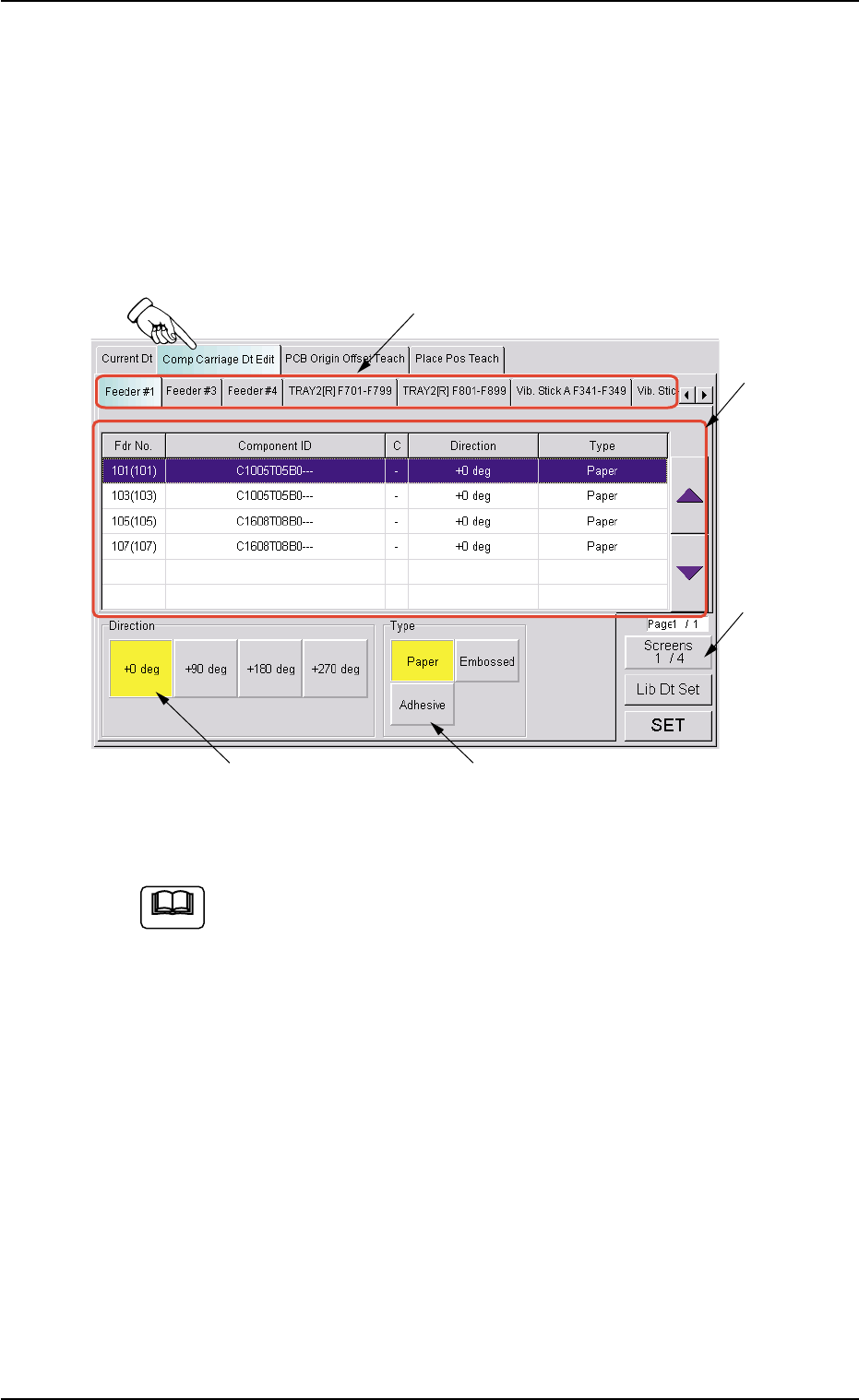
Fig. 2E20 "Comp Carriage Dt Edit" Tab Sheet (1/4)
The contents of the tab sheet differs, depending on which model
(current pattern program) is used.
• Sheet Composition
*1 Tabs and Tab Sheets
The "Comp Carriage Dt Edit" tab sheet is provided with the follow-
ing 7 tabs. When a tab is pressed, the corresponding tab sheet
appears.
The contents of each tab sheet are almost the same.
0308-003 5-25-5
5.2 "Comp Carriage Dt Edit" Tab
*1
*4 *5
*2
*3
Note
AHB01ESPP
Table 2E4
Tabs Description
Feeder #1 The corresponding tab sheet enables the operator to change the
component carriage data for the components allocated on Feeder
Base #1.
Feeder #3 The corresponding tab sheet enables the operator to change the
component carriage data for the components allocated on Feeder
Base #3.
Feeder #4 The corresponding tab sheet enables the operator to change the
component carriage data for the components allocated on Feeder
Base #4.
TRAY2[R] F701-F799 This is an optional function.
Refer to the instruction manual of the multi-layer tray feeders for
details.
TRAY2[R] F801-F899 This is an optional function.
Refer to the instruction manual of the multi-layer tray feeders for
details.
Vib. Stick A F341-F349 The corresponding tab sheet enables the operator to change the
component carriage data for the components allocated on FB #4
VIB Feeder #3.
Vib. Stick A F361-F369 The corresponding tab sheet enables the operator to change the
component carriage data for the components allocated on FB #3
VIB Feeder #1.
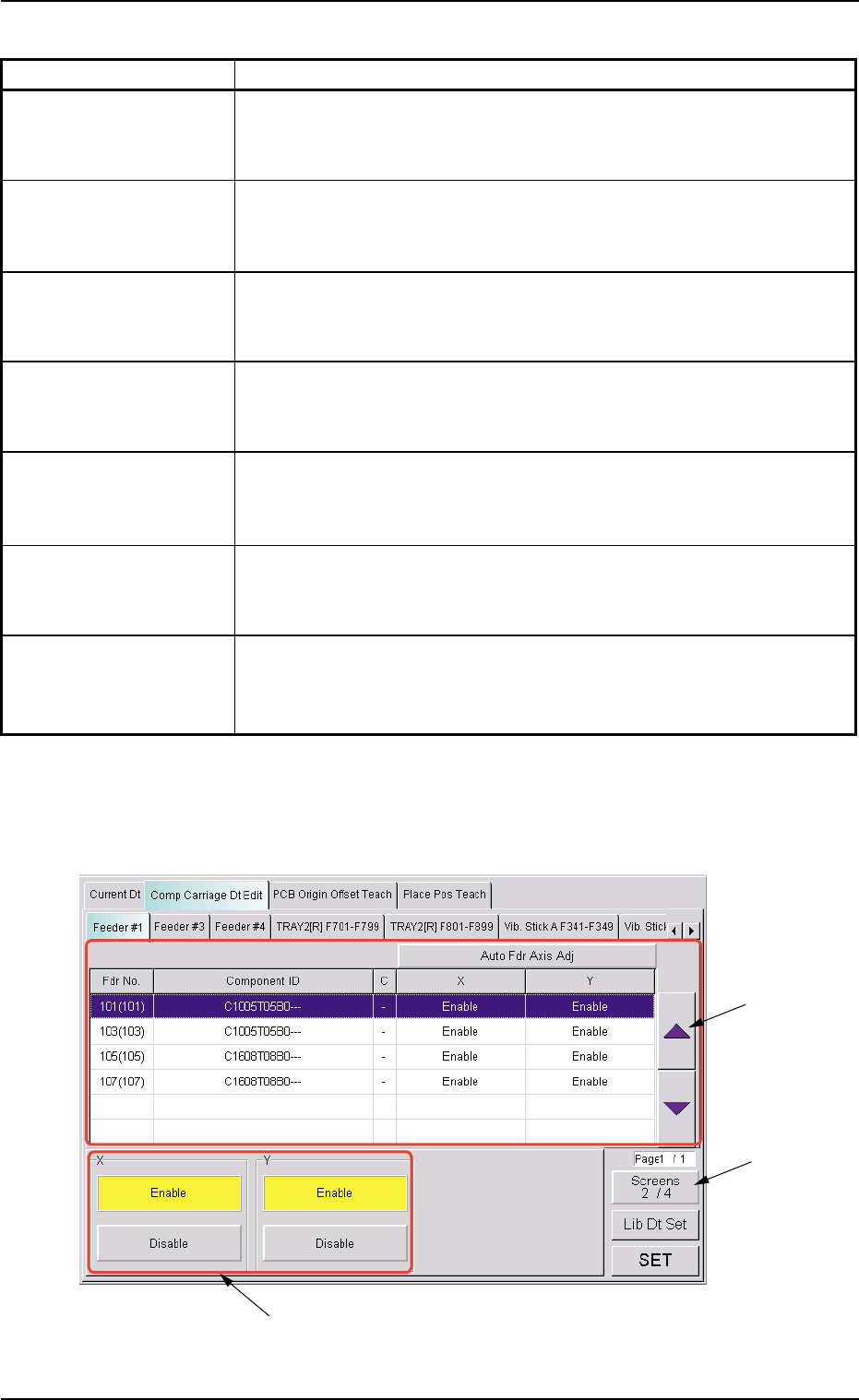
*2 [Screens 1/4] Button
When this button is pressed, different titles appear in each tab sheet.
See Figs. 2E21 to 2E23.
Fig. 2E21 "Comp Carriage Dt Edit" Tab Sheet (2/4)
5.2 "Comp Carriage Dt Edit" Tab
0308-003 5-25-6
*2
*3
*6
AHB01ESPP
*3 [ ] and [ ] Buttons
Select the component for which the component carriage data should
be changed.
When the registered components occupy more than 1 page, use
the scroll bar (up and down arrows) on the right edge of the tab
sheet to scroll up or down the list of components.
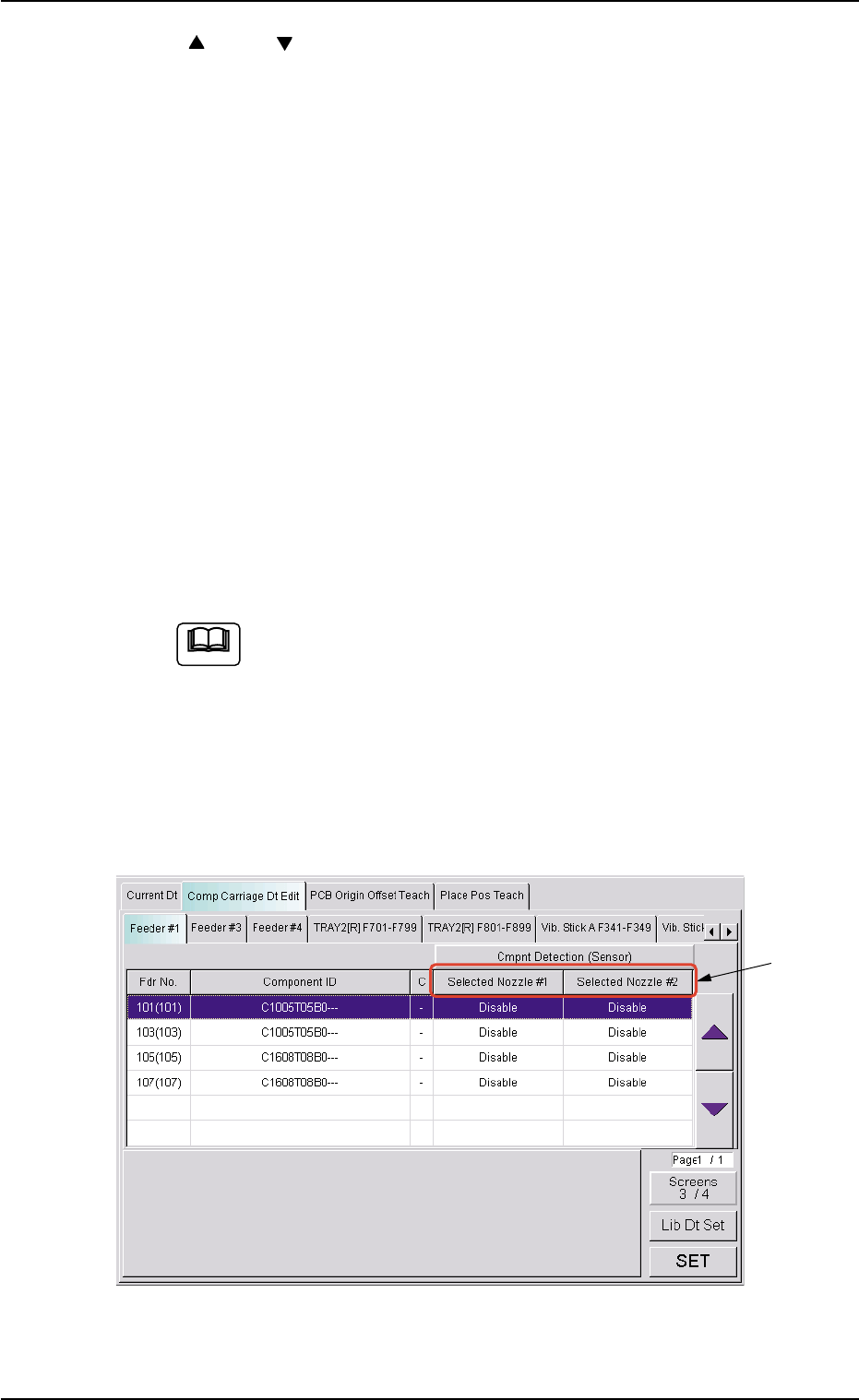
The "Direction (*4)", "Type (*5)", "X (*6)", "Y (*6)", "Selected Nozzle
#1 (*7)", "Selected Nozzle #2 (*7)", "Pickup Level (*8)", and "Place-
ment Level (*9)" group boxes appear at the lower area of the tab
sheet according to the listed items.
*4 "Direction" Group Box
Select one of the [+0 deg], [+90 deg], [+180 deg], and [+270 deg]
buttons as a direction.
*5 "Type" Group Box
Select one of the [Paper], [Embossed], and [Adhesive] buttons as a
component packaging type.
To change the selection in the "X", the "Y", the "Selected
Nozzle #1", "Selected Nozzle #2", the "Pickup Level" or the
"Placement Level" group box, press the [Screens #/4] (*2)
to open the subsequent pages.
*6 "X" and "Y" Group Boxes
Select the [Enable] or the [Disable] button to determine whether the
pickup position correction function should be used or not.
Fig. 2E22 "Comp Carriage Dt Edit" Tab Sheet (3/4)
5.2 "Comp Carriage Dt Edit" Tab
0308-003 5-25-7
*7
Note