2OM-1075-002.pdf - 第219页
AHB01ESPP *2 "Up and Down Control" Group Box The following buttons are provided in this group box. The contents of the sheet differ , depending on the button selected in the "Operation" group box (*1)…
AHB01ESPP
7.3.1.2 "PCB Lct Sol Adj" Tab Sheet
This tab sheet enables the operator to activate the P.C.B. locate sole-
noid.
••
••
• Sheet Layout
When the "PCB Lct Sol Adj" tab is pressed in the "Conveyor Adj" win-
dow, the following tab sheet appears.
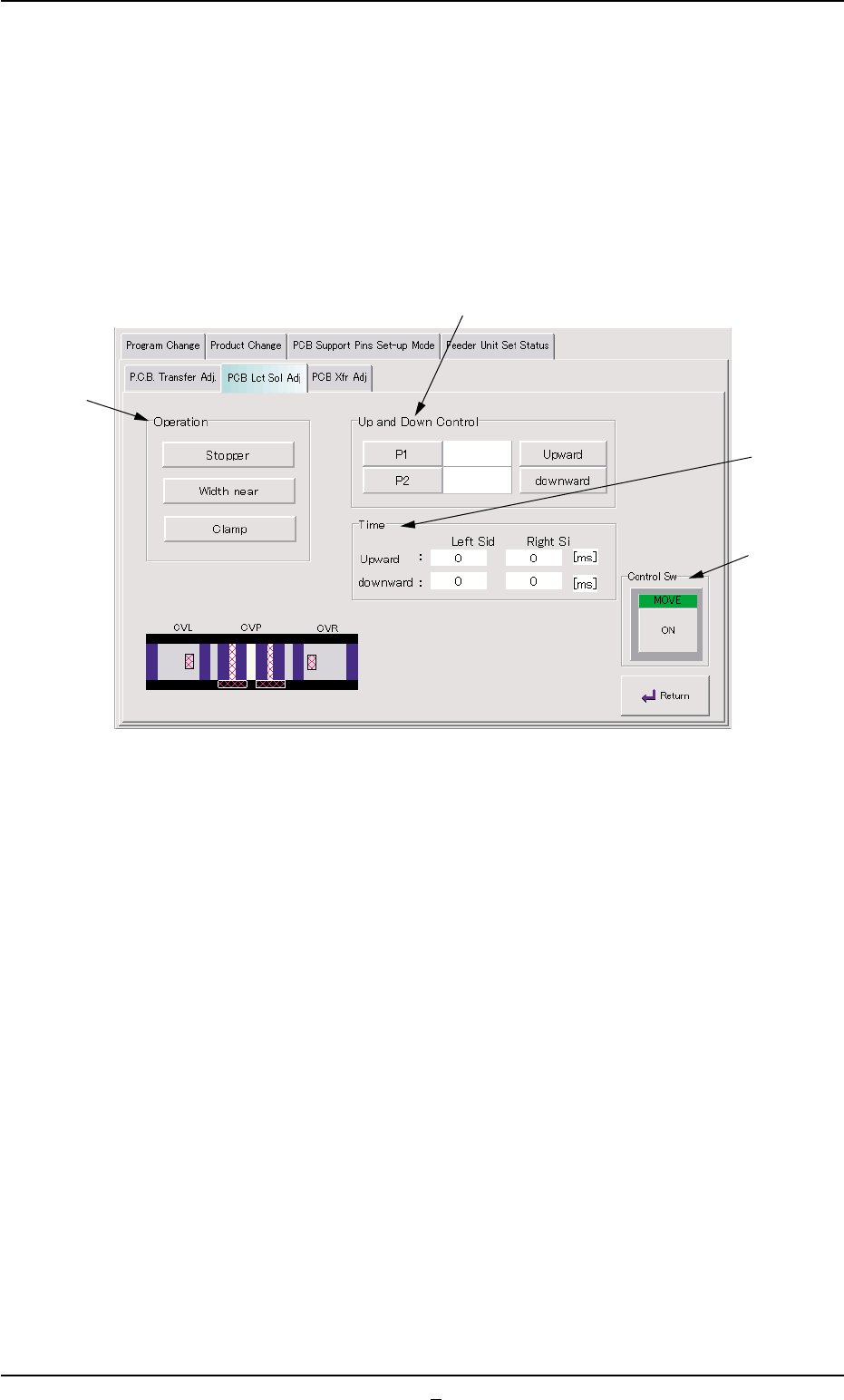
Fig. 2E46 "PCB Lct Sol Adj" Tab Sheet
••
••
• Sheet Composition
*1 "Operation" Group Box
The following buttons are provided in this group box.
Select one of the following buttons.
[Stopper] Button
When pressed, this button activates P.C.B. Stopper P1 or P2.
[Width near] Button
When pressed, this button narrows the conveyor width, using
the P.C.B. YL or YR pusher.
[Clamp] Button
When pressed, this button activates the P.C.B. ZL or ZR clamp.
7.3 "PCB Support Pins Set-up Mode" Tab
*1
*4
*2
*3
0206-002 5-55

AHB01ESPP
*2 "Up and Down Control" Group Box
The following buttons are provided in this group box.
The contents of the sheet differ, depending on the button selected in
the "Operation" group box (*1).
Unit Buttons
[Stopper] Button Selected : [P1], [P2]
[Width near] Button Selected : [YL], [YR]
[Clamp] Button Selected : [ZL], [ZR]
Control Buttons
[Stopper] Button Selected : [Upward] and [downward] Buttons
[Width near] Button Selected : [Clamp ON] and [Clamp OFF]
Buttons
[Clamp] Button Selected : [Clamp ON] and [Clamp OFF]
Buttons
*3 "Time" Group Box
When the [Stopper] button is selected in the "Operation" group box
(*1), the periods of time required for upward and downward move-
ment on the L and R sides.
When the [Width near] or the [Clamp] button is selected in
the "Operation" group box (*1), the "Time" group box (*3)
disappears.
*4 "Control Sw" Group Box
When the [ENABLE] button on the operation panel is pressed in 2
seconds after some buttons in "*1" and "*2" are selected and the
[ON] button (entitled "MOVE") is pressed, the action corresponding
to the selected buttons takes place.
••
••
• Operation Procedure
(1) Select one of the buttons in the "Operation" group box (*1).
(2) Select one of the unit buttons and press the desired control button
in the "Up and Down Control" group box (*2).
(3) Press the [ON] button (entitled "MOVE"). In 2 seconds, press the
[ENABLE] button on the operation panel.
7.3 "PCB Support Pins Set-up Mode" Tab
Note
0206-001 5-55-1
AHB01ESPP
*1
*3
*2
7.3.1.3 "PCB Xfr Adj" Tab Sheet
This tab sheet enables the operator to activate the conveyor motors.
The operator can perform the cycle operations related to the P (P.C.B.
positioning section), L, and R conveyors.
••
••
• Sheet Layout
When the "PCB Xfr Adj" tab is pressed in the "Conveyor Adj" window,
the following tab sheet appears.
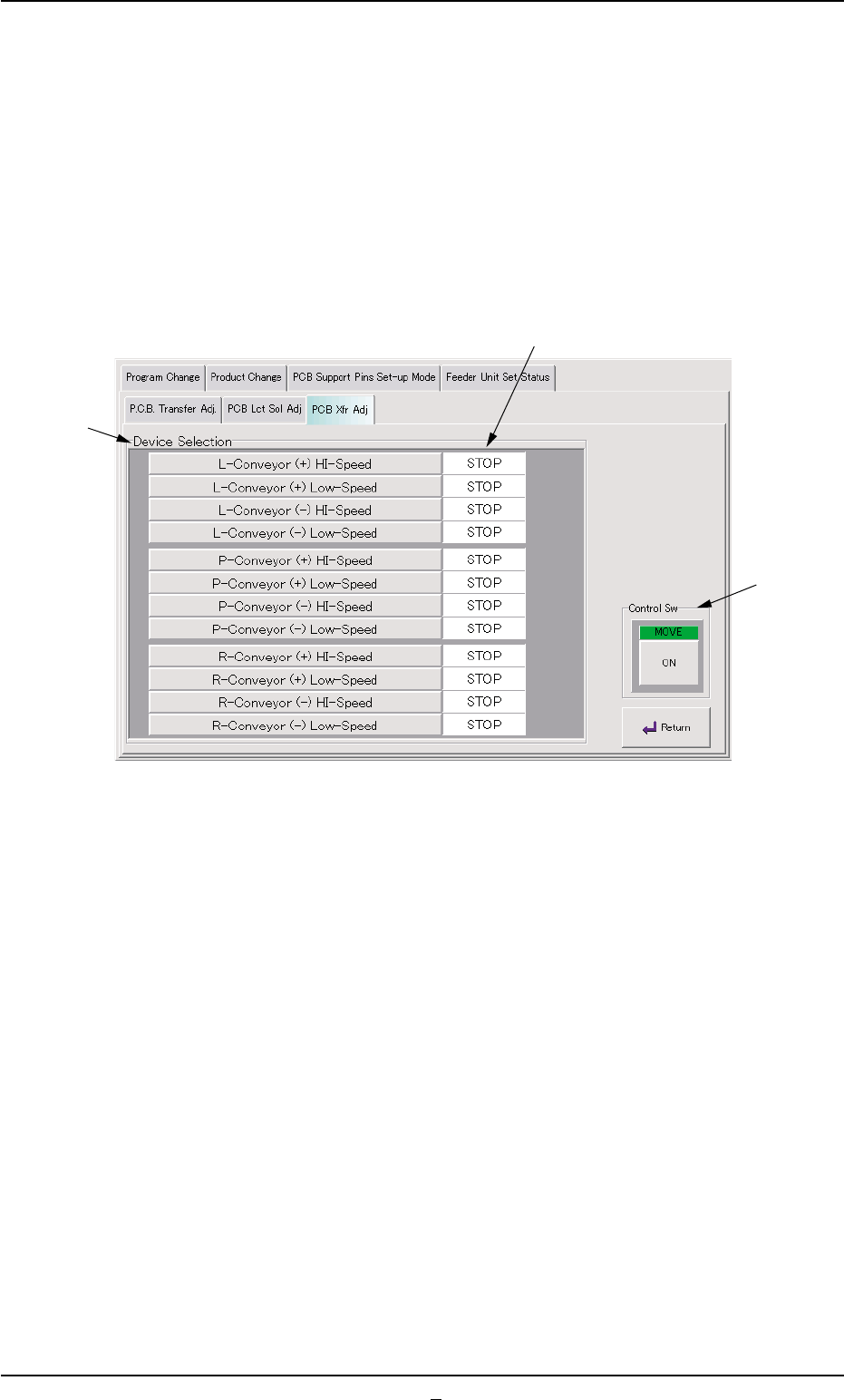
Fig. 2E47 "PCB Xfr Adj" Tab Sheet
••
••
• Sheet Composition
*1 Device Selection Buttons
The following buttons are provided for cycle operations in this group
box.
[L-Conveyor (+) HI-Speed] Button
When the [ENABLE] button on the operation panel is pressed in 2
seconds after this button is selected and the [ON] button (entitled
"MOVE") is pressed, the L conveyor moves forward at high speed.
[L-Conveyor (+) Low-Speed] Button
When the [ENABLE] button on the operation panel is pressed in 2
seconds after this button is selected and the [ON] button (entitled
"MOVE") is pressed, the L conveyor moves forward at low speed.
[L-Conveyor (-) HI-Speed] Button
When the [ENABLE] button on the operation panel is pressed in 2
seconds after this button is selected and the [ON] button (entitled
"MOVE") is pressed, the L conveyor moves backward at high
speed.
7.3 "PCB Support Pins Set-up Mode" Tab
0206-002 5-56