2OM-1075-002.pdf - 第363页
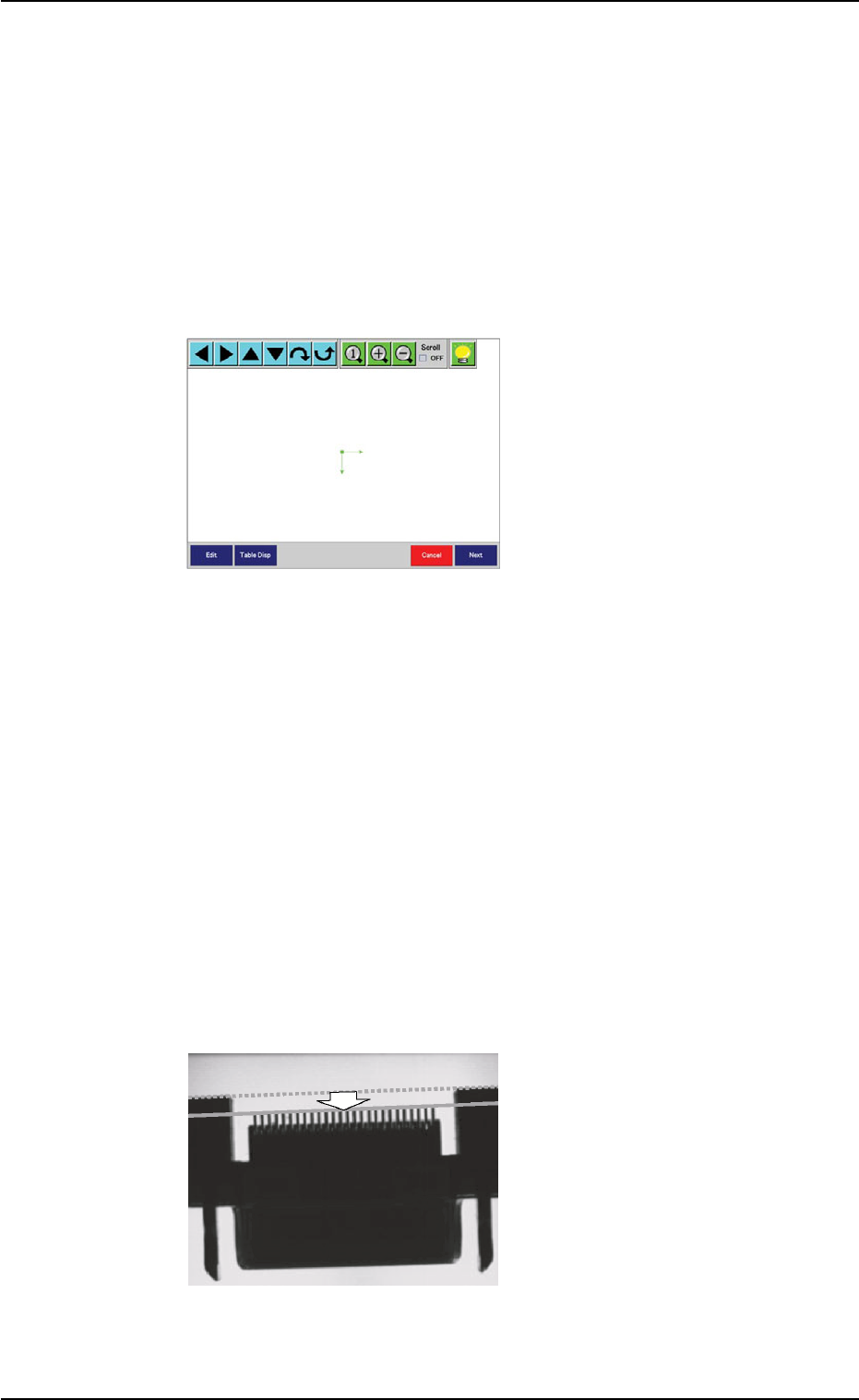
AHB01ESPP (15) Enter the mold size with the [Edit] or the [T able Disp] but- ton, adjust the position and angle of the graphic roughly , and press the [Next] button. The ball teaching operation starts. The window in Step…
AHB01ESPP
The window in Step (14) opens.
When the component shape belongs to "Area Array", the large view
function is used, and the outline of the component is protruding
from the diffusion plate (the [No] button selected in Step (10)), a
window opens, enabling the operator to enter the mold size of the
component.
The window in Step (15) opens.
In a case other than the above-described ones, the window in Step
(17) opens.
(14) Confirm that the mold size
and outward length of the
component are correctly
specified.
If not, press the [Edit] or the
[Table Disp] button for the
correction.
When the component shape
belongs to "Leaded" and the
outward length does not
match the detected end of
the arrayed leads, the lead
teaching operation may not
be successful.
In this case, align the outward length once with the end of the ar-
rayed leads as shown in the figure and perform the lead teaching
operation. After that, reset the changed outward length to the origi-
nal one.
When no problem arises, press the [Next] button.
The lead teaching operation starts.
When "Simple" is selected for "Lead Arrangement" in Step (5), the
window in Step (17) opens.
When "Complex" is selected, the window in Step (16) opens.
Fig. 2F102
Fig. 2F103
0308-004 6-130
5.2 Library Teaching
AHB01ESPP
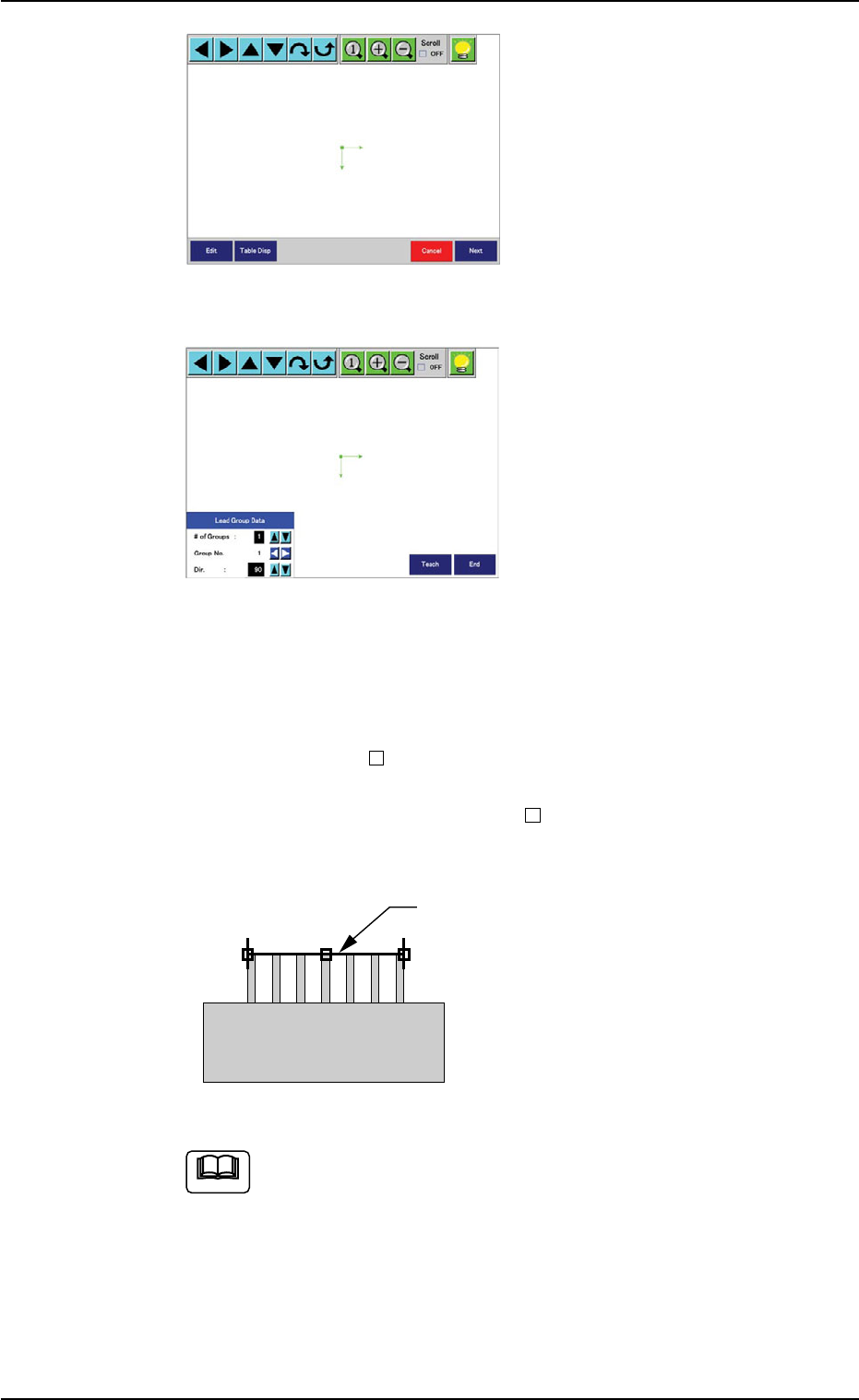
(15) Enter the mold size with the
[Edit] or the [Table Disp] but-
ton, adjust the position and
angle of the graphic roughly,
and press the [Next] button.
The ball teaching operation
starts.
The window in Step (17)
opens.
(16) A window for partial lead
teaching operations opens.
This window makes it pos-
sible to perform teaching
operations on each lead
group.
First of all, set the number
of lead groups to be regis-
tered. (Up to 8 groups)
Then, select the group No.
(starting with "1" in normal
cases) and the direction of
the lead groups to be regis-
tered.
Click the hot spots "
" located at the left, right, and central sides
of the yellow ruler and align the ruler with the ends of the arrayed
leads (lead group). The right and left
must be aligned with the
leads located at both ends of the group.
Press the [Teach] button.
Up to 4 lead types can be registered. However, when more
than 5 groups are taught and the lead types are all differ-
ent (regarded as different data), it means that more than 4
types are handled and no data will be saved for any groups
exceeding the maximum number of types.
In this case, the message "Since the num of lead types
was reached 5 (Max:4), the taught data has not been
saved." is issued.
Fig. 2F104
Fig. 2F104-1
Ruler
Fig. 2F104-2
Note
0308-004 6-131
5.2 Library Teaching
AHB01ESPP
As for the other lead groups, perform the similar operations and
press the [End] button after the registration is completed.
The window in Step (17) opens.
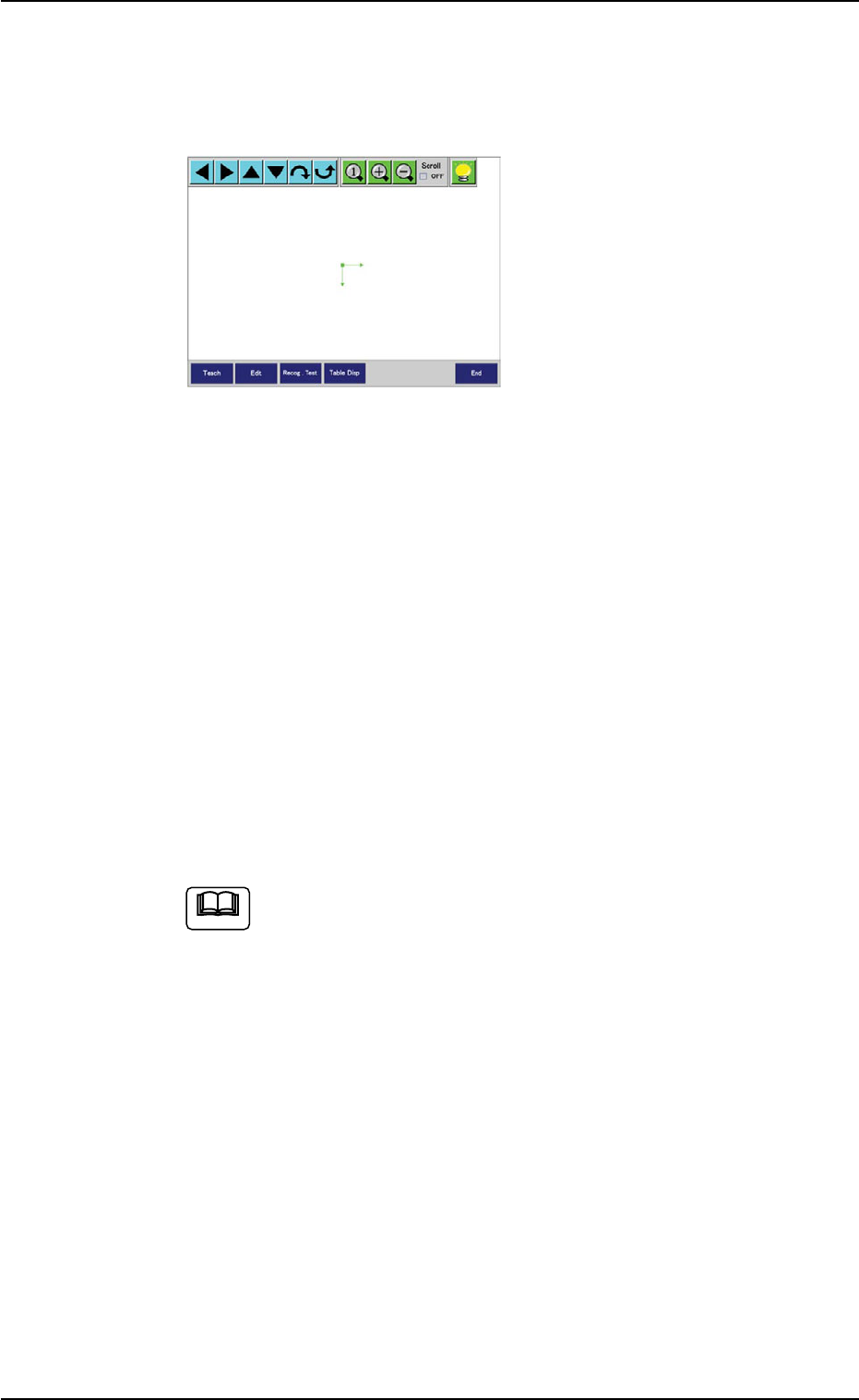
(17) A window opens, indicating
that the teaching operation is
completed.
Check that the correct data
is specified and perform a
visual confirmation by laying
the graphic over the cap-
tured image of the compo-
nent. At the same time, use
the [Table Disp] button to
verify the data. Refer to
"5.2.8 Helpful Hints for Pa-
rameter Verification" for de-
tails.
To correct the data, use the [Edit] or the [Table Disp] button for the
correction.
To perform the teaching operation again, press the [Teach] button.
Refer to "5.2.9 Helpful Hints for Correction & Teaching" for details.
To confirm whether or not recognition operations are possible with
the created data, press the [Recog.Test] button.
The "Comp Recog (Manual)" sheet opens.
When the component cannot be recognized, correct the data and
perform a recognition test again.
When the [Return] button is pressed in the "Comp Recog
(Manual)" sheet, the "Recognition" window opens automati-
cally.
When the recognition test is completed normally or the param-
eters are created or modified, the created parameters are saved,
exiting from the recognition test session.
The "Comp Library" tab sheet opens.
Fig. 2F104-3
Note
0308-004 6-132
5.2 Library Teaching