GLM250 VF激光测距仪数据表.pdf - 第22页
22 | English 1 609 92A 1YW | (8.7.1 6) Bosch Power Tools Now, measure length B 2 of the sec- ond wall. The individually mea sured value displayed in the centre meas- ured-value li ne a is added to the length B 1 . The su…
English | 21
Bosch Power Tools 1 609 92A 1YW | (8.7.16)
the same location for all individual measurements within a
measuring sequence (exception: trapezium measurements).
The laser beam remains switched on between the individual
measurements.
For indirect length measurements, four measuring modes are
available. Each measuring mode can be used for determining
different distances. To select the measuring mode, press the
function-mode button 3 until the symbol of the desired meas-
uring mode is indicated on the display.
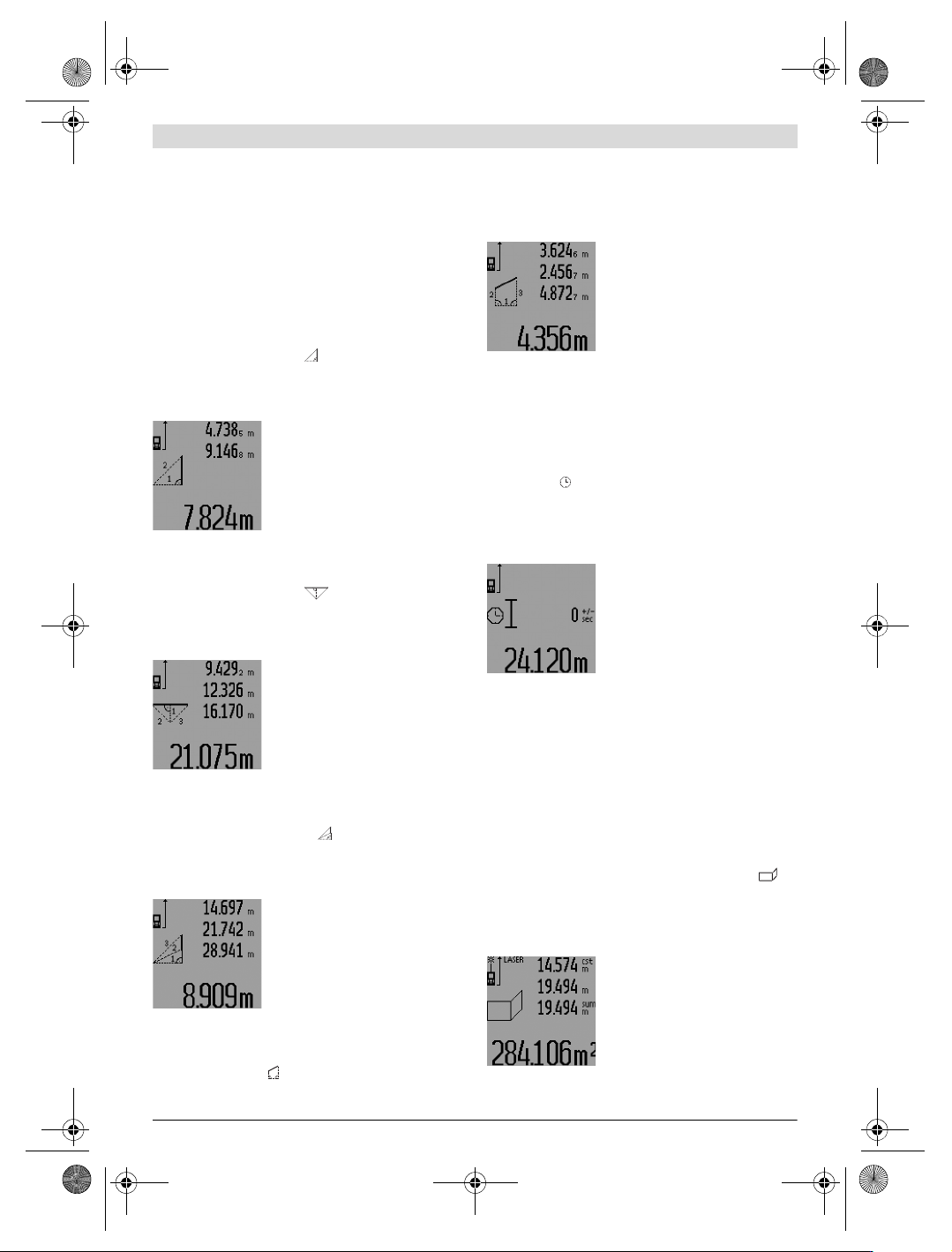
a) Simple Pythagoras Measurement (see figure H)
Press the function-mode button 3 until the indication for sim-
ple Pythagoras measurement appears on the display.
Measure distances “1” and “2” in this sequence with a length
measurement. Pay attention that a right angle exists between
distance “1” and the sought distance “E”.
Upon completion of the last measure-
ment, the result for the sought dis-
tance “E” is displayed in the result
line c. The individual measured values
are displayed in the measured-value
lines a.
b) Double Pythagoras Measurement (see figure I)
Press the function-mode button 3 until the indication for dou-
ble Pythagoras measurement appears on the display.
Measure distances “1”, “2” and “3” in this sequence with a
length measurement. Pay attention that a right angle exists
between distance “1” and the sought distance “E”.
Upon completion of the last measure-
ment, the result for the sought dis-
tance “E” is displayed in the result
line c. The individual measured values
are displayed in the measured-value
lines a.
c) Combined Pythagoras Measurement (see figure J)
Press the function-mode button 3 until the indication for com-
bined Pythagoras measurement appears on the display.
Measure distances “1”, “2” and “3” in this sequence with a
length measurement. Pay attention that a right angle exists
between distance “1” and the sought distance “E”.
Upon completion of the last measure-
ment, the result for the sought dis-
tance “E” is displayed in the result
line c. The individual measured values
are displayed in the measured-value
lines a.
d) Trapezium Measurement (see figure K)
Press the function-mode button
3 until the indication for tra-
pezium measurement appears on the display.
Measure distances “1”, “2” and “3” in this sequence with a
length measurement. Pay attention that the measurement of
distance “3” starts exactly at the end point of distance “1”
and that a right angle exists between distances “1” and “2” as
well as between “1” and “3”.
Upon completion of the last measure-
ment, the result for the sought dis-
tance “E” is displayed in the result
line c. The individual measured values
are displayed in the measured-value
lines a.
Time-delayed Length Measurement
Time-delayed length measurement is helpful e.g. when meas-
uring at hard to reach locations or when movements of the
measuring tool during measuring are to be prevented.
For a time-delayed length measurement, press function-
mode button 3 until the indicator for time-delayed length
measurement appears on the display.
The time period from the actuation until the measurement
takes place is displayed in the measured-value line a. The time
period can be adjusted between 1 s and 60 s by pressing the
plus button 6 or the minus button 12.
Then press the measuring button 7 to
switch the laser beam on and aim at
the target point. Press the measuring
button 7 again to actuate the meas-
urement. The measurement takes
place after the set time period. The
measured value is displayed in the re-
sult line c.
The addition and subtraction of measuring results as well as
minimum/maximum measurements are not possible for time-
delayed length measurements.
Wall Surface Measurement (see figure L)
The wall surface measurement is used to determine the sum
of several individual surfaces with a common height.
In the example shown, the total surface of several walls that
have the same room height A, but different lengths B, are to
be determined.
For wall surface measurements, press the function-mode but-
ton 3 until the indicator for wall surface measurement ap-
pears on the display.
Measure the room height A as for a length measurement. The
measured value (“cst”) is displayed in the top measured-val-
ue line a. The laser remains switched on.
Afterwards, measure length B
1
of the
first wall. The surface is automatically
calculated and displayed in the result
line c. The length measurement value
is displayed in the centre measured-
value line a. The laser remains
switched on.
1
2
1
32
1
3
2
1
3
2
OBJ_BUCH-947-007.book Page 21 Friday, July 8, 2016 10:44 AM
22 | English
1 609 92A 1YW | (8.7.16) Bosch Power Tools
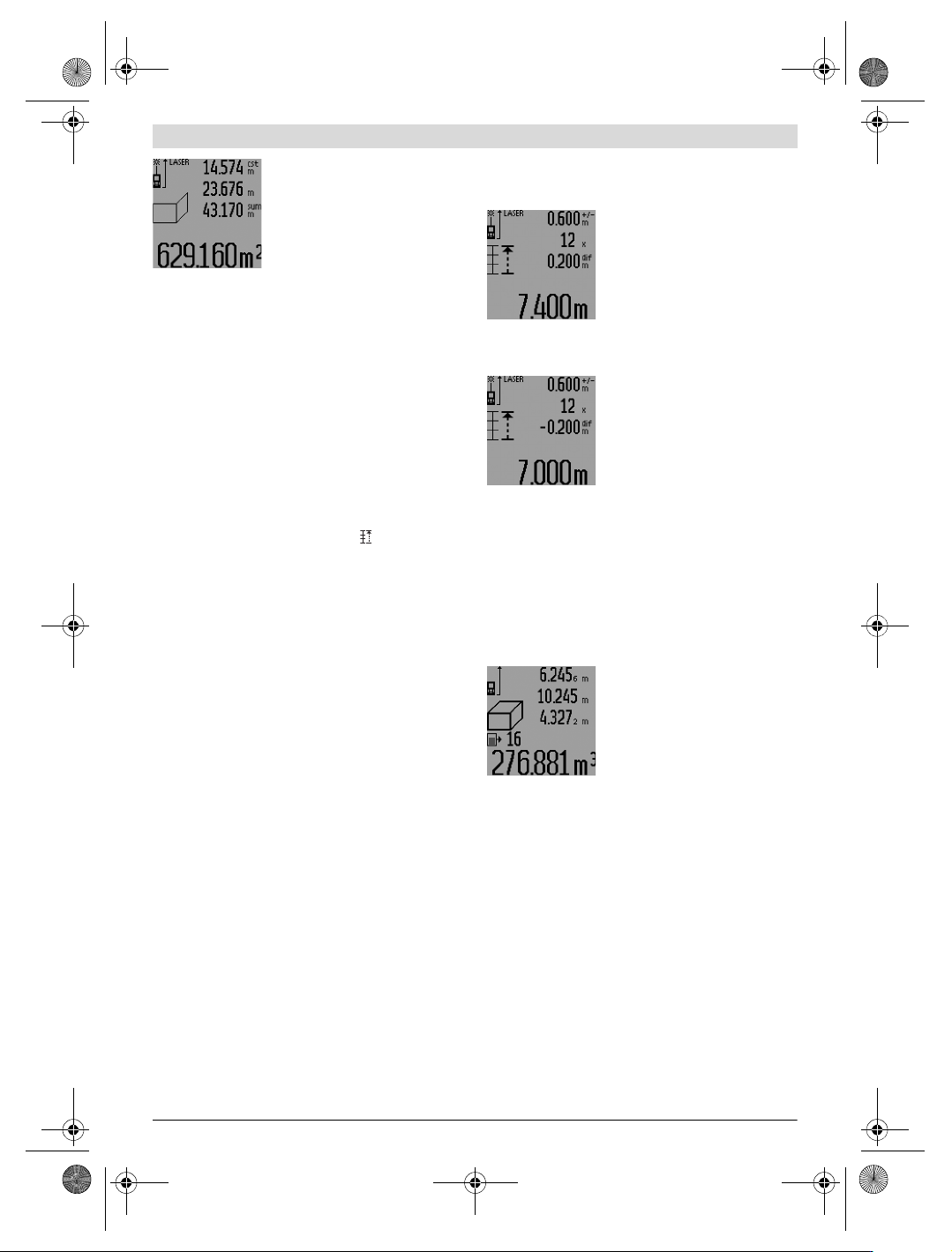
Now, measure length B
2
of the sec-
ond wall. The individually measured
value displayed in the centre meas-
ured-value line a is added to the
length B
1
. The sum of both lengths
(“sum”, displayed in the bottom
measured-value line a) is multiplied
with the stored height A. The total
surface value is displayed in the result line c.
In this manner, you can measure any number of further
lengths B
X
, which are automatically added and multiplied with
height A.
The condition for a correct area/surface calculation is that the
first measured length (in the example the room height A) is
identical for all partial surfaces.
For a new wall surface measurement with new room height A,
press button 16 three times.
Mark-out Mode (see figure M)
Mark-out mode is used for marking off a fixed length (mark-
out value), which can either be measured or entered. It is
helpful for, e.g., marking partition spaces for drywalls.
To activate the mark-out mode, press the function-mode but-
ton 3 until the mark-out mode indication appears on the
display.
The mark-out value can be adjusted as follows:
– To enter a known value, press the plus button 6 or the mi-
nus button 12 until the desired value is displayed in the up-
per measured-value line a. When pressing and holding the
plus button 6 or minus button 12, the values will continu-
ously skip through. The laser is not activated yet.
– For measuring the mark-out value, briefly press the meas-
uring button 7 once for sighting and once more for measur-
ing. Afterwards, the laser beam remains switched on.
– The measured or entered mark-out value can be corrected
by pressing the plus button 6 or the minus button 12.
After determining the mark-out value, press and hold the
measuring button 7 to begin the measurement.
Now, move the measuring tool in the desired direction for
marking out. The current measuring value of the complete
measured distance is continuously displayed in the result line
c. The selected mark-out value continues to be displayed in
the upper measured-value line a.
The factor (“x”) how often the mark-out value is contained in
the total measuring distance is displayed in the centre meas-
ured-value line, and the difference (“dif”) between an inte-
gral multiple of the mark-out value and the total distance is
displayed in the bottom measured-value line a.
When the total measuring distance is somewhat less than an
integral multiple, then a negative difference and the next high-
er multiple of the mark-out value are displayed.
Move the measuring tool until the desired multiple of the
mark-out value is displayed in the centre measured-value line
a and the difference in the bottom measured-value line is a
“0.0 m”. Then mark off the reference point of the measure-
ment.
Examples:
a) Positive difference:
7.4m=(12x0.6m)+0.2m
The mark-out value 0.6 m is con-
tained 12x in a total distance of
7.4 m. Additionally, the total distance
contains a rest of 0.2 m. Reduce the
distance between the measuring tool
and the starting point by 0.2 m differ-
ence, and then mark off the length.
b) Negative difference:
7.0 m = (12 x 0.6 m) – 0.2 m
For a total distance of 7.0 m, 0.2 m
are missing for the mark-out value
0.6 m to be contained 12x. Increase
the distance between the measuring
tool and the starting point by 0.2 m
difference, and then mark off the
length.
Briefly pressing measuring button 7 ends the mark-out mode.
Pressing and holding the measuring button 7 restarts the
mark-out mode anew (with the same mark-out value).
The mark-out mode automatically switches off after 5 min.
For prior exiting of the function, press one of the measuring-
mode buttons.
List of the last Measuring Values
The measuring tool stores the last 30 measuring values and
their calculations, and displays them in reverse order (last
measured value first).
To recall the stored measurements,
press button 15. The result of the last
measurement is indicated on the dis-
play, along with the indicator for the
measured-value list d as well as a
counter for the numbering of the dis-
played measurements.
When no further measurements are stored after pressing but-
ton 15 again, the measuring tool switches back to the last
measuring function. To exit the measured-value list, press
one of the measuring-mode buttons.
To delete the currently displayed measured-value list entry,
briefly press button 16. To delete the complete measured-
value list, press and hold the button for the measured-value
list 15 and at the same time briefly press button 16.
Deleting Measured Values
Briefly pressing button 16 deletes the last individual measur-
ing value determined in all measuring functions. Briefly press-
ing the button repeatedly deletes the individual measured val-
ues in reverse order.
In wall surface measurement mode, briefly pressing button
16 the first time deletes the last individually measured value;
pressing the button a second time deletes all lengths B
X
, and
pressing the button a third time deletes all room heights A.
OBJ_BUCH-947-007.book Page 22 Friday, July 8, 2016 10:44 AM
English | 23
Bosch Power Tools 1 609 92A 1YW | (8.7.16)
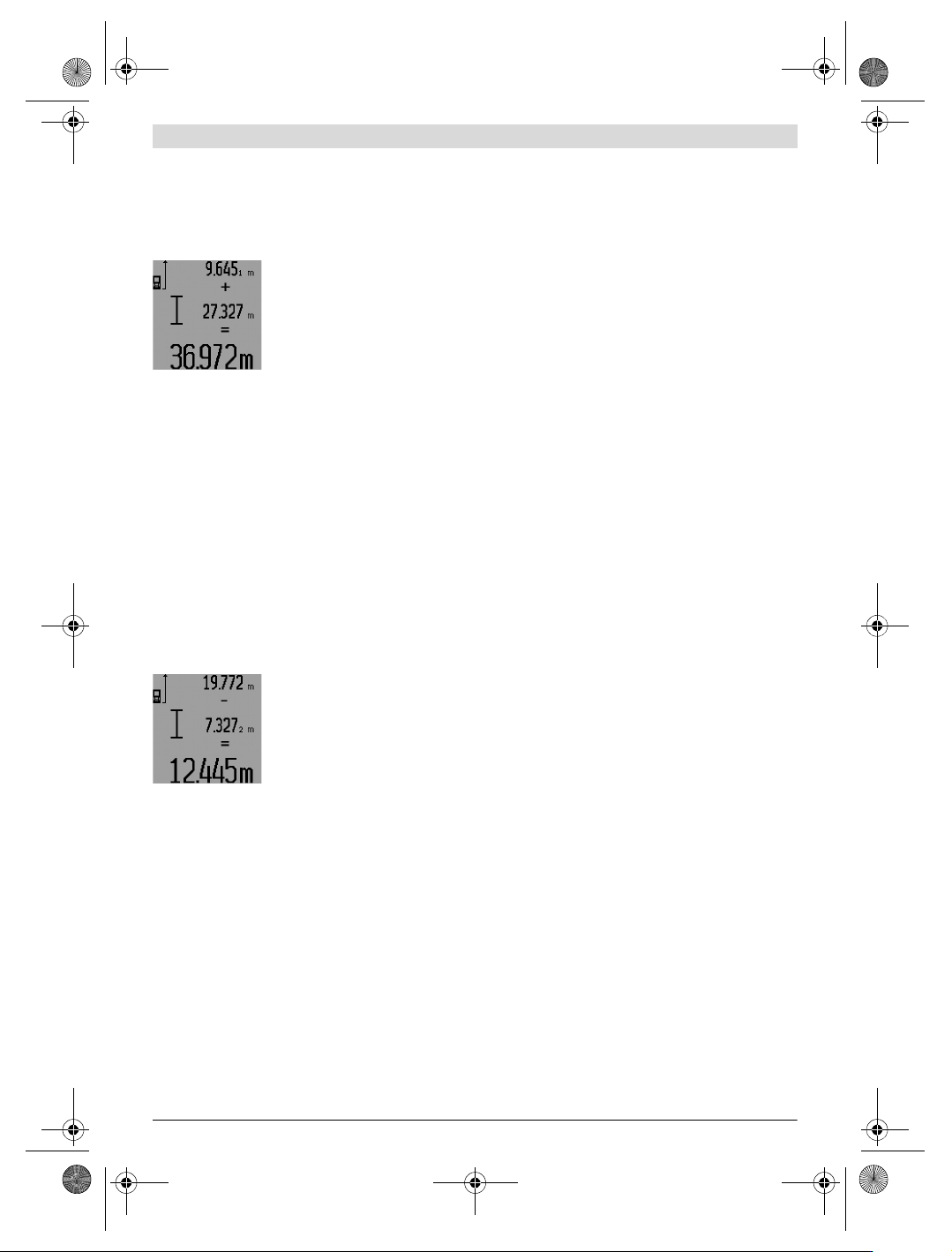
Adding Measured Values
To add measured values, firstly carry out any measurement or
select an entry from the measured-value list. Then press the
plus button 6. For confirmation, “+” appears on the display.
Then carry out a second measurement or select another entry
from the measured-value list.
To call up the sum of both measure-
ments, press the result button 5. The
calculation is indicated in the meas-
ured-value lines a, and the sum in the
result line c.
After calculation of the sum, further
measured values or measured-value
list entries can be added to this result when pressing the plus
button 6 prior to each measurement. Pressing the result but-
ton 5 ends the addition.
Notes on the addition:
– Mixed length, area and volume values cannot be added to-
gether. For example, when a length and area value are add-
ed, “ERROR” briefly appears on the display after pressing
the result button 5. Afterwards, the measuring tool switch-
es back to the last active measuring mode.
– For each calculation, the result of one measurement is
added (e.g. the volume value); for continuous measure-
ments, this would be the displayed measured value in re-
sult line c. The addition of individual measured values from
the measured-value lines a is not possible.
– For time-delayed length measurements and when in mark-
out mode, additions are not possible; when changing to
these modes, begun additions are interrupted.
Subtracting Measured Values
To subtract measuring values, press
minus button 12; For confirmation,
“–” is indicated on the display. The
further procedure is analog to
“Adding Measured Values”.
Working Advice
General Information
The reception lens 26 and the laser beam outlet 27 must not
be covered when taking a measurement.
The measuring tool must not be moved while taking a meas-
urement (except for continuous measurements, mini-
mum/maximum measurements and when in mark-out mode).
Therefore, place the measuring tool, as far as this is possible,
against or on a firm stop or supporting surface.
Influence Effects on the Measuring Range
The measuring range depends upon the light conditions and
the reflection properties of the target surface. For improved
visibility of the laser beam when working outdoors and when
the sunlight is intense, use the laser viewing glasses 31 (ac-
cessory) and the laser target plate 32 (accessory), or shade
off the target surface.
Influence Effects on the Measuring Result
Due to physical effects, faulty measurements cannot be ex-
cluded when measuring on different surfaces. Included here
are:
– Transparent surfaces (e.g., glass, water),
– Reflecting surfaces (e.g., polished metal, glass),
– Porous surfaces (e.g. insulation materials),
– Structured surfaces (e.g., roughcast, natural stone).
If required, use the laser target plate 32 (accessory) on these
surfaces.
Furthermore, faulty measurements are also possible when
sighting inclined target surfaces.
Also, air layers with varying temperatures or indirectly re-
ceived reflections can affect the measured value.
Measuring with the Positioning Pin
(see figures B, C, F and G)
The positioning pin 18 is suitable for measuring out of corners
(diagonal within a space) or from hard to reach areas, such as
from roller-shutter rails.
Press on the positioning pin latch 1 to fold it in or out, or
change its position.
For measurements starting from outer corners, fold the posi-
tioning pin aside; for measurements from the rear edge of the
positioning pin on, fold it out to the rear.
For measurements with the positioning pin, adjust the refer-
ence plane accordingly by pressing button 8 (for measure-
ments with the positioning pin aside, set to measuring from
the rear edge of the measuring tool).
Aligning with the Spirit Level
The spirit level 14 allows for simple levelling of the measuring
tool. This allows for easier sighting of target surfaces, espe-
cially over longer distances.
In combination with the laser beam, the spirit level 14 is not
suitable for levelling.
Sighting with the Optical Sight (GLM 250 VF)
(see figure N)
The sighting line through the optical sight and the laser beam
run parallel to each other. This allows for precise sighting over
long distances, when the laser dot is no longer visible with the
naked eye.
For sighting, view through the viewfinder of the optical sight
10. Take care that the optical sight window 25 is not obstruct-
ed and clean.
Note: For close vicinities, the actual and the displayed target
point are not identical.
Sighting with the Alingment Aid (see figure O)
The alignment aid 24 supports sighting over larger distances.
For this, view alongside the alignment aid on the side of the
measuring tool. The laser beam runs parallel to this sighting
line.
Working with the Tripod (Accessory)
The use of a tripod is particularly necessary for larger distanc-
es. Position the measuring tool with the 1/4" thread 21 onto
the quick-change plate of the tripod 30 or a commercially
OBJ_BUCH-947-007.book Page 23 Friday, July 8, 2016 10:44 AM