JX-350_EPU使用说明书.pdf - 第127页
EPU Instruction M anual C hapter 4 Creating a Production Progr am 4- 79 ( 6) V acuum ti me adjust S pecify whether to adj ust the vacuum tim e or no t. W hen you select t he “ Ye s ” r adio button in the “ Adj ust ” f ie…
EPU Instruction Manual Chapter 4 Creating a Production Program
4-78
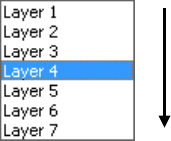
(3) Component layer
The “Component layer” field specifies the priority of each component on the same
placement layer.
This selection is effective only if the system produces a PWB in the optimized order.
Note that this selection does not cause the system to be put in the pause state due to
a component run-out error unlike the selection of the “Layer” field on the “Placement”
data screen.
Select the layers from 1 (highest priority) to 7 (lowest priority) from the pull-down list.
(4) Speed
When a small nozzle is used to pick up components or when a vacuum leakage
occurs from a groove on the top surface of the component, the acceleration of the
XYZ axis can be changed from the default value.
• XY
From the drop-down list, select the speed that the XY-axes accelerate until they
move to the component placement position after they pick up a component (in 10
steps).
• Place Z down
From the drop-down list, select the speed that the Z-axis accelerates (to adjust the
stress imposed on a component) when it moves down at the component
placement position.
• Place Z up
From the drop-down list, select the speed that the Z-axis accelerates (to adjust the
stress imposed on a component) when it moves up at the component placement
position.
• Theta (Measure)
Specify the theta rotation speed by the drop-down list.
In the status where the head is provided with a component, the specified speed is
valid for all operations.
This value sets the speed that the theta axis accelerates when a component is
recognized with laser.
• Theta (Other)
Specify the theta rotation speed by the drop-down list.
This speed is effective for all rotation operations except for a rotation for
measurement operation with laser when a head holds a component.
This value sets the speed that the theta axis accelerates when a component is not
recognized with laser.
(5) Tw o-step speed control
Specify whether to control the speed at which the nozzle moves up and down in two
steps when a component is placed on a board.
When you select the “Yes” radio button in the “Adjust” field, enter the height to be
controlled in two steps for moving up and moving down a nozzle respectively.
Place first.
Place later.
EPU Instruction Manual Chapter 4 Creating a Production Program
4-79
(6) Vacuum time adjust
Specify whether to adjust the vacuum time or not.
When you select the “Yes” radio button in the “Adjust” field, enter a value in each of
the “Vacuum stop timing” field, the “Vacuum stop correction value” field, the “Blow
starting timing” field, the “Blow continuing timing” field and the “Vacuum OFF wait
time” field in unit of ms.
When you use a gripper nozzle, the system does not make any adjustment when it
places a component on a board.
(7) Trial
In the same manner as the setting on the “Placement” data screen, on the
“Production” (Trial mode) screen the system places only components for which the
“Trial” field is set to “Yes.”
When you select “Yes” in the “Trial” field on this “Component” data screen, the system
sets all placement positions of a component by one operation.
If you want to specify whether to perform a trial operation on each component
placement position, use the “Placement” data screen.
(8) Release check
This check is intended for laser centering components. This function checks
whether any component is attached to the nozzle after completion of a placing
operation.
It takes some time for the system to check that a component is released (since the
system checks it while it is put in the pause state). Normally select the “No” radio
button.
(9) Component skip
When you select “Yes” for this “Component skip” field, the system skips the
corresponding component during production and does not place it on a board.
The placement data record that uses a component whose “Component skip” field is
set to “Yes” is not used for production, and is not listed on the “Not placed” list.
When you load the component information form the database, this “Component
skip” field is set to “No.”
EPU Instruction Manual Chapter 4 Creating a Production Program
4-80
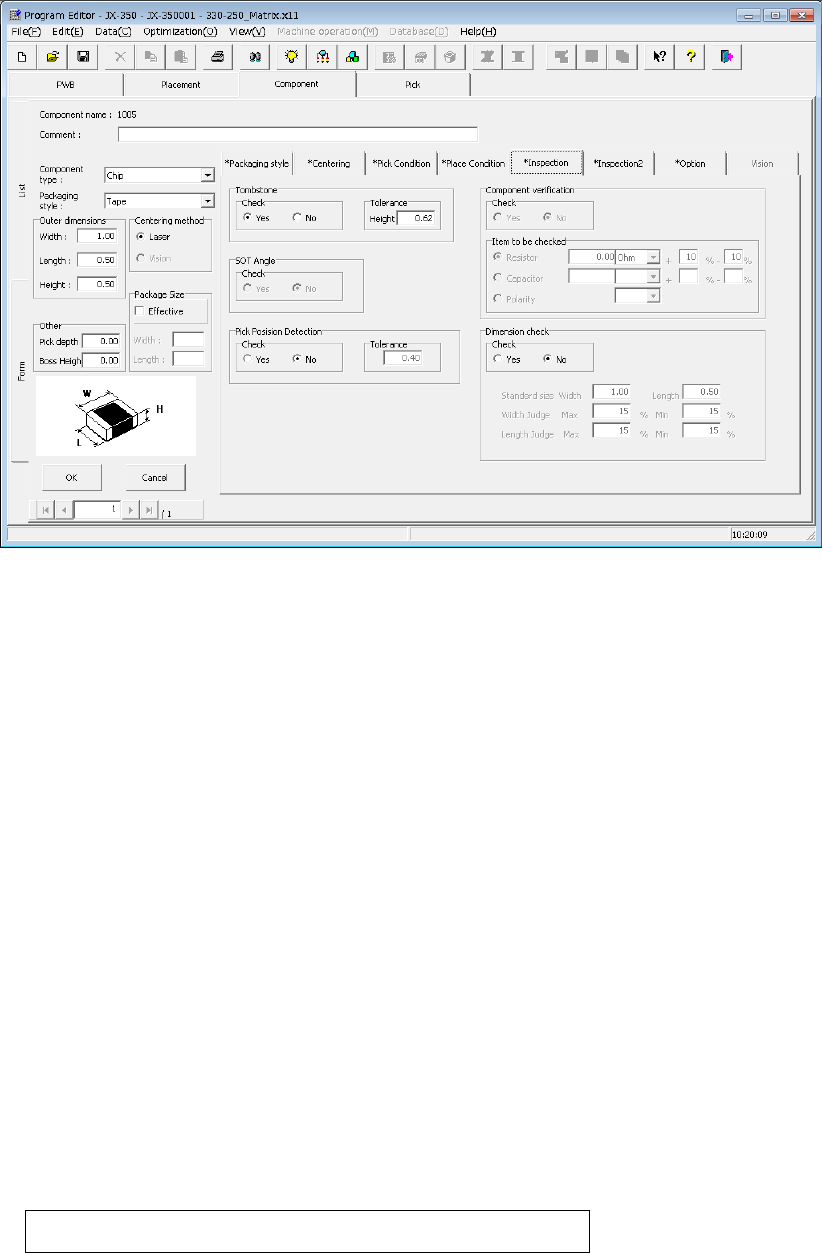
4.1.4.2.6 Inspection
Specify the fields “Tombstone,” “SOT Angle,” “Pick Position Detection,” “Component
verification,” and “Dimension check.”
The field “SOT Angle” is optional.
(1) Tombstone
Specify whether to check that a component stands on its side (“Tombstone” error).
Normally, we recommend that you select the “Yes” radio button for a 3216 chip
component or smaller ones. Therefore, when you select a “Chip” as the
“Component type,” the system automatically selects the “Yes” radio button.
“Tolerance”: The system automatically enters a value calculated from the component
height you entered to this field..
(2) SOT Angle (option)
This specifies whether to perform or not 3-terminal lead SOT direction inspection.
The SOT direction inspection of the first component before production and after “no
components” can be performed.
Perform this check mainly to check that a correct component is not set.
This function can be selected only when the component type is SOT.
(3) Pick Position Detection
This function detects whether the center of a component is shifted by a value more
than that set in the “Tolerance” field when viewed from the center of the nozzle.
This function is available only if the packaging style is a tape feeder. Otherwise, this
function is disabled. Select the “Yes” radio button for the desired component, and
enter the value in the “Tolerance” field as the judgment value.
The range of a value you can enter in this field is from 0 to the length of a component (or
width of a component if the component supply angle is 90º or 270º).
When you select the “Yes” radio button, the default value to be set in the “To lerance”
field is calculated with the expression shown below:
Length (or width) of a component ÷ 2 × (set value/100)
The “set value” is set in the “Environment setting” screen of the Program Editor. The
default is 50 (%).