JX-350_EPU使用说明书.pdf - 第32页
EPU Instructi on Manual Chapter 3 E PU setup 3-6 3.4 Sta r t - Up Screen Create two or more st ation profiles. W hen you speci fy one of them to activate it, you can select the EPU operating env ironment. W hen y ou ent …
EPU Instruction Manual Chapter 3 EPU setup
3-5
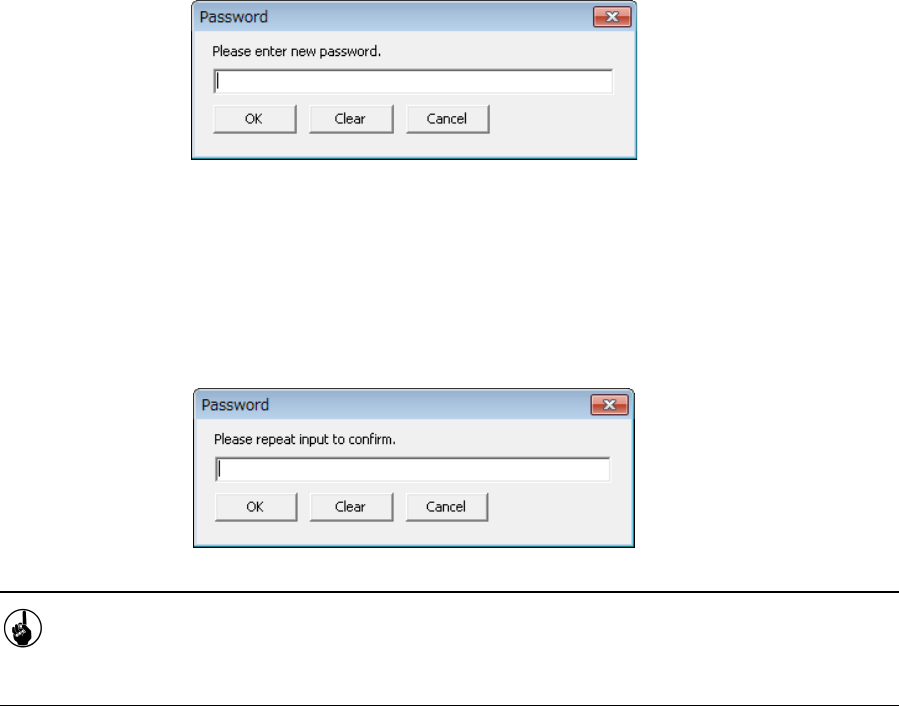
(2) Specify a new password.
Enter a new password at this point.
After you enter a new password, click the <OK> button. EPU checks a new password.
(3) Confirm the new password you entered.
Enter the new password you entered again. When you enter it, click the <OK> button.
If you entered a correct password, the main screen of the EPU setup is displayed. .
If you entered a wrong password, the message of "Password mismatch error" is
displayed, and it returns to the screen for your entering the password.
You finished changing a password at this point.
Next time you start up the EPU Setup module, the new password you entered here
works.
EPU Instruction Manual Chapter 3 EPU setup
3-6
3.4 Start-Up Screen
Create two or more station profiles. When you specify one of them to activate it, you can
select the EPU operating environment.
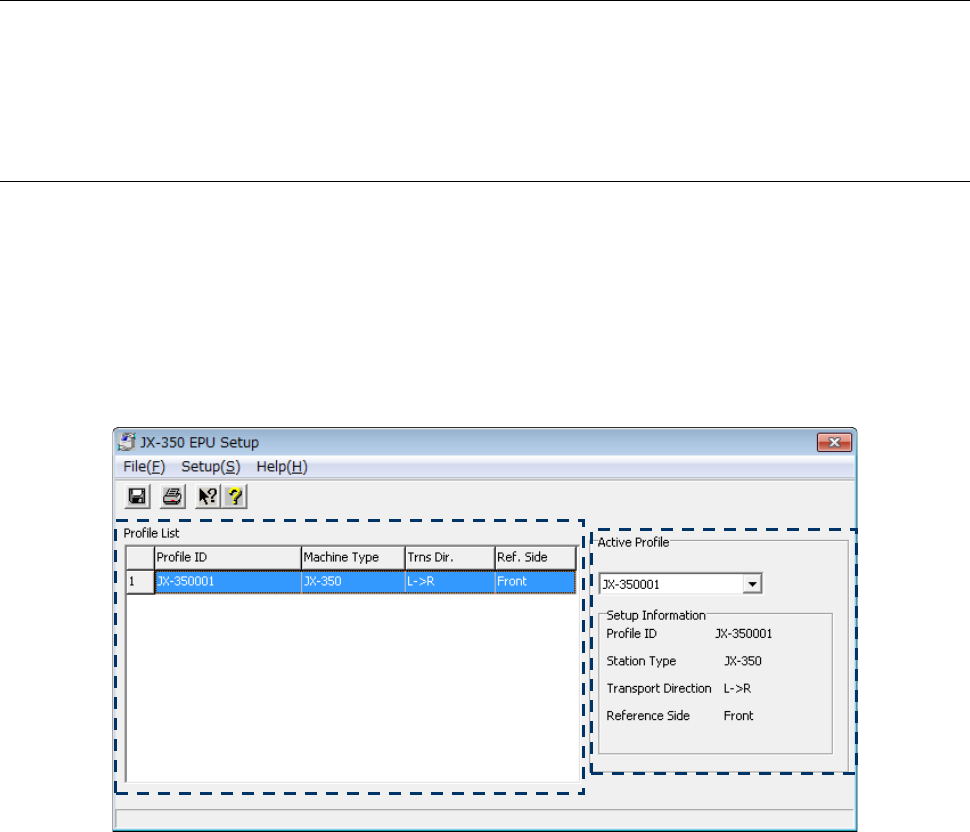
When you enter the correct password, the EPU Setup main screen appears.
3.4.1 Main window
When you enter the correct password, the EPU Setup main window opens as shown in the
figure below.
The EPU Setup screen shows the list of the registered station profiles and the overview of
the profile currently activated.
When you start up the EPU Setup module for the first time, set a “station profile” at first.
See Section 3.7 “Setting a Station Profile” for details.
If you have already edited data with EPU, the screen shown below appears.
[Descriptions of the screen]
◊
Profile List
When you double-click the list when the input focus is located on the list or select the
[Setup] command on the menu bar, then the [Station Profile] command, the “Station
Profile” screen starts up. Set the environment for a production program so that it can be
the same as that for the machine you are to operate actually.
See Section 3.7 “Setting a Station Profile” for how to set the profile list.
◊
Active Profile
The “profile” activated currently appears on the right side of the screen.
Specify the “profile ID” of a profile you want to activate from the “Profile ID” pull-down list.
The “profile ID” you activate at this point is used when EPU starts up.
EPU Instruction Manual Chapter 3 EPU setup
3-7
3.5 Menu Command List
3.5.1 Menu commands
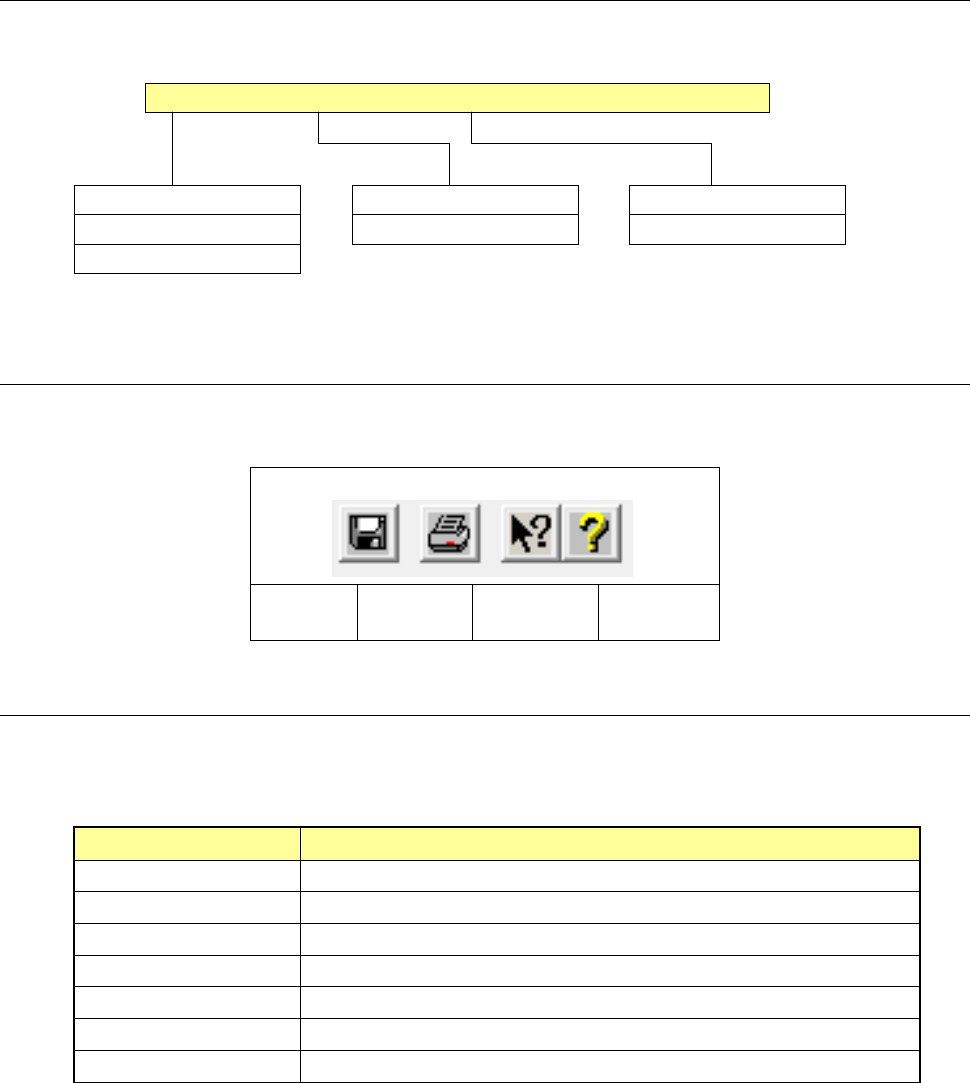
The following commands are available with the EPU Setup module:
File (F) Setting(S) Help(H)
Save (S) Ctrl + S EPU profile (H)... Help(C)...
Print (P) Ctrl + P Station profile (S)... Version information (A)...
Exit (X)
3.5.2 Toolbar
This section describes the toolbar used with the EPU Setup module.
Save
Print
Version
information
Help
3.5.3 Guidance
The guidance messages corresponding to each menu command of the EPU Setup module
are shown below:
Command Guidance message
Save Save the set data, replacing the old data by new one.
Print Prints out the set data
Exit Ends the EPU Setup program.
EPU profile Opens the “EPU Profile” setting screen.
Station profile Opens the “Station Profile” setting screen.
Help Displays the Help screen.
Version information Displays information pertaining to the version of the EPU Setup program.