JX-350_EPU使用说明书.pdf - 第166页
EPU Instruction M anual C hapter 4 Creating a Production Progr am 4- 118 ( 5) I nsert li ne This comm and inserts a blank line. * This comm and cannot be selected when you use the sort f unction. ( 6) Dupl icate This com…
EPU Instruction Manual Chapter 4 Creating a Production Program
4-117
• Example of the [Paste] command result
Component ID X Y Angle Component name
R1 5.00 10.00 45.00 1608-A
R2 10.00 10.00 0.00 1608-A
No. of copies X 3 X Pitch: 0.50
Y Pitch: 1.00
# 5.50 11.00 45.00 1608-A
# 10.50 11.00 0.00 1608-A
# 6.00 12.00 45.00 1608-A
# 11.00 12.00 0.00 1608-A
# 6.50 13.00 45.00 1608-A
# 11.50 13.00 0.00 1608-A
• The copied block is inserted above the specified line.
• All of the Component IDs are set to “#”.
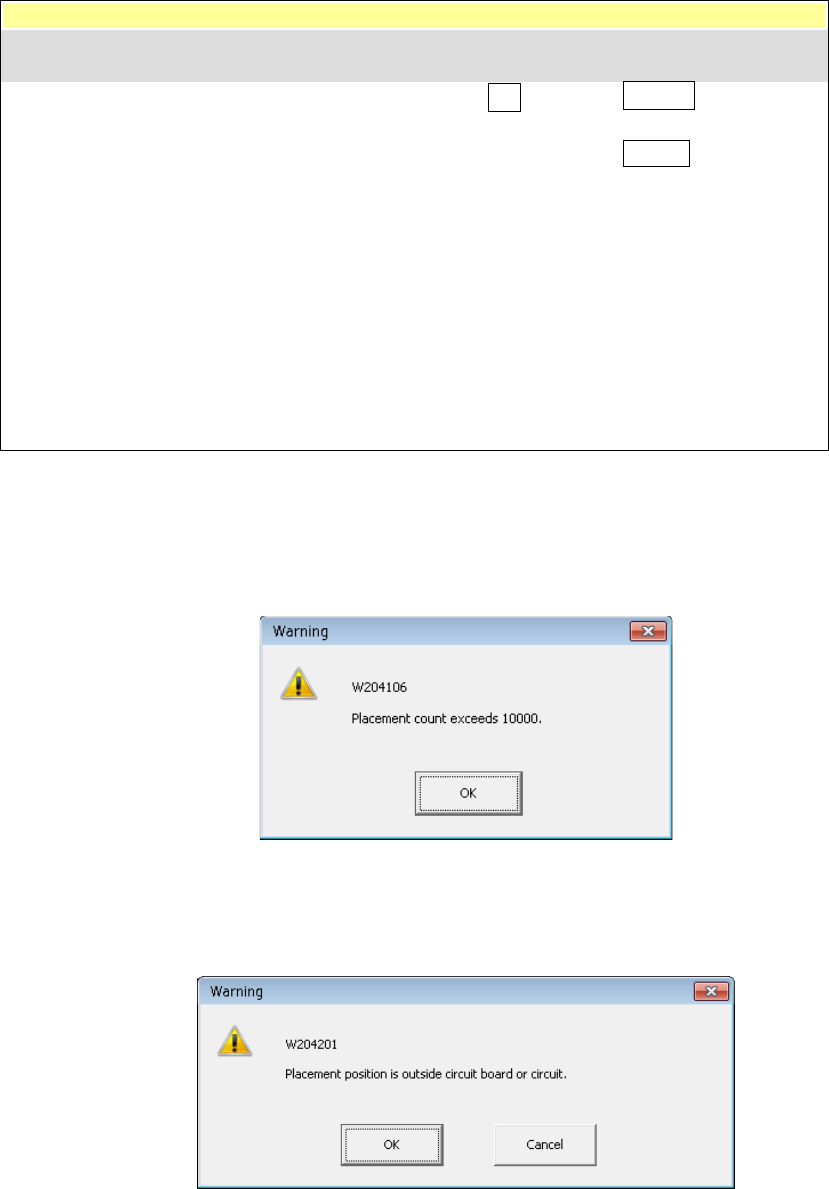
* In the following cases, an error occurs and the system displays the corresponding
error message on the screen.
① The number of data records you entered exceeds the maximum number of
records.
• OK: This button cancels your copy operation. No data is copied.
② The component placement position is outside a PWB or circuit.
• OK: This button continues copying data. However, the range over mark is
appended to the error data record.
• Cancel: This button cancels the copy operation.
Component ID X Y Angle Component name
EPU Instruction Manual Chapter 4 Creating a Production Program
4-118
(5) Insert line
This command inserts a blank line.
* This command cannot be selected when you use the sort function.
(6) Duplicate
This command copies the line on which the cursor is located, and then inserts it
between the copied line and the next line.
* This command cannot be selected when you use the sort function.
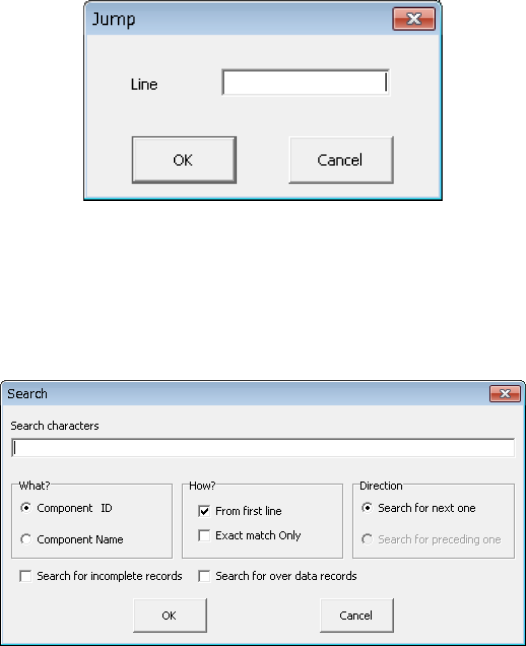
(7) Jump
When you select this [Jump] command, the following dialog box appears on the
screen.
Specify the line number on which you want to locate the cursor, and click the <OK>
button. The cursor moves to the specified line.
(8) Search/Search prev./Search next
This command searches a character string through data when you specify the keys
“Component ID,” “Component Name” and “Incomplete records.”
When you select the [Search] command, the following dialog box appears on the
screen.
Specify the key(s) for searching data, and click the <OK> button. The system starts
searching the specified character string.
• When you check the check box “Search for incomplete records” or “Search for
over data records,” you cannot select any of the radio buttons “Component ID” and
“Component Name” and the check box “Exact match only.”
• You cannot select both the check boxes “Search for incomplete records” and
“Search for over data records” at the same time.
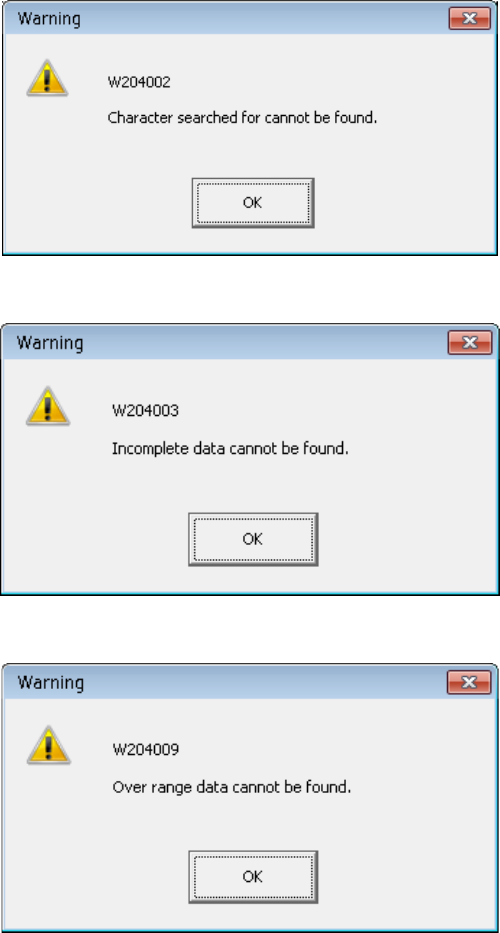
• If the system does not find any matched data, it displays one of the messages
shown below.
• The system will memorize the character string and the keys for searching data you
entered until you display the “Search” dialog box again.
EPU Instruction Manual Chapter 4 Creating a Production Program
4-119
a) If the system does not find any matched data
b) If the system does not find any incomplete data
c) If the system does not find any range over data