JX-350_EPU使用说明书.pdf - 第88页
EPU Instruction M anual C hapter 4 Creating a Production Progr am 4- 40 (7) M ark (Mark I D) S pecif y whether to correct a component placement position with an area mark befor e the system places a com ponent. Since the…
EPU Instruction Manual Chapter 4 Creating a Production Program
4-39
(5) Component name
Enter the name of a component (up to 60 characters).
Each time a component name is entered, component data is created.
If the use of database is set when a component name is entered, the database is
searched. Then, if the same component name is detected, the component data is
fetched into the program.
Upper-case characters and lower-case characters are handled as the same data but
are indicated with distinction on the display unit.
If the component name is registered in the database in advance, it is replaced with a
component name of the registered characters in the database.
(If the component name is a new one, it is displayed as it is entered. If the
component name already exists, this existing component name is displayed.)
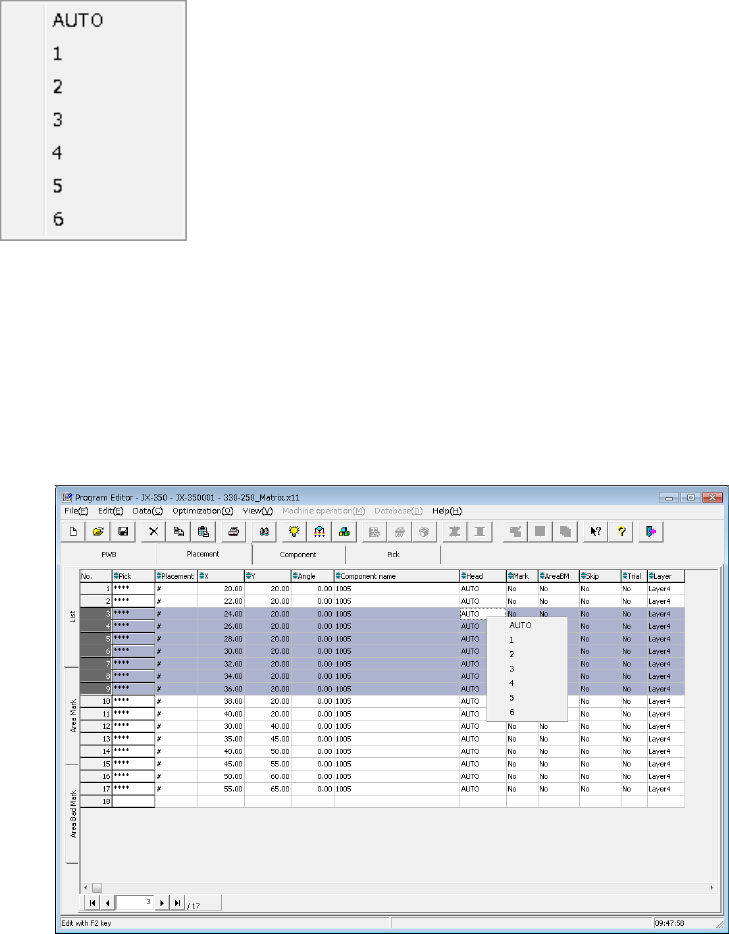
(6) Head
Specify a head to be used for placing a component on a board.
You can select from a pop-up menu a head that is to be used to place a component
when a PWB is produced in Input order.
“AUTO” is selected as the initial setting. When you execute the “Optimization” utility
after creating a production program, the system automatically selects the optimal
head.
To select a head, press the Edit key (<F2> key of the keyboard) or the right button of
a mouse to display the pop-up menu, and then select a head from this menu. If you
specify a head from the pop-up menu when two or more lines are selected, the heads
of all the selected records are changed to the head you specified. (The following
figure shows an example of multiple-line selection.)
Auto selection: A head to be used is automatically selected.
Head 1: Head 1 is specified.
Head 2: Head 2 is specified.
Head 3: Head 3 is specified.
Head 4: Head 4 is specified.
Head 5: Head 5 is specified.
Head 6: Head 6 is specified.
EPU Instruction Manual Chapter 4 Creating a Production Program
4-40
(7) Mark (Mark ID)
Specify whether to correct a component placement position with an area mark before
the system places a component.
Since the system can correct a component placement position with these area marks
affixed near this position, use these marks for a component that requires high
accuracy of placement.
As the default, [No] (Not use) is set.
[No] or the specified mark ID is displayed. (Up to 8 half-byte characters)
An area mark allows you to correct two or more number of placement data records
(i.e. component placement points) with only a single set of marks.
(Two marks per one set of mark, or three marks per one set of mark)
[Option that recognizes the LED as one point circuit mark is enabled.]
Specify whether to recognize the placed LED during placement and correct the
placement position. Since the correction is made with one LED mark, the tact
can be shortened. (One set uses one mark.)
1) Displayed items
“No”: The system does not correct a component placement position.
Mark ID: The system corrects a component placement position.
2) Changing your choice
To change the setting: whether to correct a component placement position, click
the “Mark” field whose setting you want to change on the “Placement” data
screen with the right button, and select one of the choices displayed on the menu
as shown below.
No.
No: Specify that any marks are not to be used.
Edit (E)
Edit: Opens the area mark input screen to allow you
to edit the area mark data.
Browse (B)
Browse: Opens the area mark input screen to allow you
to select an area mark.
Note that the choice “Edit” does not appear on the screen shown above when you
display the menu after selecting two or more lines on the “Placement” data
screen.
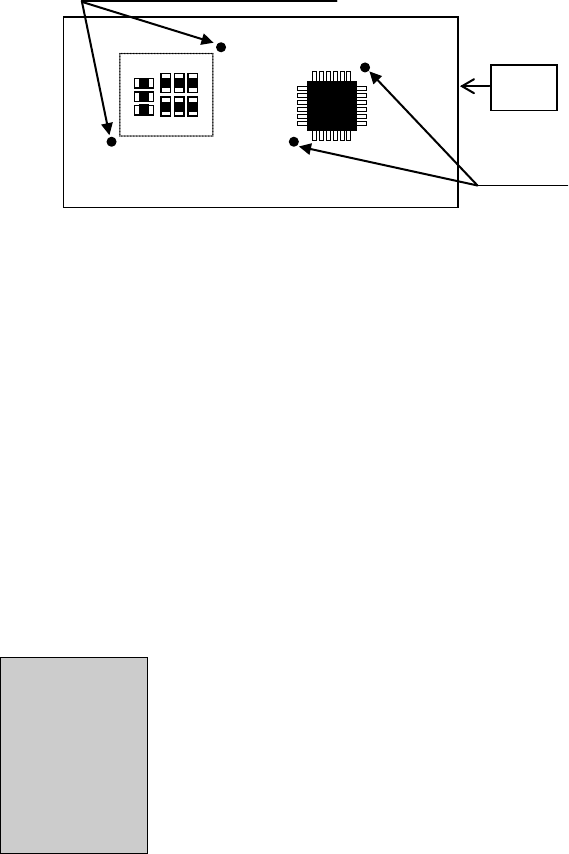
Area marks (To be specified at multiple placement points)
PWB
IC marks (To be specified at a single
placement point)
EPU Instruction Manual Chapter 4 Creating a Production Program
4-41
3) Creating Mark data
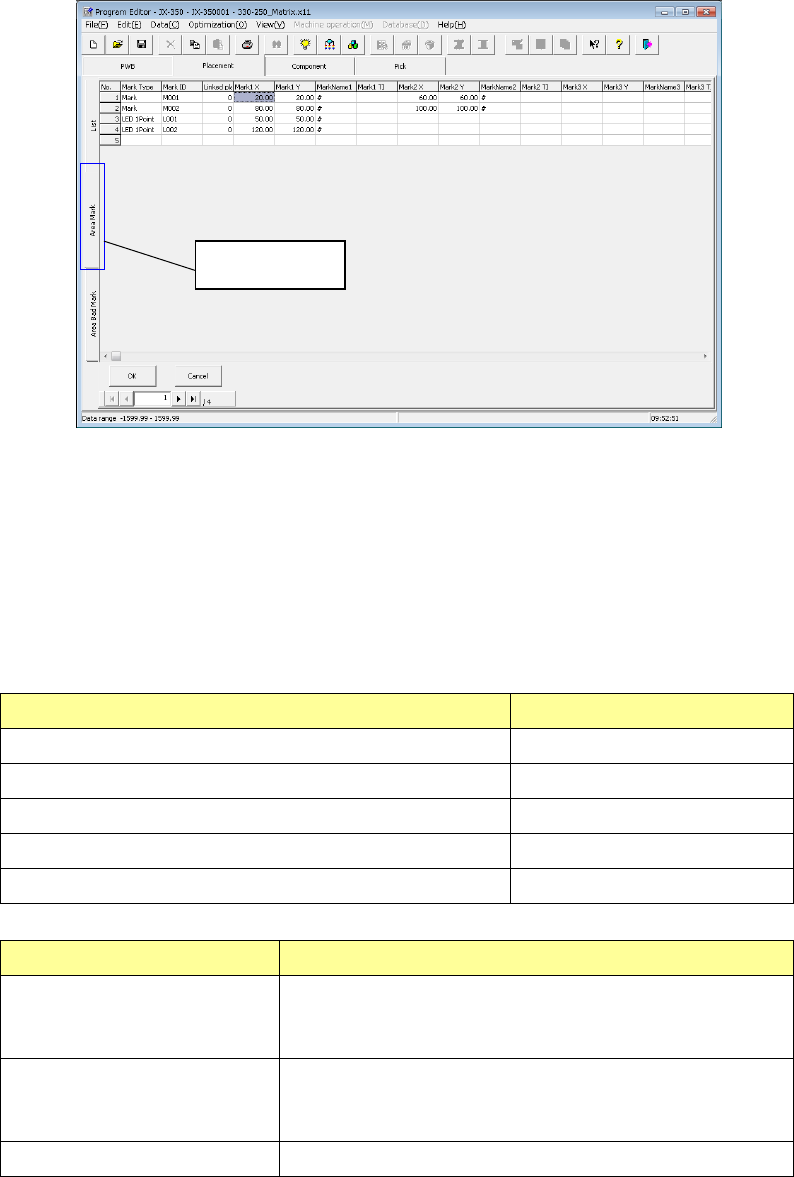
When you select the area mark tab, the area mark editing screen is displayed.
You can display this screen by pressing the “F9” key on the “List” screen of the
Placement data or by selecting the “Edit” or “Reference” on the pop-up menu.
In the mark group list, a table of registered groups is displayed.
Select a group to be used in this table.
To register a mark, move the focus to a line in which no data is entered yet and
enter the X-coordinate and Y-coordinate of the mark. After that, perform mark
teaching or perform copying from the mark data to obtain the mark data.
The area mark editing screen can be opened by the following method. The
contents of processing depend on each display mode.
Operation Screen mode
"Edit" is selected in the mark pop-up menu. Editing/selection mode
"View" is selected in the mark pop-up menu Selection mode
The area mark tab is clicked. Editing mode
The F9 key is pressed. Editing mode
The cell is double-clicked at mark. Screen mode
Screen mode Contents of processing
Selection mode The mark data to be used by the placement data is
registered. The cursor on the list is displayed in a line
selection status. The "OK" button is indicated in light color.
Editing mode The coordinates of the mark can be entered and the mark
teaching data can be registered. The "Select" button is not
displayed.
Editing/selection mode Selection and editing can be performed simultaneously.
Area Mark tab