JX-350_EPU使用说明书.pdf - 第30页
EPU Instructi on Manual Chapter 3 E PU setup 3-4 3.3.2 Entering the pa ssword The following scree n appears when the EPU setup st arts. Ent er a pas sword. • After entering the password, click the < O K> button. If…
EPU Instruction Manual Chapter 3 EPU setup
3-3
3.3 Password
You cannot change the EPU settings unless you enter the correct password since the EPU
Setup module allows you to set which affect the entire EPU.
3.3.1 Setting the Password
When you start up EPU for the first time after installing it, the password-setting screen
appears. Set the password.
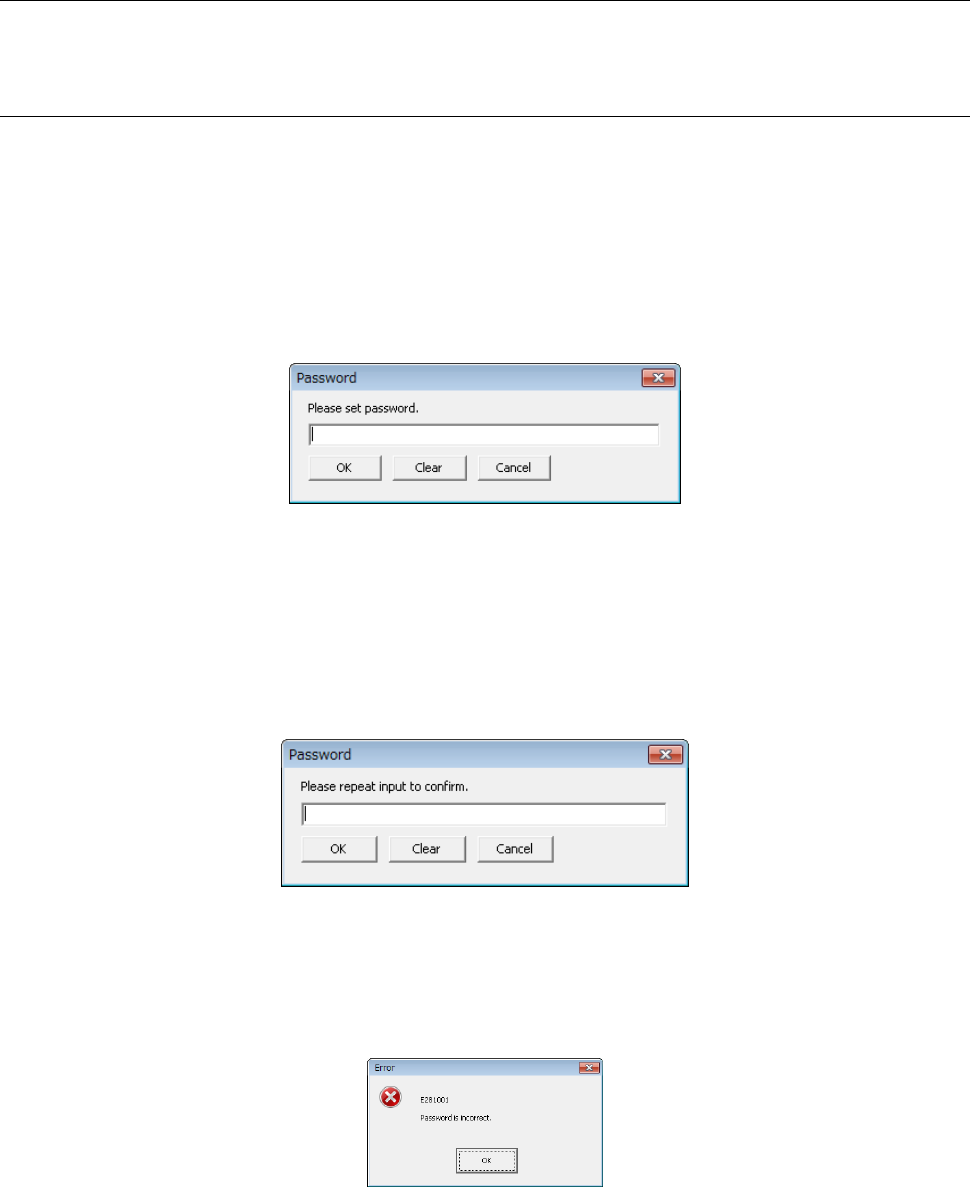
① Please set password.
Set the password on the “Password setting” screen.
◊
The system allows you to enter up to nine alphanumeric characters (no full.size of
character or symbol is allowed).
After you enter the password, click the <OK> button.
• When you click the <Clear> button, all of the entered characters are cleared.
Enter the password again.
• To abort setting of a password, click the <Cancel> button.
The system stops setting up your EPU.
② Please repeat input to confirm.
◊
Enter the password you have entered above again. After you enter the password,
click the <OK> button.
• When you click the <Cancel> button, the message 1 “Please set password.” appears
again. Set the password again.
• When you click the <Clear> button, all of your entered characters are cleared.
• If you enter the password that does not match the one you have entered
above, the message appears on the screen.
When you click the <OK> button, it returns to the password input confirmation screen.
Enter it again.
When the password you entered here matches the password entered for the first time,
you finish the procedure for setting a password at this point. The “EPU Setup” main
screen appears.
EPU Instruction Manual Chapter 3 EPU setup
3-4
3.3.2 Entering the password
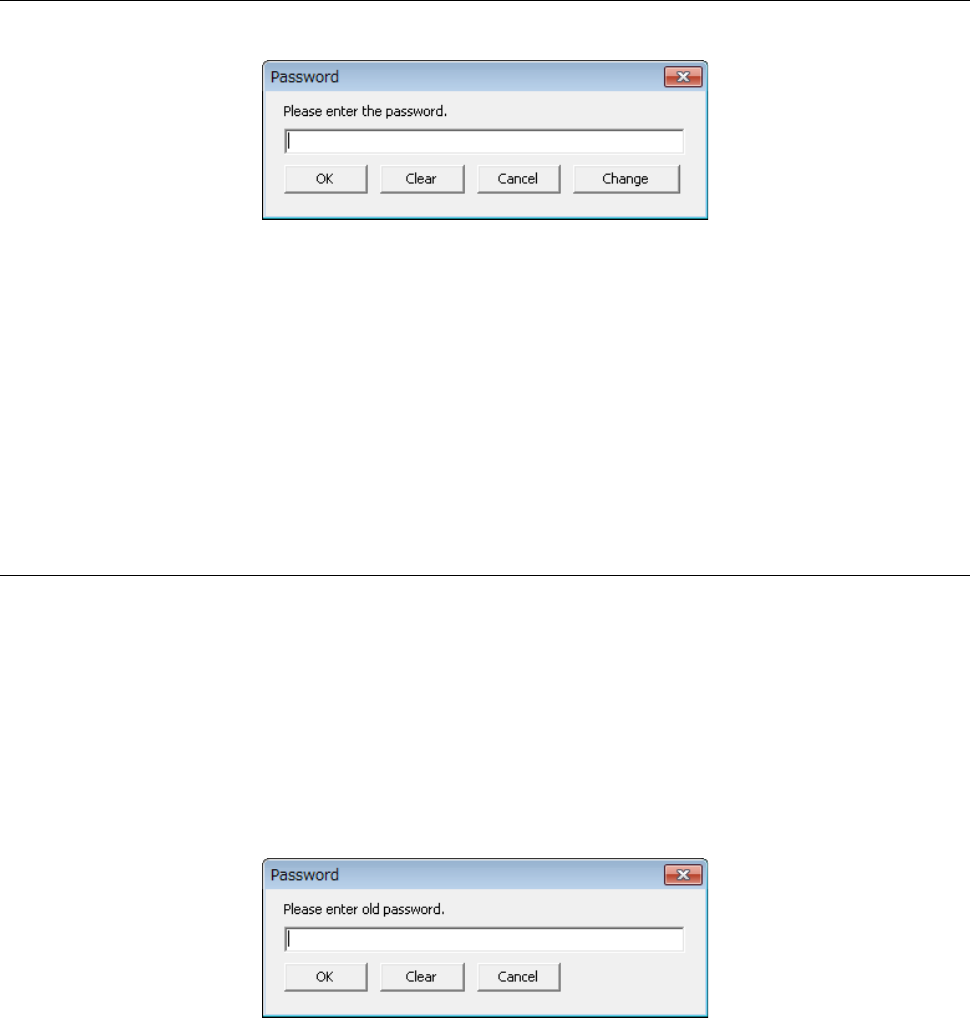
The following screen appears when the EPU setup starts. Enter a password.
• After entering the password, click the <OK> button. If you enter the correct
password, the EPU Setup main screen appears.
◊
If the entered password is not correct, the message “Password confirmation”, and the
“Password input” dialog box appears again.
• When you click the <Clear> button, all of the characters you entered are cleared.
Enter the password again.
• When you click the <Cancel> button, the system aborts the password entering
process, and exits form the EPU Setup module.
3.3.3 Changing the password
When you click the <Change> button on the “Password input” dialog box, you can change
the password to a new one.
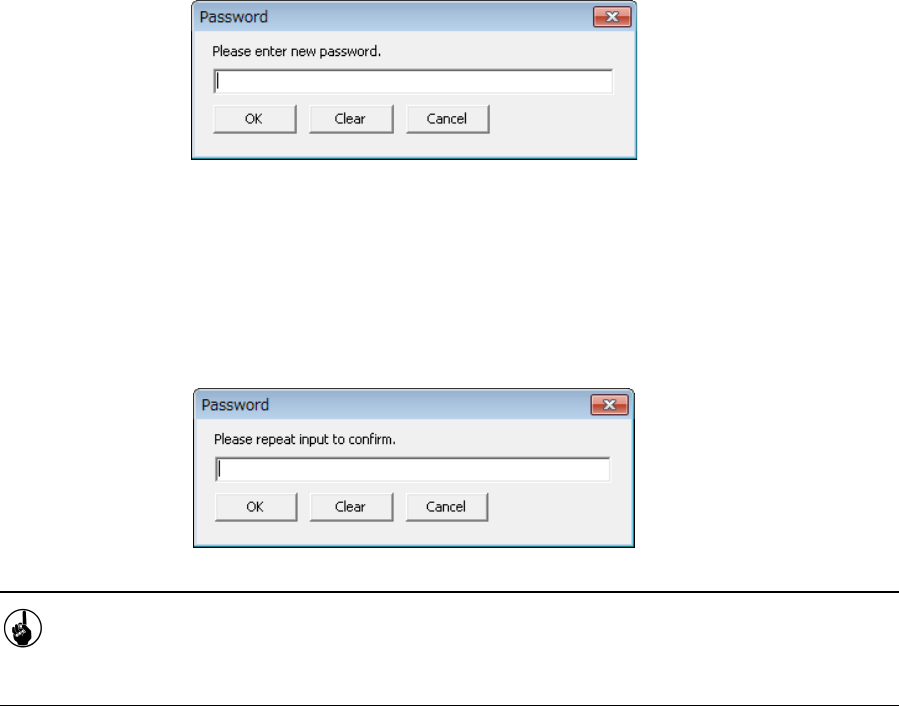
(1) Enter the old password.
Enter the password you have used.
• When you enter it, click the <OK> button. When the password you entered
matches a correct one, you can enter a new password.
◊
If you entered a wrong password, the message of "Password mismatch error" is
displayed, and it returns to the screen for your entering the password again.
EPU Instruction Manual Chapter 3 EPU setup
3-5
(2) Specify a new password.
Enter a new password at this point.
After you enter a new password, click the <OK> button. EPU checks a new password.
(3) Confirm the new password you entered.
Enter the new password you entered again. When you enter it, click the <OK> button.
If you entered a correct password, the main screen of the EPU setup is displayed. .
If you entered a wrong password, the message of "Password mismatch error" is
displayed, and it returns to the screen for your entering the password.
You finished changing a password at this point.
Next time you start up the EPU Setup module, the new password you entered here
works.