JX-350_EPU使用说明书.pdf - 第7页
EPU Instructi on Manual Chapter 2 Inst allation 2-1 Chapt er 2 Inst allation 2.1 Befor e install (1) User authority and Notes If you install EPU onto an Operating Sy stem (OS), you need the administrator's authoriza…
EPU Instruction Manual Chapter 1 Introduction
1-2
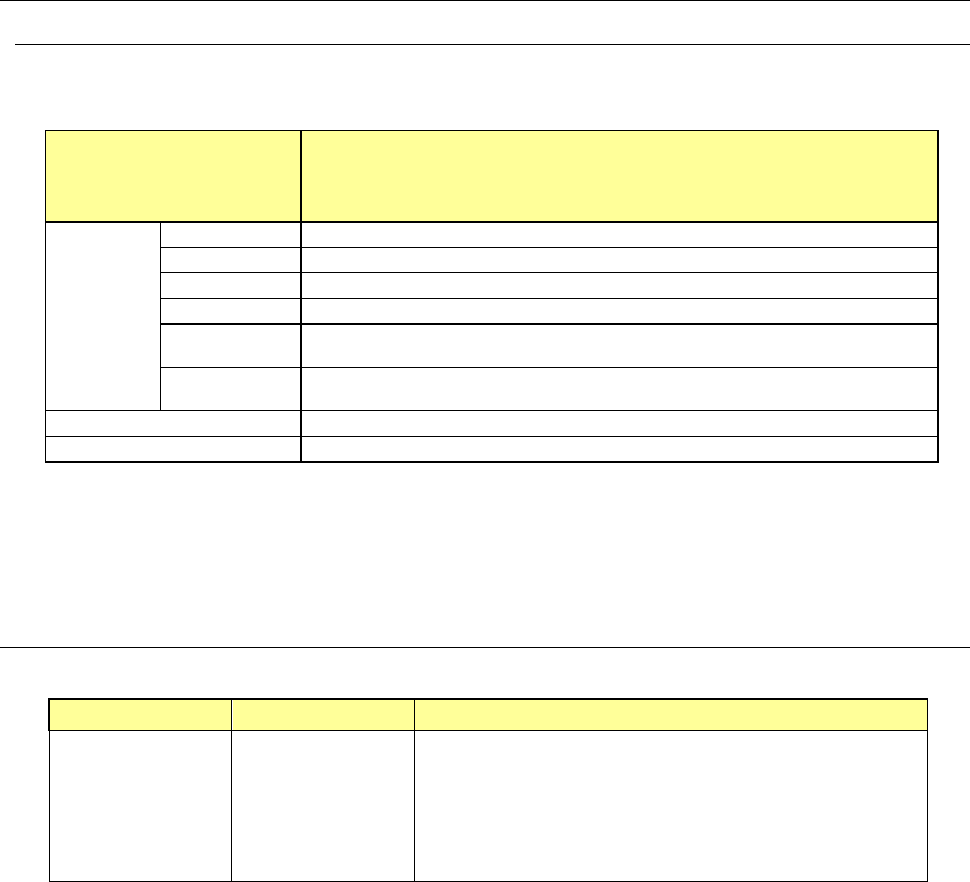
1.3 Operating Specifications
1.3.1 Specifications of a personal computer and support unit
- To install EPU on a mounter, the following operation environment is required:
Table 1.3.1.1 Specifications of a personal computer to be used
Type
Recommended specifications
Microsoft Windows Vista Business Edition SP1 or higher
Microsoft Windows 7 Professional 32-bit version, 64-bit version
Microsoft Windows 10 Pro. or higher 32-bit version, 64-bit version
Applicable
personal
computer
Main
Compatible machine with IBM PC-AT
CPU
Intel Core2 Duo 2.40GHz or higher
Memory
2 GB or more
HDD capacity
40 GB or more
CD/DVD-ROM
drive
1 or more
Bus slot
Slot for network: 100BASE-TX/10BASE-T× 1
USB 2.0 × 1
CRT resolution
XGA 1024 × 768 pixel or higher
Printer
Supported by OS
Note 1) If you select the Chinese display using the language switch function, characters
get garbled on screen displays, such as error display due to a font set for
“Notepad”, an accessory of the PC. If this happens, change the font to one
suitable for the display.
1.4 Standard accessories list
Table 1.4.1 Standard accessories list
Product name Model Supplied accessories
JX-350 EPU
JX-350
• EPU system disk (including component database)
• JX-350 EPU Instruction Manual
• Component DB Instruction Manual
• EPU protect module
(EPU Protect module Install Manual)
• Driver disc for EPU protect module
EPU Instruction Manual Chapter 2 Installation
2-1
Chapter 2 Installation
2.1 Before install
(1) User authority and Notes
If you install EPU onto an Operating System (OS), you need the administrator's authorization
(you have to log in with a user name having the user authorization). If you have any
question on installation, contact the manager in charge of personal computers of your
company.
About user account
To operate EPU, you must use a user account different from the user account
created when Windows Vista / Windows 7 / windows10 is installed.
※ When installing Windows, the installer will recommend you create a user account
as the final step in installation. Make this user account U1.
After finishing installation, create a user account separate from U1 with
administrator authorization. Make this user account U2.
When installing an EPU, log into Windows at U2 and execute EPU installer.
Otherwise, when running EPU after installing, run log-in to Windows at U2.
(Do not use U1.)
About “File folder reference” dialog box
When you use Windows Vista / Windows 7, drives assigned using “Network Drive
Assignment” are not displayed. To refer to a file or folder on the network, refer to
it from the entire network.
About help function
When you use Windows, the following file is needed to operate the help function
of the application.
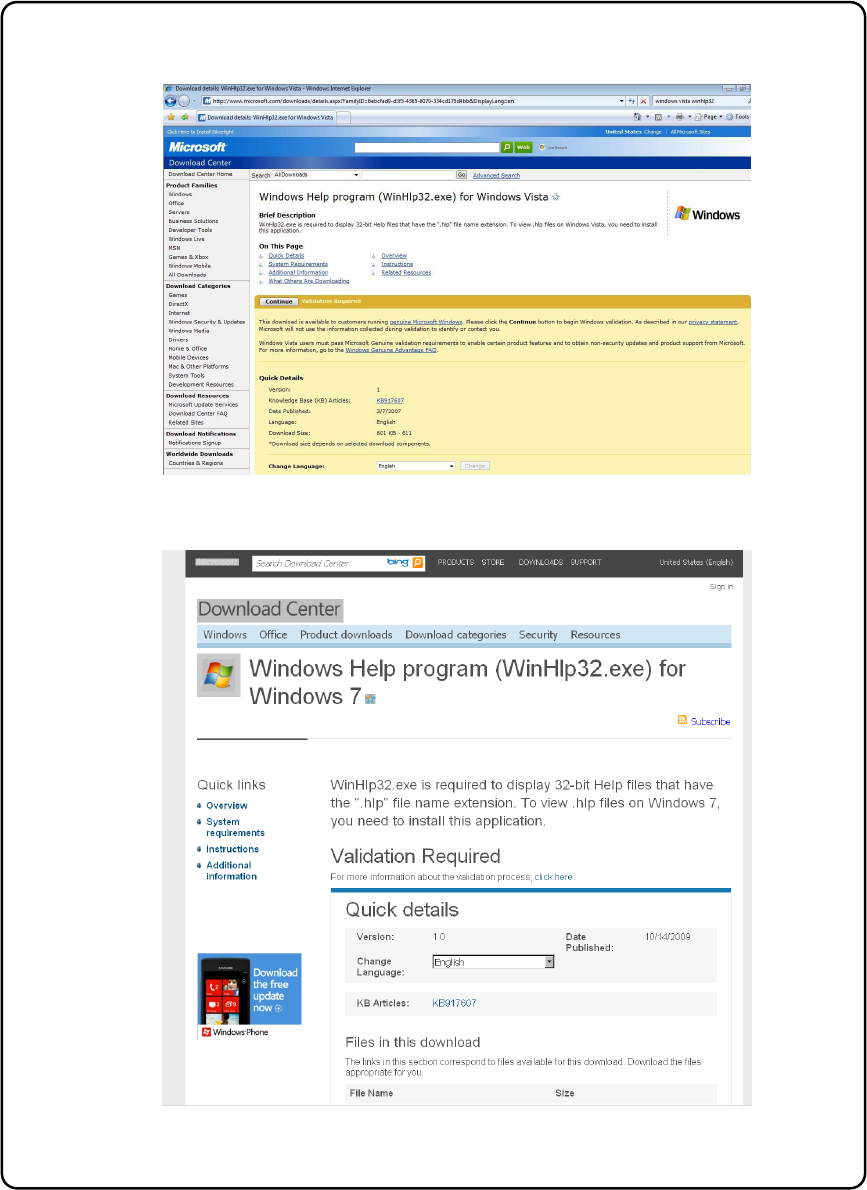
You have to download “WinHlp32.exe” from the Microsoft download center
through Internet and extract this file to install the necessary files.
<Windows Vista>
http://www.microsoft.com/download/en/details.aspx?displaylang=en&id=5143
<Windows 7>
http://www.microsoft.com/download/en/details.aspx?id=91
Cautions about operation on Windows Vista / Windows 7 / Windows10
EPU Instruction Manual Chapter 2 Installation
2-2
<Windows Vista>
<Windows 7>
Figure 2-1 Microsoft download center (WinHlp32.exe)