JX-350_EPU使用说明书.pdf - 第19页
EPU Instructi on Manual Chapter 2 Inst allation 2- 13 2.3.2 Making other settings (Windows Vista / Windows 7 / W ind ows10 only) W hen o per at ing E PU o n Windows V ista / Windows 7 / W indows10 , it is necessary to se…
EPU Instruction Manual Chapter 2 Installation
2-12
2.3 Before starting the EPU
The "Protect module for the EPU" is needed for the start of EPU. Install the driver according
to the "USB protect module installation manual" that is provided with the machine.
Moreover, when two or more software made by JUKI is used, the "Protect module" that
adjusts respectively is needed.
2.3.1 Attaching an EPU protect module
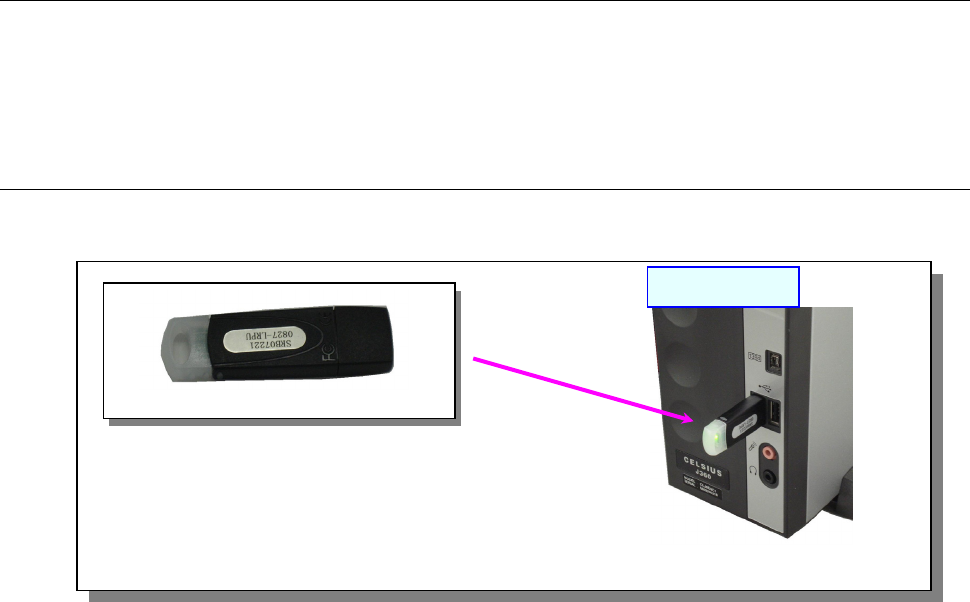
Attach the “EPU for JX-350 Protect Module” of one to the “USB port” of a PC as shown in
the figure below.
Note: Attach each protect module to the USB port.
If you use two or more protect modules, use a hub.
[EPU protect module]
USB port
PC main unit
EPU Instruction Manual Chapter 2 Installation
2-13
2.3.2 Making other settings (Windows Vista / Windows 7 / Windows10 only)
When operating EPU on Windows Vista / Windows 7 / Windows10, it is necessary to set up
the operation environment suitable for EPU.
(1) Setting scaling
To display the screen suitable for EPU, you need to check the scale setting.
When operating in a [large scale] environment, the following developments may occur. Set
to standard [default scale] and use.
• Displayed characters are cut off
• Display is indented 2 spaces
• Items are not fully displayed
• Tab headings are stretched sideways
How to set scaling is shown below.
<Windows Vista>
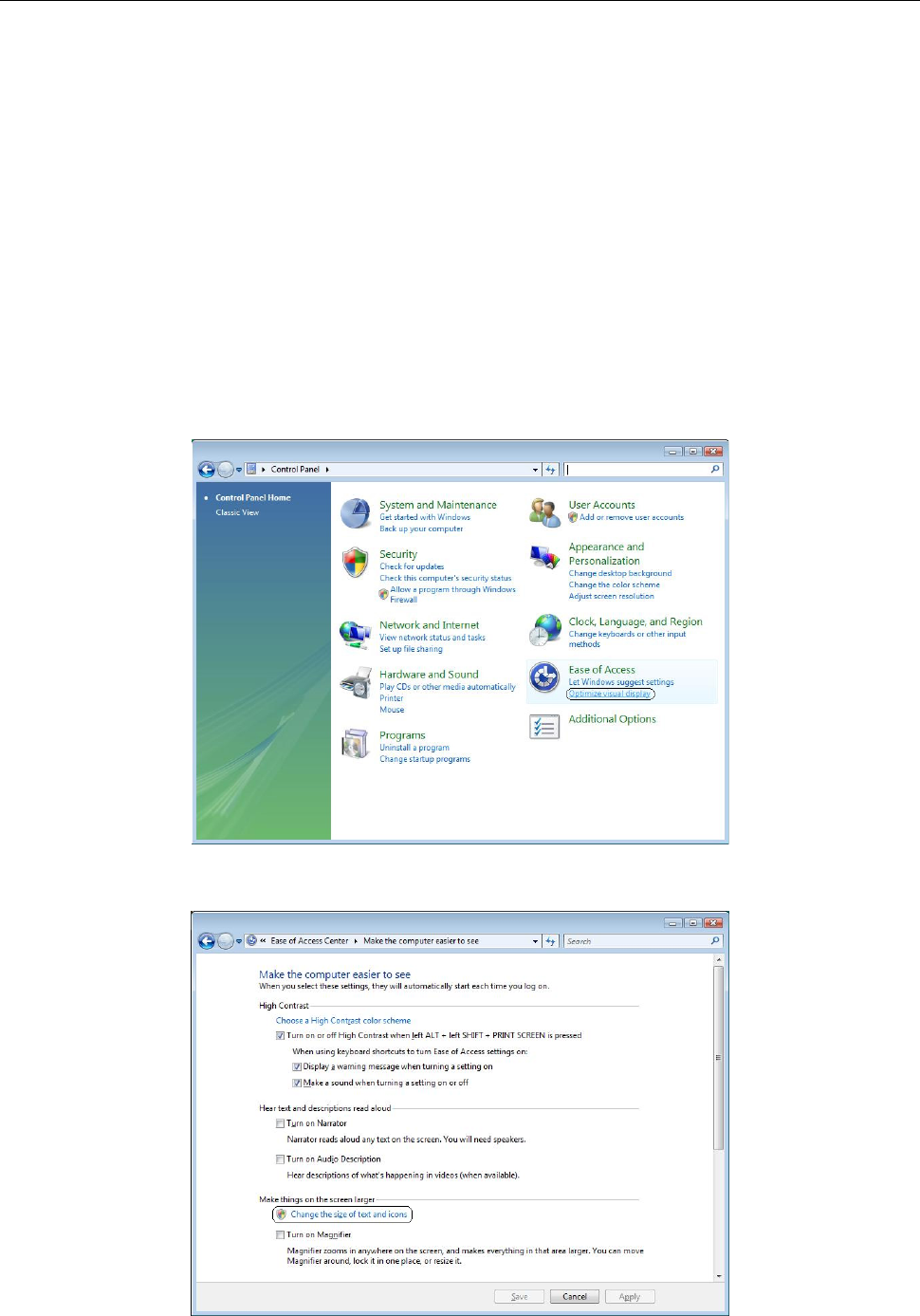
① From the control panel select [Ease of Access] - [Optimize visual display].
② Select [Making things on the screen larger] - [Change the size of text and icons].
EPU Instruction Manual Chapter 2 Installation
2-14
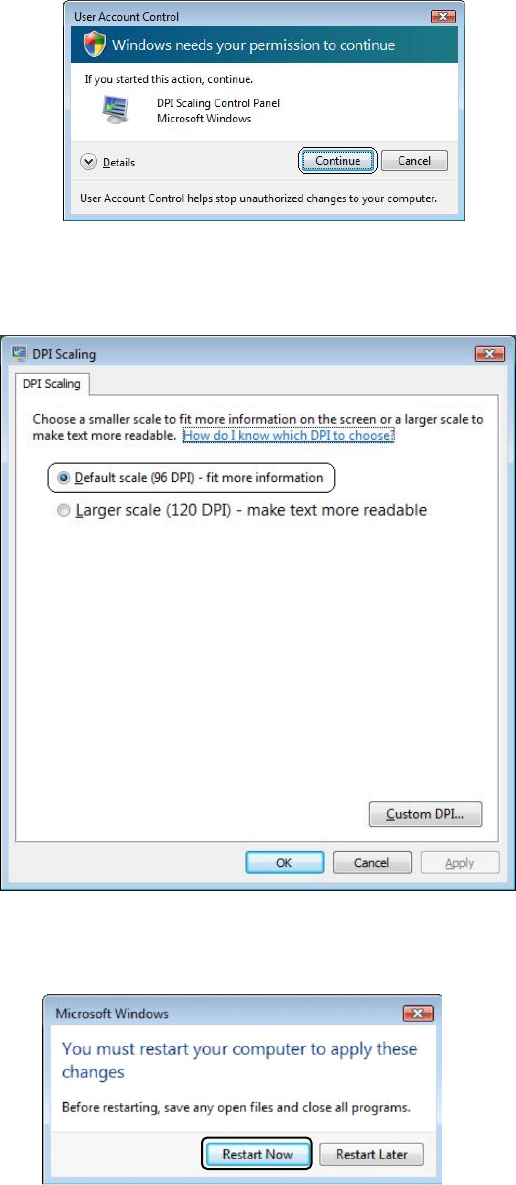
③ Windows Vista displays the user account control dialog. Select [Continue].
④ Go to DPI Scaling and select [Default scale (96 DPI) - fit more information], then
select [OK].
⑤
When a dialog appears recommending you restart, restart Windows Vista.