JX-350_EPU使用说明书.pdf - 第179页
EPU Instruction M anual C hapter 4 Creating a Production Progr am 4- 131 4.3.1.2 Functions provided on the “ Li st ” screen Each “ List ” screen pr ovided w ith the Prog ram Editor ut ility allow s you to change the cell…
EPU Instruction Manual Chapter 4 Creating a Production Program
4-130
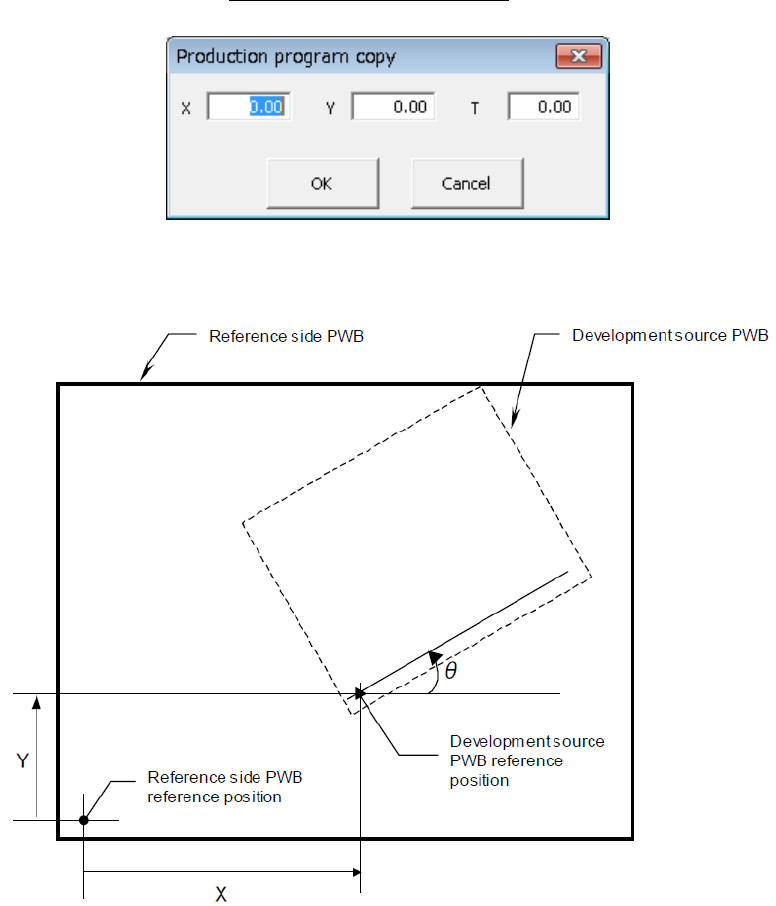
When you load a production program to the system, input screen like the one shown
below that allows you to enter an offset to the reference board position appears on
the screen. Follow the definitions of the offset value described below to enter an
offset value.
The definition of an offset value is shown in the figure below.
EPU Instruction Manual Chapter 4 Creating a Production Program
4-131
4.3.1.2 Functions provided on the “List” screen
Each “List” screen provided with the Program Editor utility allows you to change the cell
width or sort data.
(1) Changing the cell width of the “List” screen
On the “List” screen such as the Placement data screen, you can change the width of
a cell.
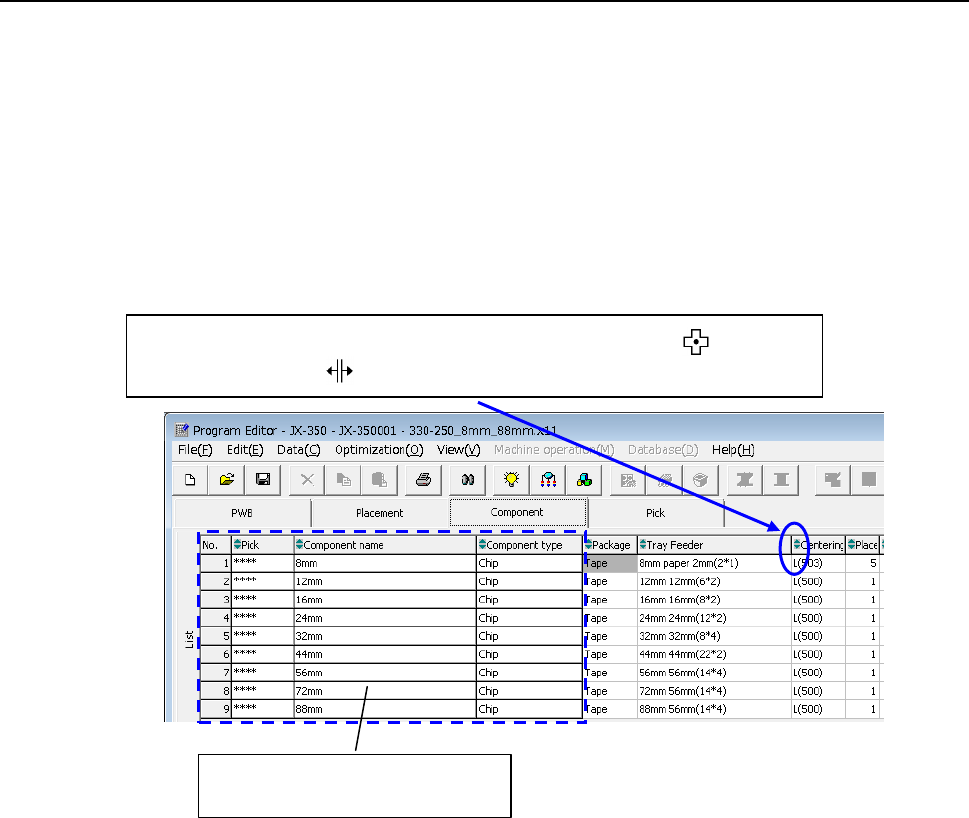
When the mouse cursor is a cross-hair cursor, move the cursor around the boundary
of the column header cell (that displays the item name). The cursor shape changes
from the cross hair to the left-and-right arrow. Drag the cursor to change the width
of the cell.
Note that the width of cells that are always displayed on the screen even though you
scroll the screen such as the “Component name” and “Component type” cells is fixed
and cannot be changed.
Drag the cursor when its shape changes from the cross hair ( ) to the
left-and-right arrow ( ).
The width of a cell located on this
area cannot be changed.
EPU Instruction Manual Chapter 4 Creating a Production Program
4-132
(2) Sort function on the “List” screen
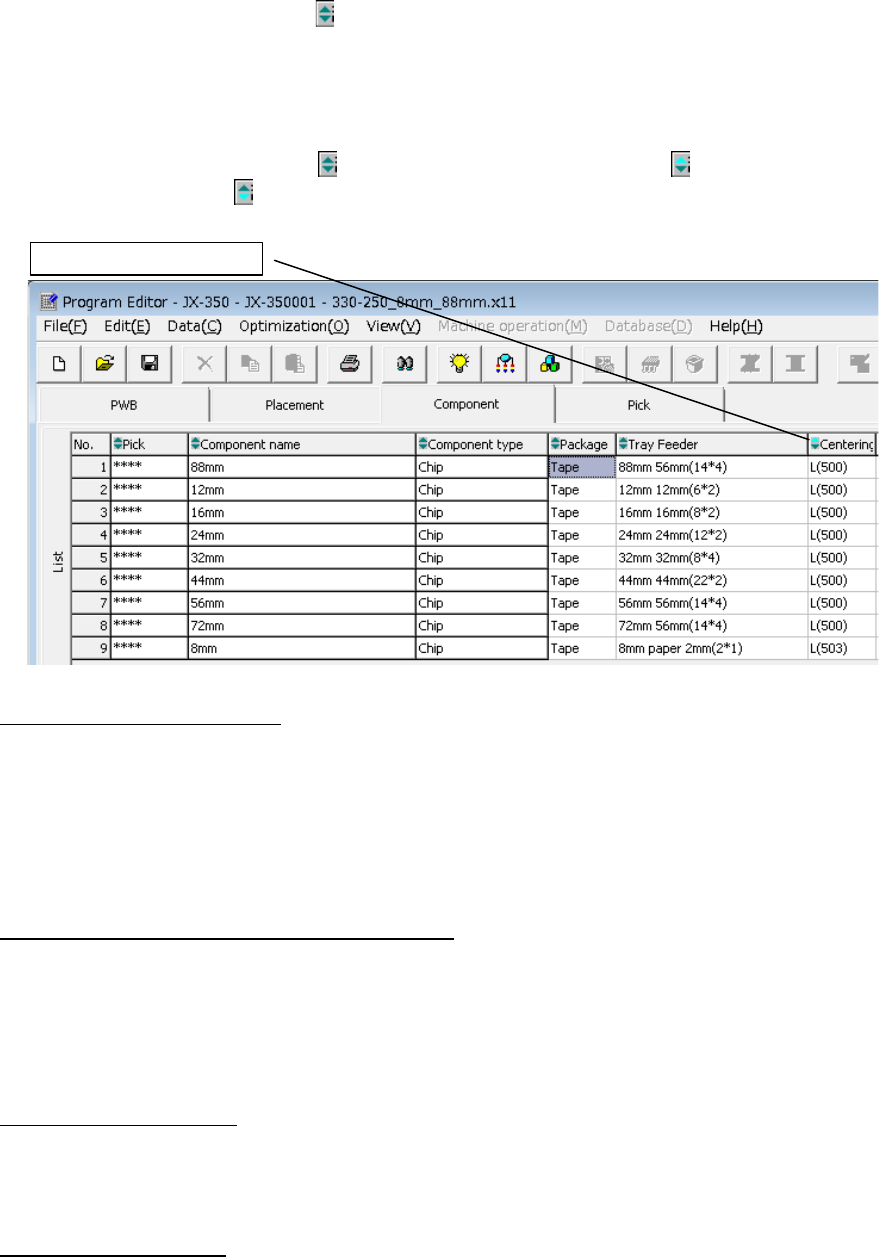
When the sort image icon (
) is displayed on a column header (this is the area that
displays the item name) of the List screen, double-click this icon. You can sort data
by the column.
Every time you double-click the icon, the sort function is switched as follows (the
symbol displayed inside the icon changes to indicate the current sort function):
Disabling the sort function (
) → Sorting in ascending order ( ) → Sorting in
descending order (
) → Disabling the sort function
Clearing the sorted condition
If you load a file to the system, or if you execute the [Machine operation] command,
and then the [Continuous Measurement] command, the sorted data on all screens are
restored to its original condition (that is, not sorted condition).
If you change Pick data on the Feeder layout screen, the sorted data on the Pick List
screen are restored to its original condition.
Edit commands available during sort operation
Some Edit commands cannot be used on the screen whose data is sorted.
Not available commands are: [Cut], [Delete], [Insert line], [Duplicate] and [Matrix
Copy].
Execute these commands when data is not sorted.
Items that can be sorted
On the Placement list screen or Component list screen:
The system allows you to sort data by every item and display it.
On the Pick list screen:
The system allows you to sort data by the items: Component name, Package,
Feeder and Side (Pos.). The item “Side” works together with the item “Pos.”
Therefore, even though you sort data by either item, data under the “Side” is sorted in
order “Right front,” “Right rear,” “Light front” and “Left rear,” and the position is sorted
in ascending or descending order.
Double-click the header.