JX-350_EPU使用说明书.pdf - 第76页
EPU Instruction M anual C hapter 4 Creating a Production Progr am 4- 28 3) Sk ip Y ou can set this item only if you select t he “Used” radio but ton for the menu item “Circuit Mapping” on the “Basic sett ing” tab. Ye s :…
EPU Instruction Manual Chapter 4 Creating a Production Program
4-27
4.1.2.3 Circuit Layout
Specify the circuit position and angle, and circuits to be placed on a board. Only when you
select the “Used” radio button for the menu item “Circuit Mapping” on the “Basic setting” tab,
and the “Matrix circuit” radio button or the “Non-matrix circuit” radio button in the “PWB
configuration” column of the “Dimension setup” tab, you can select these items. When you
select the “Not Used” radio button for the menu item “Circuit Mapping” on the “Basic setting” tab,
you can select these items only if you select the “Non-matrix circuit” radio button.
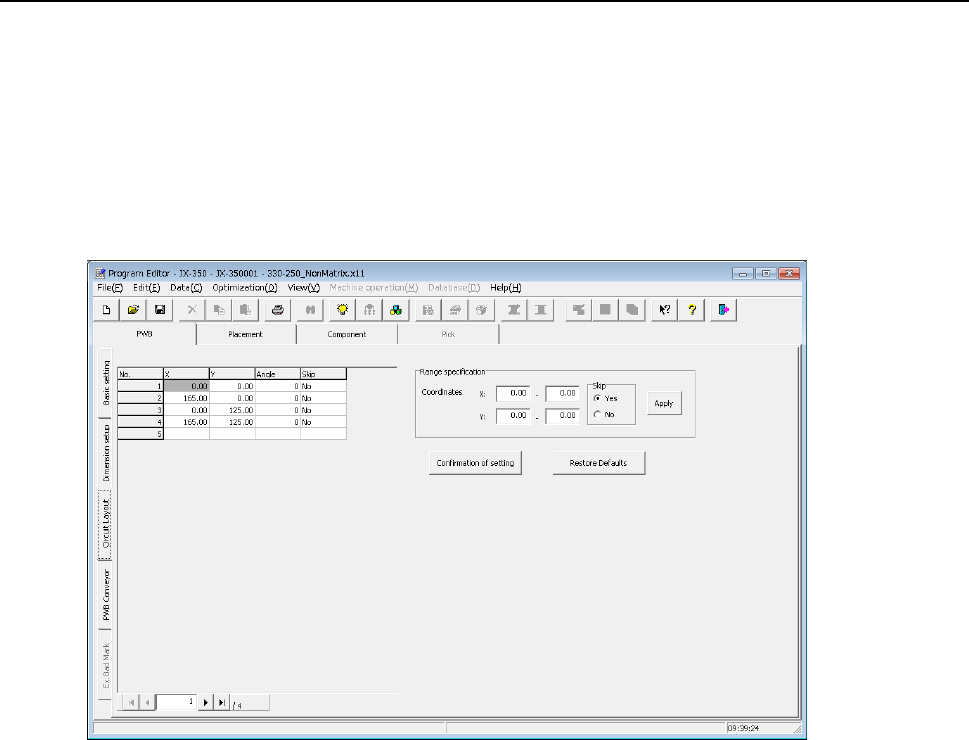
When you select the “Circuit Layout” tab located on the lower left corner of the “Dimension
setup” screen, the following screen appears.
1) Circuit position (X,Y)
In case of a matrix-circuit board, the system calculates the X and Y coordinates based
on the board settings entered on the “Dimension setup” tab to display them. In case of
a non-matrix circuit board, enter the distance from the board reference position to the
origin of each circuit and the angle.
Enter the dimensions from the board reference position to the home position of each
circuit in the “X” and “Y” fields respectively.
2) Angle
In case of a multi-circuit board, “0” is displayed in the “Angle” field. In case of a
non-matrix board, enter the assignment angle of each circuit.
In the “Angle” field, enter a value on the assumption that the angle used when you enter
values in the “Circuit dimensions” fields and the “Circuit layout offset” fields on the
“Dimension setup” screen is regarded as 0 degrees, and the anti-clock direction as “+.”
(When you use CAD data for the component placement coordinates, the angle of the
circuit that matches the CAD data is regarded as 0 degrees.)
EPU Instruction Manual Chapter 4 Creating a Production Program
4-28
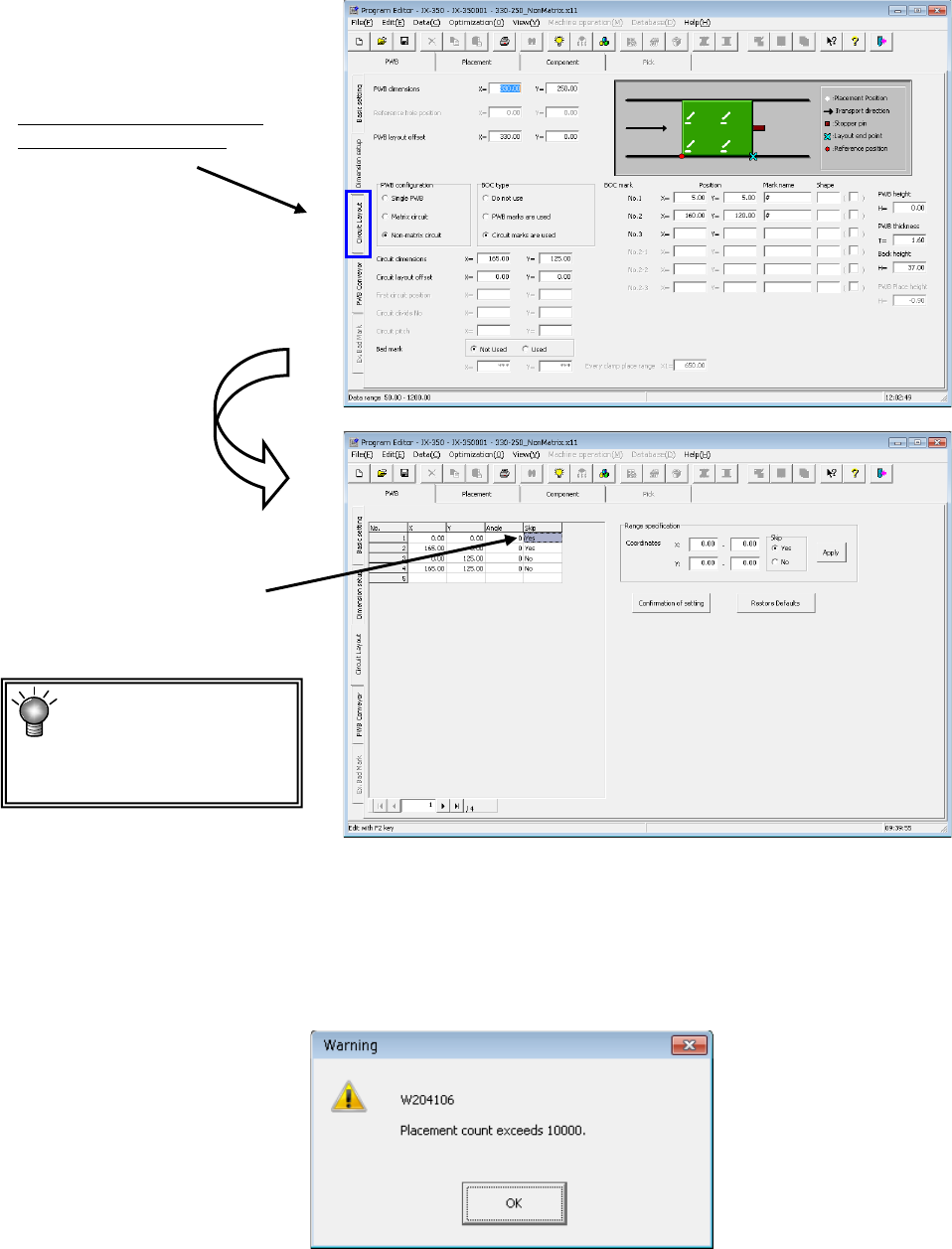
3) Skip
You can set this item only if you select the “Used” radio button for the menu item “Circuit
Mapping” on the “Basic setting” tab.
Yes: The system does not place any component on this circuit.
No: The system places a component(s) on this circuit.
“No” is set to all circuits initially.
*You cannot set “Yes” to all circuits.
You have to enter the coordinates of at least one circuit.
If you do not set any coordinates, the data is not completed.
If you move to another page of the screen without entering data completely, edition of the
record is discarded.
If the total number of component placements exceeds 10,000 even though the number of
circuits is below the limit, the following message appears on the screen.
Select this tab and the "Circuit
layout" screen will appear.
Set “Yes” to a circuit on
which any component is
not placed.
The maximum number
of circuits you can
create on a non-matrix
board is 200.
EPU Instruction Manual Chapter 4 Creating a Production Program
4-29
Specification of a circuit to be placed on a board has the following functions.
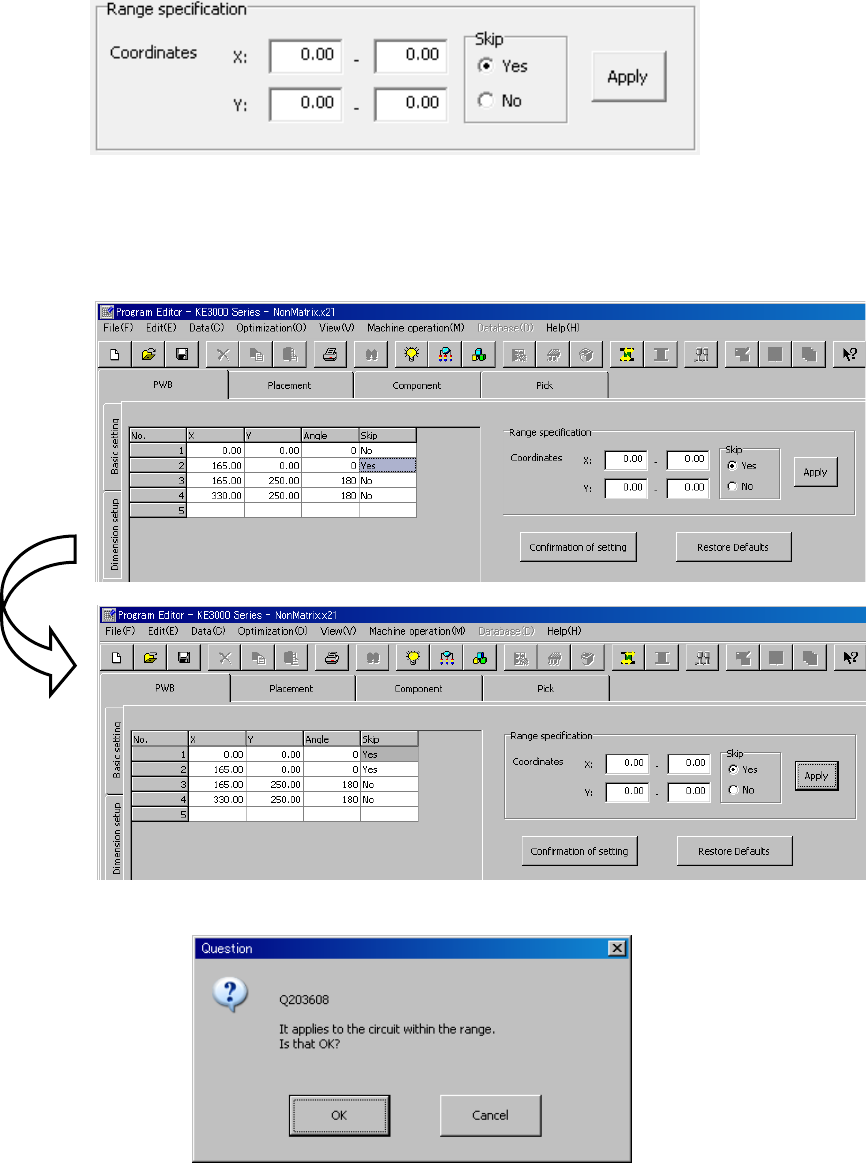
(1) Setting circuits by specifying the range of the origin coordinates
This function sets all circuits whose origin coordinates are located in the specified range
of the X coordinate and in the specified range of the Y coordinate respectively so that
they will be placed on a board. Enter the X coordinate range and the Y coordinate range
respectively, and then select the “Yes” radio button or the “No” radio button for the menu
item “Skip.” Next, press the [Apply] button to specify whether all circuits located in the
specified range will be placed on a board or not.
When you press the [Apply] button on the figure above, the settings of circuits in the list
are changed as shown below.
Note that although the “Skip” setting of the circuit whose origin is in the specified range,
the circuit “No. 1,” is changed to “Yes,” the setting of any other circuits does not change.
Therefore, the “Skip” setting of circuits other than this circuit is not changed to “No” either.
Note that when you press the [Apply] button, the following “Question” dialog box appears
on the screen.