JX-350_EPU使用说明书.pdf - 第25页
EPU Instructi on Manual Chapter 2 Inst allation 2- 19 2.3.3 Starting Up the EP U Launcher W hen y ou clic k t he “ EPU Launcher ” of the JX- 350 EPU, the EPU Launcher screen appears as shown below . (1) Program Editor Pr…
EPU Instruction Manual Chapter 2 Installation
2-18
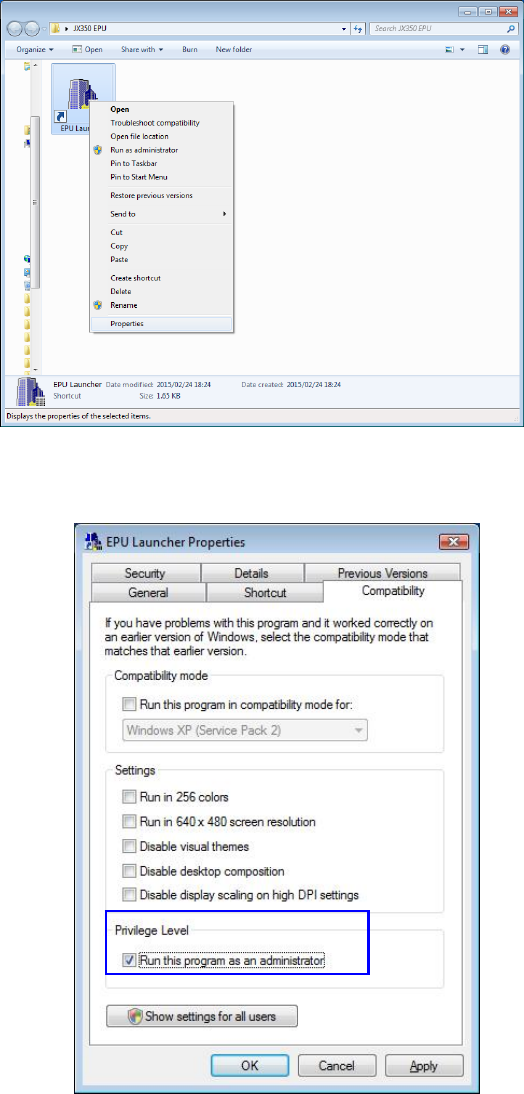
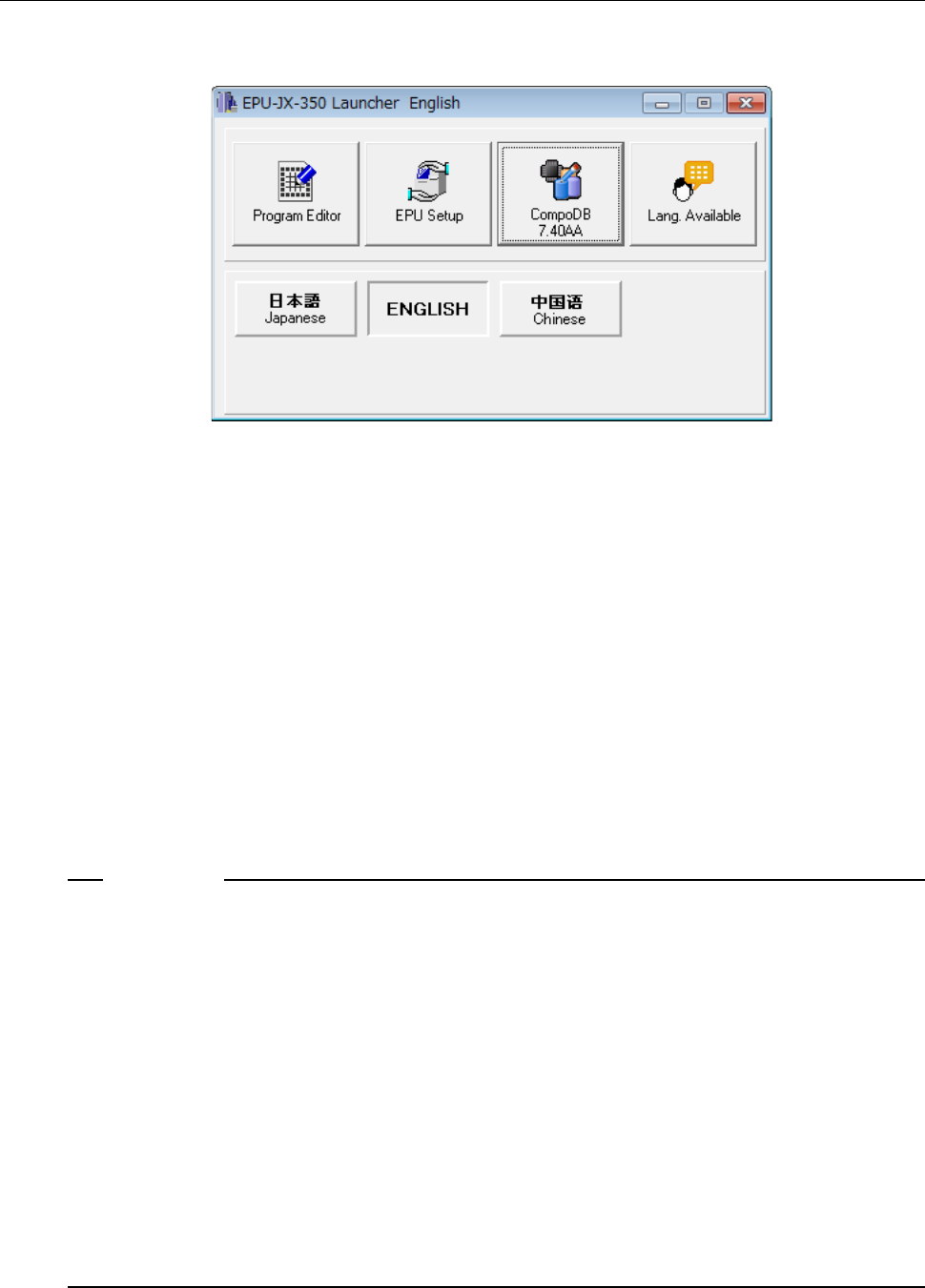
(2) Setting up the application (shortcut) properties
To use EPU Launcher, you need to check the properties.
Check the following settings when setting up the EPU Launcher Properties for the first
time immediately after EPU has been installed.
① Right click on EPU launcher [Shortcut] and select [Properties].
②
Put a check in the [Run this program as an administrator] in the “Compatibility” dialog box.
EPU Instruction Manual Chapter 2 Installation
2-19
2.3.3 Starting Up the EPU Launcher
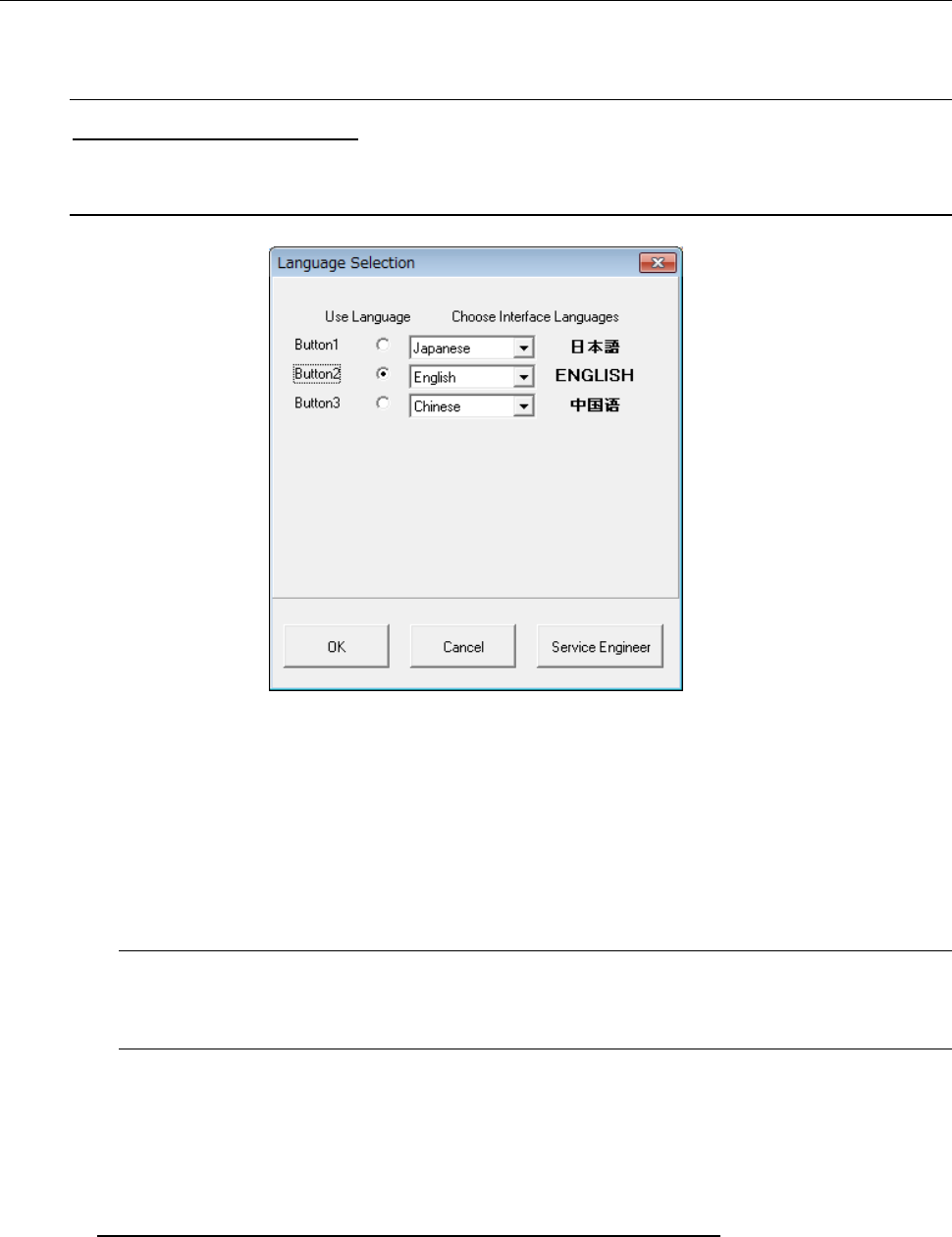
When you click the “EPU Launcher” of the JX-350 EPU, the EPU Launcher screen appears
as shown below.
(1) Program Editor
Program Editor allows you to create a production program. See Chapter 4 “Program
Editor” for details.
(2) EPU Setup
EPU Setup allows you to set the environment for the EPU. See Chapter 3 “EPU
Setup” for details.
(3) Component DB
Component DB allows you to create a database.
See “Component Database INSTRUCTION MANUAL” for details.
(4) Lang. Available
The <Lang. Available> button allows you to set the language to be displayed on the
screen. See the next section for details.
(5) <Japanese>/<English>/<Chinese> buttons
These buttons allow you to switch the displayed language. When you start up
Program Editor or EPU setup, you cannot switch the current language to another one.
1. When you use the Operating System (OS) other than the English edition (that is,
Japanese edition or Chinese edition) to switch the used language with the [Language
Selection] command in order to display English, a part of or the entire screen may not
be switched to the English screen and the screen may be displayed in the language
used in the OS.
<Example: a part of the screen is not switched to the English screen>
“File” dialog box, “Folder” dialog box, message box, property sheet, wizard and Help
<Example: the entire screen is not switched to the English screen>
File Management, Printer Setup and System menu (to be displayed when you click it
with the right button)
2. When such data as PWB ID, component name, and component comment that can be
set in Chinese is set in Chinese, this data may not be displayed correctly in English by
language selection.
3. When you use Windows Vista / Windows 7 / Windows 10, the User Account Control
screen appears. Select [Allow] to change the language.
Notes:
EPU Instruction Manual Chapter 2 Installation
2-20
2.3.3.1 Setting the language
When you click the [Lang. Available] button on the “EPU Launcher” screen, the following
“Language Selection” dialog box appears on the screen.
Note on the English version
The English version JX-350 EPU displays the following dialog box and allows you to
operate it, but you cannot use the language switching function.
(1) Select the language you want to assign to the [Lang Available] button from the combo
box.
The selected language appears in the selected language itself on the right side of the
combo box.
(2) The radio button is used to select the language you want to use after quitting the
“Language Selection” dialog box.
Note: When you select a blank from the combo box, no language is assigned to the
button, and the button disappears from the screen. In this case, you cannot
specify the radio button.
(3) When you press the <OK> button, the language switching button for the selected
language appears on the “Launcher” screen, and the language displayed on the
screen is switched to the one specified on this dialog box.
When you press the <Cancel> button, the setting you made is discarded.
(Note) < Service Engineer > button is protected by the password.