JX-350_EPU使用说明书.pdf - 第28页
EPU Instructi on Manual Chapter 3 E PU setup 3-2 To start up the “ Prog ram E dit ” module, y ou have to set the “ activ e profile. ” (See Secti on 3.4.1 “ Ma in window ” fo r detai ls.) ♦ Y ou cannot perform multiple st…
EPU Instruction Manual Chapter 3 EPU setup
3-1
Chapter 3 EPU Setup
3.1 Overview
Set up the EPU environment.
This module allows you to set the EPU environment: unit status of each station, database
file name and unit system common to the entire EPU.
3.2 Start Up
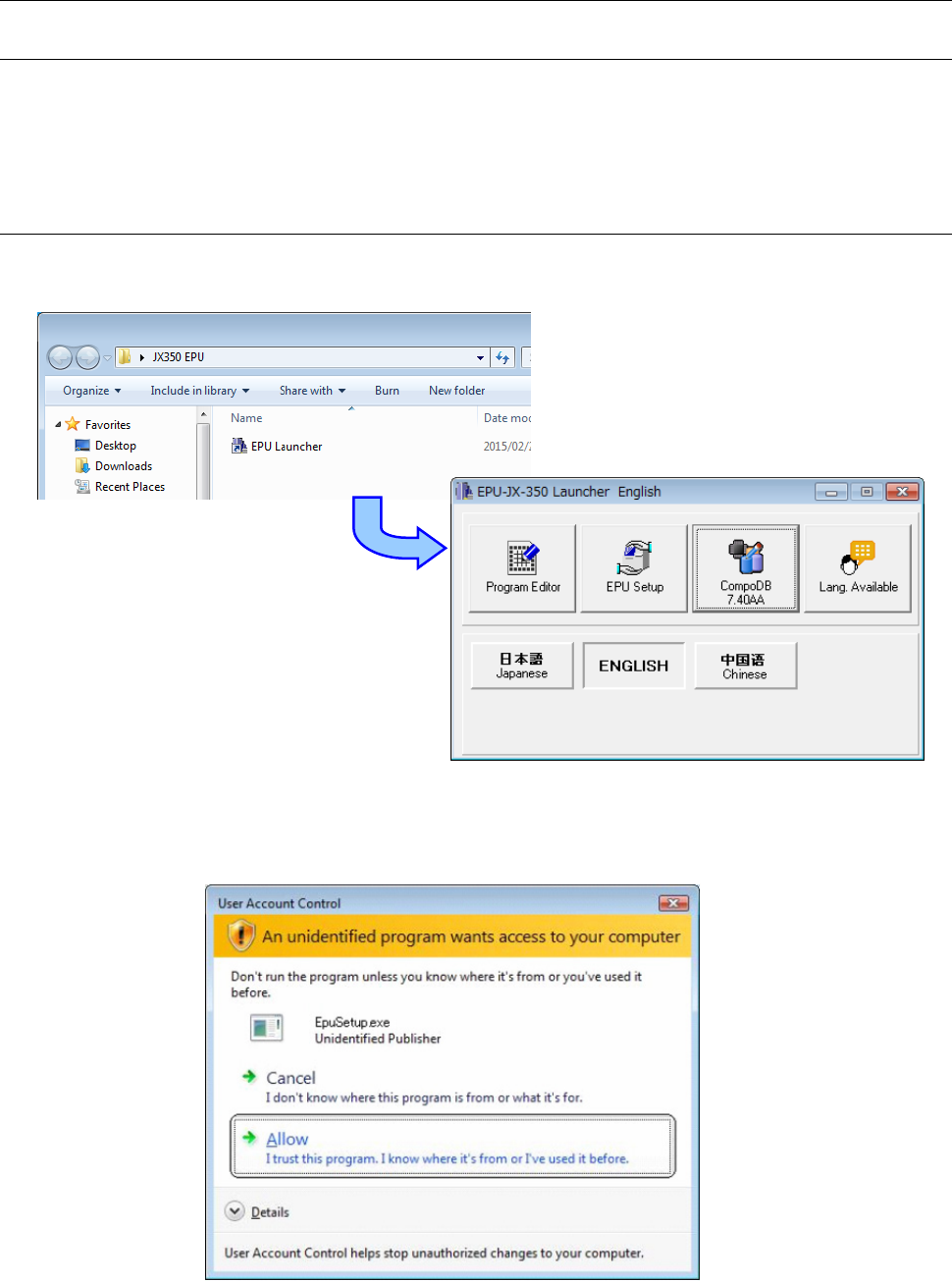
Double-click the [EPU Launcher] icon of the JX-350 EPU to start up the EPU, and click the
<EPU Setup> button to start up the EPU Setup utility.
When you start up the EPU Setup utility on Windows Vista / Winidows 7 / Windows 10, the
following screen appears by the user account control. Selecting [Allow (A)] will start up the
EPU Setup utility.
Conversely, selecting [Cancel] will not start up the EPU Setup utility.
EPU Instruction Manual Chapter 3 EPU setup
3-2
To start up the “Program Edit” module, you have to set the “active profile.”
(See Section 3.4.1 “Main window” for details.)
♦ You cannot perform multiple start-up of the EPU Setup module.
You cannot start up the EPU Setup module either when the Program Editor is started up.
You can start up the EPU Setup module via the EPU Launcher only.
♦ When you start up the EPU Setup utility for the first time, first set a “Station profile.”
See Section 3.7 “Setting a Station Profile” for details.
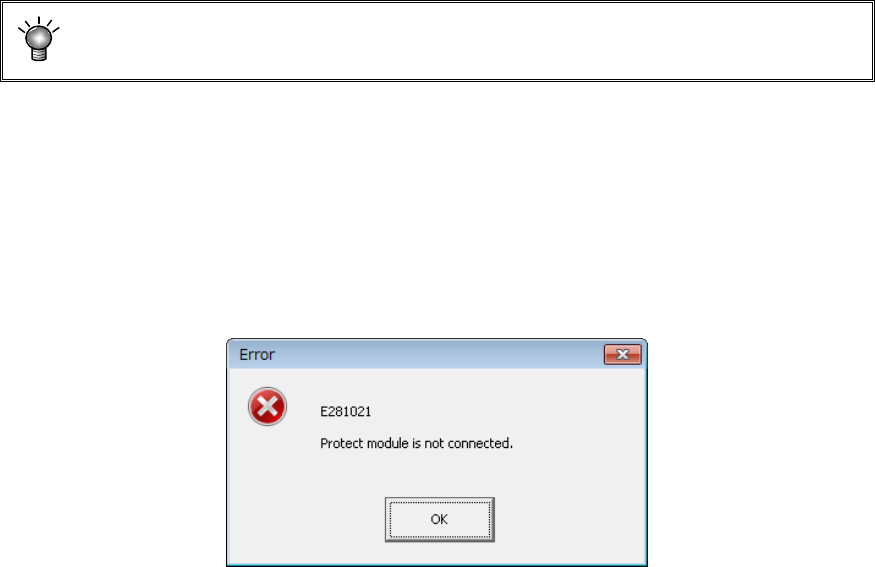
♦ At start-up, EPU checks the protect module.
When EPU does not find any protect module connected, the following message box
appears on the screen, and the EPU Setup module cannot start up.
EPU Instruction Manual Chapter 3 EPU setup
3-3
3.3 Password
You cannot change the EPU settings unless you enter the correct password since the EPU
Setup module allows you to set which affect the entire EPU.
3.3.1 Setting the Password
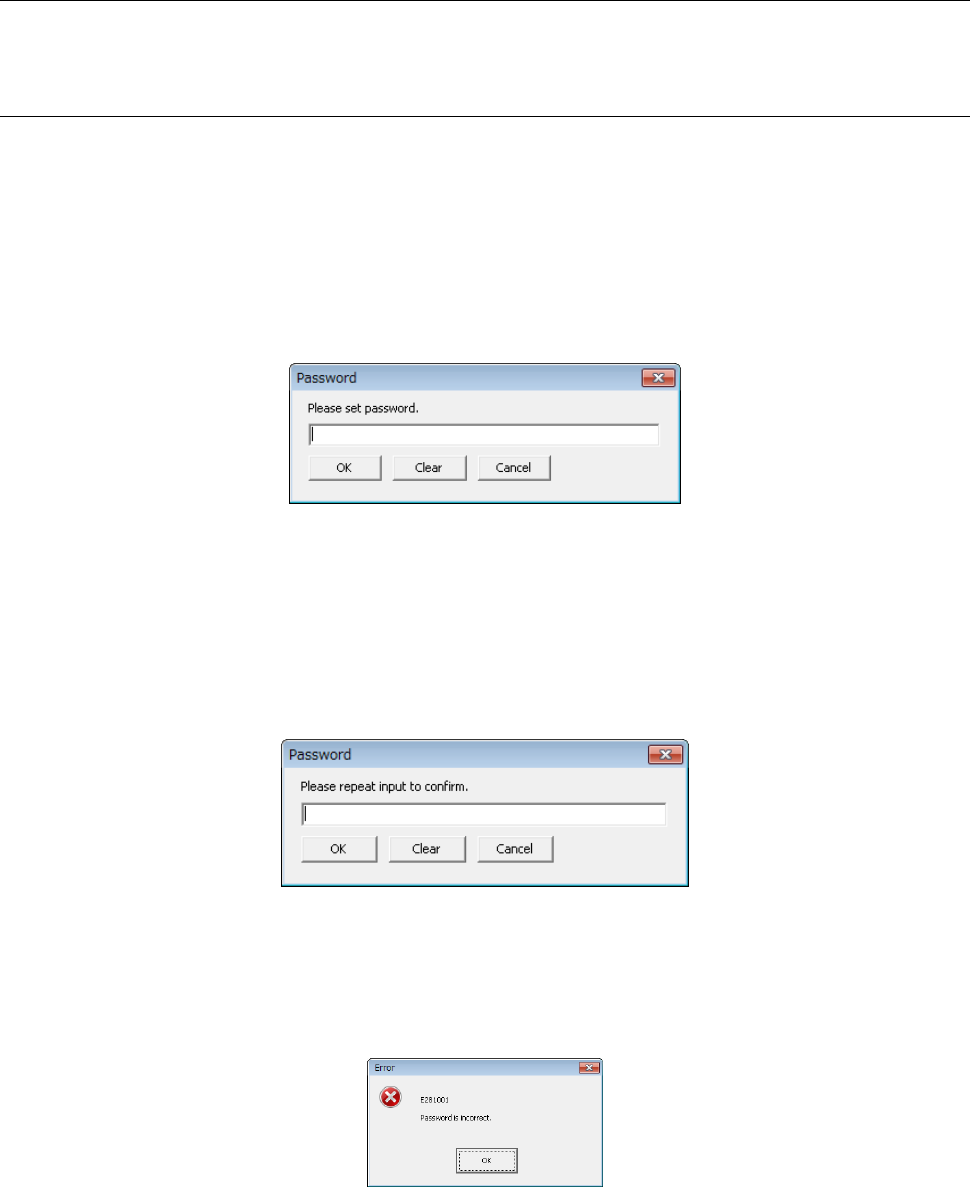
When you start up EPU for the first time after installing it, the password-setting screen
appears. Set the password.
① Please set password.
Set the password on the “Password setting” screen.
◊
The system allows you to enter up to nine alphanumeric characters (no full.size of
character or symbol is allowed).
After you enter the password, click the <OK> button.
• When you click the <Clear> button, all of the entered characters are cleared.
Enter the password again.
• To abort setting of a password, click the <Cancel> button.
The system stops setting up your EPU.
② Please repeat input to confirm.
◊
Enter the password you have entered above again. After you enter the password,
click the <OK> button.
• When you click the <Cancel> button, the message 1 “Please set password.” appears
again. Set the password again.
• When you click the <Clear> button, all of your entered characters are cleared.
• If you enter the password that does not match the one you have entered
above, the message appears on the screen.
When you click the <OK> button, it returns to the password input confirmation screen.
Enter it again.
When the password you entered here matches the password entered for the first time,
you finish the procedure for setting a password at this point. The “EPU Setup” main
screen appears.