JX-350_EPU使用说明书.pdf - 第48页
EPU Instructi on Manual Chapter 3 E PU setup 3- 22 3.8.3 Exit Select the [ Edit] command on the [File] m enu. If you have changed the EPU set tings, the follow i ng message appears on the screen. • W hen y ou click the &…
EPU Instruction Manual Chapter 3 EPU setup
3-21
3.8 File
3.8.1 Save
This command saves your settings with the EPU Setup module.
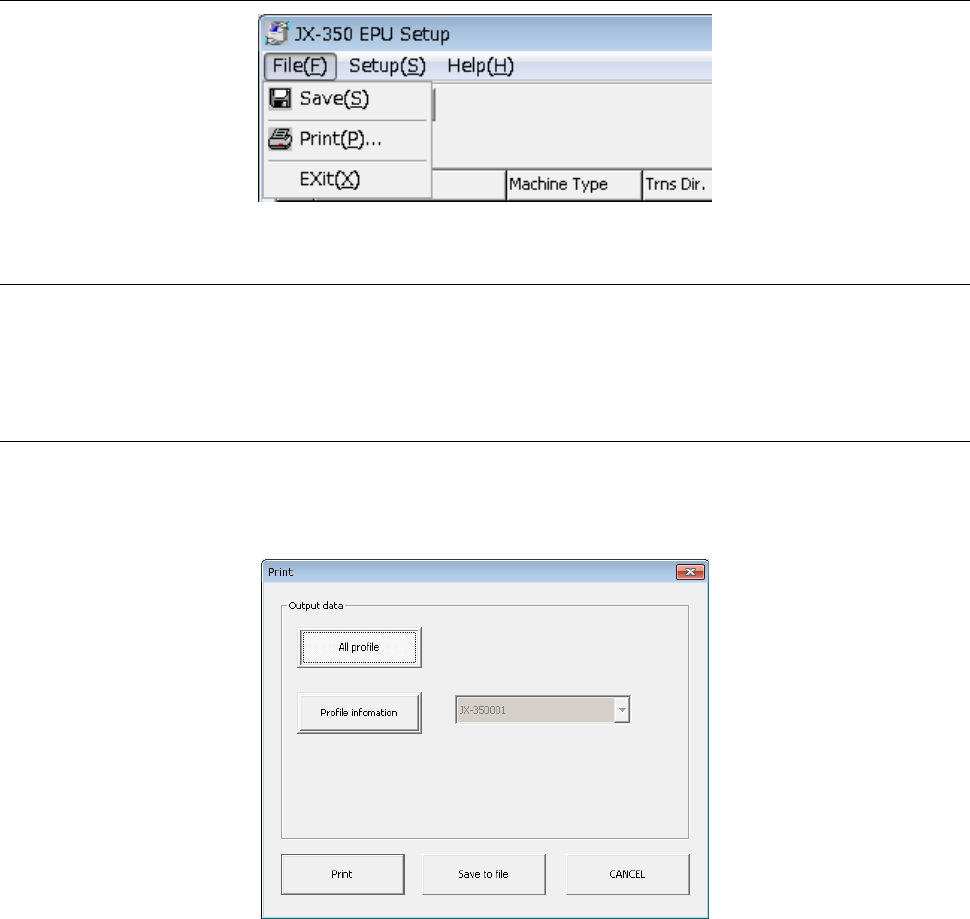
When you select the [Save] command on the [File] menu, the current settings are saved.
3.8.2 Print
This command prints the settings made with the EPU Setup module. Select the [Print]
command on the [File] menu.
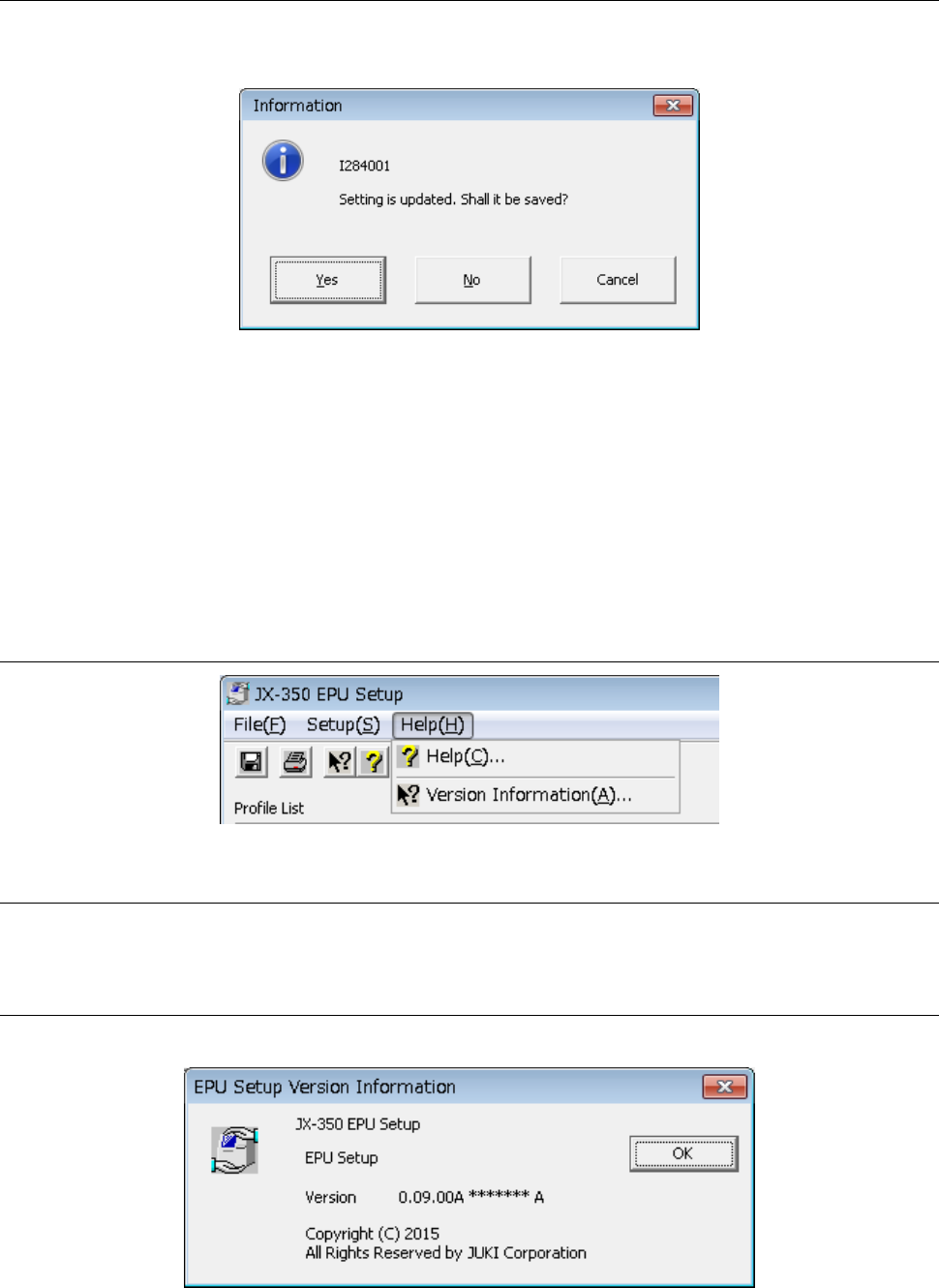
When you select the [Print] command, the following dialog box appears on the screen.
<All Profile>: Outputs information on all stations currently set.
<Profile Info.>: Prints information on the station whose profile ID is specified in the
combo box.
<Print> button: Starts printing data set up with the EPU Setup utility.
<Save to file> button: Saves the data set with the EPU Setup utility as a text file.
<Cancel> button: Closes the dialog box without printing any data.
EPU Instruction Manual Chapter 3 EPU setup
3-22
3.8.3 Exit
Select the [Edit] command on the [File] menu.
If you have changed the EPU settings, the following message appears on the screen.
• When you click the <Yes> button, EPU saves your change and exits from the EPU Setup
module.
• When you click the <No> button, EPU exits from the EPU Setup module without saving
your change.
• When you click the <Cancel> button, EPU returns to the main screen again without
exiting from the EPU Setup module.
3.9 Help
3.9.1 Help
Help for the JX-350 is displayed.
3.9.2 Version information
This command displays the “EPU Setup” module version information as shown below.
EPU Instruction Manual Chapter 4 Creating a Production Program
4-1
Chapter 4 Creating a Production Program
4.1 Creating a Production Program
For PWB production, it is necessary to create a production program.
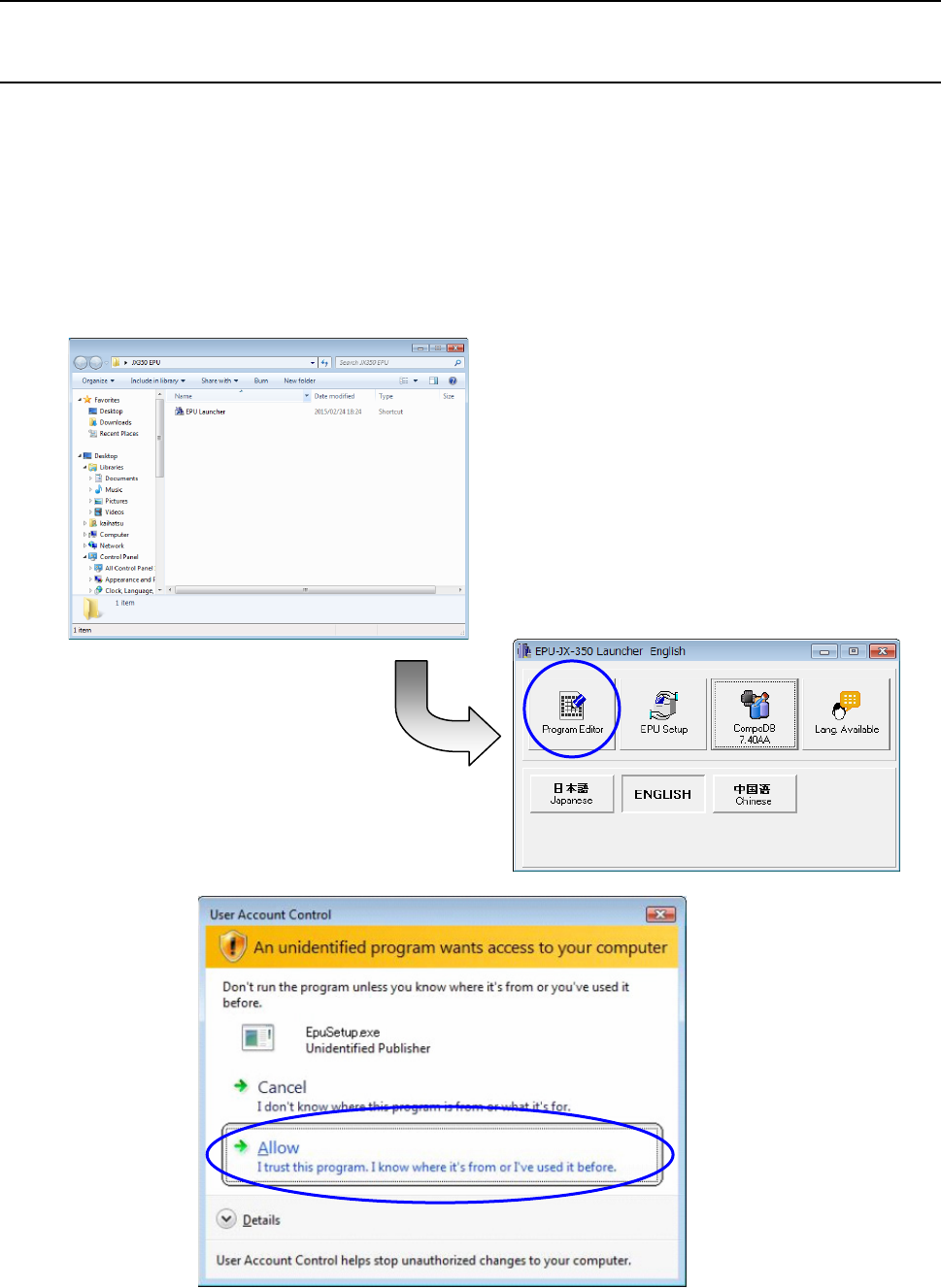
For creating and editing a production program, start the EPU launcher and click “Program
Editing.”
In the case of Windows Vista , 7, or Windows10 “User Account Control” appears when
Program Editing is started. Program Editing can be stared by selecting “Authorize (A).”
When “Cancel” is selected, Program Editing is not started.