JX-350_EPU使用说明书.pdf - 第42页
EPU Instructi on Manual Chapter 3 E PU setup 3- 16 3.7.1 .6 Setti ng the unit cond itions Set the unit conditions of y our station. Be sure t o se t t he it em s displayed on this screen so that they are consistent w it …
EPU Instruction Manual Chapter 3 EPU setup
3-15
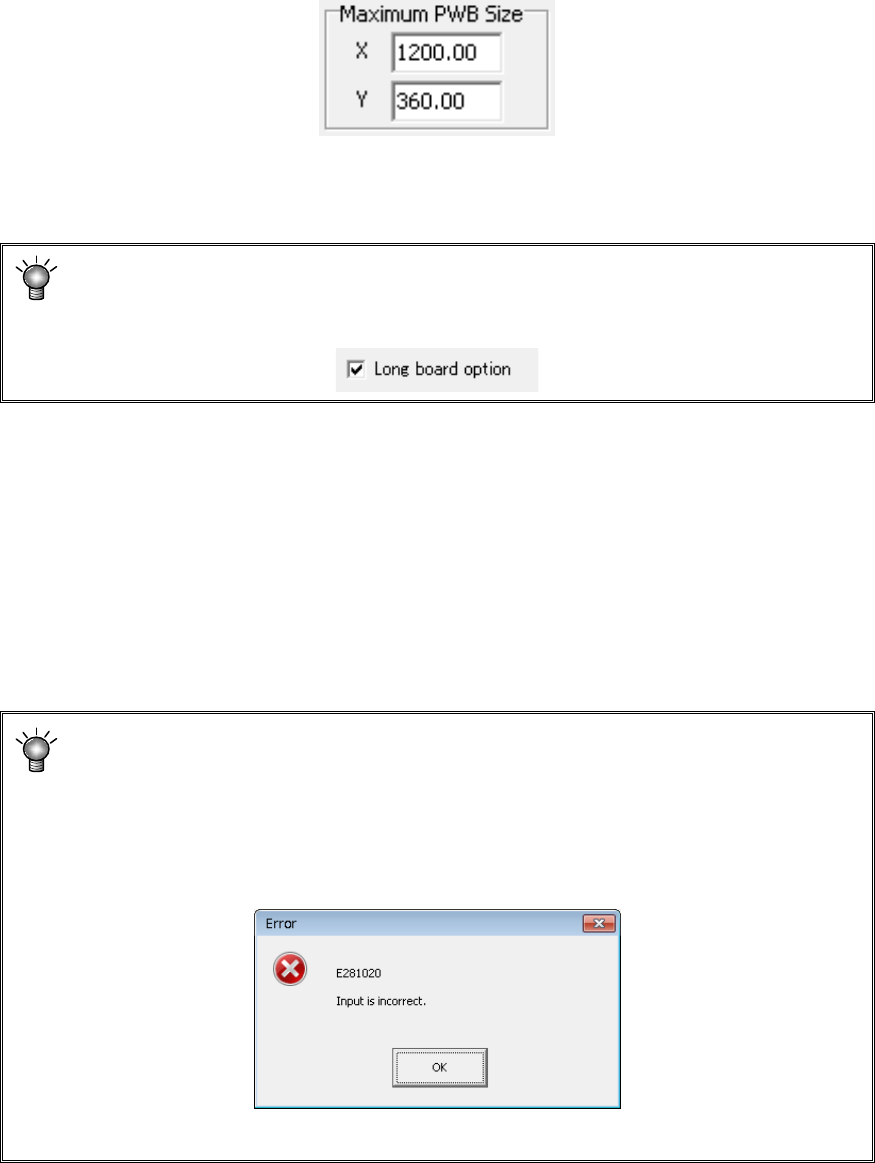
3.7.1.5 Setting the PWB size
The value you specify here becomes the maximum value of the PWB size applied to when
you edit a production program.
When you set a machine type on the “Station Profile” screen, the maximum PWB size
appropriate to the specified model is displayed on the “PWB size” columns.
Maximum PWB size (mm)
Standard :1200.00 x 360.00
Long board option :1500.00 x 360.00
Board size display of long board option
This board size is displayed when checking on the “Long board option” check box
in Option 2 item.
Minimum PWB size (mm)
Common to all of the models
:50.00 x 50.00
Refer to Section 1.6 “Printed circuit board specifications” of the “
JX-350 Instruction Manual”
for details.
To change the settings manually, enter the desired value in the “Maximum PWB Size” text
box on the “Station Profile” screen directly. However, be sure to enter a value that does
not exceed the allowable range.
The PWB size can be set within the above settable range of 1200.00 x 999.99
mm (OP: 1500.00 x 999.99) to 50.00 x 50.00 mm but must not be changed
unnecessarily.
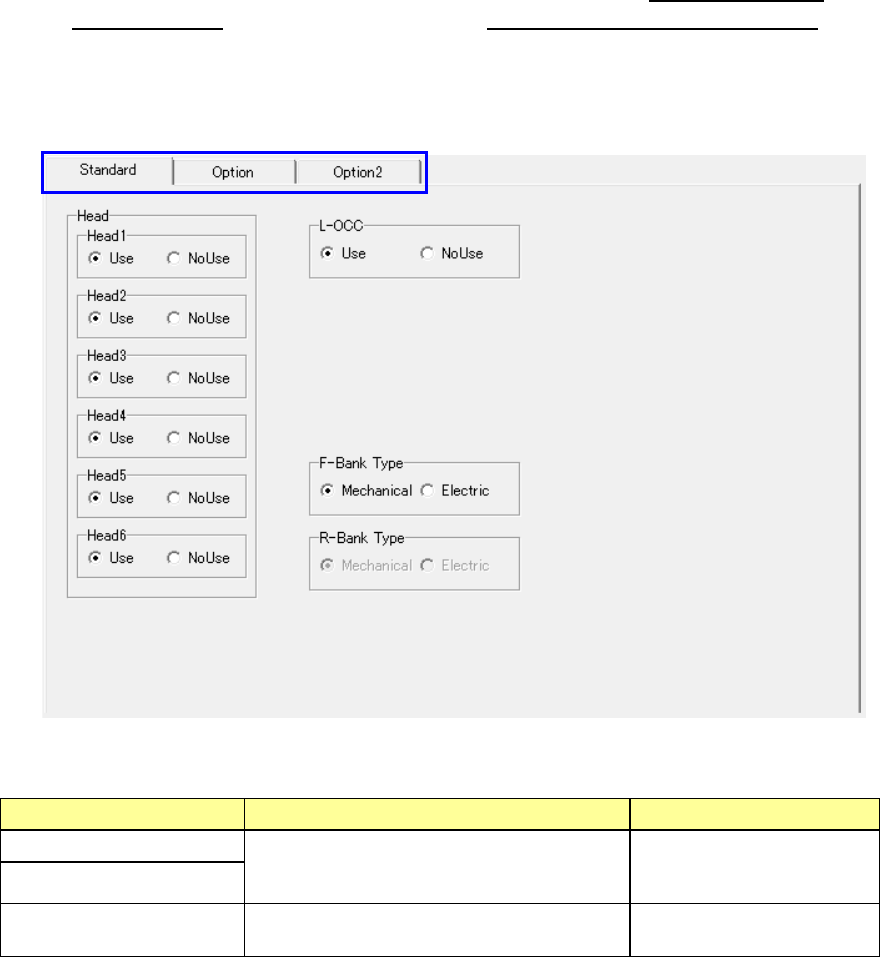
If you accidentally set a value which exceeds the regulated maximum or a value
below the minimum value of the board size, the following error message appears
on the screen when you switch a station to another one or when you click the <OK>
button.
EPU Instruction Manual Chapter 3 EPU setup
3-16
3.7.1.6 Setting the unit conditions
Set the unit conditions of your station.
Be sure to set the items displayed on this screen so that they are consistent with the
settings on the “Device enable” screen invoked from the Machine Setup menu of the main
unit. Refer to Chapter 7 “Machine Setup” of the “Instruction Manual CD.”
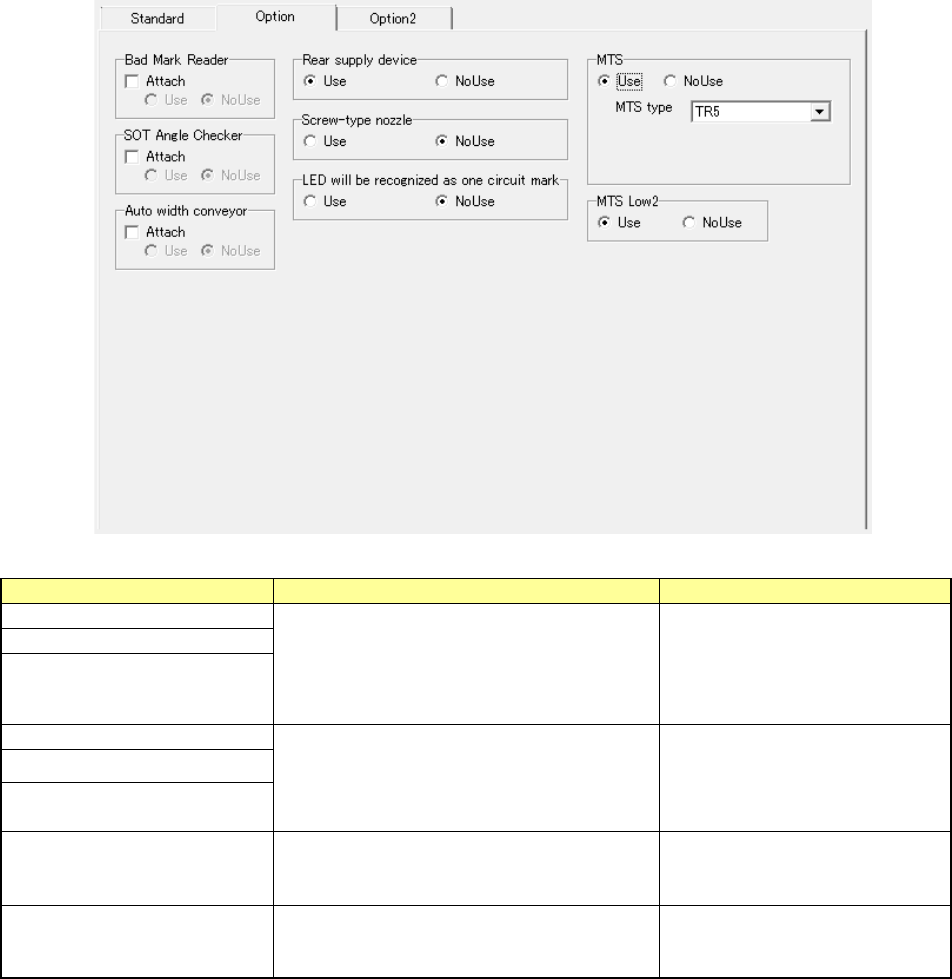
- The setting items to be set are displayed on two screens: “Standard” screen and
“Option” screen. Click the corresponding tab displayed at the left top corner.
Standard items
• Display the units provided as the standard devices.
Setting item Description Remarks
Head 1 to 6
Select whether the unit is to be used or not
with checking either of the radio buttons
“Use” and “NoUse.”
L-OCC
F-Bank Type
R-Bank Type
Select a bank type using either the
“Mechanical” or “Electric” radio button.
* 1 You can change this setting item only when “Rear supply device” is set at “Use.”
EPU Instruction Manual Chapter 3 EPU setup
3-17
Option
• This tab displays the units which can be installed on the station as an option.
Setting item
Description
Remarks
Bad Mark Reader
Check the “Attach” check box if the unit is
attached on the system, and select either of
the radio buttons “Use” and “NoUse.”
When the “Attach” check box is
not checked, the “Use” and
“NoUse” radio buttons are
dimmed, and you cannot make
any settings.
SOT Angle Checker
Auto width conveyor
Rear supply device
Select either of the radio buttons “Use” and
“NoUse.”
“S-VCS” is displayed depending
on the model.
Screw-type nozzle
LED will be recognized as one
circuit mark
MTS (*1) (*2)
Select either of the radio buttons “Use” and
“NoUse.”Only “TR5” can be selected in the
“MTS type” field.
MTS Low2
Select either of the radio buttons “Use” and
“NoUse.”
Only when you use an “MTS,”
this setting item is displayed on
the screen.
* 1 You can change this setting item only when “Rear supply device” is set at “Use.”
* 2 When you select the “Electric” radio button for the setting item “R-Bank Type”
on the
[Standard] tab, each item is displayed in gray and you cannot set any of the items.