JX-350_EPU使用说明书.pdf - 第50页
EPU Instruction M anual C hapter 4 Creating a Production Progr am 4-2 W hen you start up the Progr am Edit module, t he following “ Prog ram Editor ” screen appear s as shown below . - In JX- 350 EPU, the “ Machine Opera…
EPU Instruction Manual Chapter 4 Creating a Production Program
4-1
Chapter 4 Creating a Production Program
4.1 Creating a Production Program
For PWB production, it is necessary to create a production program.
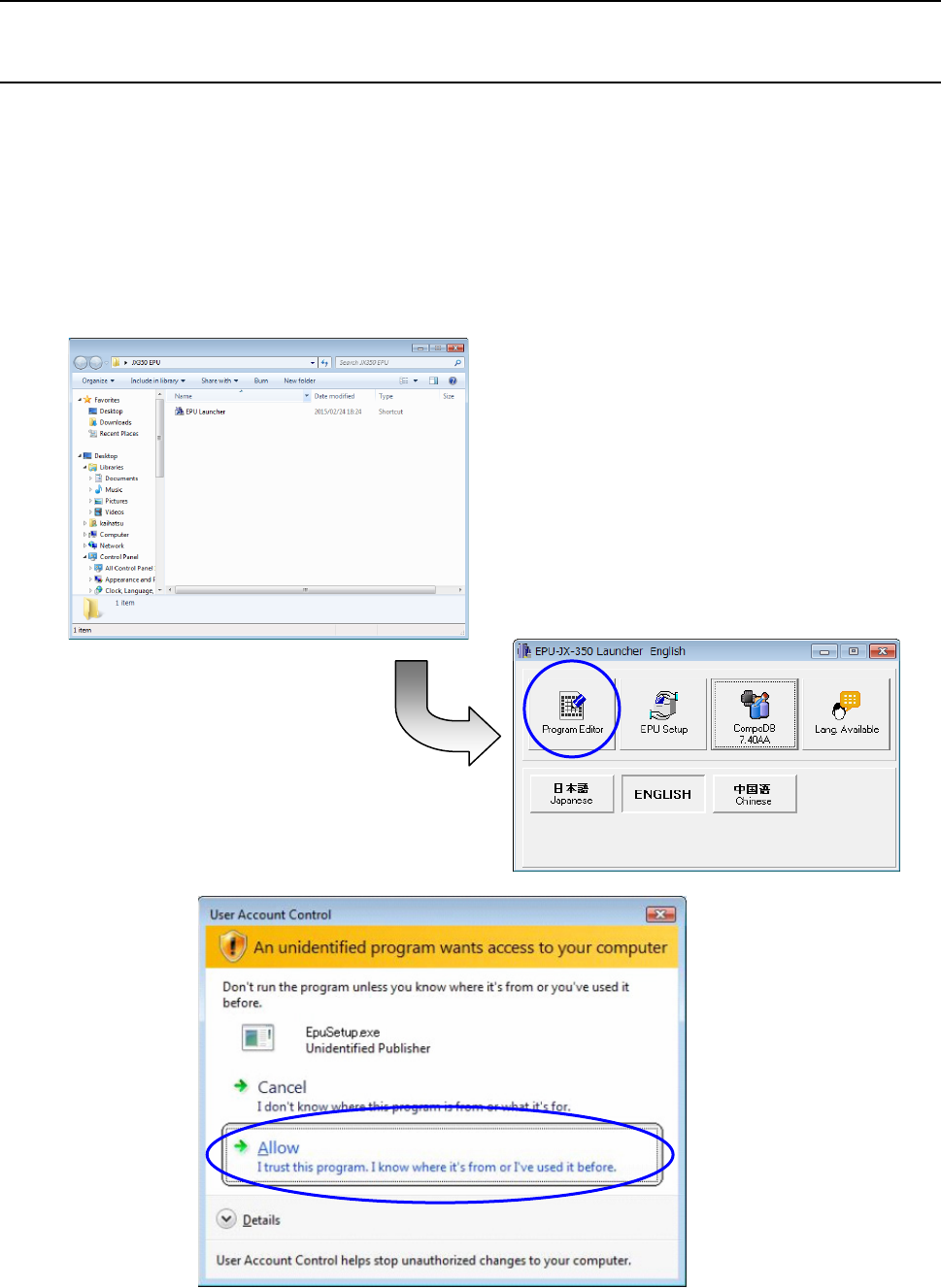
For creating and editing a production program, start the EPU launcher and click “Program
Editing.”
In the case of Windows Vista , 7, or Windows10 “User Account Control” appears when
Program Editing is started. Program Editing can be stared by selecting “Authorize (A).”
When “Cancel” is selected, Program Editing is not started.
EPU Instruction Manual Chapter 4 Creating a Production Program
4-2
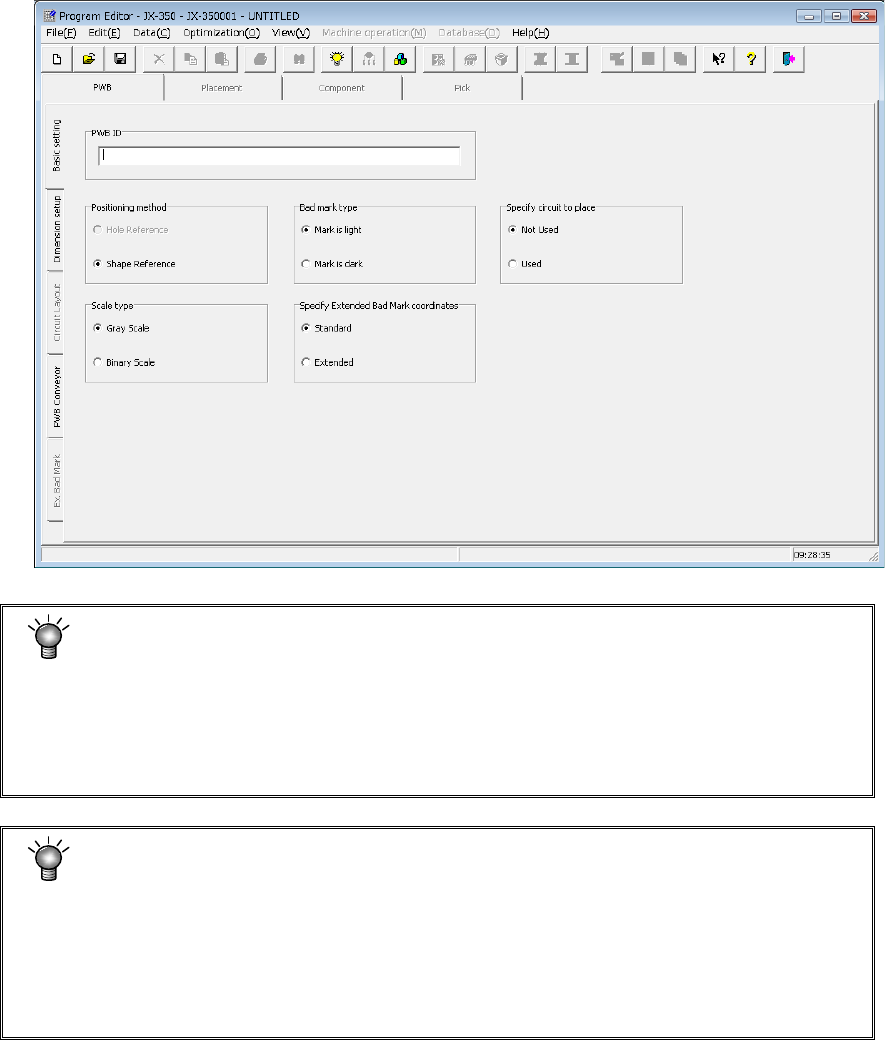
When you start up the Program Edit module, the following “Program Editor” screen appears
as shown below.
- In JX-350 EPU, the “Machine Operation (M)” function cannot be selected.
- In JX-350 EPU, a multiple start (2 programs) of Program Editing can be
performed. In an environment having few system resources, this multiple
start cannot be performed.
- The size of the production program can be increased by optimization.
Have it in mind when saving the production program into a FD or the like.
- In EPU, data cannot be obtained by teaching. The data of a part of the
program can be obtained by teaching. Some data can be obtained only by
teaching. Therefore, there are portions in this instruction manual where a
data obtaining method by teaching is explained or described.
However, since data is created out of the equipment in the case of EPU,
data cannot be obtained by teaching. For the data requiring teaching,
perform teaching in the equipment proper.
CAUTION
CAUTION
EPU Instruction Manual Chapter 4 Creating a Production Program
4-3
4.1.1 Procedure for creating a production program
Create a program in the order of PWB → Placement → Component → Pick
You can enter only alphanumeric characters from a keyboard.
Type of data Description
PWB This covers overall PWB data such as PWB outer dimensions and the coordinates of Board
Offset Correction (BOC) mark position.
Placement This covers coordinates of the placement position, component names to be placed and others.
Component The data including component dimensions and packaging style required for laser centering is
handled.
Pick This covers the data on positions of components supplied by a tape feeder, stick feeder etc.
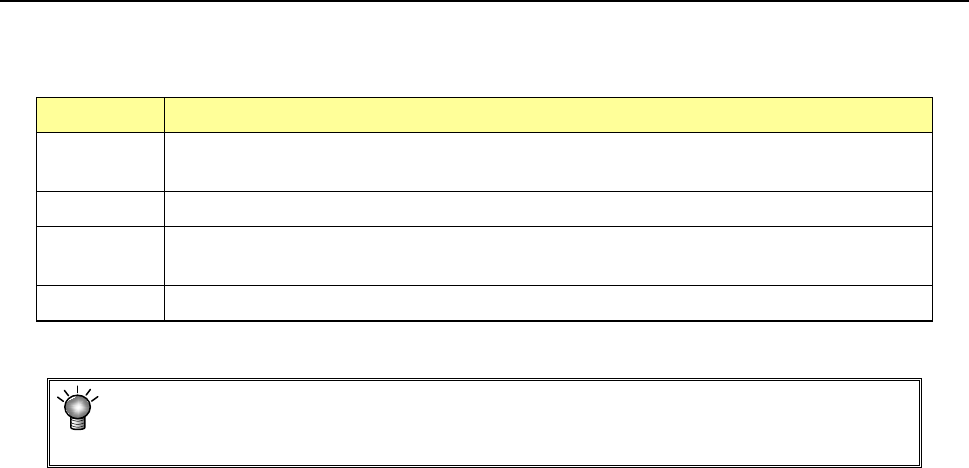
You cannot open the next data screen until you completely create the data you are
supposed to create first: for example, you cannot open the “Placement” data screen
if you have not created “PWB data” completely.