JX-350_EPU使用说明书.pdf - 第13页
EPU Instructi on Manual Chapter 2 Inst allation 2-7 2.2 Inst alling t he Sof tware Use the installer and f ollow the instructions display ed on the screen to inst all EPU on your mounter . T o abort inst allation, click …
EPU Instruction Manual Chapter 2 Installation
2-6
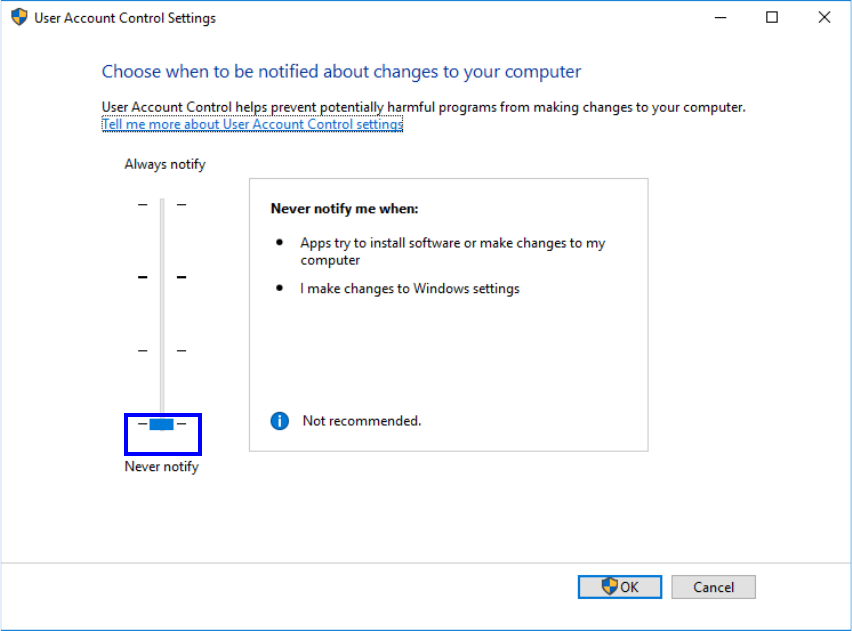
② A dialog box appears. Move down the knob of the slider to the bottom and click “OK”.
③ A message, “Restart this computer to turn off User Account Control”, will appear. Restart the
computer.
④ After restarting the computer, install the necessary software following “Installing the Software” in
the next section.
⑤ After all the software has been installed, turn on the “User Account Control (UAC)” again.
(3) Installation of Net Framework 3.5
When installing on Windows 10, it is necessary to install .Net Framework 3.5 in advance
before running the installer.
Please refer to the information on Microsoft listed in the following URL and install it.
https://msdn.microsoft.com/en-us/library/hh506443(v=vs.110).aspx
EPU Instruction Manual Chapter 2 Installation
2-7
2.2 Installing the Software
Use the installer and follow the instructions displayed on the screen to install EPU on your
mounter.
To abort installation, click the <Cancel> button.
2.2.1 Starting up the installer
① Insert the EPU installation CD provided with the machine in CD-ROM drive.
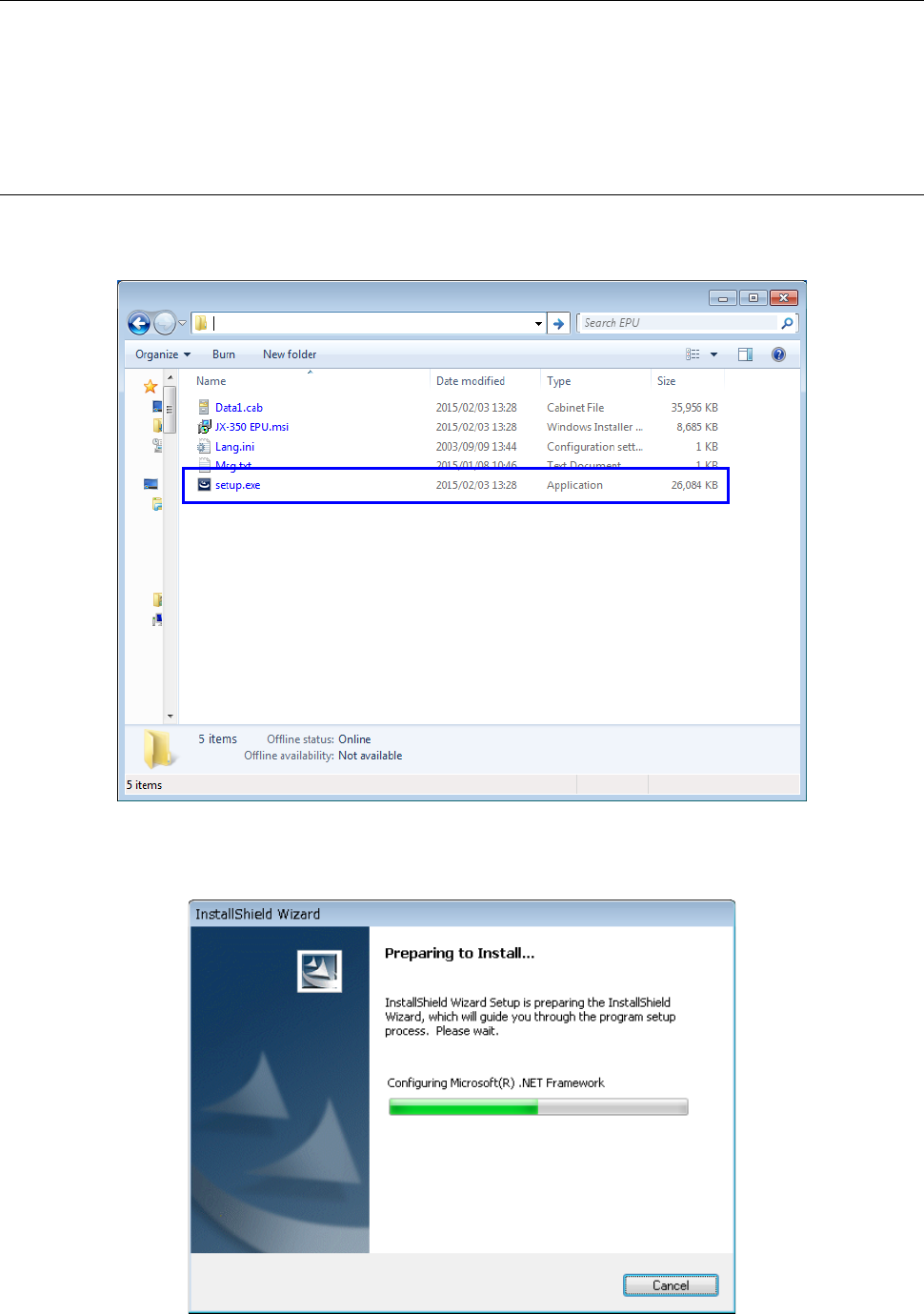
② Start "Setup.exe" in D:\ EPU_(Ver________) in installation CD.
③ The installation of "Microsoft .Net Framework 2.0" starts.
* The installation is skipped when it has already been installed.
EPU Instruction Manual Chapter 2 Installation
2-8
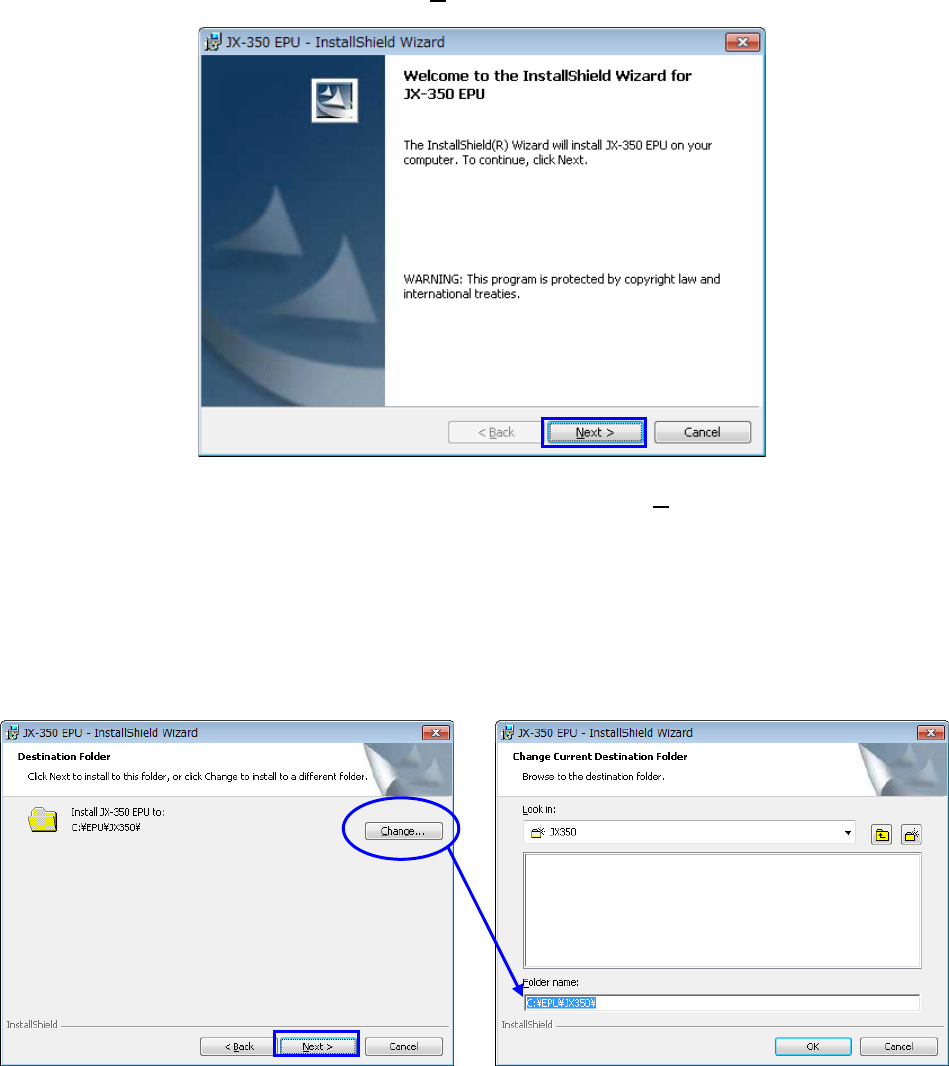
④ Next, the installer of "JX-350 EPU" starts.
Confirm the message, and click the [ Next> ] button.
⑤ Specify the folder where the EPU is installed, and click the [ Next >] button.
- The displayed path is the default folder used when EPU is installed.
The folder you set here as the destination for installing the EPU will become the
working directory of the EPU program also.
- When you use Windows Vista / Windows 7 / Windows10, you do not specify a folder
under C:\Program Files or C:\Windows for the installation destination folder. Create
a folder as shown in the example below and install EPU.