JX-350_EPU使用说明书.pdf - 第160页
EPU Instruction M anual C hapter 4 Creating a Production Progr am 4- 112 2) Feeder movement/ copy Afte r selecting a f eeder t o be moved, drag it to the destinat ion and release it (by releasing the but ton). A At this …
EPU Instruction Manual Chapter 4 Creating a Production Program
4-111
(2) Editing data on the “Feeder layout” window
You can edit the feeder layout with a mouse on the “Feeder layout” window.
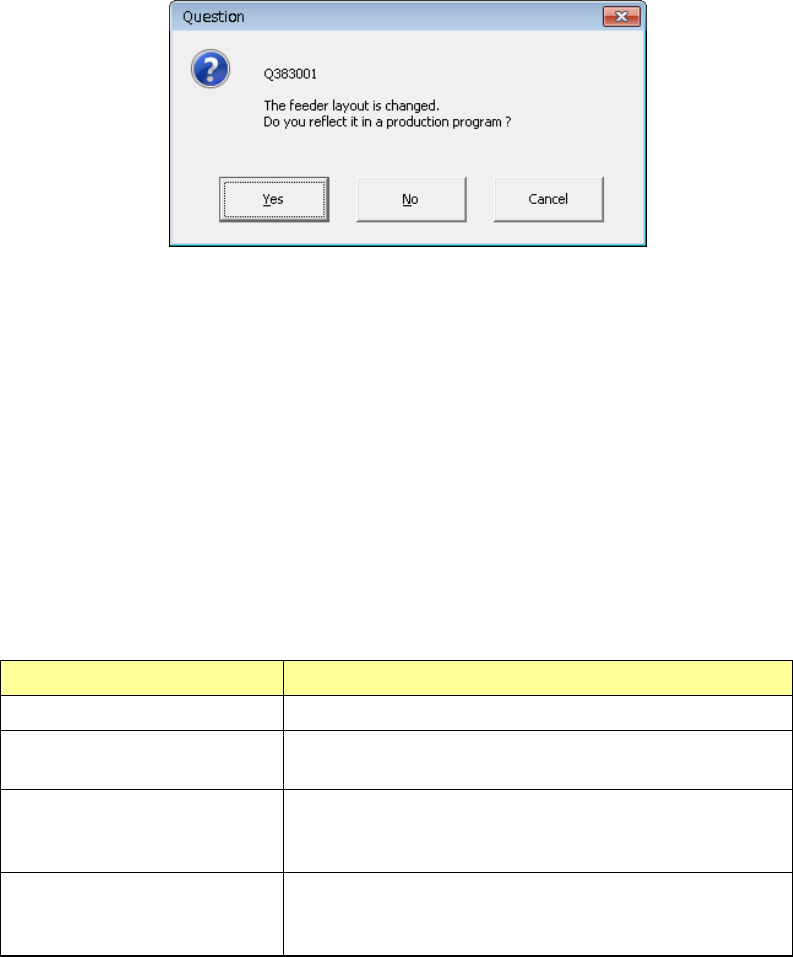
After editing the feeder layout and closing the “Feeder layout” window, the following
message appears on the screen that asks you whether to incorporate your editing to
the program.
•
Yes: Incorporates your change(s) into the program data, and quits the
“Optimization” screen. The Pick data is changed according to your
editing.
•
No: Quits the “Optimization” screen without saving your change(s).
•
Cancel: Returns to the screen that allows you to select a feeder layout.
1) Selecting a feeder
Before moving, coping or deleting a feeder, select the feeder whose layout you
want to edit. The selected feeder appears in the way that you can distinguish it
from others clearly. The system provides you with the following ways for
selecting a feeder.
Operation Result
Click a feeder. The clicked feeder is selected.
Drag a mouse to surround a
feeder.
Feeders in the rectangle that is created with your drag
operation are selected.
Point a feeder with holding
down the “CTRL” key.
If any feeder is already selected, the selected feeder(s) and
feeders pointed while you are holding down the “CTRL” key
are all selected.
Point a feeder with holding
down the “SHIFT” key.
Feeders located between the feeder you selected for the
first time and feeders pointed while holding down the
“SHIFT” key are all selected
EPU Instruction Manual Chapter 4 Creating a Production Program
4-112
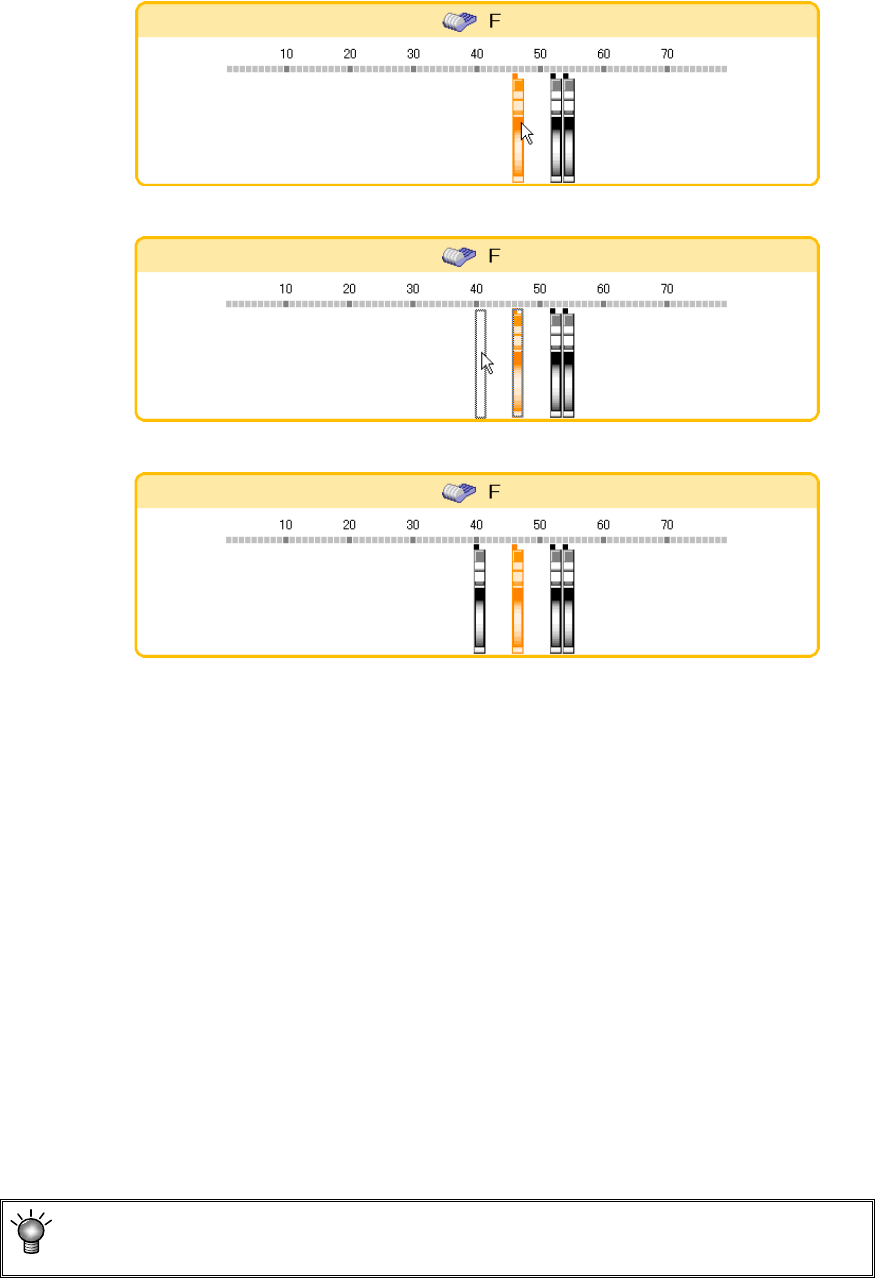
2) Feeder movement/copy
After selecting a feeder to be moved, drag it to the destination and release it (by
releasing the button).
A At this time, check off the [Copy] button. Then, the selected feeder is copied.
Click a feeder
Drag a feeder
Drop a feeder
3) Feeder deletion
In the feeder selection status, press the [Delete] button to delete the feeder.
4) Stick component duplication
When there is no stick in the duplicating destination, a stick feeder of the same
type is newly assigned. Components are assigned to lane 1. The stick feeder
is mounted at the position closest to the duplicating destination in which an
assignment area can be secured. Duplication can be performed between stick
feeders of the same type.
5) Stick changer component duplication
When there is no stick changer in the duplicating destination, a stick changer of
the same type is newly assigned. Components are assigned to lane 1. The
stick changer is mounted at the position closest to the duplicating destination in
which an assignment area can be secured.
When the rear feeder option in the “EPU setup” menu is disabled, the movement from
the front to the rear and copy cannot be performed.
EPU Instruction Manual Chapter 4 Creating a Production Program
4-113
6) Display head image
When you check off the [Head image] button of the operating button, a head
image is displayed according to the mouse cursor. In the head image display
mode, the space between heads is displayed as an image. Bring the mouse
cursor to the bank image. Then, the head image displays the feeders having a
possibility of simultaneous pick-up in orange. If the feeders are arranged
according to the head space, simultaneous pick-up can be performed as
specified.
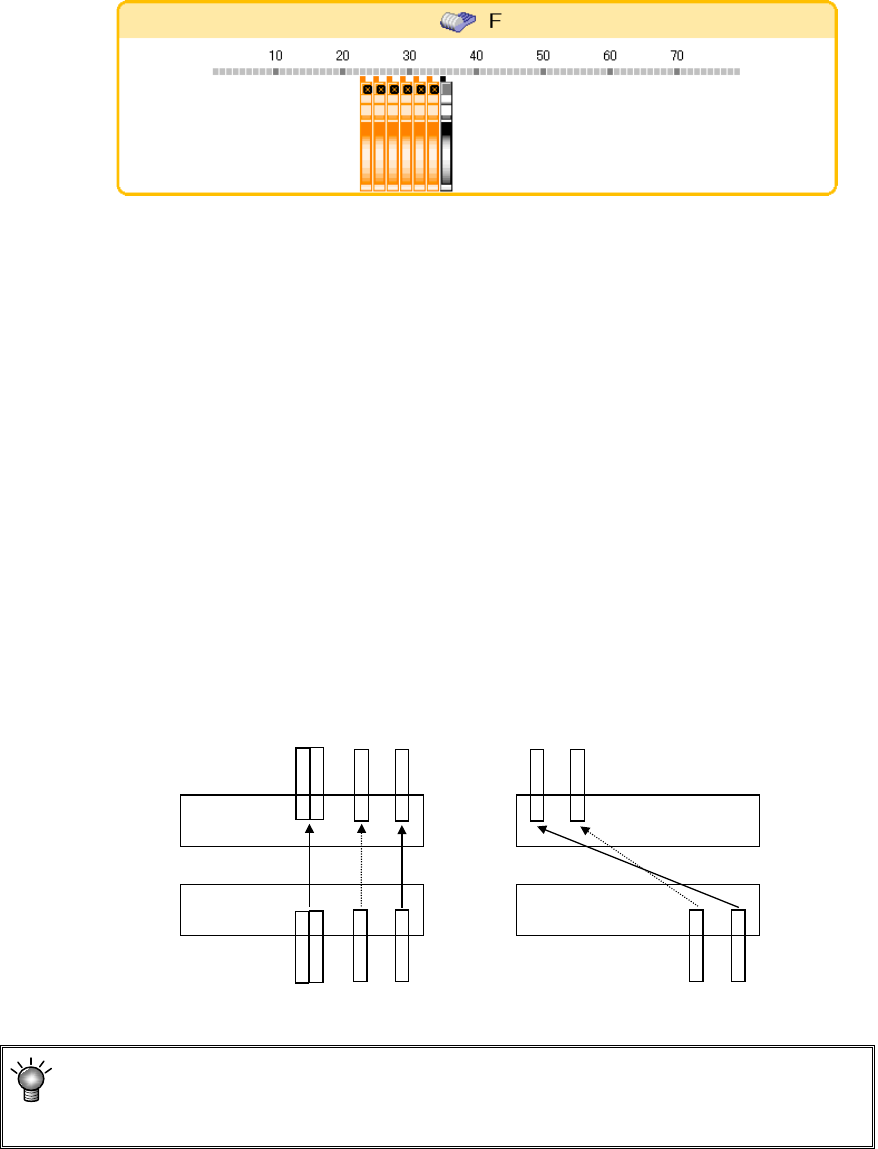
7) Movement/copy by axial symmetry or dot symmetry
Drag the feeder. In the reverse video status, press the [Axial symmetry] or [Dot
symmetry] to move the feeder.
In the status where the [Copy] button is checked off, copying is performed.
When you select the feeder on the front side, it is moved or copied to the rear
side. When you select the feeder on the rear side, it is moved or copied to the
front side. (Copy components cannot be copied.)
If components are already assigned to the copy destination, copying is not
performed.
• Copying by axial symmetry
The feeder is moved or copied to the position opposite to the hole number of
the front/rear side.
• Copying by dot symmetry
The feeder is moved or copied to the symmetrical hole position so that
front/rear overall change may be mutually used.
①
線対称でコピーした場合
F-79
F-75
R-79
R-75
点対称でコピーした場合
F-79
F-75
R
-5
R-1
F-71
F-71
①
②
②
When the rear feeder option in the “EPU setup” menu is disabled, copying by axial
symmetry and copying by dot symmetry cannot be performed.
(The buttons cannot be selected.)
When a feeder is copied to the
position symmetrical to a point
When a feeder is copied to the
position symmetrical to a line