JX-350_EPU使用说明书.pdf - 第193页
EPU Instruction M anual C hapter 4 Creating a Production Progr am 4- 145 4.4.2 Parts no. set up 4.4.2.1 Ove rvi ew Enter the number of components f or contr olling the number of the r emaining components on this screen. …
EPU Instruction Manual Chapter 4 Creating a Production Program
4-144
No.
Menu item
Description
1 Feeder Position
Shows the component supply position.
When a stick feeder or an 8-mm electric double tape feeder is used, its lane
number is shown in parentheses.
2
Comp. Name
Displays the name of a component.
3
To t al picked (A)
“Cmp. picked” + “Pick Error”
4
Cmp. picked (B)
Displays the number of components that were picked up successfully.
5
Cmp.placed (C)
Displays the number of components that were placed on boards successfully.
6
Pick Error
Displays how many times the system failed to pick up a component.
7 Pick-up (B/A)
Displays the ratio of successful pick-ups.
“Pick-up” = “Cmp. picked” / (Cmp. picked” + “Pick Error”)
8 Recog. (C/B)
Displays the recognition ratio of components that were picked up
successfully.
“Recog.” = “Cmp. placed” / “Cmp. picked”
• Updating the data
♦ During PWB production (while the system is producing a PWB):
Any data is not updated during PWB production. When you press a button, or
when you display the screen again, data is updated.
♦ While PWB production is suspended:
Data is automatically updated.
(4) Managing the production management information
① <Clear> button
To clear the production management information, select the <Clear> button in the
“View” column.
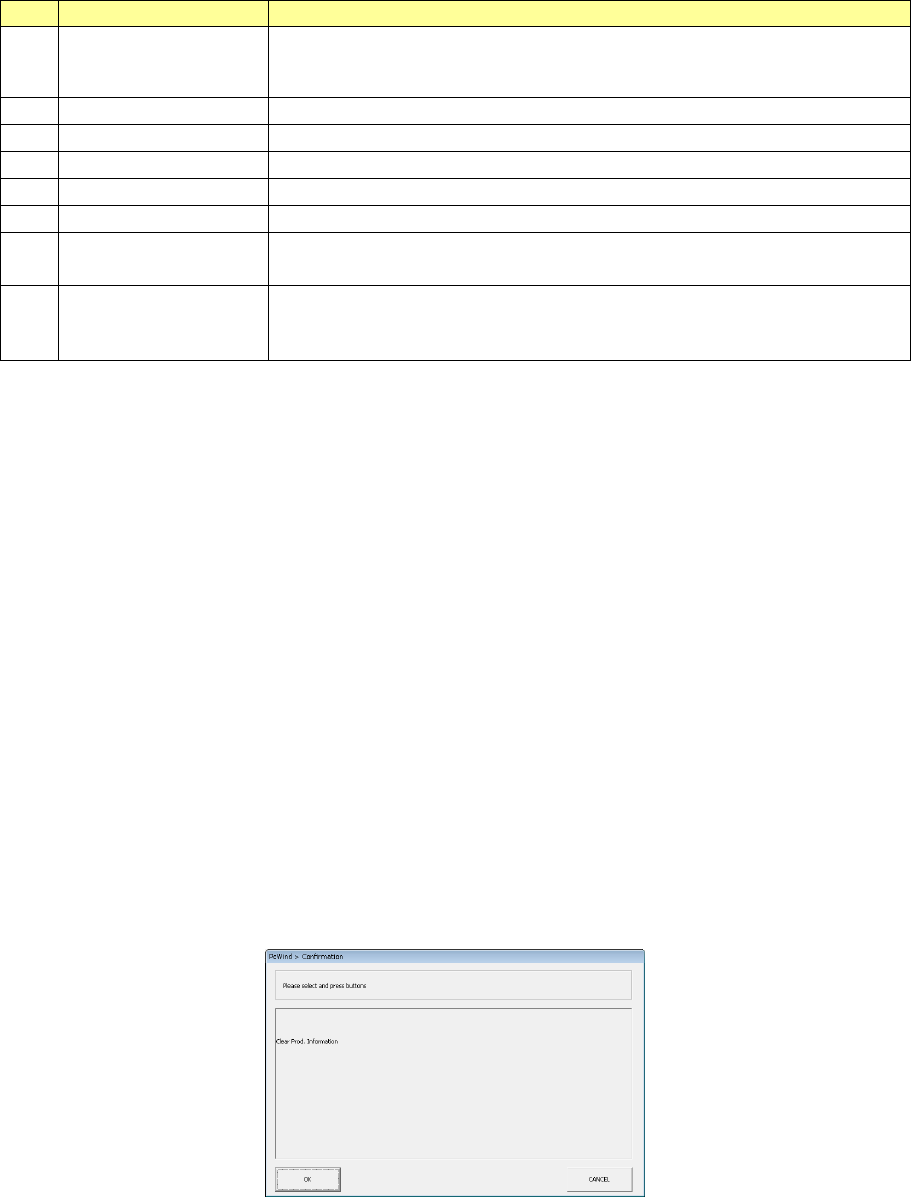
The “Asking message” that asks you whether to clear the production conditions
appears on the screen.
When you press the <OK> button, the system clears the production management
information.
When you press the <CANCEL> button, the system does not clear the production
management information.
② Saving the production management information
When you execute the [Save] command or the [Save as] command on the “File”
menu after PWB production, you can save the production management information
in a file.
When you save a production program in response to the production-quit message
displayed after PWB production, you can the production management information
also.
EPU Instruction Manual Chapter 4 Creating a Production Program
4-145
4.4.2 Parts no. setup
4.4.2.1 Overview
Enter the number of components for controlling the number of the remaining components
on this screen. If you do not enter any value, “0” is set to a feeder.
In this case, the system does not control the number of the remaining components
located on the feeder.
After setting components on a component supply unit (feeder) specified on the “Pick” data
screen, set the number of components to the main unit.
If a pick-up retry over error occurs at a feeder, the system judges that components run
out at the feeder and skips the corresponding pick-up operation to continue the current
production.
In order to continue the current PWB production with using the feeder on which
components run out again, you have to clear the error after adjusting the feeder so that
the machine can pick up a component from it. Perform this error clear operation on this
“Parts no. setup” screen also.
4.4.2.2 Displayed screen
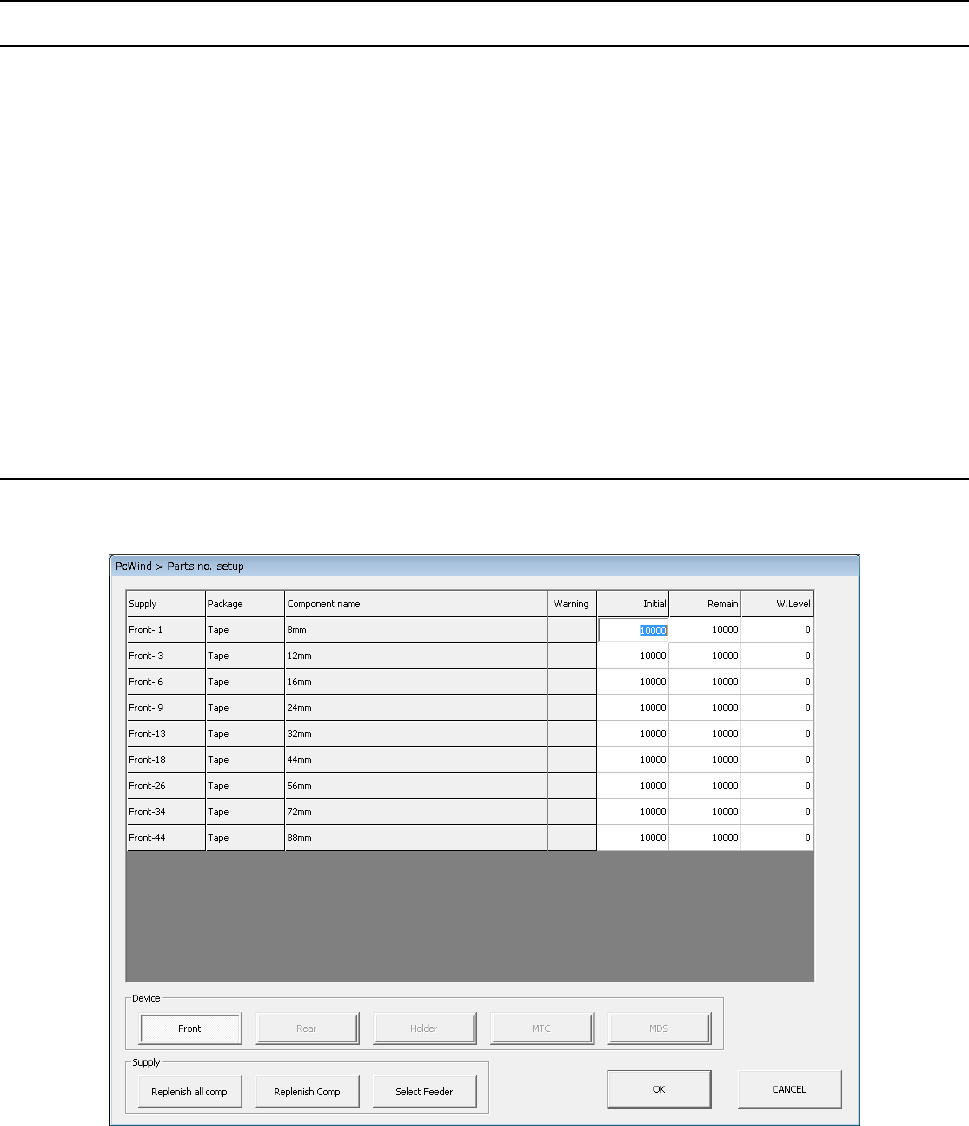
When you click the [Data]/[Parts no. setup] commands from the menu bar, the “Parts no.
setup” screen appears.
EPU Instruction Manual Chapter 4 Creating a Production Program
4-146
(1) List of the menu items
The menu items of the number of components on each component supply unit are
shown here.
1) Items displayed when the [Parts no. setup] command is called
No. Item Description
1 Feeder Shows where to supply with components.
When a stick feeder is selected as a component supply unit, the lane number is
shown in parentheses.
2 Package Shows the packaging style of a component (such as tape, stick and bulk)
3 Component name Shows the component name.
4 Warning
Shows the component supply error.
*: Indicates that the number of remaining components becomes less than
the number specified at “W.Level.”
E: Indicates that a component pick-up retry over error occurs, and the
system stops picking up a component.
To recover the system from an error: Enter the number of the remaining
components or replenish the feeder with components fully.
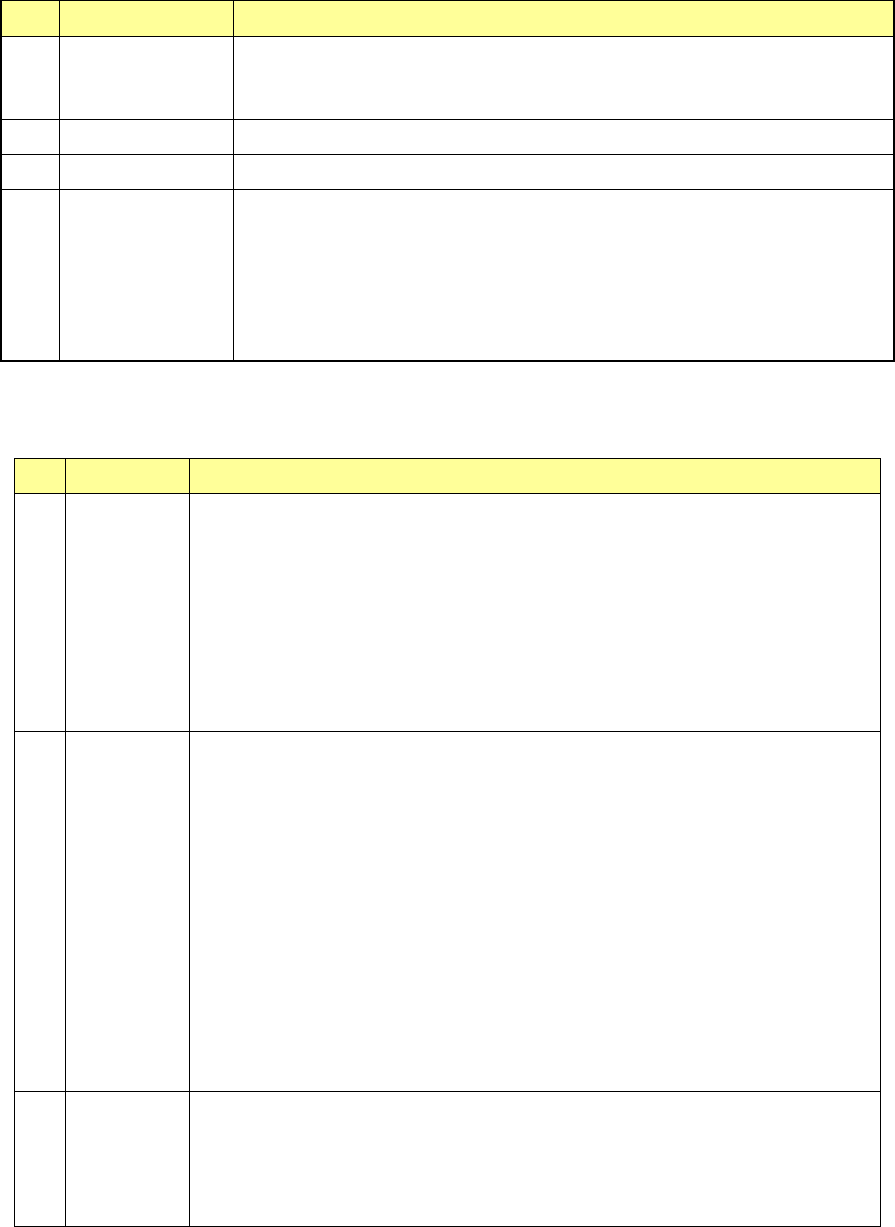
2) Items to be set
No. Item Description
1 Initial
Enter the number of components supplied in the package specified with “Package”
before the system starts using it. When you enter or change the initial value, the
changed value is copied to the field of the item “Remain.”
When you enter the initial value, the corresponding value is set in the “Remain”
field.
- When you set “0”as this “Initial” value for a feeder, the system does not control
the number of the remaining components by subtracting the number of used
components from this value and continues producing PWBs until a retry over
error occurs at the feeder. Otherwise, the value you set here is entered to the
field of the item “Remain” when you click the <Replenish Comp.> button.
2 Remain
- Shows the number of remaining components when the system checks the
number of components. This value decrements every time the system picks up
a component during production.
- When “0” is set to “Initial,” the value shown here does not decrement.
- If you change the value of “Initial,” the value shown here is changed in the same
manner. You can also change this value only according to components to be
supplied.
- When a tape feeder, stick feeder or bulk feeder is used as a component supply
unit, the system stops subtracting the number of used components from the
“Initial” value if this value reaches “0,” but continues producing PWBs.
When “0” is set in this “Remain” field, the system does not stop producing PWBs
either. In these cases, the feeder continues placing components on boards
until a retry over error occurs.
- The number of the remaining components becomes a smaller number than the
value set in the “Level” field, the signal light warns an operator.
3 W.Level
Sets the warning level.
When the number of remaining components becomes less than the value
displayed here, the signal tower warns you by flashing its yellow lamp.
If “0” is set to “Initial,” this function does not operate.
When you enter a value to “Initial,” this value is initialized.